Two settings turn one survey into a smart conversation. The first shows a question only to the people whose earlier answer matches. The second saves every answer the moment it is given, so you keep what people told you even if they never press the final button.
Where to find it:
- Only show this question if is on every question row after the first, on the Questions step of the builder.
- Save every answer as it is given is on the Opt-ins & Routing step, under Save answers as they go.
Only show a question if an earlier answer matches:
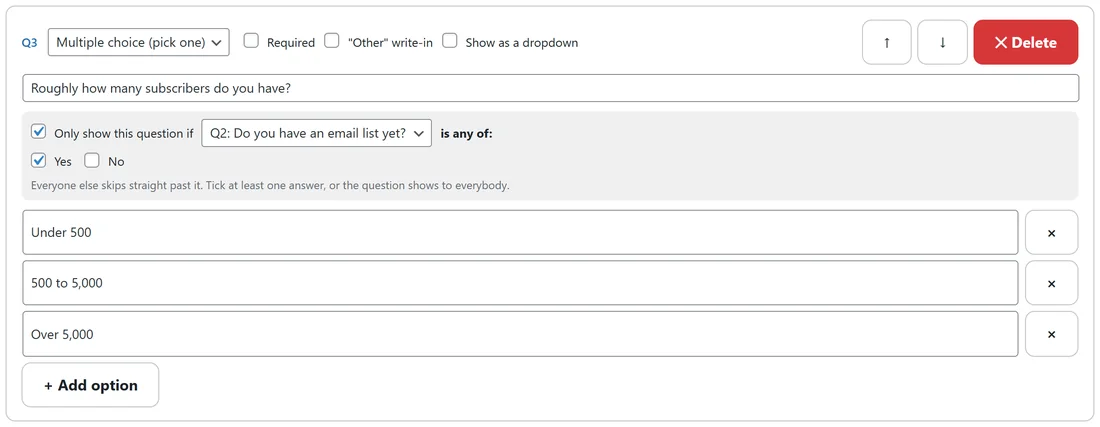
- On the Questions step, find the question that should only show to some people.
- Tick Only show this question if.
- In the dropdown, pick the earlier question it depends on.
- Under "is any of:", tick the answers that should lead to this question.
- Save. Everybody else skips straight past it.
The rule can point at any earlier multiple choice, checkbox, yes or no, star rating or 0 to 10 question. Tick several answers and any one of them opens the question. If you tick the box but no answers, the question shows to everybody, and the hint under the box says so.
How the paths behave for visitors:
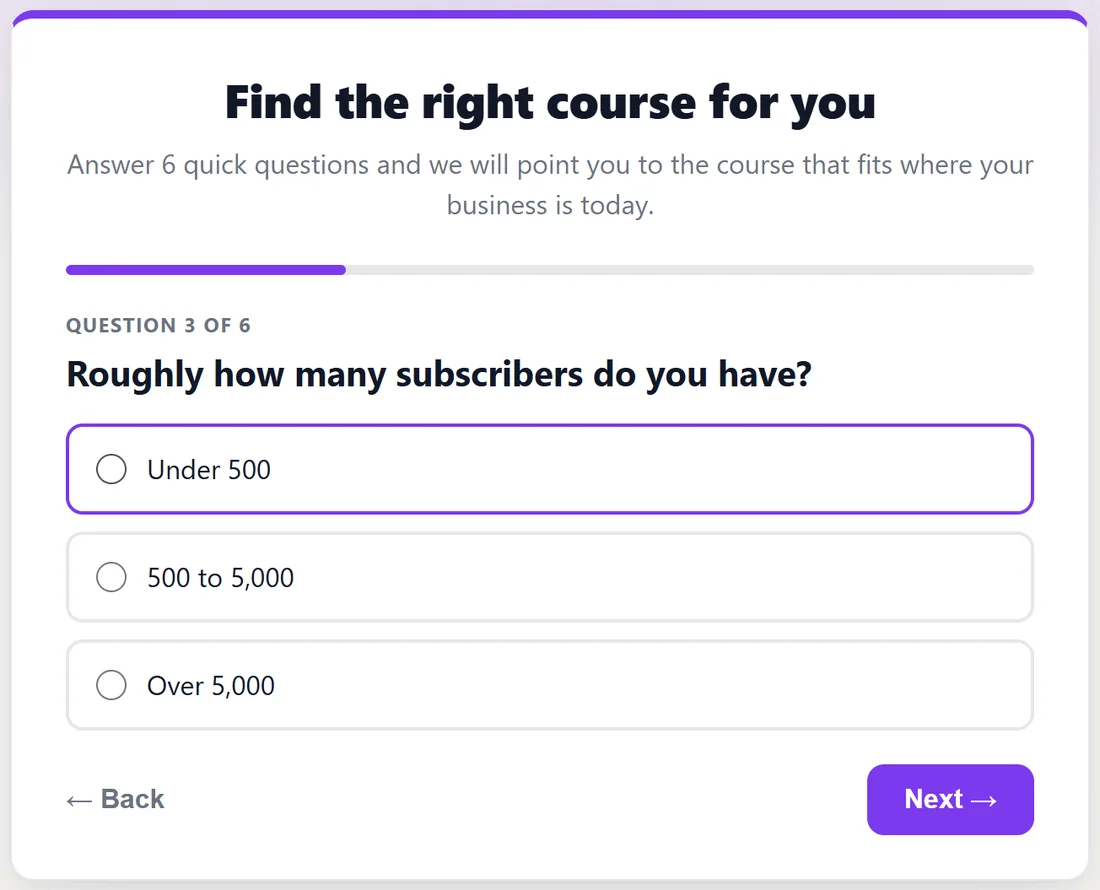
- Rules chain. A question hidden from somebody also hides every question that depends on it.
- The "Question 2 of 6" counter and the progress bar follow each person's own path, so the count only ever shrinks as the path narrows.
- The last question on a person's path carries the final button, so nobody sees an empty step.
- If someone goes Back and changes an earlier answer, answers to questions that no longer apply to them are dropped when the survey is saved, never stored.
- The same rules run again on your server when answers arrive, so an answer to a question somebody was never shown cannot be stored.
Moving questions keeps the rules:
Each rule points at a question, not at a position, so reordering keeps it pointing at the same question. A rule that ends up pointing at a later question, or at a question you deleted, is cleared when you save, so a question can never be hidden from everybody by mistake.
Save answers as they go:
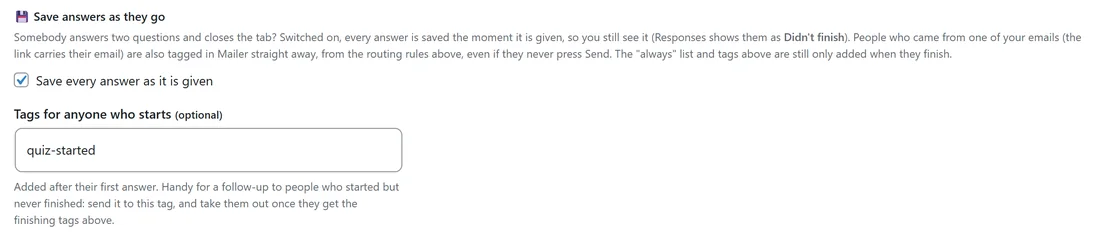
Switch this on and every answer is saved the moment it is given, not only when somebody presses the final button.
- Open the Opt-ins & Routing step.
- Under Save answers as they go, tick Save every answer as it is given.
- Optional, with ResultsAiX Mailer on the same site: fill in Tags for anyone who starts, for example survey-started.
- Save.
What changes when it is on:

- Somebody who answers two questions and closes the tab still appears on the Responses tab, with a Didn't finish, answered 2 of 6 label and the answers they gave.
- The Responses tab gains a Didn't finish card and a Finished or not filter, and the CSV export has a Finished column with Yes or No.
- If they come back in the same browser tab and finish, the same response is completed. They never appear twice.
- People who arrived from one of your emails, where the survey link carries their email address, are tagged in ResultsAiX Mailer as they answer, from your routing rules, even if they never press the final button.
- Tags for anyone who starts are added after the first answer. Pair them with your finishing tags to follow up only the people who started and stopped.
What still waits for the final button:
Your always-on list and tags, the new response email to you, a membership level, the webhook and your connected email service all wait for the final button, exactly as before. Your response totals and charts count finished responses only; unfinished ones are counted separately.
It is off unless you switch it on, so existing surveys keep working exactly as they did.
No limits on real people:
There is no cap on how many responses come in, or how many come from one address. A big email send can bring hundreds of answers in an hour from an office or a school on one connection, and every one of them is taken. Bots are kept out by a hidden trap field and a minimum time before sending. See Appearance, Notifications, Spam Protection And Privacy.
A real example:
The Yoursite Academy course finder quiz asks "Do you have an email list yet?" second. The third question, "Roughly how many subscribers do you have?", has Only show this question if Q2 is Yes, so people without a list skip straight to what they sell. Save every answer as it is given is on, with quiz-started as the starting tag. When someone from the newsletter answers two questions and leaves, they are still on the Responses tab as Didn't finish, and Mailer already has them tagged quiz-started, so a gentle reminder email can go to them.
Plan your paths before you build:
- Write the one question that splits your audience, usually a yes or no or a short multiple choice. Put it first or second.
- List the questions each group needs, and the questions everyone needs.
- Put the shared questions first, then each group's questions, then the shared written question last.
- Add Only show this question if to each group's questions, pointing at the splitting question.
- Preview the survey once for each answer to the splitting question and count the questions each path shows.
A second example, one feedback survey for two audiences:
A business that sells to both customers and free subscribers asks first "Have you bought a course from us?". Two questions about the course itself, a star rating and "What would make the course better?", have Only show this question if Q1 is Yes. One question, "What stops you from buying right now?", has Only show this question if Q1 is No. The recommend score and the final open question are shown to everyone. Buyers see five questions and subscribers four, and the counter and progress bar show each of them their own total.
Tips:
- Put the question that matters most first. With saving on, the first answer is the one you always get.
- Use a yes or no question to split paths. It is the clearest rule to read later.
- Next, route each path to its own list and page. See Sending Survey Opt-Ins To ResultsAiX Mailer.