Asking your own subscribers for feedback should not make them type the email address you already have. Once a survey has its own page, it gets a ready-made email link that carries each subscriber's email and first name, so they just answer the questions.
Where to find it:


- On the builder's Publish & Share step, under Send it by email, with a Copy button. It appears once the survey has its own published page.
- On the Surveys tab, every survey with a page has a Copy email link button.
See Preview, Its Own Page, Embed Anywhere And PDF Reports for making the page.
What the link looks like:
It is the page address with two merge tags added. https://yoursite.com/customer-feedback/?email={{email}}&fname={{first_name}}
Step by step:
- Open the survey and go to Publish & Share. If there is no page yet, click Create page.
- Under Send it by email, click Copy.
- In ResultsAiX Mailer, write your email and paste the link on a button or on a few words of text, such as "Answer 6 quick questions".
- Send the email as usual.
Mailer fills in each subscriber's own email and first name when it sends, so every link is personal.
What the subscriber experiences:
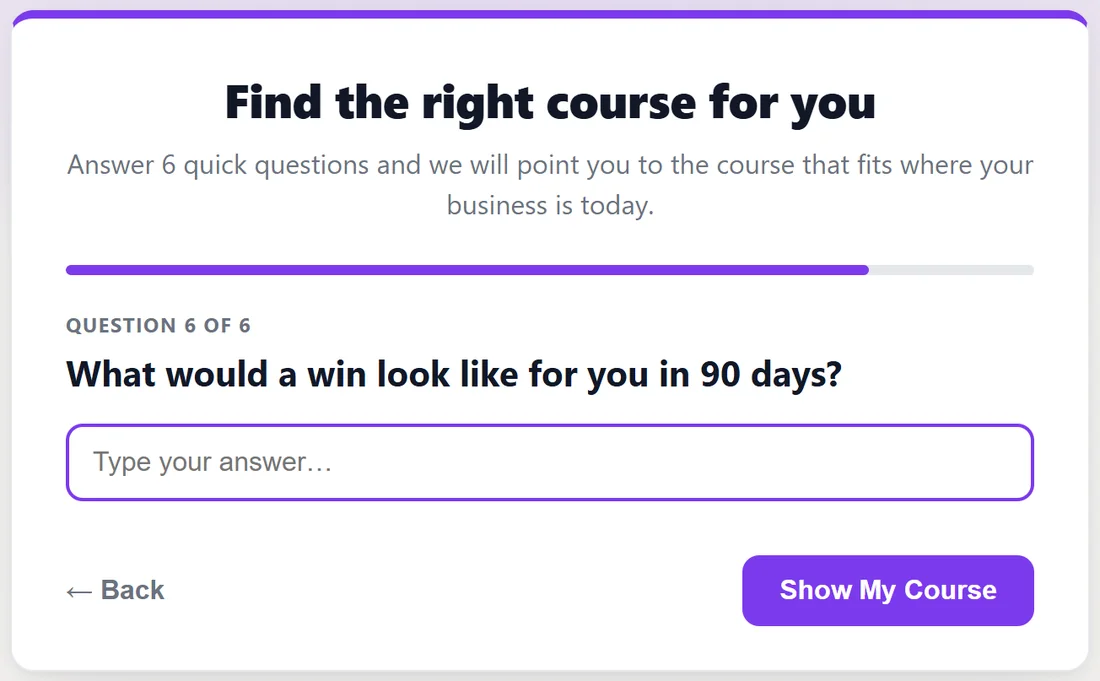
- They tap the link and land on the survey's page.
- They answer the questions one at a time.
- There is no Name and Email step at all. The last question's button sends everything, labelled with your Button text.
- Their thank-you message or routed page appears as usual.
Where their answers go:
- On the Responses tab, the response shows their name and email with an Opt-in badge and, when they are a Mailer subscriber, an In Mailer badge.
- In ResultsAiX Mailer, their answers are added to their subscriber record as custom fields, and any lists and tags from your routing rules are added to them.
- With Save every answer as it is given switched on, they are tagged by your rules as they answer, even if they stop before the end. See Different Questions For Different People, And Saving Answers As They Go.
Tags without lists suit email surveys:
Routing rules can tag people without adding them to a list. Your subscribers are already on your list, so a rule such as "if Q5 is No, tag needs-help" simply tags them by their answer, ready for a follow up sequence.
Other ways people arrive:
- Someone who opens the survey without the link, from your website for example, still sees the Name and Email step as normal.
- A visitor who arrived with the link once is remembered in that browser for 60 days. On a later visit without the link, the email step shows their details filled in for them to confirm.
- Using a different email service? Keep the link and swap {{email}} and {{first_name}} for that service's own merge tags.
- The link also accepts other common names for the same values, such as first_name, firstname, name and lname.
A real example:
Yoursite Academy sends its customer feedback survey to the Customers list in Mailer with a button "Tell us how we are doing". Nora clicks it, rates the course, ticks two things she wants next, and presses Send My Answers on the last question without typing anything else. Her answers appear on her Mailer record, and because she answered No to putting the course into practice, the rule tags her needs-help and she gets the setup checklist sequence.
Tips:
- Put the survey link on a big button near the top of the email. More clicks, more answers.
- Tell people how long it takes: "6 quick questions, about 2 minutes".
- The page link (without merge tags) is the one to use on social media and your website.