Writing a good survey from a blank page is slow. With an AI key connected, you describe what you want to learn in a sentence or two, and AI drafts the whole survey into the builder for you to check and change. You can type the brief or press Talk and say it.
Where to find it:
Click New Survey (or Edit on any survey). On the first step, Create, the Draft it with AI box sits at the top of the builder. It only appears when an AI key is connected and AI is switched on, on the Integrations & AI tab. With no key, a single line under Survey details links to the AI setup instead. See Connecting Your AI Key, And What It Costs.
Step by step:
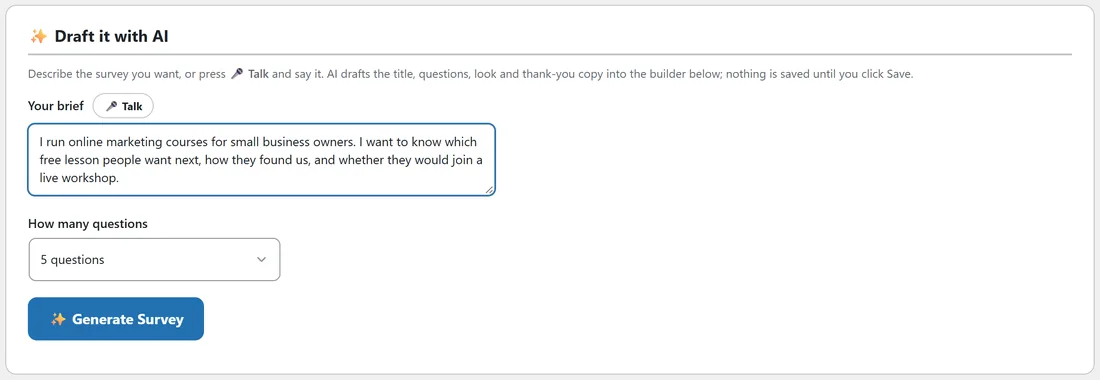
- In Your brief, describe who you are asking and what you want to find out.
- Pick How many questions, from 1 to 10. 7 questions is selected to start.
- Click Generate Survey.
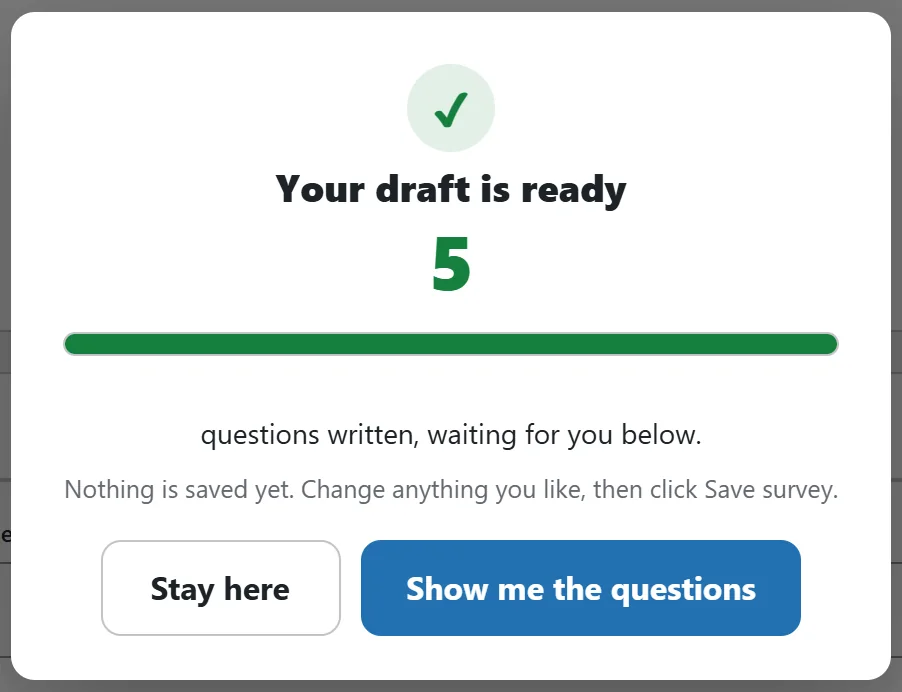
- A window shows the progress while the AI writes. It usually takes 10 to 30 seconds. Keep the tab open.
- When it is done, the window says Your draft is ready, with the number of questions written.
- Click Show me the questions to jump to the Questions step, or Stay here to stay on Create.
- Read every question, change anything you like, then click Save survey.
What a good brief looks like:
A good brief names an audience and a decision. For example: "I run online marketing courses for small business owners. I want to know which free lesson people want next, how they found us, and whether they would join a live workshop."
Compare that with "ask about my courses", which gives the AI nothing to work with and produces a generic draft. Mention the email step too if it matters: words like follow-up, results by email or a reward lead the AI to suggest an optional email step.
What AI writes for you:
- The survey title, when your Title box is still empty.
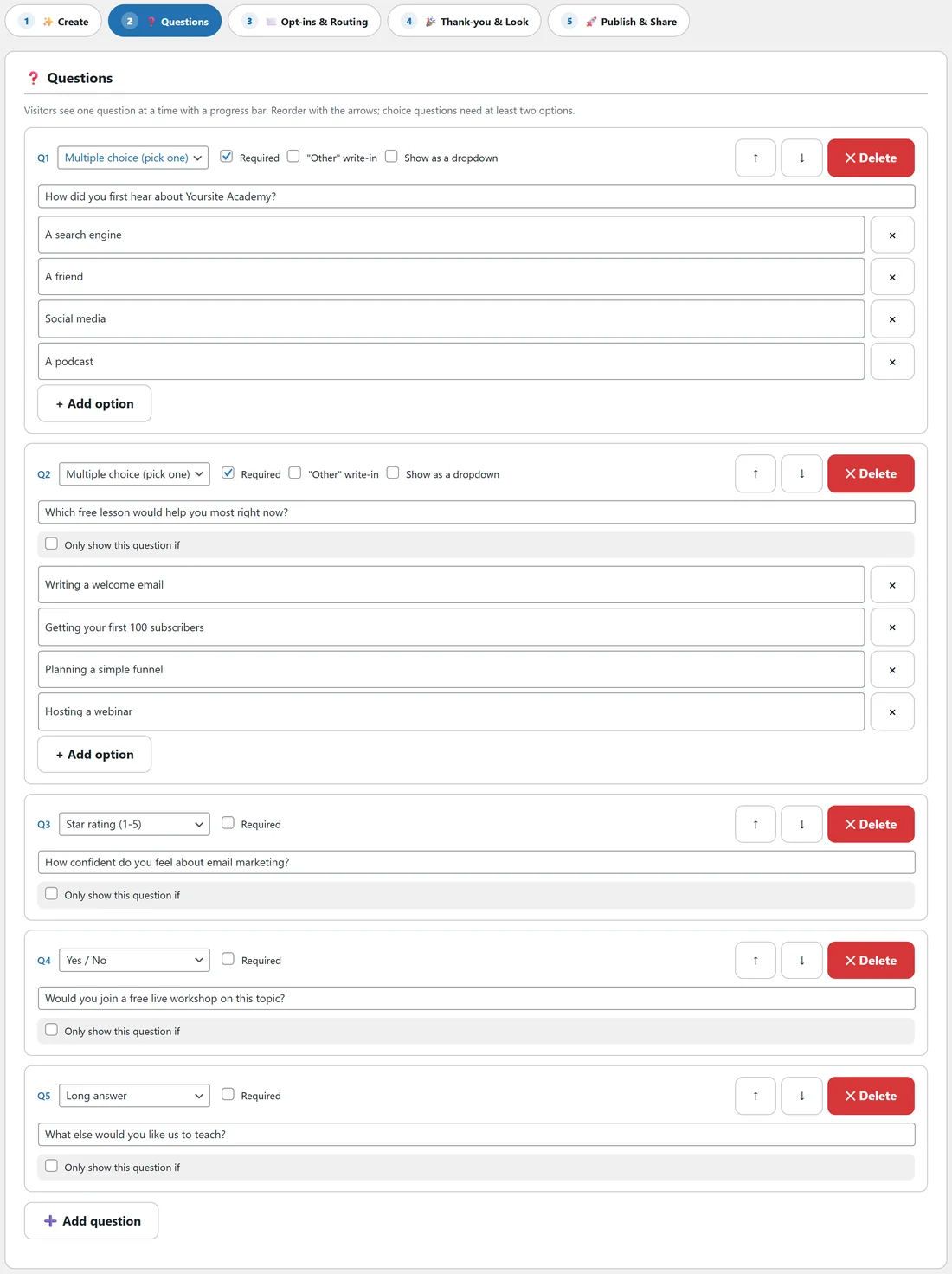
- The questions, each with its type, its wording, answer options for choice and checkbox questions, and whether it is required.
- The opt-in heading for the email step.
- The thank-you heading and thank-you message.
- A suggested Accent color that suits the topic and stays readable with white text on it.
- A Card theme, light or dark.
- An Ask for an email mode: off, optional or required, matched to what your brief says.
- Your brief is also copied into the Goal box when that box is empty, because the AI reading of your results uses the goal later.
AI drafts, you approve:
Nothing the AI writes is published by itself. It fills the normal builder fields, so you see every suggestion and can change it. The survey is only stored when you click Save survey or move to another step, which saves for you, and it stays a Draft until you set the status to Active.
Your own Title and Goal are never overwritten. The opt-in heading, thank-you copy, accent color, card theme and email mode are filled with the AI's suggestion. The questions from a new draft replace any questions already in the builder, so generate first and edit afterwards.
The AI is told to keep questions short, specific and neutral, to put easy questions first and open text last, to give choice questions 2 to 6 short options, and never to use long dashes. That order is what keeps completion rates high.
The Talk button:
Press Talk next to Your brief and speak. Your words appear in the box as you talk, added to anything you already typed. Press the button again, now labelled Stop, to finish. Talking uses your browser's own speech engine, so it costs nothing and never touches your AI key. The button only appears in browsers that support speech, such as Chrome and Safari, and only on sites served over https. If your browser asks for the microphone, allow it for your site.
If the AI reply has no usable questions:
Now and then a model replies with questions that have no wording. The plugin asks it once more for the same survey with the wording filled in, so you do not have to start again. If it still cannot use the reply, a message shows what the AI said, your brief stays in the box, and nothing is changed. Click Generate Survey again, or add a little more detail to the brief.
A real example:
Yoursite Academy wants to plan its next free lesson. The owner types the brief above, picks 5 questions and clicks Generate Survey. The draft comes back as "Free lesson wishlist" with five questions: how people found the academy, which free lesson would help most, a confidence star rating, a yes or no about a live workshop, and an open question last. The email step is set to optional, with the heading "Want the new lesson as soon as it is out?". She changes one option, saves, and the survey is ready to publish.
Tips:
- Generate with a richer brief rather than editing a thin draft for a long time.
- The AI usage panel on Integrations & AI lists every Generate Survey call. See Connecting Your AI Key, And What It Costs.
- Next, check the order and the Required boxes. See Building And Editing Surveys By Hand.