Once a survey is built, four tools help you check it and share it: Preview, its own page, the embed snippet and the printable report. Most of them live on the last step of the builder, Publish & Share.
Where to find it:
- Preview is in the bar at the bottom of the builder, and on every row of the Surveys tab.
- Its own page, the embed snippet, the email link and the report buttons are on the Publish & Share step.
- The report is also on the Responses tab (Report (PDF)) and on AI Insights (Print or save as PDF).
Preview before anything goes live:
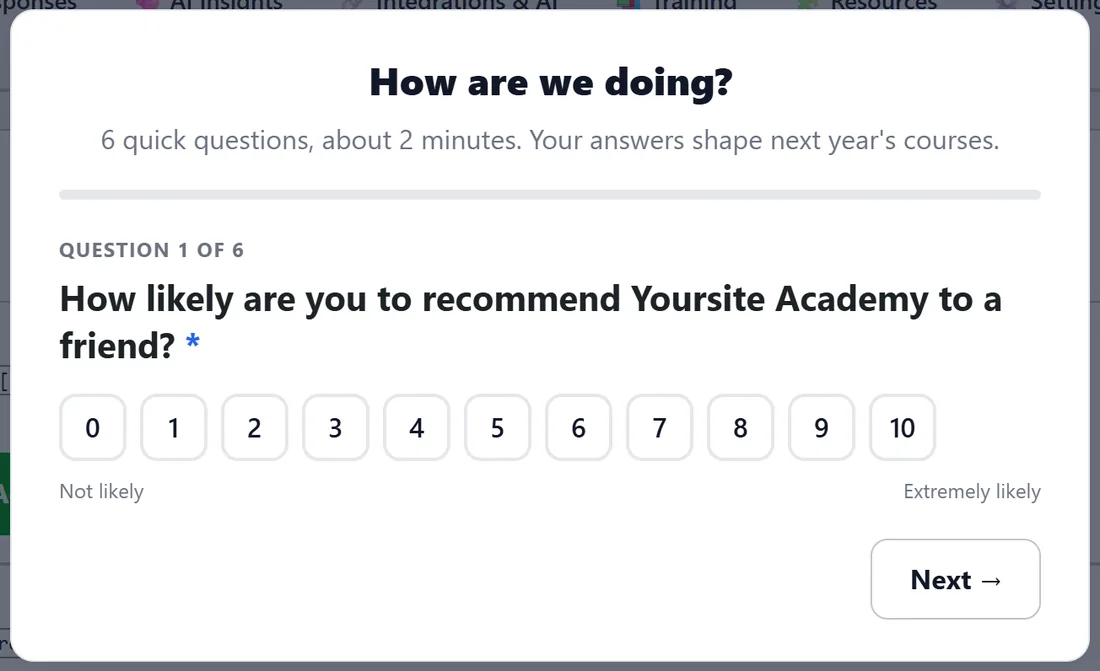
Click Preview and the survey opens in a window over the screen, rendered by the same code visitors get. In the builder, it includes changes you have not saved yet. On the Surveys tab, it previews the saved survey, drafts included. Click through the whole flow, email step and thank-you included. Nothing is ever recorded from a preview, and it never counts as a view. Click Close preview or the dimmed background to leave.
Give it its own page:
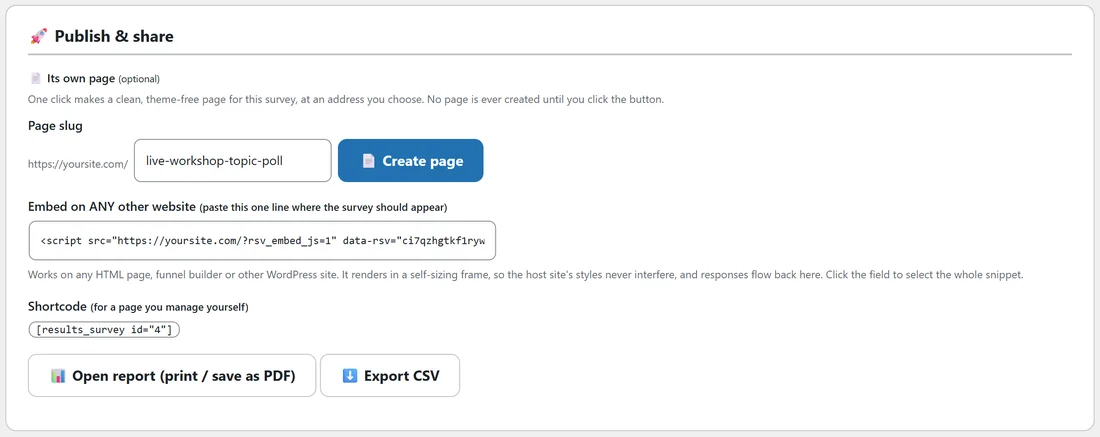
- Save the survey once (move a step or click Save survey). Until then, the step says the page maker will appear after saving.
- On Publish & Share, under Its own page, check the Page slug. It is filled in from the title, and you can change it to anything.
- Click Create page. Nothing is ever created until you click.
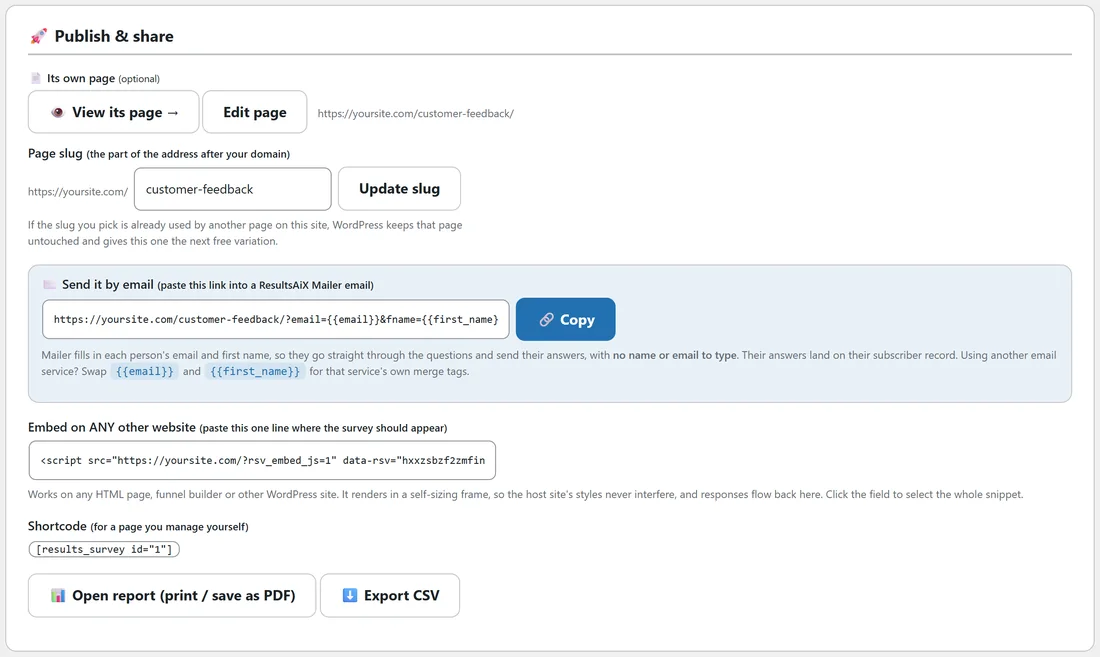
- The step now shows View its page, Edit page and the full address.
- To change the address later, type a new slug and click Update slug.
Slug safety is built in. If the slug you pick is already used by another page on your site, WordPress leaves that page untouched and gives this one the next free variation, such as feedback-2. An existing page is never overwritten or reused.
What the page looks like:
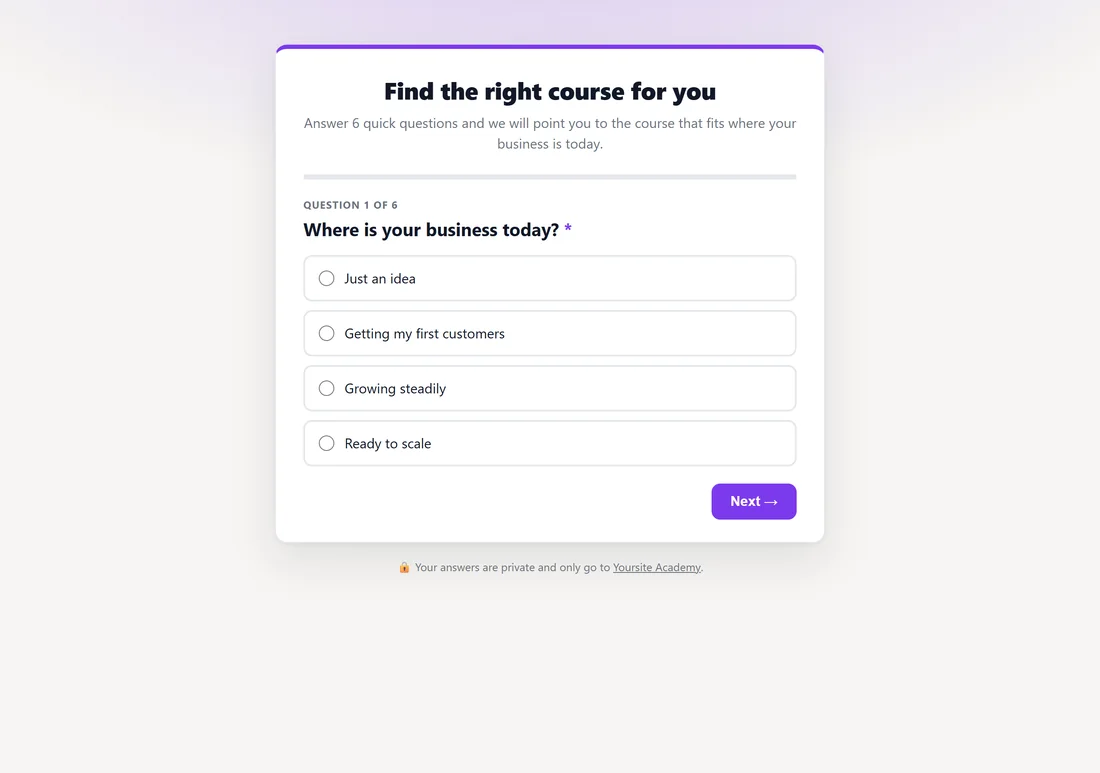
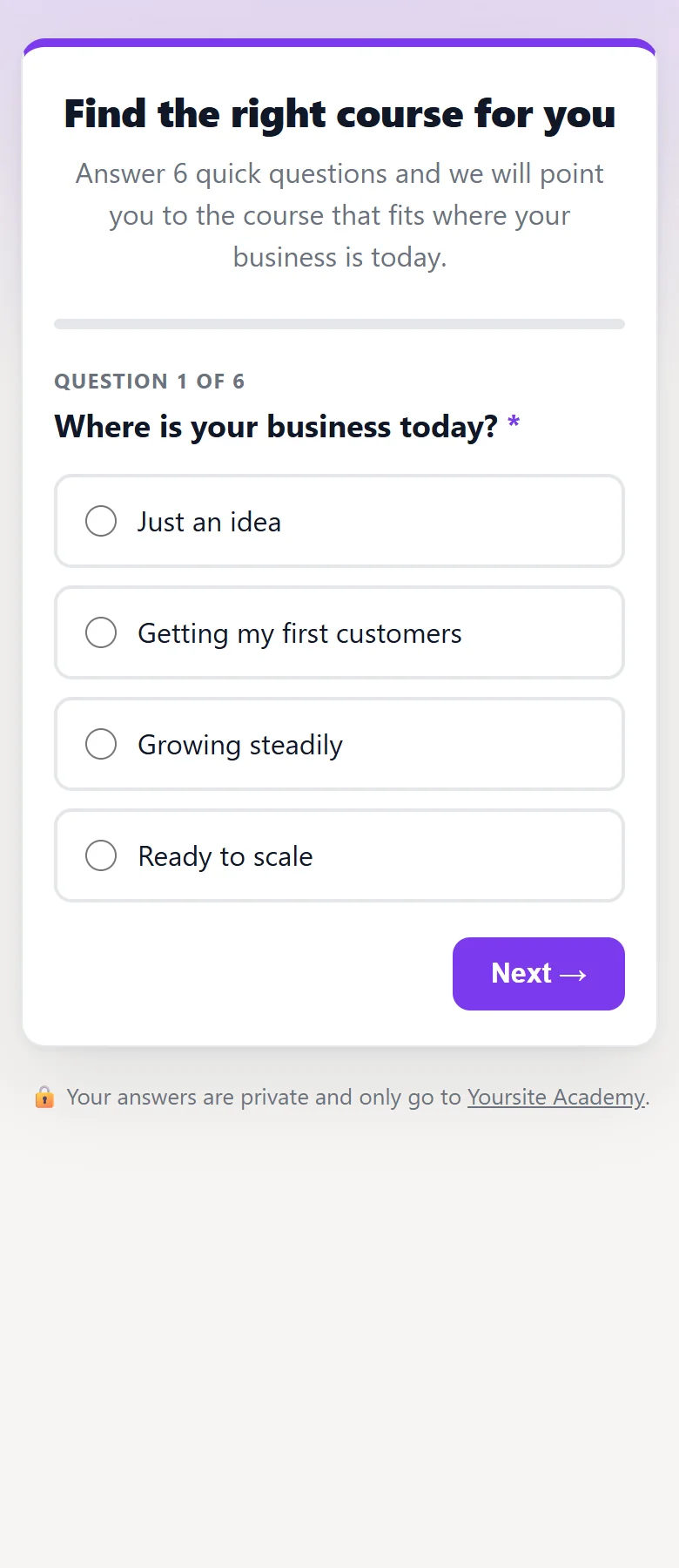
The page renders clean and theme free, like a funnel page: no theme header, menu or sidebar, just the survey card on a soft wash of your accent color, with a colored top edge on the card.
- At the top: your Public heading, or the page title when you have not set one.
- Under it: your Intro line, or, with none set, a line such as "6 quick questions, about 2 minutes." worked out from the number of questions.
- Under the card: a privacy line, "Your answers are private and only go to" and your site name.
- A dark card theme gives a dark page.
- It works on phones as well as desktops.
- With the ResultsAiX Theme, the tracking codes and cookie notice you set in the Theme are printed on the survey page too, so your ads tags still see these visits.
- Renaming the survey renames its page too, as long as you have not retitled the page yourself.
- Administrators can open the page of a Draft survey and see it with a note that only admins see it until it is Active. Visitors see "This survey is not available right now."
Embed on any other website:
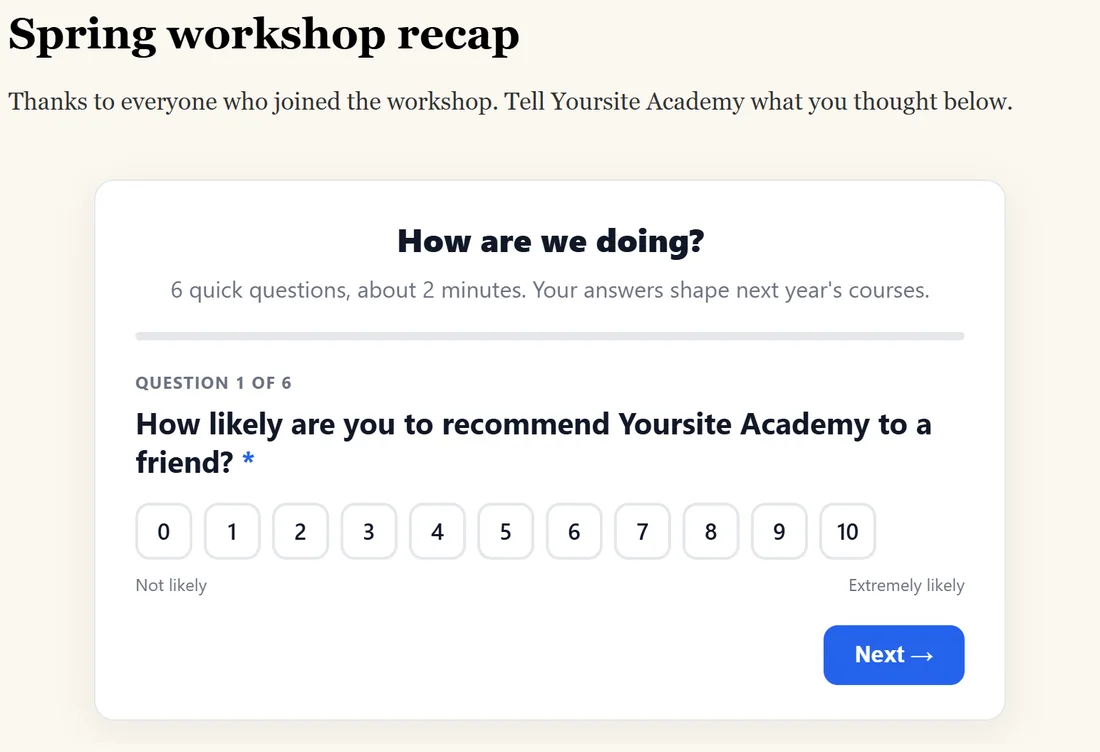
Under Embed on ANY other website, click the field to select the one line snippet, copy it, and paste it into any HTML page, funnel builder or other WordPress site where the survey should appear. It looks like this: <script src="https://yoursite.com/?rsv_embed_js=1" data-rsv="your-survey-key"></script> The survey renders in a frame that sizes itself to the survey, so the host site's styles never interfere. Every response and opt-in comes back to your site exactly as if it were answered there. If the host page's address carries an email and name (for example from an email link), they are passed into the frame so the email step fills in. The survey must be Active to show.
The report, print it or save it as a PDF:
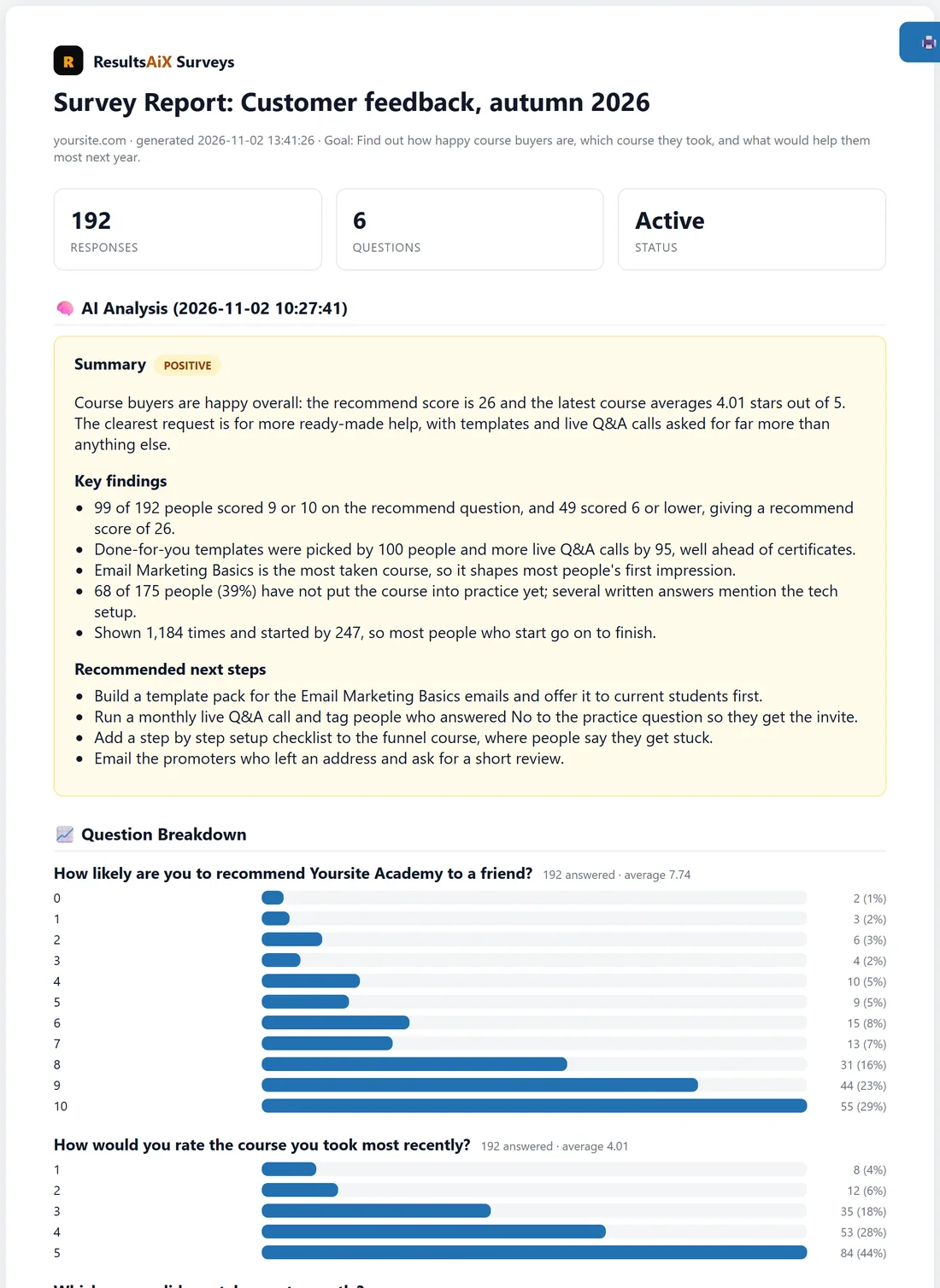
Click Open report (print / save as PDF) on Publish & Share, Report (PDF) on the Responses tab, or Print or save as PDF on AI Insights. A clean report opens in a new tab:
- Survey Report and the survey title, your site, the date it was generated and the goal.
- Tiles for Responses, Questions and Status.
- The saved AI Analysis, when you have run one: the summary, key findings and recommended next steps.
- The Question Breakdown: a bar for every answer with its count and percentage, averages for ratings and scores, and up to 8 written answers per question.
Click Print / Save as PDF and choose Save as PDF in your browser's print window. The full raw data stays one click away with Export CSV.
A real example:
Yoursite Academy previews the feedback survey on the Surveys tab, then creates its page with the slug customer-feedback. The page is live at yoursite.com/customer-feedback/ with the heading "How are we doing?" on a soft blue background. A partner who runs a workshop recap page pastes the embed line into it, and the same survey appears there, with every answer landing back on yoursite.com. At the end of the month the owner prints the report as a PDF for her team.
Tips:
- Use the page link in social posts and the email link in emails. See Sending A Survey By Email, With No Name Or Email To Type.
- Want the survey's page inside your theme instead? A developer can switch the clean layout off with the rsv_bare_survey_page filter. See Developer Hooks, Data Model And Troubleshooting.
- Export CSV sits next to the report button for the full data.