Popup mode shows a survey in a centered overlay on every page of your site, without placing a shortcode anywhere. It is ideal for one or two quick questions, asked at the moment a visitor is about to leave.
Where to find it:
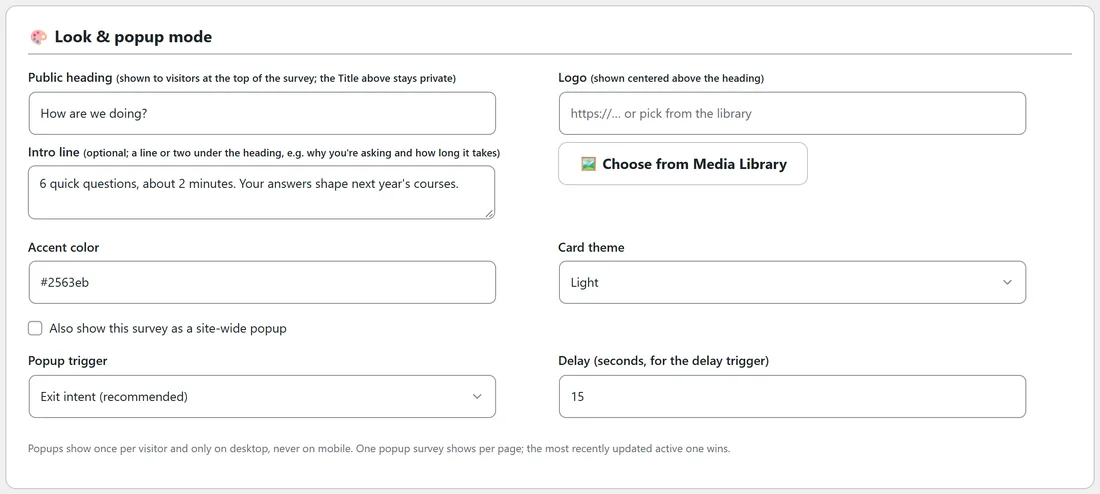
In the builder, open the Thank-you & Look step. The Look & popup mode card has the box Also show this survey as a site-wide popup, with Popup trigger and Delay below it.
Step by step:
- Open the survey in the builder and go to Thank-you & Look.
- Tick Also show this survey as a site-wide popup.
- Pick the Popup trigger: Exit intent (recommended) or After a delay.
- For After a delay, set Delay (seconds, for the delay trigger), from 3 to 120. The default is 15.
- Make sure the survey is Active and click Save survey.
The Surveys tab now shows popup on in the survey's row.
The triggers:
- Exit intent opens the popup when the visitor's mouse leaves the top of the window, the moment they reach for the tabs or the back button. It costs your visitor no reading time.
- After a delay opens it after the number of seconds you set, counted from when the page loads.
The manners it keeps for you:
- Once per visitor. When the popup has opened for someone, it never opens again in that browser.
- Desktop only. Automatic popups never open on phones or touch screens, or in windows narrower than 768 pixels. This is built in, because popups on phones annoy readers and hurt search rankings.
- Easy to close. The round close button, a click on the dimmed background, or the Escape key closes it.
- One at a time. If several Active surveys have popup mode on, only one shows on a page: the newest of them, the one created last.
- A view is counted when the popup opens, not when the page loads, so your Times shown number stays honest.
The survey inside the popup works like any other: one question at a time, your email step, your thank-you message and your routing.
Popup and shortcode together:
Popup mode and the shortcode are not either or. A common setup is a short two question popup running across the site for quick feedback, plus a longer survey on its own page that you link from your emails. A survey's own page never shows the popup over itself.
A real example:
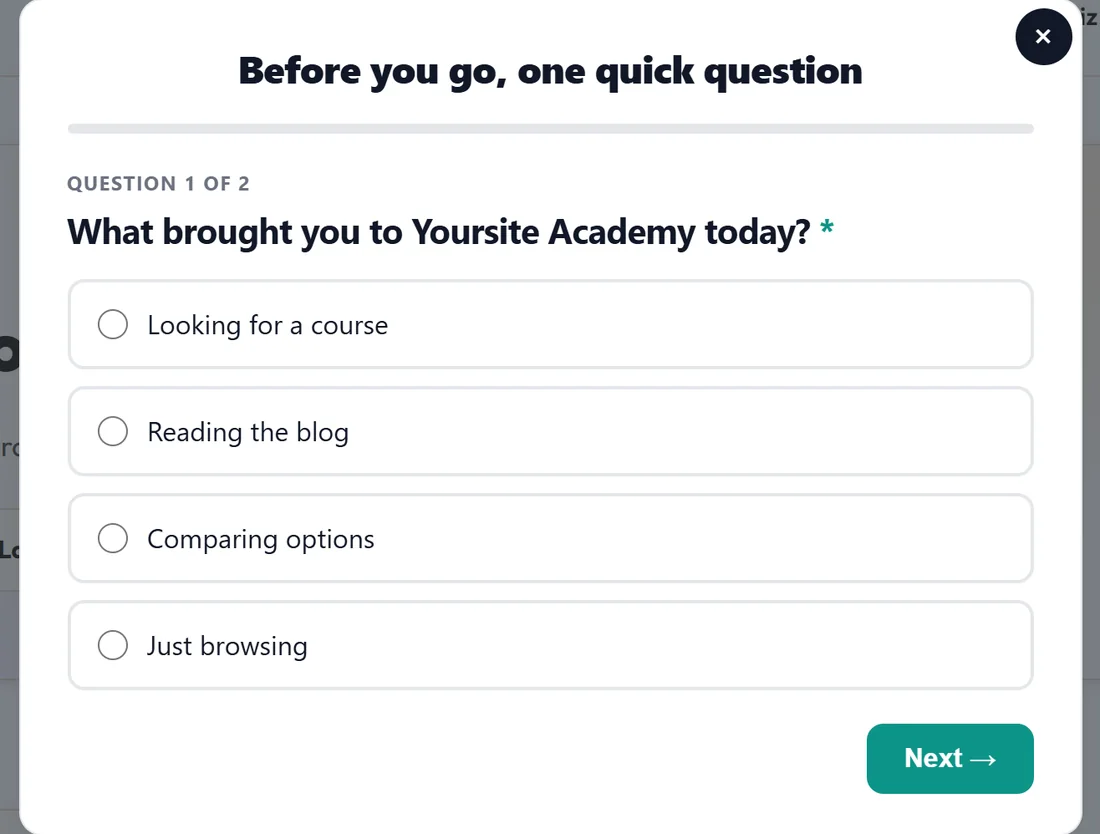
Yoursite Academy runs "Exit question: why are you here?" as an exit intent popup with the public heading "Before you go, one quick question". The first question asks what brought the visitor, with four choices, and the second, optional, asks what they could not find. There is no email step, so it feels like a quick favour rather than a sign-up. In five weeks it collected 114 answers, and Reading the blog was the most common reason for visiting.
How to test it:
Because the popup only opens once per browser, use a private window to see it again. Open your site, wait for the delay or move the mouse up out of the window, and the popup appears. To check the questions without the trigger, use Preview on the Surveys tab.
Tips:
- Keep popup surveys to one to three questions. A popup is a favour asked at the door.
- Set Ask for an email to Off or Optional for a popup. Required asks a lot from a visitor who was leaving.
- Want the popup to show a different survey? Switch popup mode off on the others, or close them. See Building And Editing Surveys By Hand.