When ResultsAiX Mailer runs on the same site, every survey can add its opt-ins straight to a Mailer list. There is nothing to paste and no API key: both plugins live in the same WordPress, so they talk to each other directly. Routing rules go further and send each answer to its own list, its own tags and its own page.
Where to find it:
In the builder, open Opt-ins & Routing. Under the Email opt-in card you will find Where opt-ins go, then Route answers: different lists, different pages, then Save answers as they go. The Mailer fields only appear when Mailer is active. On Integrations & AI, the ResultsAiX Mailer row says Connected.
Set the always-on list:
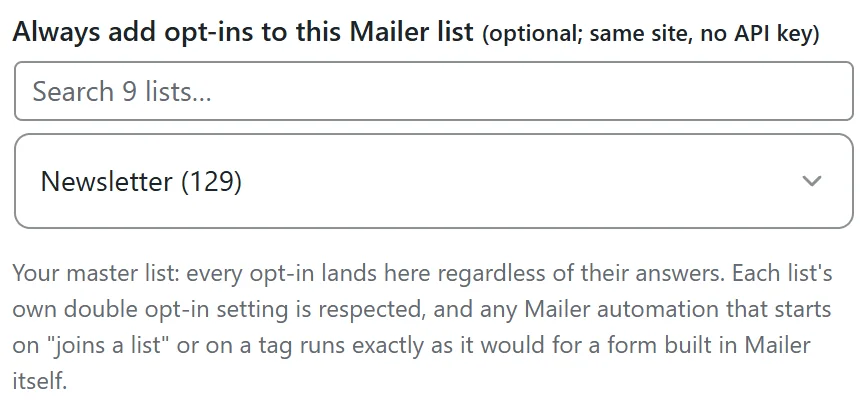
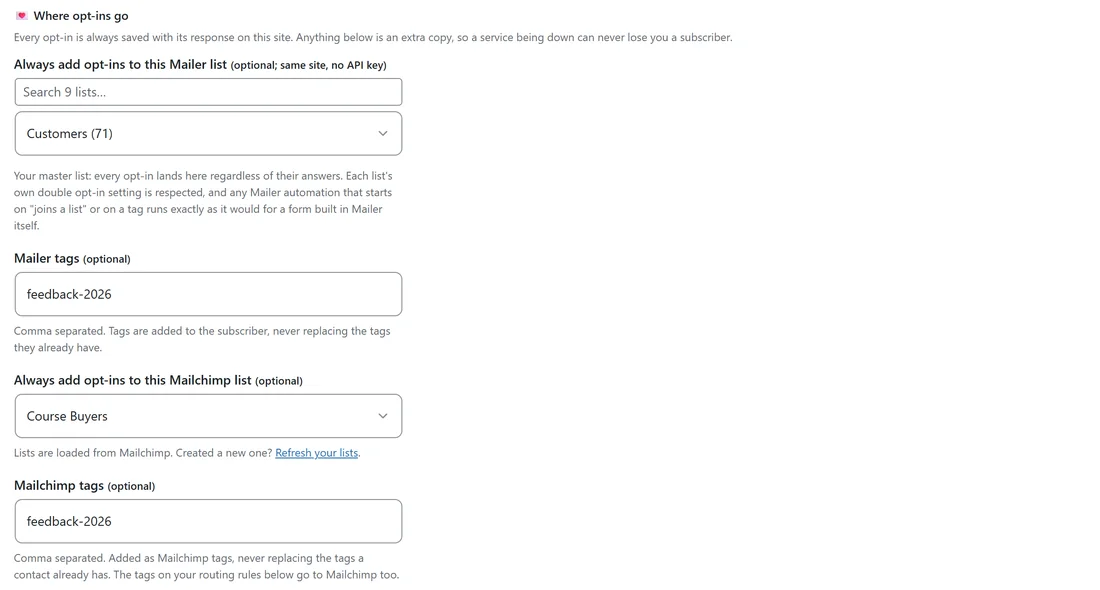
- Under Where opt-ins go, pick a list in Always add opt-ins to this Mailer list. Each list shows its subscriber count in brackets.
- With 8 or more lists, a Search box sits above the dropdown. Type a few letters to find the list. The list you already picked always stays in the dropdown while you search.
- Optional: add Mailer tags, comma separated, for example feedback-2026.
- Save.
From then on every opt-in on that survey joins the list the moment the person finishes.
What Mailer does with them:
- Each list's own double opt-in setting is respected. If the list confirms by email, survey opt-ins get the same confirmation email as any other subscriber.
- Automations run normally. Anything in Mailer that starts on "joins a list" or on a tag runs exactly as it would for a form built in Mailer.
- No duplicates. An address already in Mailer is updated and added to the list, never duplicated.
- Tags are added, never replacing the tags a subscriber already has.
- The answers travel along as custom fields, one per question, plus a survey field with the survey title. They are merged with the custom fields the subscriber already has, so nothing is lost. Use them in a broadcast or to build a segment.
- Your Mailer suppression list is always respected, quietly.
Route answers: different lists, different pages:
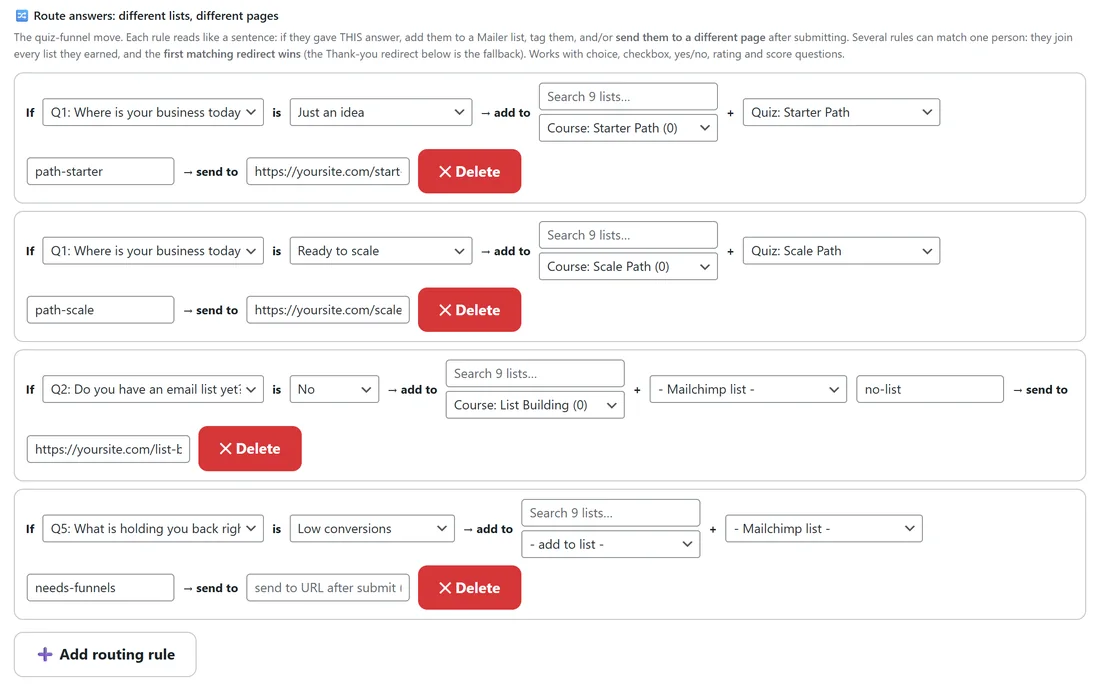
This is the quiz funnel move. Each rule reads like a sentence: if they gave this answer, add them to this list, tag them, and send them to this page.
- Save the survey once, so new questions can be routed.
- Under Route answers, click Add routing rule.
- Pick the question after If, and the answer after is.
- Pick a Mailer list after add to (optional).
- Type tags (optional).
- Type a page address after send to (optional).
- Add more rules the same way, then Save.
A rule needs a question, an answer and at least one thing to do: a list, tags, a page or a list in your connected email service. A rule with nothing to do is removed when you save. Rules work with multiple choice, checkbox, yes or no, star rating and 0 to 10 questions. On a checkbox question, a rule matches when the person ticked that answer among others.
How several rules work together:
- Several rules can match one person. They join every list they earned and get every tag, and the always-on list still collects everyone.
- For pages, the first matching rule with a send to address wins, in the order the rules are listed. The Redirect URL on the Thank-you step is the fallback when no rule sends them anywhere.
- The destination is worked out on your server from the checked answers, so it cannot be changed by the visitor.
- Rules that only send people to a page work without Mailer.
Tags without a list:
A rule with tags but no list, or survey tags with no always-on list, tags people who are already Mailer subscribers. Nobody is added to Mailer without a list to belong to. This is ideal for surveys you email to your list: your subscribers are already there, so a rule can simply tag them by their answers.
Seeing them in Mailer:
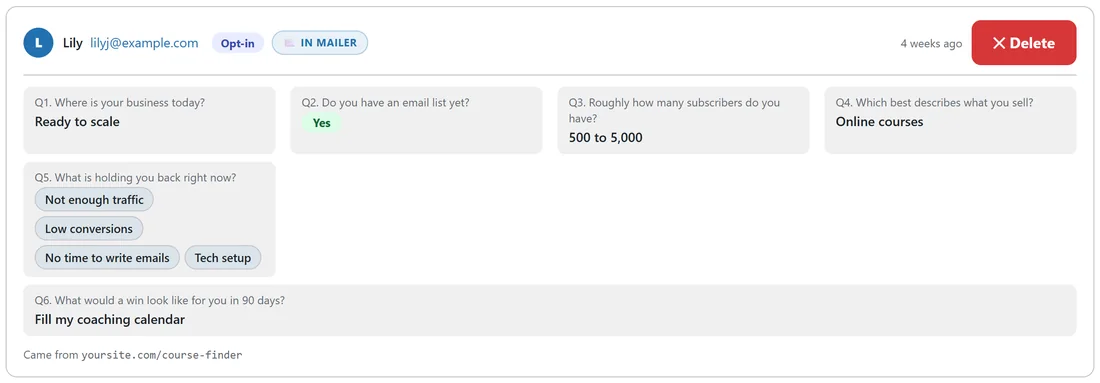
On the Responses tab, an opt-in who is a Mailer subscriber gets an In Mailer badge. Click it to open that person in ResultsAiX Mailer. The new response email has an Open In Mailer button too.
Mailer and other routes together:
They are not either or. The same opt-in can join your Mailer list, go to your connected email service and flow through a WP Sync bridge, all at once. Whatever happens, every opt-in is saved with its response on your own site first.
A real example:
The Yoursite Academy course finder quiz adds every finisher to Newsletter with the tag quiz-finished. Its rules: if Q1 is Just an idea, add to Course: Starter Path, tag path-starter and send to yoursite.com/start-here/; if Q1 is Ready to scale, add to Course: Scale Path and send to yoursite.com/scale/; if Q2 is No, add to Course: List Building and send to yoursite.com/list-building/; if Q5 is Low conversions, tag needs-funnels. A starter with no list joins three lists and lands on the start here page, because that rule is listed first.
Tips:
- Put your most important redirect rule first.
- Start each Mailer automation from the list or tag a rule adds, so every path gets its own welcome emails.
- With Save every answer as it is given on, people from your emails are tagged by the rules as they answer. See Different Questions For Different People, And Saving Answers As They Go.