The shortcode is the simplest way to put a survey on your site. Paste one short line into any page, post or page builder block that accepts shortcodes, and the survey appears right there inside your theme.
Where to find it:
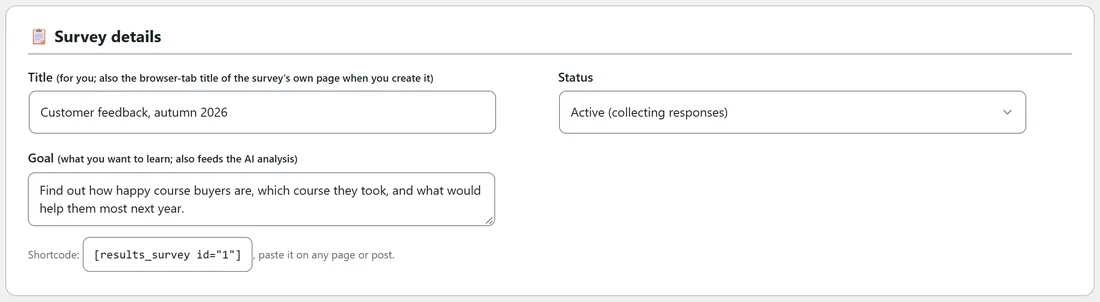
Every saved survey has its own shortcode, in the form [results_survey id="1"], where the number is the survey's id. You find it in three places:
- Under Survey details on the first step of the builder.
- On the Publish & Share step, under Shortcode.
- On every row of the Surveys tab.
Click it to select it, then copy.
Step by step:
- Make sure the survey is Active. Set Status on the first step, or click Activate on the Surveys tab.
- Copy its shortcode.
- Edit the page or post where it should appear.
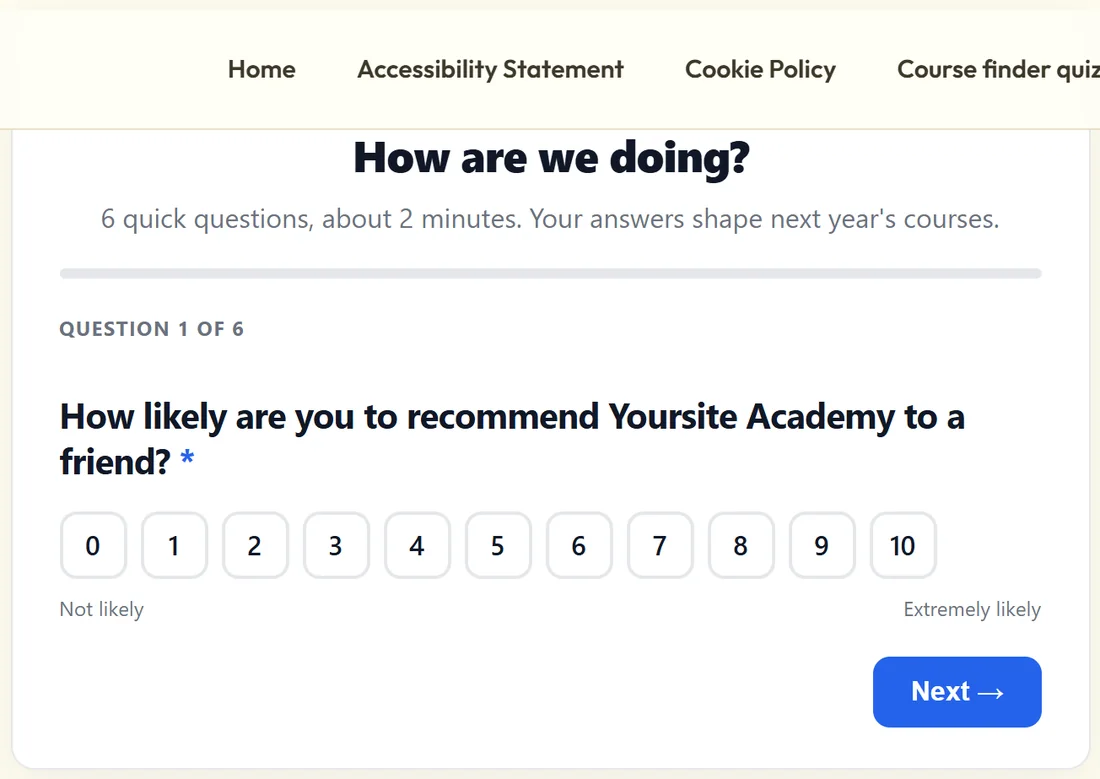
- In the block editor, add a Shortcode block (or a Paragraph) and paste the shortcode. Most page builders have a shortcode or text element that works the same way.
- Update the page and view it.
The survey renders where you placed it. Its styling is self contained, so it looks the same in any theme, and only pages that show a survey load the survey's small stylesheet and script.
What the visitor experiences:
- The public heading, intro line and logo at the top, when you set them on Thank-you & Look.
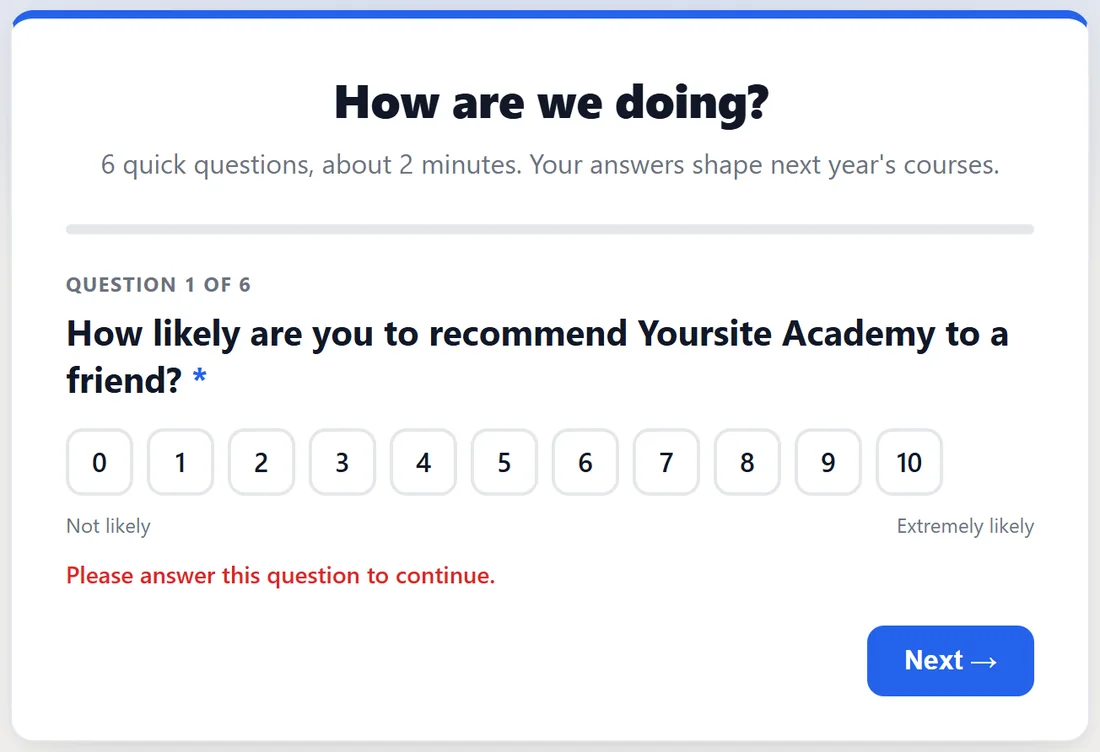
- One question at a time, with a "Question 1 of 6" counter and a progress bar that fills as they go.
- Multiple choice, yes or no, star and 0 to 10 answers move on by themselves with a tap. Checkboxes, written answers and dropdowns use the Next button.
- Back is always there after the first question, so a mis-tap is never a dead end.
- A required question shows "Please answer this question to continue" instead of blocking silently.
- The email step after the last question, when Ask for an email is on.
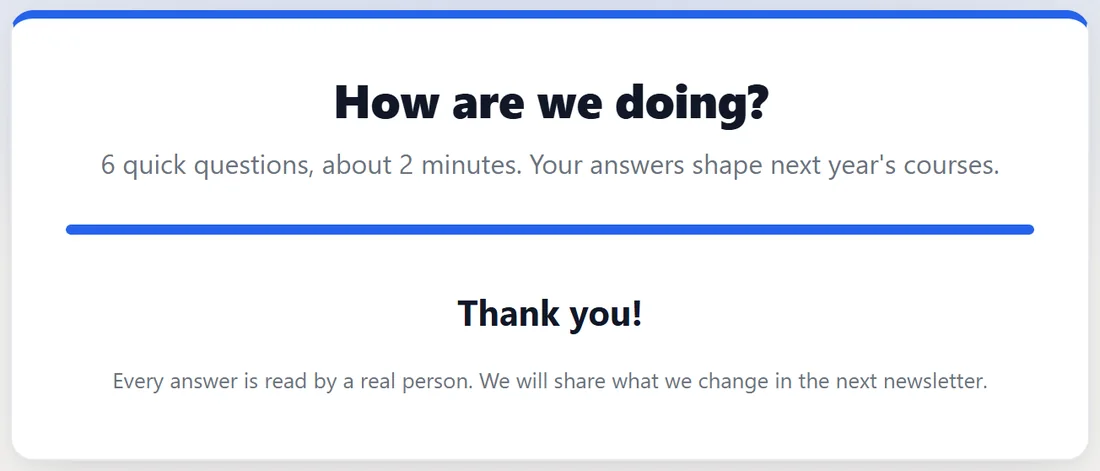
- The thank-you step replaces the survey when they finish, with your heading and message.
- If a Redirect URL or a routing rule applies, they are taken to that page about a second and a half after finishing.
The whole survey adapts to the screen, so it works for people reading a blog post on a phone.
When the survey is not live:
The shortcode only shows a survey that is Active and has at least one question. For anything else, visitors see nothing at all rather than a broken box. Logged in administrators see a short note in its place: "ResultsAiX Surveys: survey #4 is missing, empty or not active (only admins see this note)." Set the survey to Active and save, and the note becomes the survey.
Other ways to place a survey:
- Its own page: a clean, theme free page made with one click. See Preview, Its Own Page, Embed Anywhere And PDF Reports.
- Another website: the one line embed snippet on the same step.
- Every page at once: popup mode. See Popup Mode And Its Built In Manners.
- With the ResultsAiX Theme, a tick box on any page adds a survey without touching the page content. See Works With Your Other Plugins, And Perfectly Well Without Them.
A real example:
Yoursite Academy has a page called Tell us how we are doing. It opens with one line of thanks, then the shortcode for the autumn feedback survey. Students reach it from the members area, answer the six questions inside the site's own design, and see the thank-you message at the end.
Tips:
- Count your views: every time the survey card appears on a screen counts as a view on the Surveys tab and in AI Insights. Previews never count.
- One survey can sit on several pages at once. All answers land in the same place.
- To try the survey without recording anything, use Preview on the Surveys tab rather than the live page.