An autoresponder is the email service that holds your list, such as Mailchimp, AWeber or GetResponse. Connecting it means every person who opts in on a report lands on your list, ready for your welcome emails.
You connect it once, choose a default list for every report, and give single reports a different list when you want to.
Where to find it:
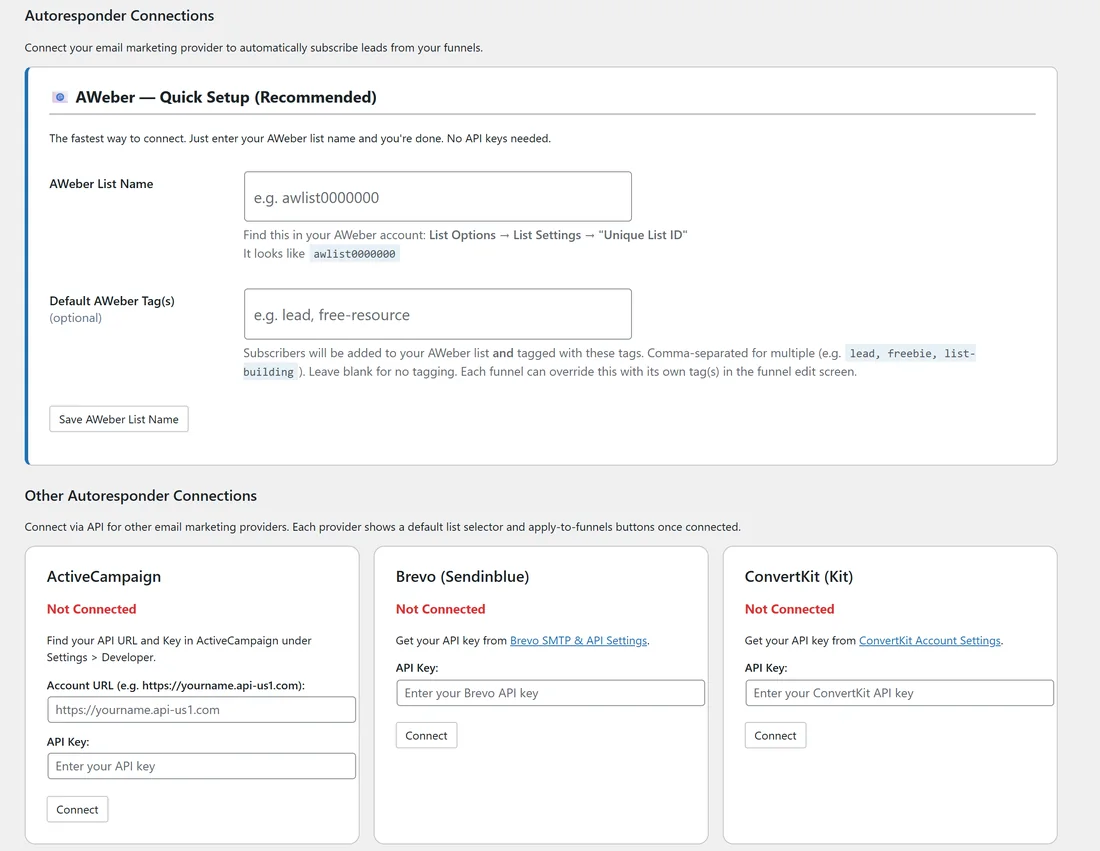
Free Consumer Reports, then the Autoresponders tab. AWeber Quick Setup is at the top. Other Autoresponder Connections lists a card for each other service.
The 14 options:
- AWeber Quick Setup: just your AWeber list ID. See AWeber Quick Setup And Tagging.
- ActiveCampaign: your Account URL and API Key.
- Brevo (Sendinblue): your API Key.
- ConvertKit (Kit): your API Key.
- Custom HTML Form: paste the sign up form from any other service.
- Encharge: your Write Key (not the Public key).
- GetResponse (Campaign Token): the campaign token from your GetResponse form code. No API key needed.
- GetResponse: your API Key.
- GoHighLevel: your Private Integration API key and Location ID, plus a Default Tag.
- LeadsLeap (BETA): your LeadsLeap username, and a List ID per report.
- Mailchimp: your API Key, which ends in your server code, for example -us14.
- SendFox: your Personal Access Token.
- Sendiio: your List ID, and your Form ID if you have one.
- Systeme.io: your API Key, plus a Default Tag.
Each card says where to find the key in that service, and shows Not Connected or Connected.
Connect a service with an API key:
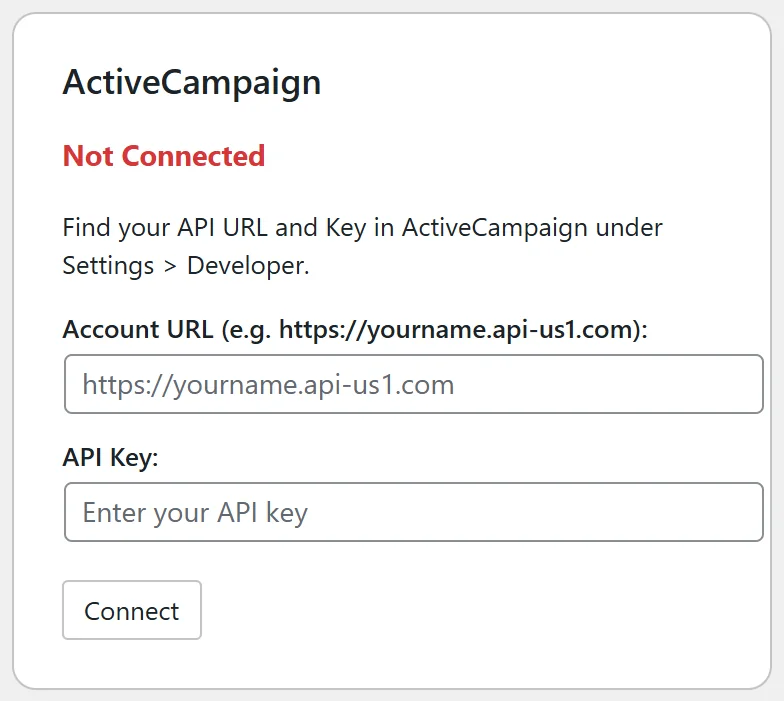
- Log in to your email service and copy the key or token the card asks for.
- Paste it into the card and click Connect.
- The card turns to Connected and shows the first characters of your key.
- Click Test Connection to check the plugin can read your lists.
Choose the default list:
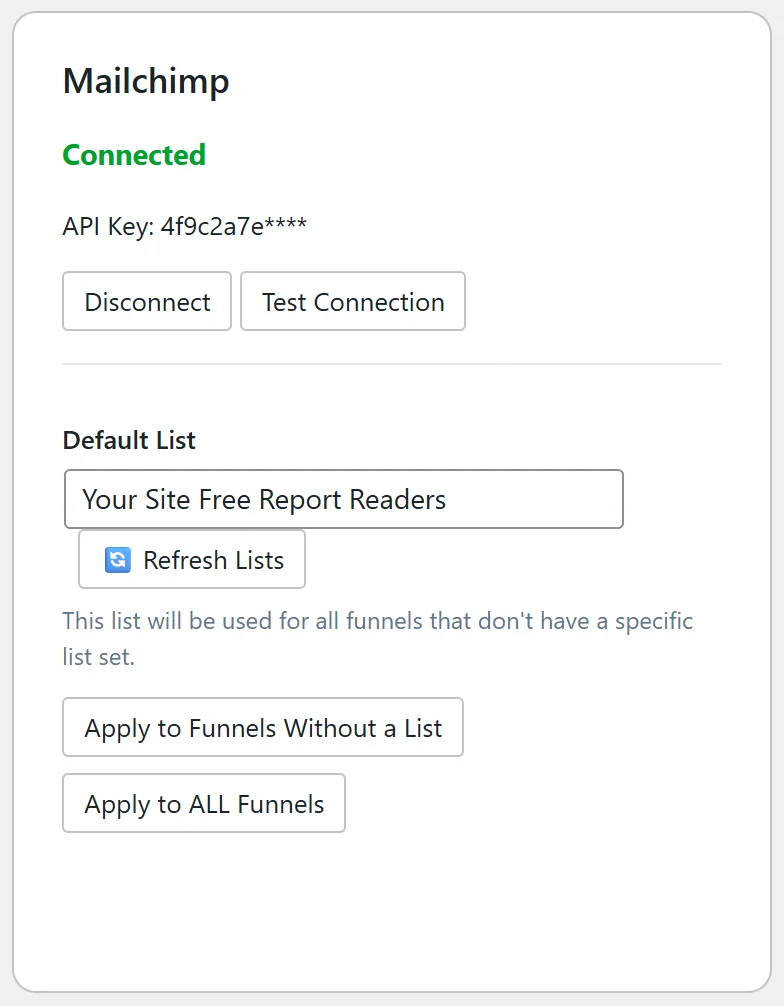
Once connected, the card shows a Default List menu.
- Pick the list new subscribers should join.
- Click Apply to Funnels Without a List to give that list to every report that has none yet. Or click Apply to ALL Funnels to use it on every report, replacing any list set on a single report.
Either button also makes this service and list your default. The default also shows in Settings under General Settings, as Default Autoresponder and Default List.
Lists are kept in memory for a day so the screens stay fast. Made a new list in your email service? Click Refresh Lists on the card.
Give one report its own list:
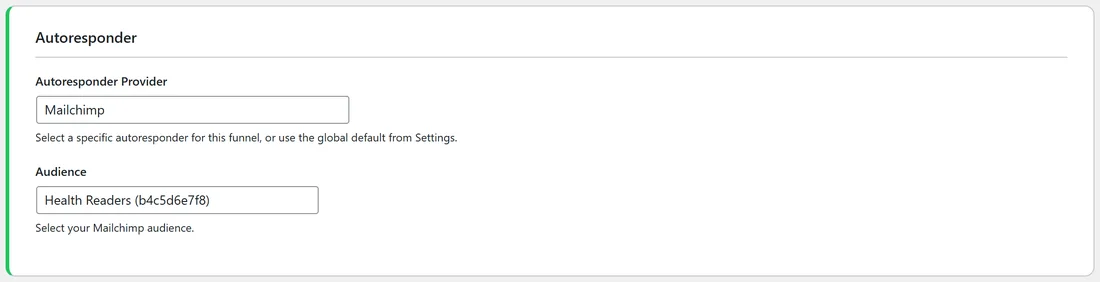
- Open the report's Edit page from the Funnels tab.
- In the Autoresponder section, pick a service in Autoresponder Provider. Use Global Default keeps the default. Services that are not connected show (Not Connected) and cannot be picked.
- The next field changes to suit the service. For Mailchimp it is Audience, for ActiveCampaign and Brevo it is List, for GetResponse it is Campaign, for ConvertKit it is Form / Tag, and for GoHighLevel it is Tag. Pick from the menu.
- For services with no list menu, type the ID. The field is called AWeber List Name, Sendiio List ID, LeadsLeap List ID (lllid) or Campaign Token.
- Under the field, "Currently using" confirms the list this report sends to.
- Click Save Funnel Settings.
The Custom HTML Form:
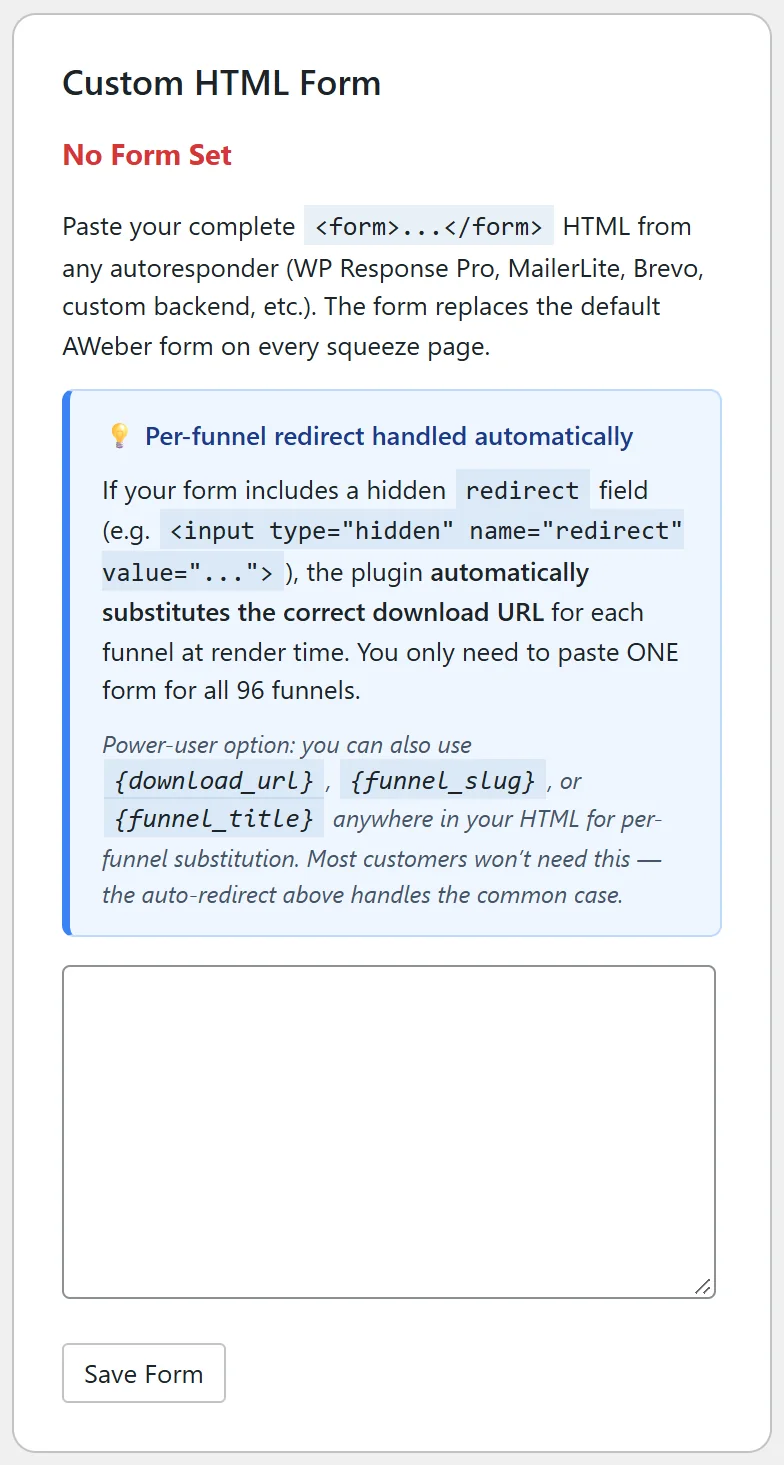
Use this for any service not on the list.
- In your email service, create a sign up form and copy its HTML code (the whole form, from form to /form).
- Paste it into the Custom HTML Form card and click Save Form.
- If your form has a hidden redirect field, the plugin fills in each report's own download page for you, so one form works for every report.
Advanced: you can also type {download_url}, {funnel_slug} or {funnel_title} anywhere in the form, and each report fills in its own value.
What happens to each lead:
For services connected with an API key, the plugin sends the name and email straight to your list, then takes the visitor to the download page. For the form based options (AWeber Quick Setup, GetResponse Campaign Token, Sendiio and the Custom HTML Form), the plugin saves the email first, then the form goes to your service, which returns the visitor to the download page.
Every lead is also saved on the Lists tab. If your service does not accept a lead, the visitor still gets their report, the lead is kept on the Lists tab, and the reason is written to the debug log in Settings.
Notes for some services:
- GoHighLevel and Systeme.io work with tags rather than lists. Once connected, the card has a Default Tag menu with Refresh Tags, and the same Apply to Funnels Without a Tag and Apply to ALL Funnels buttons. GoHighLevel also has Change Default Tag and Save Tag, and tags new contacts free-consumer-reports if you leave the tag blank.
- LeadsLeap sends new subscribers through SendSteed, which asks them to confirm by email. They get the report straight away, and the download page shows a short "Check your inbox" note asking them to confirm. Give each report its LeadsLeap List ID on its Edit page, or set a default on the card.
- Sendiio and GetResponse (Campaign Token) use the values in your service's form code. The card shows which hidden field to copy.
- Encharge uses tags instead of lists. Type them in Default Tag(s) on the card, separated by commas, or give a report its own tags in the list field on its Edit page.
A real example:
yoursite.com uses Mailchimp. The owner pasted their API key into the Mailchimp card, picked Your Site Free Report Readers as the Default List and clicked Apply to Funnels Without a List. Then, on the Meal Prep Made Easy Edit page, they chose the Health Readers audience, so health readers get health emails. The Lists tab now shows every report as Connected.
Tips:
- Send yourself through one report with a fresh email address and check it arrives in your service.
- The Lists tab shows any report with No List or No Provider, so you can fix it in one pass. See The Lists Tab And Exporting Opt-Ins.
- Ask for a first name with Collect First Name in Settings. The name goes to your service with the email.