The Lists tab answers two questions: is every report sending leads to the right list, and who has opted in? It has a quick summary, a table of all your reports with their email setup, and a table of every email collected.
Where to find it:
Free Consumer Reports, then the Lists tab.
Lists Overview:

Four cards sum up your reports:
- Connected: reports with an email service and a list.
- Missing List: reports with a service but no list.
- No Provider: reports with no email service at all.
- Total Optins: every opt-in counted on your site.
Aim for every report under Connected.
Funnel Connection Overview:
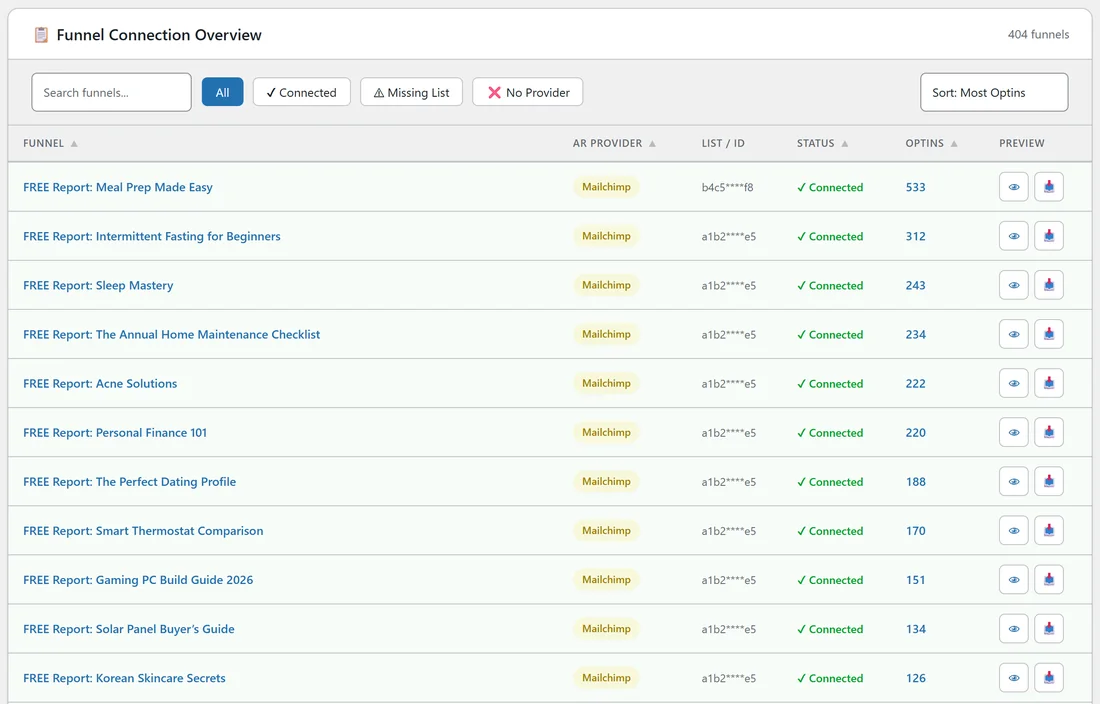
A table with one row per report:
- Funnel: the report's title. Click it to open its Edit page.
- AR Provider: the email service it uses.
- List / ID: its list, partly hidden for safety, for example a1b2****e5.
- Status: Connected, No List or No Provider.
- Optins: its opt-ins so far.
- Preview: an eye icon opens the squeeze page, and a download icon opens the download page.
Above the table:
- Search funnels: filters by title as you type.
- All, Connected, Missing List and No Provider: show only reports with that status.
- The sort menu: Name A-Z, Name Z-A, Most Optins, Fewest Optins or Status. You can also click the column headings.
Fix a report without a list:
- Click Missing List or No Provider.
- Click a report's title to open its Edit page and pick a list. Or, to fix many at once, go to the Autoresponders tab and click Apply to Funnels Without a List on your service's card.
- Come back and check the cards.
Collected Emails:
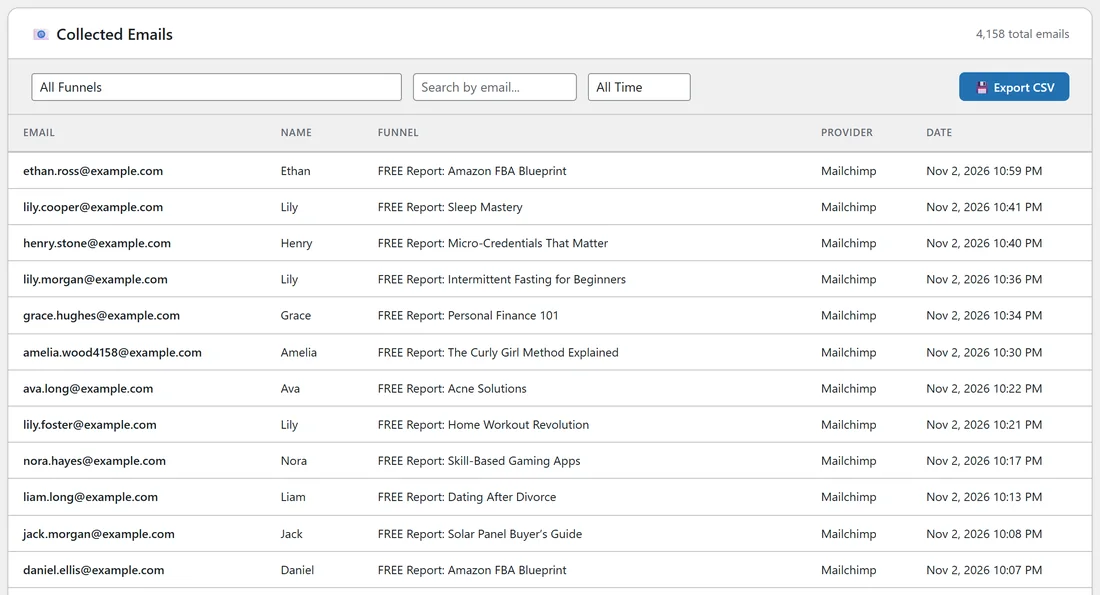
Every person who opted in, newest first, with a counter of the total. The columns are Email, Name, Funnel, Provider and Date.
The plugin keeps this copy even when your email service accepts the lead, so you always have your own record.
Filters:
- All Funnels: pick one report to see only its leads.
- Search by email: type part of an address.
- The date menu: All Time, Last 7 Days, Last 30 Days or Last 90 Days.
Page buttons at the bottom move through the list.
Export to CSV:
- Set the filters you want, for example Last 30 Days.
- Click Export CSV.
- A file named optins and the date, for example optins-2026-11-02.csv, downloads.
The file has the columns Email, Name, Funnel, Provider, Referrer and Date. Referrer is the page the visitor came from. It opens in Excel, Numbers or Google Sheets.
Read a lead:
Each row in Collected Emails tells you who, from which report, through which service and when. The same person can appear on more than one row if they asked for more than one report, which tells you what they care about.
Import the CSV into your email service:
- Export the leads you want, for example one report's leads for Last 90 Days.
- In your email service, open the list and choose its import option.
- Upload the CSV and match Email and Name to the list's fields.
This is also how you add leads saved while your service was disconnected.
A real example:
On yoursite.com the four cards read 404 Connected, 0 Missing List, 0 No Provider and 4,159 Total Optins. Sorted by Most Optins, Meal Prep Made Easy is first with 531. Its List / ID shows b4c5****f8, the Health Readers audience, while the other reports use a1b2****e5, the main list.
Each month the owner filters Collected Emails to Last 30 Days and exports a CSV as a backup of their list.
Tips:
- Check the Lists tab after you change email services. One click on Missing List shows anything left behind.
- Export regularly. A CSV in your own files is a simple backup.
- The leads are personal data. Store exported files somewhere safe.