When you have many PDFs, building them one by one takes a while. CSV Import builds them in one go from a spreadsheet: one row per funnel. It checks your file first, so you can fix any row before anything is created.
Where to find it:
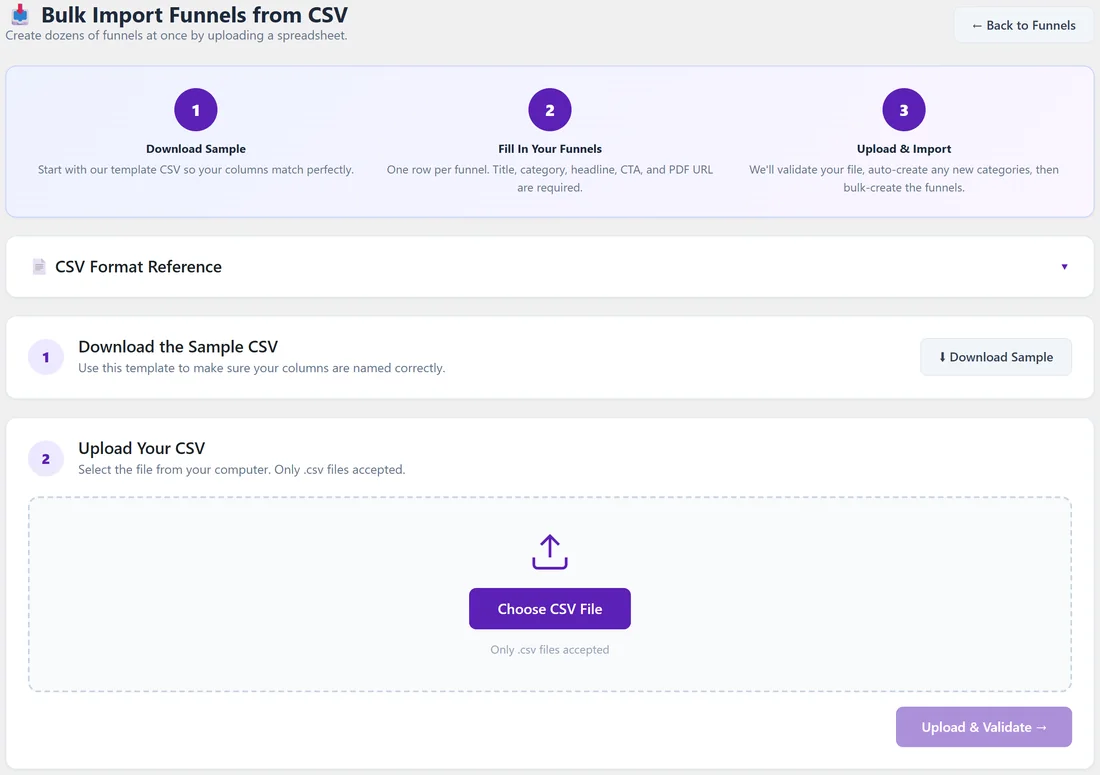
Free Consumer Reports, then CSV Import. Or click Import CSV on My Custom Funnels. The screen is called Bulk Import Funnels from CSV and shows three steps: Download Sample, Fill In Your Funnels, Upload & Import.
Import your funnels:
- Click Download Sample to get funnel-import-sample.csv. It has the right column names and two example rows. Click CSV Format Reference to open the column list on screen.
- Fill in one row per funnel in Google Sheets or Excel and save it as a .csv file. See Funnel Builder: CSV Columns And An Example Row.
- Click Choose CSV File and pick your file. Its name and size show with a Remove button.
- Click Upload & Validate. Nothing is created yet. The add-on checks every row.
- Under Review & Import you see how many rows are valid and how many need a fix. Each one names its row, for example "Row 3: Headline is empty." Row numbers match your spreadsheet, with the header as row 1.
- If your file uses categories you do not have yet, you see New categories detected in this CSV. Click Create These Categories & Continue. They are created and the file is checked again.
- Click Import and the number of valid rows. Rows that need a fix are left out. The rows go in a few at a time, and a progress bar shows how many are done.
- When it finishes you see Import Complete with how many funnels were created, how many were skipped because they already exist, and any that did not import. Each skipped row is listed with its spreadsheet row number and the reason. Click View All Funnels or Import Another CSV.
Good to know:
- Each PDF and cover image is downloaded to your site during the import, so big files take a little while.
- Importing the same file again is safe. A row whose funnel already exists (same title in the same category) is skipped and listed as "already exists", so you never get -2 copies.
- If an import stops part way, the funnels already saved stay. Upload the same file again and import. The saved rows are skipped and the rest are added.
- Files saved from Excel as "CSV UTF-8" work, as do plain CSV files and Google Sheets downloads.
- A checked file is kept for one hour. After that, click Upload & Validate again before you import.
A real example:
The owner of yoursite.com had six money saving guides on their own site. They downloaded the sample, typed one row per guide with the category Smart Shopping and the template clean-card, and pasted the link to each PDF from their Media Library. Upload & Validate showed 6 valid rows. They clicked Import, and Import Complete showed 6 created. The guides appeared on My Custom Funnels and on the Funnels tab under Smart Shopping.
Tips:
- Try two rows first, then import the rest.
- Use links to PDFs on your own site. They download fastest.
- New funnels from a CSV are live straight away. Switch any off on the Funnels tab.