Categories group your funnels on the Funnels tab and the Showcase page, and appear in the wizard's Category list. The add-on lets you add your own categories and restyle the 8 report niches.
Where to find it:
Free Consumer Reports, then Categories.
Add a new category:
- Type a Label (required), for example Pet Care.
- The Slug fills in by itself (pet-care). Lowercase letters, numbers and hyphens only. In a CSV you can use the slug or the label in the category column.
- Paste an Emoji if you want one.
- Pick a Badge Color.
- Click Add Category.
The All Categories table:
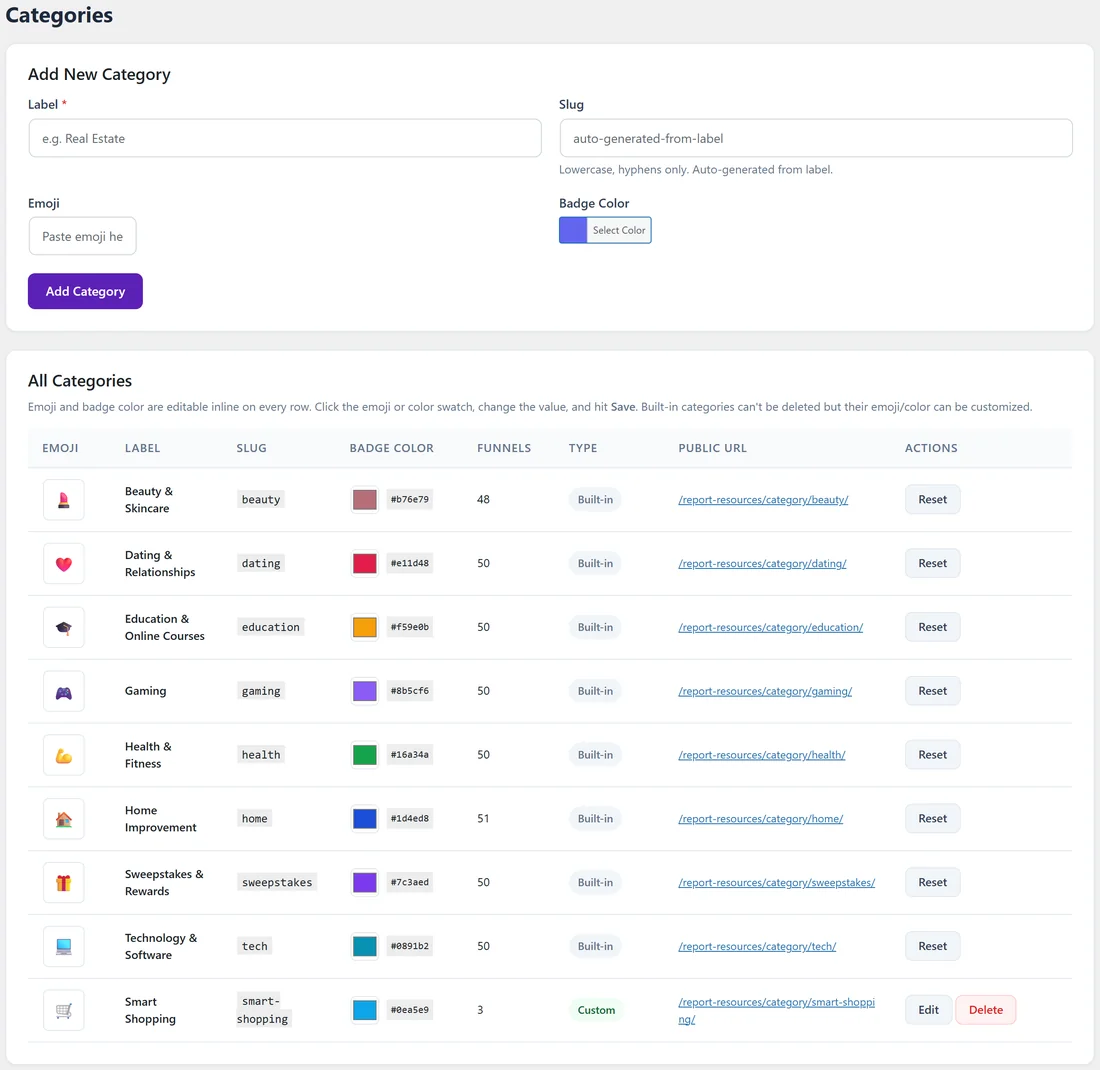
The table lists the 8 report niches, marked Built-in, and your own categories, marked Custom. The columns are Emoji, Label, Slug, Badge Color, Funnels (how many switched on funnels use it), Type, Public URL and Actions.
- Change the emoji or colour right in the row, for a niche or for your own category. A Save button appears. Click it. The new look shows on your Showcase page.
- The niches keep their place. Their Reset button puts back the original emoji and colour.
- Your own categories have Edit and Delete. Edit loads the category into the form at the top. Click Update Category, or Cancel Edit. The slug stays as it is once a category exists.
- Delete opens "Delete Category?". Click Delete to remove it. A category that a funnel still uses stays until its funnels move or go.
- The Public URL is that category's page on your Showcase, for example yoursite.com/report-resources/category/smart-shopping/.
The report niches:
The 8 niches have these slugs: beauty, dating, education, gaming, health, home, sweepstakes, tech. They are always ready to use in the wizard and in CSV import, and a new category uses a different slug.
Restyle a report niche:
- Find the niche in the All Categories table, for example Home Improvement.
- Click its emoji and paste a new one, or click its Badge Color and pick a colour.
- Click Save in that row.
- Open your Showcase page to see the new badge.
Click Reset in the same row to bring back the original look.
Edit your own category:
- Click Edit in its row. The form at the top fills in.
- Change the Label, Emoji or Badge Color.
- Click Update Category.
A real example:
The owner of yoursite.com added Smart Shopping with the slug smart-shopping, a shopping cart emoji and a light blue badge. The table shows it as Custom with 3 funnels and the Public URL /report-resources/category/smart-shopping/. They shared that address in a post about saving money, so readers land on just those guides.
Tips:
- Keep category names short. They show on badges and buttons.
- Give each category its own colour so the Showcase is easy to scan.