The plugin itself is small. The report files (the opt-in page, the download page, the PDF, the cover and the share image for each report) are downloaded to your site separately. The Assets tab does that, and shows at a glance whether every report is ready.
Where to find it:
Free Consumer Reports, then the Assets tab (in the sidebar it is called Asset Manager).
What you see:
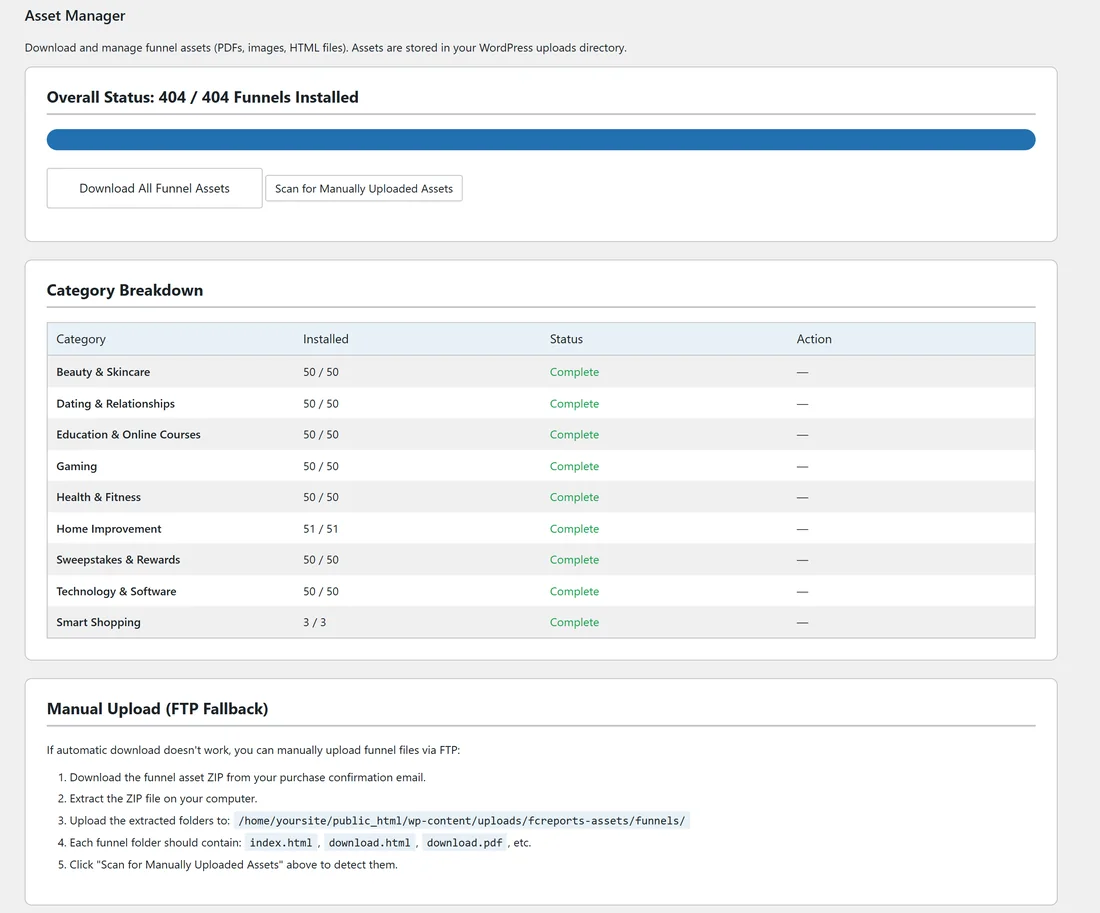
- Overall Status: how many funnels have their files, for example 404 / 404 Funnels Installed, with a progress bar.
- Download All Funnel Assets: downloads the files for every niche your licence includes.
- Scan for Manually Uploaded Assets: counts the files already on your site, for example after an upload by FTP.
- Category Breakdown: one row per niche.
- Manual Upload (FTP Fallback): the steps and the exact folder for uploading the files yourself.
Download every niche:
- Click Download All Funnel Assets.
- A progress bar shows while the files download and unpack. Each niche is one zip file of about 25 to 60 MB.
- When it finishes, Overall Status shows every funnel installed and the Dashboard shows the same number under Funnels Installed.
The Category Breakdown table:
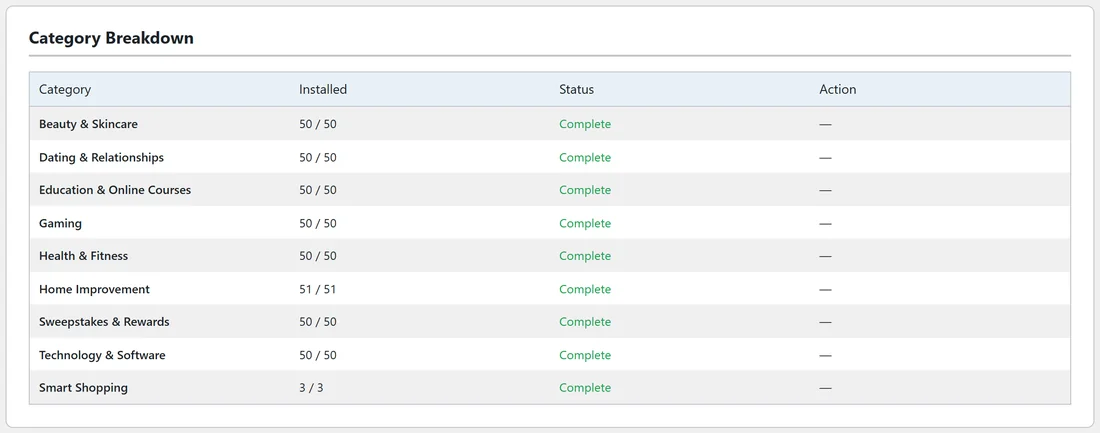
- Category: the niche name. Your own categories from the Funnel Builder add-on show here too.
- Installed: how many of that niche's funnels have their files, for example 50 / 50.
- Status: Complete, Partial or Not Installed.
- Action: a Download button for any niche that is not complete. A complete niche shows a dash.
Download one niche at a time:
If your host is slow or limits how long a request may run, click Download on one niche row, wait for it to finish, then do the next. Only niches your licence includes can be downloaded.
Upload the files yourself:
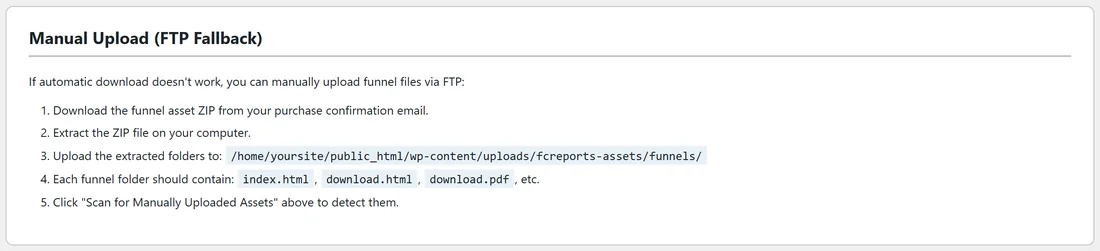
- Get the funnel asset zip files from your purchase.
- Unzip them on your computer. Each report is a folder, named like HealthMealPrepMadeEasy.
- Upload the folders by FTP into wp-content/uploads/fcreports-assets/funnels/ on your site.
- Each folder should hold index.html, download.html and download.pdf, plus box.png and the other files.
- Click Scan for Manually Uploaded Assets. You see a message such as "400 of 404 funnel assets found."
A report counts as installed when its folder has index.html, download.html and download.pdf. A report without them shows No Assets on the Funnels tab instead of a cover, and its address shows a short page saying the files are not installed yet.
What the files are:
- index.html: the squeeze page.
- download.html: the download page.
- download.pdf: the original report. Rebranded copies are kept in a separate folder, so the original is never changed. See Rebranding The PDF Reports.
- box.png: the cover, used on the pages, the Funnels tab, the Showcase and Splash Pages.
- share.png: the picture shown when someone shares the link on social media.
- privacy.html, terms.html and disclaimer.html: the pages linked in the footer.
A real example:
yoursite.com has an all niche key. The owner clicked Download All Funnel Assets once, and the Category Breakdown shows every niche Complete, plus the Smart Shopping category with 3 / 3 for the custom funnels built with the Funnel Builder.
Tips:
- Run the download when you have a few quiet minutes. Leave the page open until it finishes.
- After adding a key for another niche, come back here and click Download on that niche's row.
- The Diagnostics tab shows Funnel Assets Installed too, which is handy when you send a report to support. See Diagnostics And The Debug Log.