Many offers only pay for visitors from some countries. Geo Smart Links make each report's offer button send a reader to the offer for their country. You set the links once, and every download page and every rebranded PDF uses them.
How it works:
Each report has one smart link: its address plus /go, for example yoursite.com/reports/HealthMealPrepMadeEasy/go. The Check Out This Resource button on the download page and the button in rebranded PDFs both use it. When a reader clicks, the plugin checks their country and sends them on to the matching offer.
Because the PDFs hold the smart link and not the offer itself, you can change offers any time and every PDF already shared follows the change.
The regions:
- United States
- Canada
- United Kingdom
- Europe (the EU countries, plus Switzerland, Norway, Iceland and Liechtenstein)
- Australia & New Zealand
- Rest of World (default)
Set links for every report:
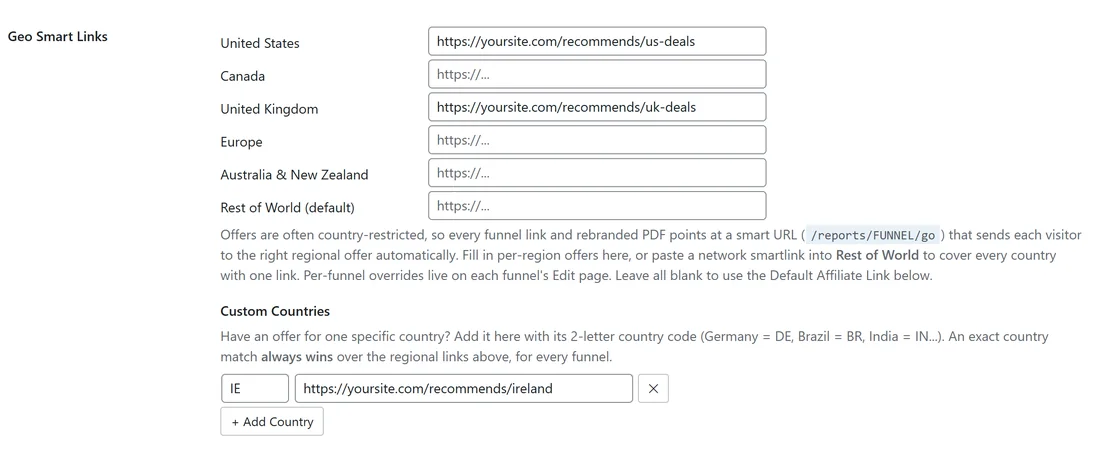
- Go to Settings, then General Settings, and find Geo Smart Links.
- Paste an offer link next to each region you have an offer for. Leave the others blank.
- Fill in Default Affiliate Link further down. Any reader with no match goes there.
- Click Save Settings.
Custom Countries:
For an offer in one country only, pin it under Custom Countries.
- Click + Add Country.
- Type the 2 letter country code, for example DE for Germany, BR for Brazil or IN for India. The box suggests codes as you type.
- Paste the offer link and click Save Settings.
An exact country always wins over the regional links. The x button removes a row.
Set links for one report:
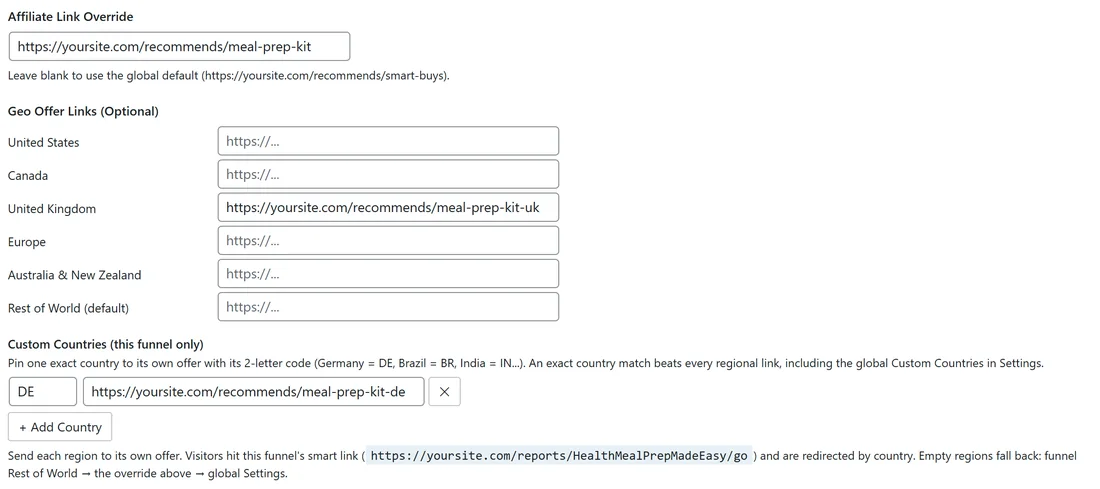
- Open the report's Edit page and go to Customization.
- Affiliate Link Override: this report's own main offer.
- Geo Offer Links (Optional): this report's own link for each region.
- Custom Countries (this funnel only): pin single countries for this report, the same way as in Settings.
- The note under the fields shows this report's smart link.
- Click Save Funnel Settings.
Which link a reader gets:
The plugin checks in this order and uses the first link it finds:
- This report's custom country link for the reader's country.
- Your custom country link in Settings for that country.
- This report's geo link for the reader's region.
- This report's Rest of World link.
- This report's Affiliate Link Override.
- Your geo link in Settings for the reader's region.
- Your Rest of World link in Settings.
- Your Default Affiliate Link.
If none is set, the download page leaves the Recommended Resource box off.
How the country is found:
The plugin reads the country from your host or CDN when it is passed along, for example by Cloudflare. If not, it looks up the reader's address once and remembers the answer for a day, so later clicks are instant. A reader whose country cannot be found gets your Rest of World link.
Check your links:
- Open the report's Traffic Toolkit and click Copy Offer Smart Link.
- Open the link in a private browser window. You land on the offer for your own country.
- To check another country, use a VPN set to that country, or ask someone there to click it.
- If you land on the wrong offer, check the order in Which link a reader gets, starting with the report's own fields.
A real example:
yoursite.com has a US deal and a UK deal, plus a partner in Ireland. In Settings the owner set United States to https://yoursite.com/recommends/us-deals, United Kingdom to https://yoursite.com/recommends/uk-deals, a Custom Country IE to https://yoursite.com/recommends/ireland, and the Default Affiliate Link to https://yoursite.com/recommends/smart-buys.
For Meal Prep Made Easy they set the Affiliate Link Override to a meal kit offer, a UK link for the UK version of that kit, and DE for a German partner. A reader in Germany who clicks the button in that PDF goes to the German offer. A reader in Ireland gets the Ireland link. A reader in Canada gets the meal kit offer.
Where else you find the smart link:

- The Traffic Toolkit has a Copy Offer Smart Link button.
- Paste the smart link anywhere you would paste your raw offer link: emails, posts or your own pages.
Tips:
- Always fill in the Default Affiliate Link. It is the safety net for every reader.
- Point your geo links at your own redirect pages, such as yoursite.com/recommends/us-deals. Then you can change the offer behind them without touching the plugin at all.
- To check a region, ask a friend in that country to click the link, or use a VPN set to that country.