Small nudges make more visitors finish the opt-in. Free Consumer Reports has three, all switched on to start with. Each is set once in Settings, and the timer and progress bar can also be set per report.
The Exit-Intent Popup:
The squeeze page's own opt-in popup opens by itself after 30 seconds, or when the visitor moves the mouse up to leave the page, whichever comes first.
- Desktop only: it works on computers with a mouse and a window wider than 820 pixels.
- Once per visitor per report: after it has opened once, that visitor does not see it again on that report.
- It does not open while the page is shown inside a Splash Page popup.
The Urgency Timer:

A slim dark bar at the very top of the squeeze page: "Your free copy is reserved for 4:58", counting down from five minutes.
- The countdown belongs to the visitor and the report, and a page refresh does not restart it.
- When it reaches zero, the bar says "Good news: your copy is still available. Claim it below." It never pretends the offer has gone.
- You can change the words before the clock, in Settings.
The Progress Bar:
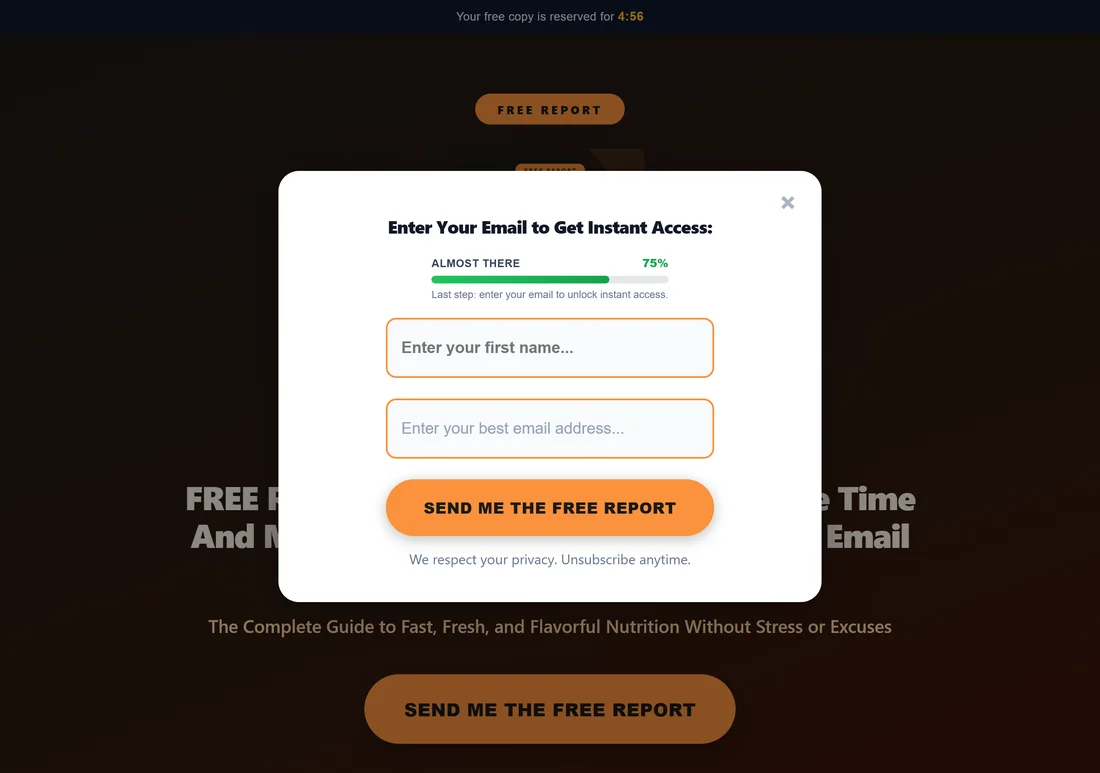
Inside the opt-in popup, above the form: ALMOST THERE and 75%, with a green bar that fills from 25% to 75% as the popup opens, and the line "Last step: enter your email to unlock instant access." Visitors see they are one small step from the report, and most finish it.
Set them for every report:
- Go to Settings, then General Settings.
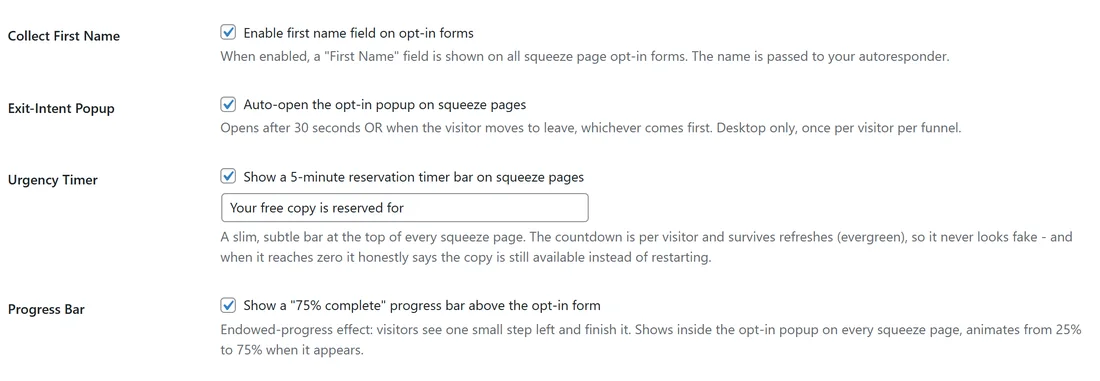
- Exit-Intent Popup: tick Auto-open the opt-in popup on squeeze pages.
- Urgency Timer: tick Show a 5-minute reservation timer bar on squeeze pages, and change the words in the box under it if you like. The standard words are "Your free copy is reserved for".
- Progress Bar: tick Show a "75% complete" progress bar above the opt-in form.
- Click Save Settings.
Collect First Name sits in the same group. Tick it to add a first name field to every opt-in form. The name goes to your email service with the email.
Set them for one report:

- Open the report's Edit page.
- In Customization, find Conversion Boosters.
- For Urgency Timer and Progress Bar, choose Use Global Setting (it shows whether Settings has it ON or OFF), On for this funnel, or Off for this funnel.
- Click Save Funnel Settings.
Push one choice to every report:
Next to each booster on the Edit page, Apply To All Funnels sets the choice in that menu on every report. To put every report back on the Settings choice, pick Use Global Setting and click Apply To All Funnels.
The Exit-Intent Popup is set in Settings only.
On phones:
The Urgency Timer bar and the Progress Bar show on phones too. The Exit-Intent Popup is for computers only, because phones have no mouse to move away. On a phone, the popup opens when the visitor taps the button.
A real example:
yoursite.com runs all three boosters on every report. The owner also collects first names, so welcome emails can greet readers by name. On the Meal Prep Made Easy page the popup shows ALMOST THERE 75%, a first name box and an email box. The report converts at 42.4%, the best on the site.
Tips:
- Keep all three on to start. Switch one off for a week on a busy report if you want to measure it, then compare the Conversion Rate.
- Short timer words read best on phones, for example "Reserved for you for".
- The first name field adds one more box to fill in. If your welcome emails do not use the name, try the form without it.