The squeeze page is the first page a visitor sees: the cover, the headline and the button that opens the opt-in form. The page design comes with the report, and the plugin adds your own parts to it every time it loads. That is why one change in Settings updates all 400 pages at once.
What a visitor sees:
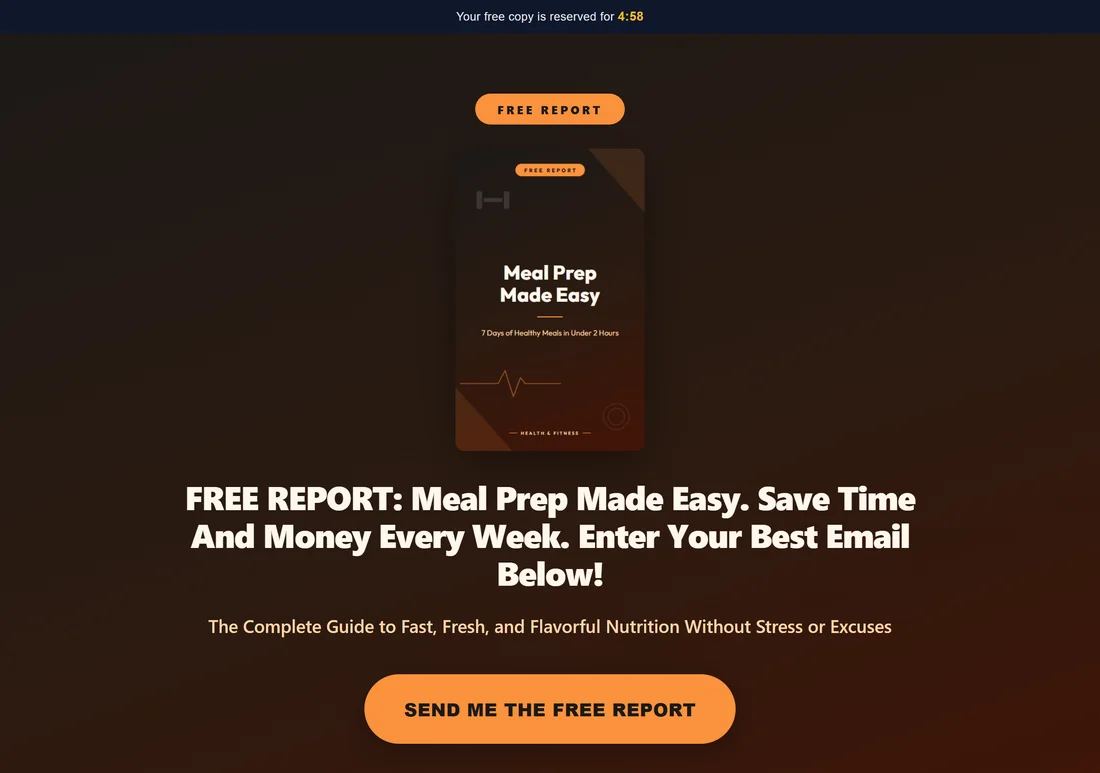
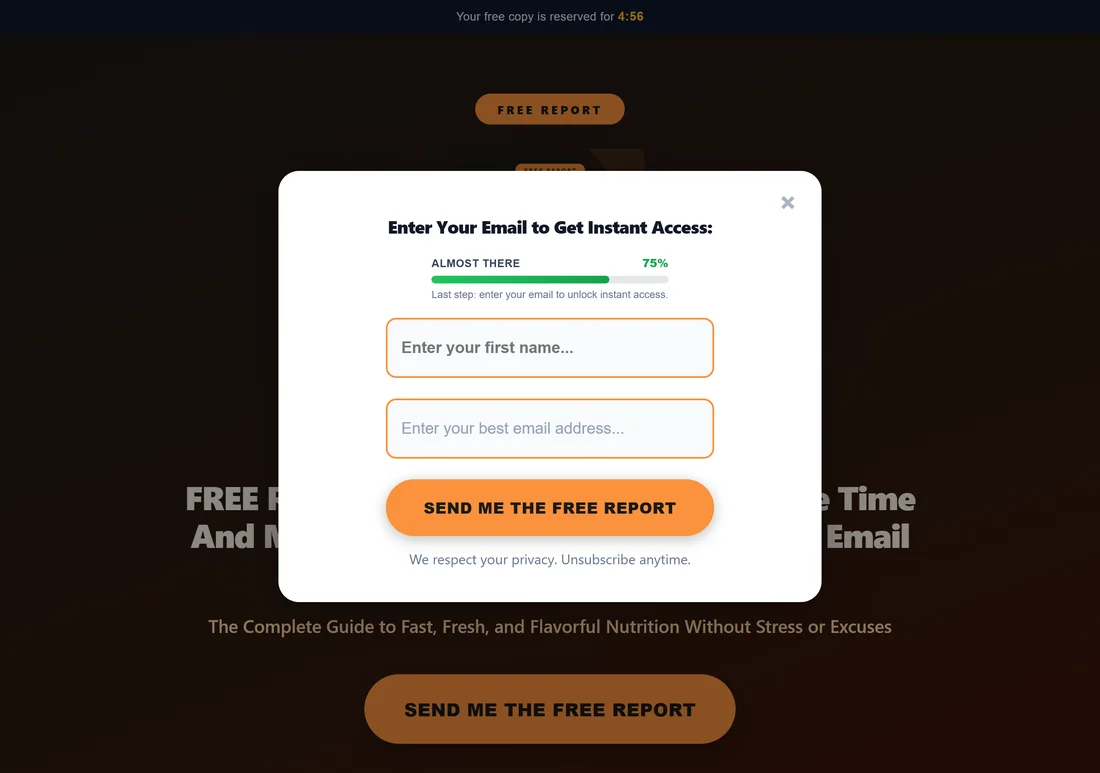
- A slim bar at the top: "Your free copy is reserved for 4:58" (the Urgency Timer).
- A FREE REPORT label, the cover and the headline.
- A short line under the headline.
- A big button, for example SEND ME THE FREE REPORT.
- Links to the Privacy Policy, Terms and Disclaimer pages at the bottom.
Clicking the button opens the opt-in popup with the progress bar, the first name field (when switched on) and the email field.
What the plugin adds as the page loads:
- Your email form: the form is set up for the email service and list this report uses, so the lead goes to the right place. See Connecting Your Autoresponder.
- Your headline: if you typed a Custom Headline on the report's Edit page, it replaces the report's own headline.
- Your background: a Background Color or Background Image URL from the Edit page replaces the report's colours.
- The Urgency Timer bar, the Progress Bar and the Exit-Intent Popup, when they are on. See Exit Intent, Urgency Timer And Progress Bar.
- Your tracking codes and your Google Analytics tag. See Tracking What Works.
- Share tags, so a link shared on Facebook, LinkedIn or X shows the report's title and its share picture.
- Working links to the footer pages.
Where to find the settings for one report:
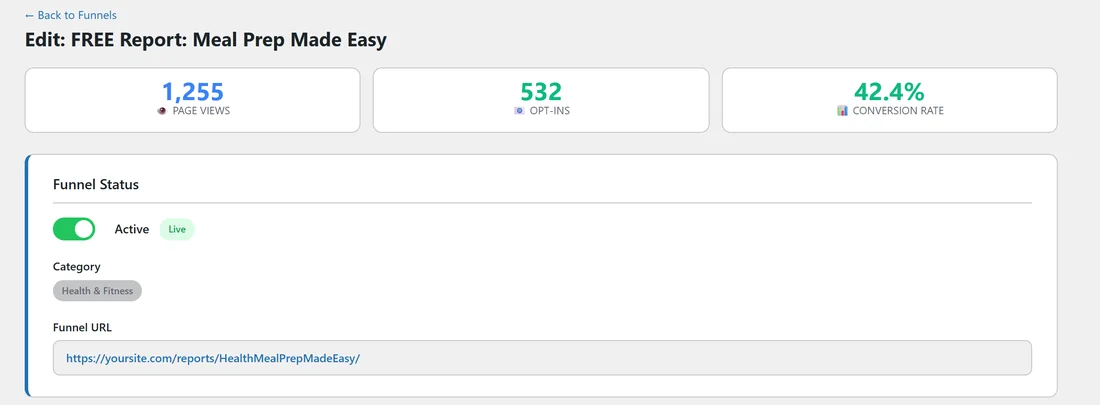
Funnels tab, then Edit on the report's card. The Edit page opens with three numbers at the top (Page Views, Opt-ins and Conversion Rate), then these sections: Funnel Status, Autoresponder, Customization, Tracking Codes, Download Page Resources & Banners, External URL Override and Preview. Click Save Funnel Settings at the bottom after any change.
Customization, field by field:
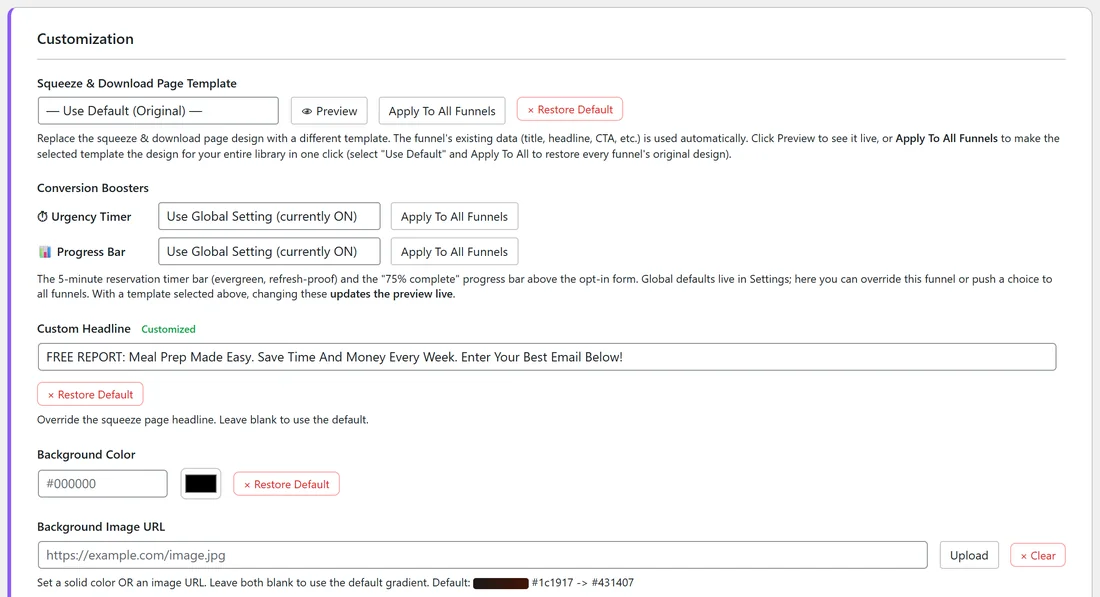
- Squeeze & Download Page Template: swap the page design for one of 9 templates. See Page Templates And Restyling A Funnel.
- Conversion Boosters: switch the Urgency Timer and Progress Bar on or off for this report only.
- Custom Headline: your own headline. The box shows the report's headline in grey until you type. Restore Default clears it.
- Background Color: a colour such as #1e3a8a. Use the colour picker or type the code. Restore Default clears it.
- Background Image URL: a picture behind the page. Click Upload to pick one from your Media Library, or paste a link. Clear removes it.
- Affiliate Link Override and Geo Offer Links: this report's own offer. See Geo Smart Links And Per Country Offers.
Set a colour or an image, not both. With both blank, the page keeps its own gradient, shown under the image box as Default.
Change the headline:
- Open the report's Edit page.
- In Customization, type your headline in Custom Headline.
- Click Save Funnel Settings. You see "Funnel settings saved!"
- Scroll to Preview and click Preview next to the squeeze page to check it.
A real example:
The owner of yoursite.com wanted the Meal Prep Made Easy page to speak to busy readers. They set the Custom Headline to "FREE REPORT: Meal Prep Made Easy. Save Time And Money Every Week. Enter Your Best Email Below!" The tag Customized now shows next to the field, and the live page shows the new headline above the report's own line, The Complete Guide to Fast, Fresh, and Flavorful Nutrition Without Stress or Excuses.
Using your own squeeze page:
If you built a page elsewhere, for example in another page builder, tick Overwrite System Squeeze Page under External URL Override and paste its address. Visitors to the report's address are sent there, and the plugin still counts the visit. The same works for the download page with Overwrite System Download Page.
Tips:
- Keep custom headlines short enough to read in one breath. Long headlines wrap onto many lines on a phone.
- Change one thing at a time and watch the report's Conversion Rate for a week before you change the next.
- Want the same change on many reports? Templates and boosters each have an Apply To All Funnels button.