When something does not behave the way you expect, two screens show you why. Diagnostics checks the setup in one page. The Debug Log, in Settings, records what happened with each opt-in and each reply from your email service. Support will often ask for both.
Where to find it:
- Diagnostics: Free Consumer Reports, then the Diagnostics tab. It is also the Open Diagnostics button in Settings, under Help & your account.
- Debug Log: Settings, near the bottom, under Advanced.
The Diagnostics sections:
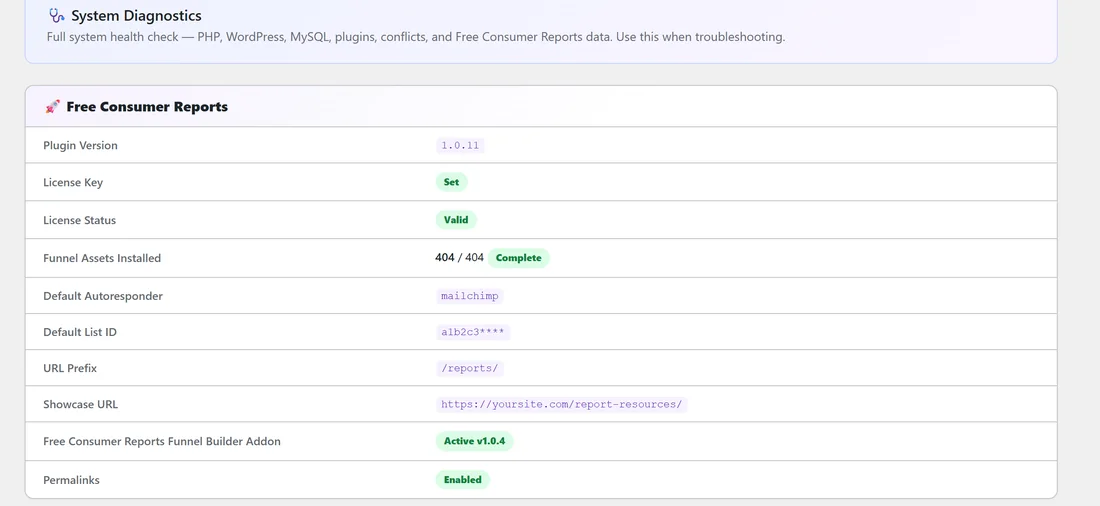
Each line shows a value or a coloured label: green for good, amber for worth a look, red for something to fix.
Free Consumer Reports:
- Plugin Version, for example 1.0.11.
- License Key: Set or Not activated. License Status: Valid.
- Funnel Assets Installed, for example 404 / 404 Complete.
- Default Autoresponder and Default List ID (partly hidden).
- URL Prefix and Showcase URL.
- Free Consumer Reports Funnel Builder Addon: Active with its version, or a short note when it is not active.
- Permalinks: Enabled, or a red note to set Post name.
The other sections:

- Critical Plugin Files: the plugin's key files and folders, and whether the uploads folder can be written to.
- PHP: version, Memory Limit, Max Execution Time, Max Input Vars, Post Max Size, Upload Max Filesize and SAPI. A note shows if a value is low for downloads or PDF work.
- Required PHP Extensions: the extensions the plugin uses, each marked present or missing.
- WordPress: version, memory, the debug settings, WP Cron, caching, Site URL, Home URL, HTTPS, Multisite, Active Theme, language and timezone.
- Database: the database version, table prefix, charset and collation.
- Plugin Database Tables: Funnels (per-funnel settings), Collected Emails, Page Views (detailed) and Stats (aggregate), with the number of rows in each.
- Detected Potential Conflicts: plugins known to need a small setting, such as a caching plugin that should skip your report addresses, with what to do.
- Active Plugins: every active plugin and its version.
Send a report to support:
- Open Diagnostics.
- Click Copy Full Report To Clipboard at the bottom.
- Paste it into your message to support.
The Debug Log:
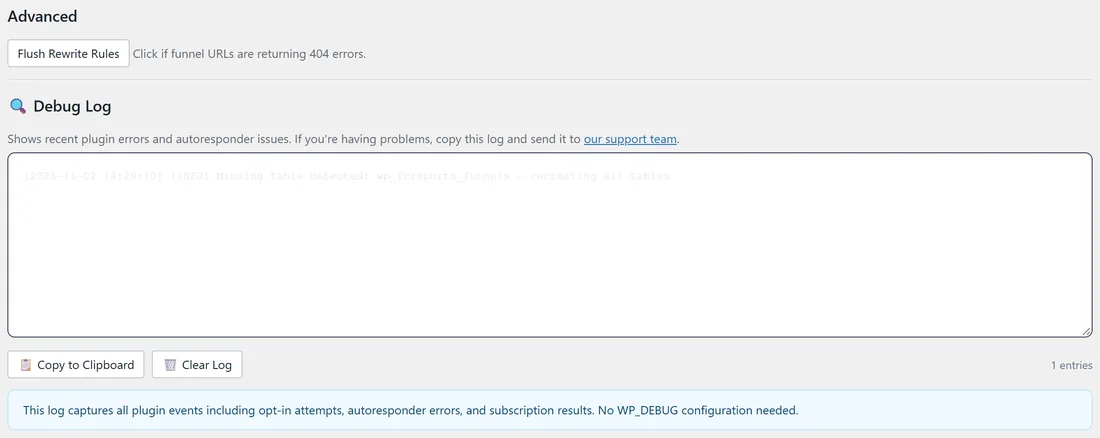
The log records events without any WordPress debug setup: each opt-in attempt, whether your email service accepted it, and the reply when it did not. Entries show the date, the time and a short message.
- Copy to Clipboard copies the whole log.
- Clear Log empties it, after you confirm.
- The count on the right shows how many entries there are.
When there is nothing to report, the box says "No plugin errors found. Everything is working fine!"
Read the Debug Log:
- Send yourself through a report with a test email address.
- Open Settings and scroll to Debug Log.
- Look at the newest line. A success line names the service, for example "Mailchimp: Successfully subscribed". A failed line carries the service's own reason, such as a wrong list ID or an old API key, so you know exactly what to fix.
Act on what Diagnostics shows:
- Permalinks in red: go to WordPress Settings, then Permalinks, choose Post name and click Save Changes.
- Funnel Assets Installed shows Incomplete: open the Assets tab and download the niches that are not Complete.
- Default Autoresponder or Default List ID shows Not set: connect your service and pick a default list on the Autoresponders tab.
- WP_DEBUG_DISPLAY shows Enabled: ask your host or developer to switch it off on a live site, since on screen debug messages can get in the way of PDF downloads.
- A plugin under Detected Potential Conflicts: follow the note next to it.
- A low PHP value: ask your host to raise it. Downloads and PDF work like a generous Memory Limit and Max Execution Time.
A real example:
On yoursite.com, Diagnostics shows Plugin Version 1.0.11, License Status Valid, 404 / 404 Complete, Default Autoresponder mailchimp, URL Prefix /reports/, Showcase URL https://yoursite.com/report-resources/, the Funnel Builder Addon Active v1.0.4 and Permalinks Enabled. Plugin Database Tables shows 4,158 rows in Collected Emails.
Tips:
- Look at Detected Potential Conflicts after installing a caching or security plugin.
- Clear the Debug Log before a test, so the lines you read are all from that test.
- Include the Diagnostics report and the Debug Log when you contact support. It saves a round of questions.