The download page is where a new subscriber gets their PDF. It is also the moment they are most interested, so it is the best place for your offer. The plugin gives you two ways to fill that space: the Recommended Resource box, or your own resource cards and banners.
What a visitor sees:
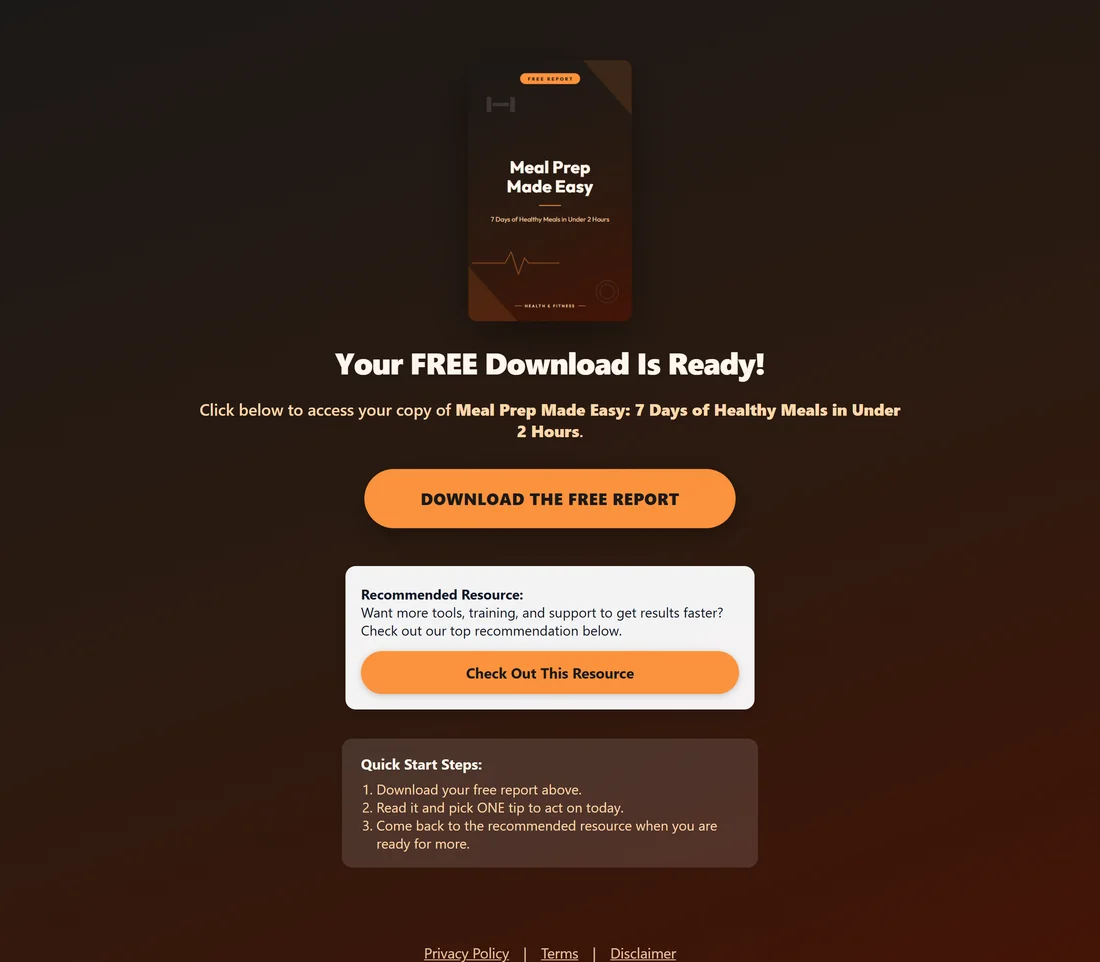
- The cover and "Your FREE Download Is Ready!"
- A line naming the report, then a DOWNLOAD THE FREE REPORT button.
- Your offer slot under the button.
- Quick Start Steps: download the report, read it and pick one tip, and come back to the recommended resource.
- Footer links to the Privacy Policy, Terms and Disclaimer pages.
The page opens straight after the visitor sends the opt-in form. With LeadsLeap, which confirms new subscribers by email first, the page also shows a "Check your inbox, one more step" note.
Offer slot 1, the Recommended Resource box:
This is the standard slot. It says Recommended Resource with a short line and a Check Out This Resource button. The button uses the report's offer smart link, so it goes to:
- this report's own offer, if it has one on its Edit page, or
- your Geo Smart Link for the visitor's country, or
- your Default Affiliate Link in Settings.
If none of these is set, the box is left off the page, so a visitor never sees a button that goes nowhere. See Geo Smart Links And Per Country Offers.
Offer slot 2, resource cards and banners:
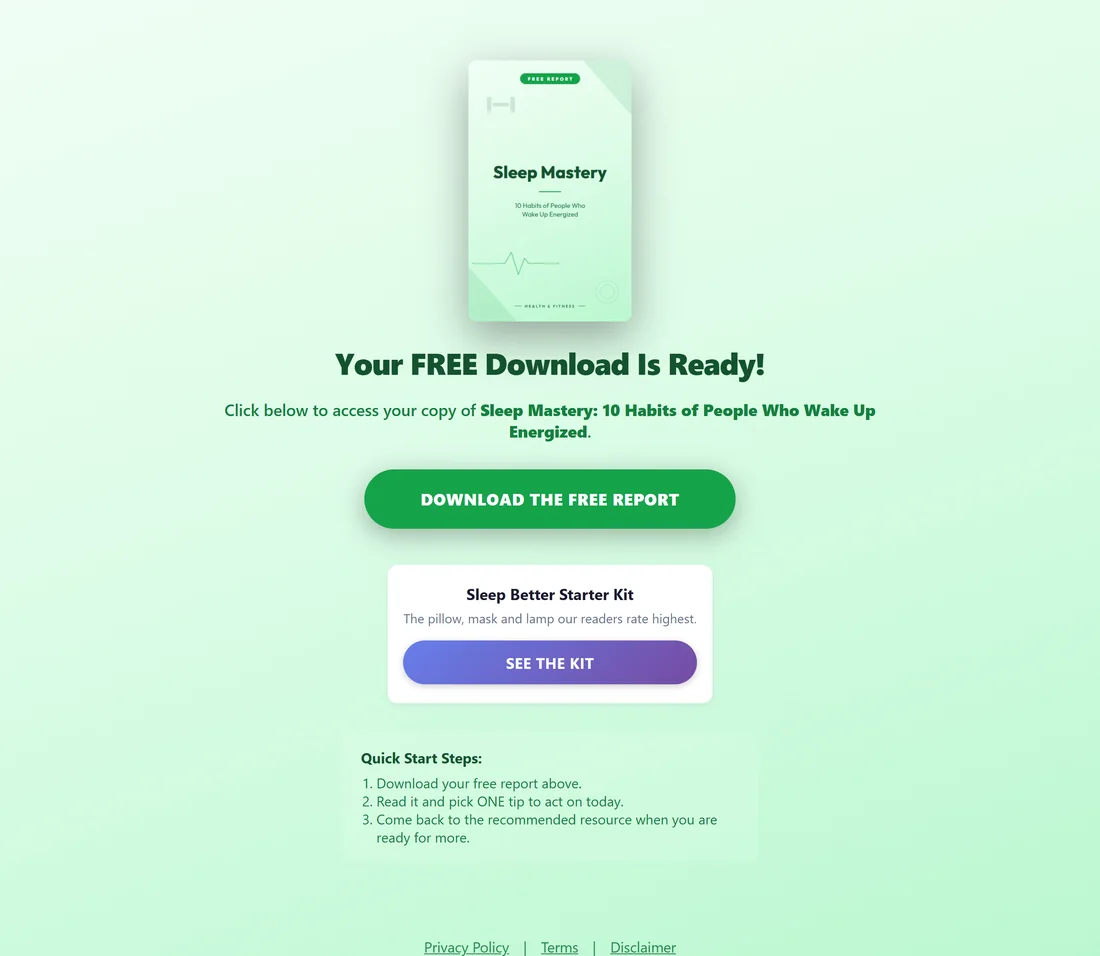
Prefer your own words? Add resource cards and banners. When any are set, they take the place of the Recommended Resource box.
- Recommended Resources: up to 5 cards. Each has a Title (required), URL (required), Description and Button Text.
- Download Page Banners: up to 5 pictures. Each has a Banner Image (required), a Click URL and Alt Text. Banners show under the cards and open in a new window.
Set them for every report:
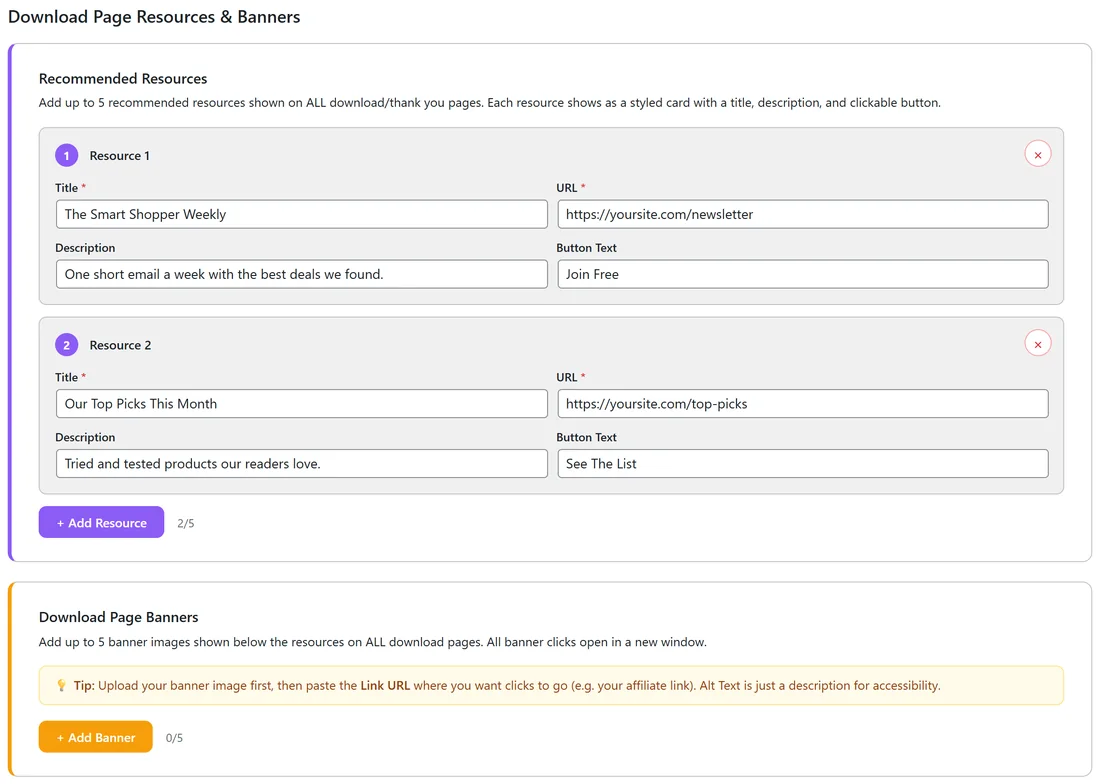
- Go to Settings and scroll to Download Page Resources & Banners.
- Click + Add Resource and fill in the Title, URL, Description and Button Text.
- For a banner, click + Add Banner, then Upload Image to pick a picture, and paste the Click URL.
- The counter shows how many you have, for example 2/5.
- Click Save Settings.
The x button on a card's corner removes it.
Set them for one report:
- Open the report's Edit page from the Funnels tab.
- Scroll to Download Page Resources & Banners.
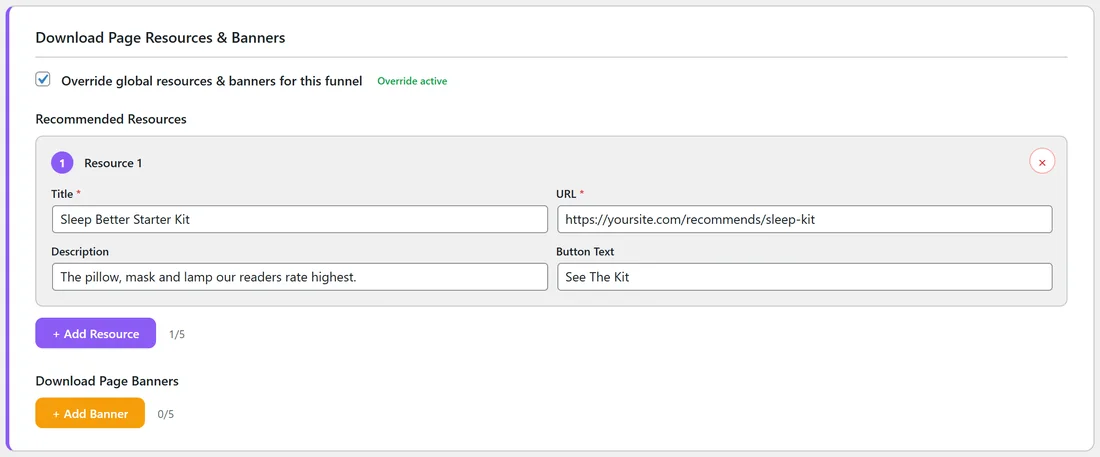
- Tick Override global resources & banners for this funnel. The fields open, and the tag Override active shows once saved.
- Add your cards and banners, then click Save Funnel Settings.
Untick the box to go back to the settings for every report. While it is unticked, the section says "Using global settings."
A real example:
yoursite.com leaves the global cards empty, so most reports show the Recommended Resource box with the owner's smart link.
For Sleep Mastery, the owner ticked the override and added one card: title Sleep Better Starter Kit, URL https://yoursite.com/recommends/sleep-kit, description "The pillow, mask and lamp our readers rate highest." and button text See The Kit. That report's download page now shows this card in place of the standard box.
Using your own download page:
Built your own thank you page somewhere else? On the Edit page, tick Overwrite System Download Page under External URL Override and paste its address. Visitors who opt in are sent there, and the opt-in is still counted.
Tips:
- One clear offer usually beats five. Start with one card or the standard box, then test a second.
- Match the offer to the report's niche. The Traffic Toolkit's Ways To Monetize This Funnel section suggests offer types for each niche.
- Put a conversion pixel on the download page. It only loads after a real opt-in. See Tracking What Works.