Free Consumer Reports keeps everything under one menu and one tab bar. This tour tells you what each tab is for, so you always know where to click.
Where to find it:

Click Free Consumer Reports in the WordPress sidebar. The same tabs also show as items in the sidebar menu, with small icons, for example 📁 Funnels and ⚙️ Settings. The tab bar sits under the plugin's header on every screen, and the header shows the version number, for example v1.0.11.
Dashboard:

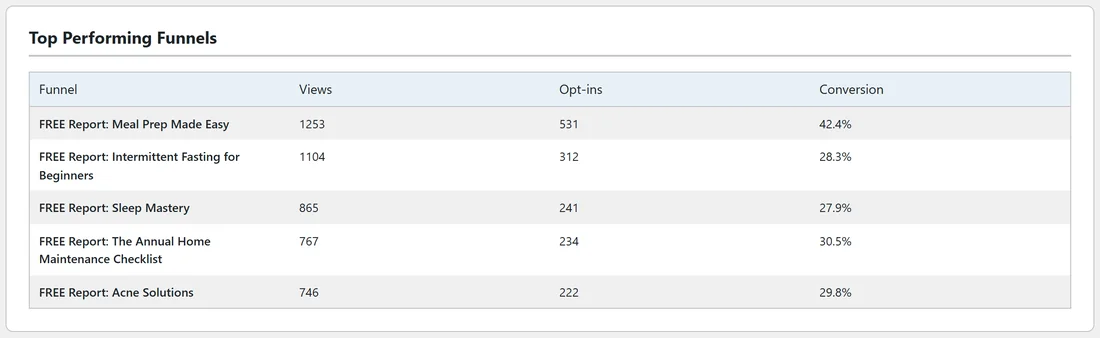
Your overview. Four cards show Page Views, Opt-ins, Conversion Rate and Funnels Installed. Under them, Top Performing Funnels lists your five best reports by opt-ins, with Views, Opt-ins and Conversion. Quick Links jump to Manage Funnels, Autoresponders, PDF Rebrander and Settings.
Until you finish the Setup Wizard, a Welcome card at the top has a Run Setup Wizard button. If the report files are not on your site yet, a Funnel Assets Not Installed card has an Open Asset Manager button.
Funnels:
Every report you can publish, as a grid of covers. Switch reports on or off, open a report's Edit page, preview it, or open its Traffic toolkit. See Choosing And Publishing Report Funnels.
Lists:
Which email service and list each report uses, and every email collected, with search, filters and Export CSV. See The Lists Tab And Exporting Opt-Ins.
Autoresponders:
Connect your email service. AWeber Quick Setup sits at the top, the other providers below. See Connecting Your Autoresponder and AWeber Quick Setup And Tagging.
PDF Rebrander:
Add your own call to action page to the report PDFs. See Rebranding The PDF Reports.
Assets:
Shows whether every report's files are on your site, niche by niche, with download and scan buttons. See Installing Your Funnel Assets.
Showcase:
Settings for the Showcase page, one page that lists all your live reports. See The Showcase Page.
Splash Pages:
Build short "pick your free report" pages with a wall of covers, and see which covers get clicked. See Splash Pages.
Settings:
Your licence, help links, default email list, offer links, conversion boosters, download page resources, tracking codes, the debug log and the colour scheme. See Settings Reference.
Diagnostics:
A one page health report of the plugin, your server and WordPress, with a Copy Full Report To Clipboard button. See Diagnostics And The Debug Log.
Training, Resources and Hub:
- Training opens the guide built into the plugin.
- Resources lists the other tools from the same team that work with Free Consumer Reports, and marks the ones already installed.
- Hub opens the ResultsAiX Hub when it is installed, or a page about it when it is not.
The tabs on the right:
- Funnel Builder: with the add-on active, this tab says ACTIVE and opens My Custom Funnels. Without it, the tab says UPGRADE and opens the add-on's page. See Funnel Builder Add-on: What It Does.
- WP Conversion Tracker: shows with a NEW badge only when that plugin is not installed on your site.
Two pages without a tab:
- A report's Edit page opens from the Edit button on the Funnels tab. The Funnels tab stays highlighted.
- A report's Traffic Toolkit opens from its Traffic button. See The Traffic And Share Toolkit.
A real example:
Most days the owner of yoursite.com only opens three tabs. The Dashboard to see the numbers, the Lists tab to check new leads, and the Funnels tab to open a report's Traffic toolkit and copy a post for social media. Settings and the PDF Rebrander are set once and left alone.
Tips:
- The colour of these screens is set in Settings, under Appearance. Pick Follow the ResultsAiX Hub to match your other ResultsAiX plugins.
- If a tab looks different from the pictures here, check the version number in the header and update the plugin under Dashboard, then Updates.