A Splash Page is a short, fast page with a wall of report covers and one headline, such as Free Healthy Living Guides. Every cover leads into its report. Send one link to an audience and let each visitor pick the topic they care about.
You can build as many as you like: one per niche, one per traffic source, or one per campaign. Splash Pages come with every licence.
Where to find it:
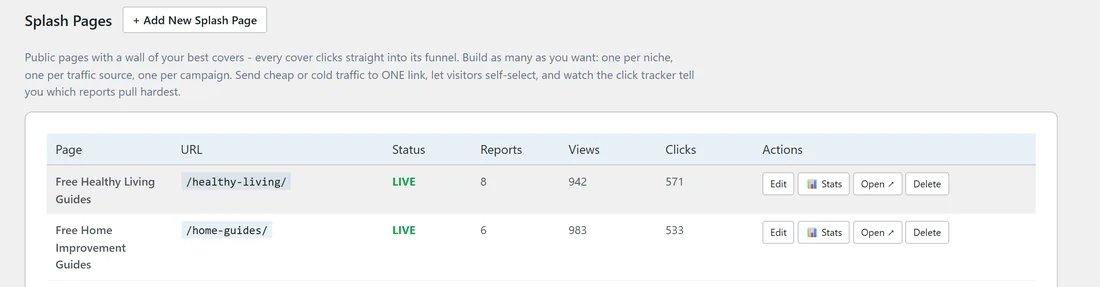
Free Consumer Reports, then the Splash Pages tab. The list shows each page with its Page name, URL, Status (LIVE when switched on), Reports, Views, Clicks and four Actions: Edit, Stats, Open and Delete.
Build a Splash Page:
- Click + Add New Splash Page.
- Fill in the page settings below.
- Choose your reports.
- Click Save Splash Page.
The page settings:
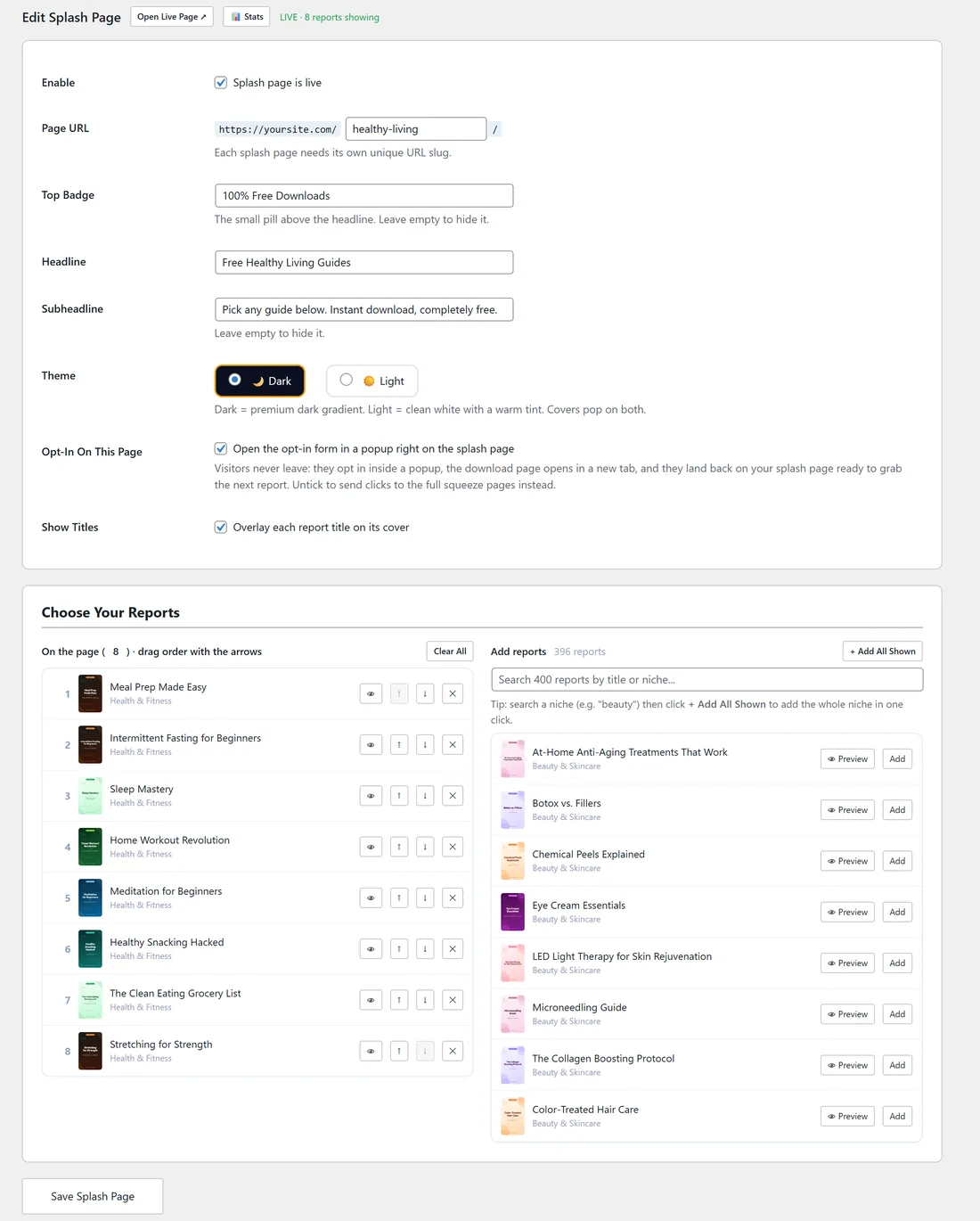
- Enable: tick Splash page is live to publish it.
- Page URL: your domain followed by your own slug, for example healthy-living. Each Splash Page needs its own slug.
- Top Badge: the small pill above the headline, for example 100% Free Downloads. Leave it empty to hide it.
- Headline: the big line, for example Free Healthy Living Guides.
- Subheadline: the line under it. Leave it empty to hide it.
- Theme: Dark (a dark gradient) or Light (clean white with a warm tint).
- Opt-In On This Page: tick Open the opt-in form in a popup right on the splash page. Visitors opt in in a popup, the download page opens in a new tab, and they come back to your Splash Page ready for the next report. Untick it to send clicks to the full squeeze pages instead.
- Show Titles: tick Overlay each report title on its cover.
Choose your reports:
The Choose Your Reports box has two lists.
- Add reports, on the right: every report you can use. Type in the search box to find reports by title or niche. Click Add on a report, or Preview to see it first.
- On the page, on the left: the reports on your Splash Page, in order. Use the up and down arrows to change the order, and x to take one off. Clear All empties the list.
To add a whole niche, type its name in the search box, for example beauty, and click + Add All Shown.
Splash Page stats:
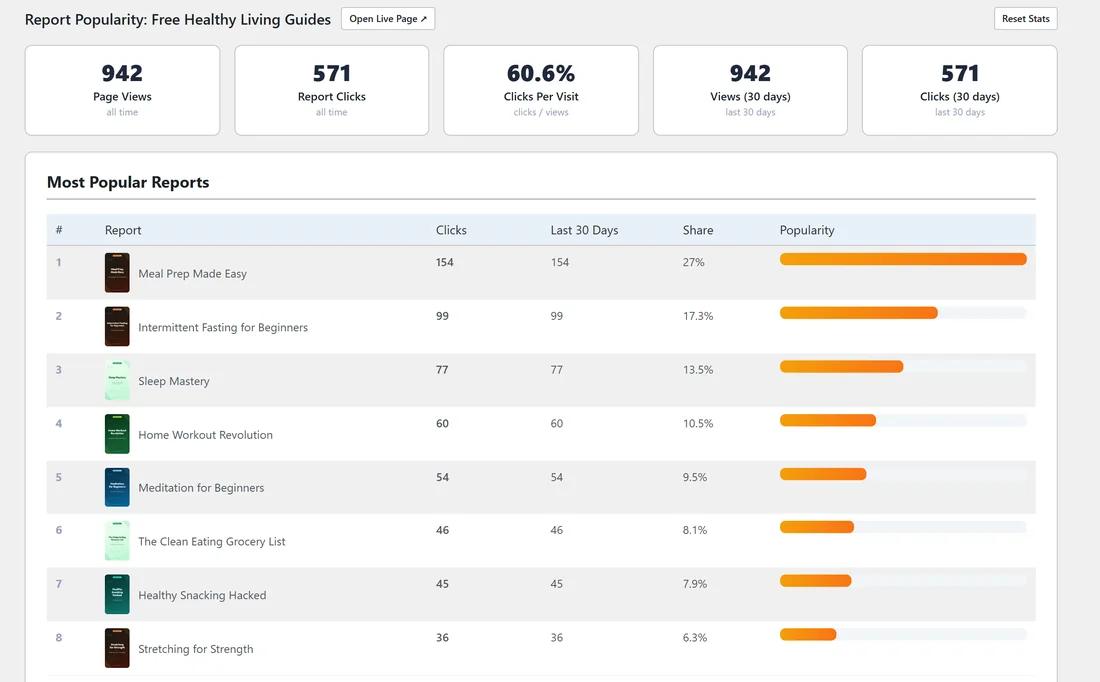
Click Stats on a page. Report Popularity shows five numbers: Page Views and Report Clicks for all time, Clicks Per Visit, and Views and Clicks for the last 30 days.
Under them, Most Popular Reports lists every report on the page with its Clicks, its Last 30 Days clicks, its Share of all clicks and a Popularity bar. Use it to move the best covers to the top and swap out the slow ones. Reset Stats clears the numbers for that page and starts again.
Share a Splash Page:
- On the Splash Pages tab, click Open on the page's row. It opens in a new tab.
- Copy the address from your browser, for example yoursite.com/healthy-living/.
- Use it in a social profile, an ad, a newsletter or a post about that topic.
Switch a page off:
Open it with Edit, untick Splash page is live, and click Save Splash Page. Its stats are kept. Delete removes the page from the list.
A real example:
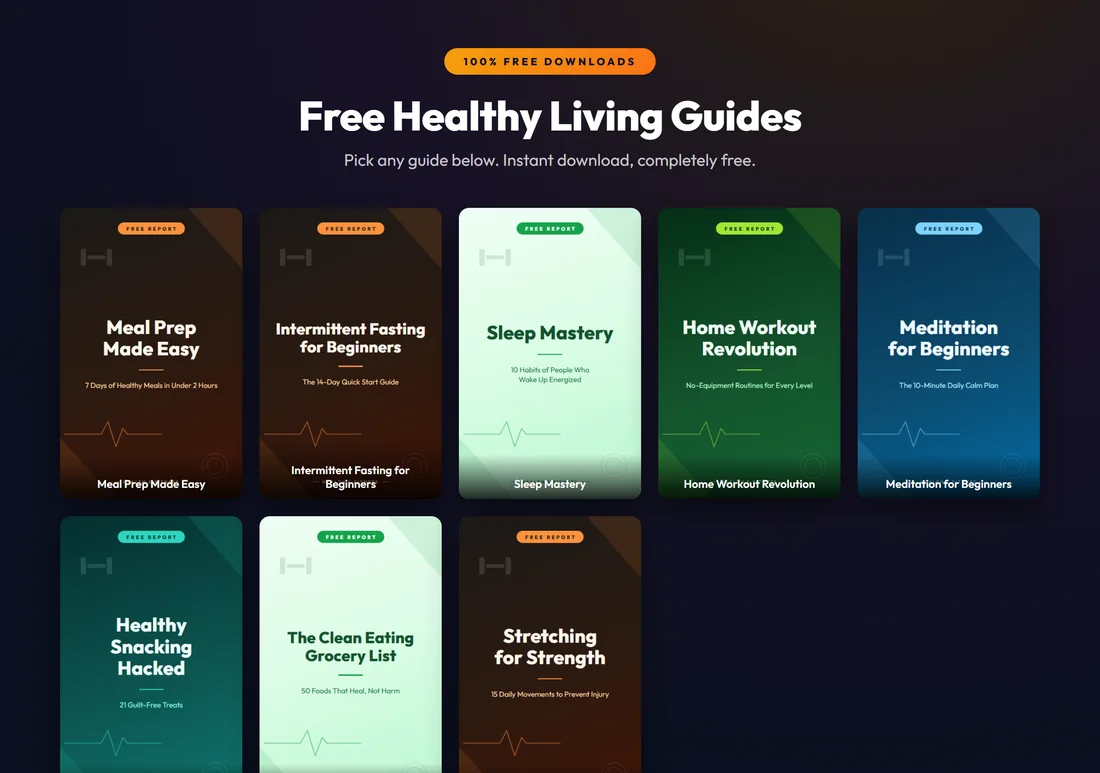
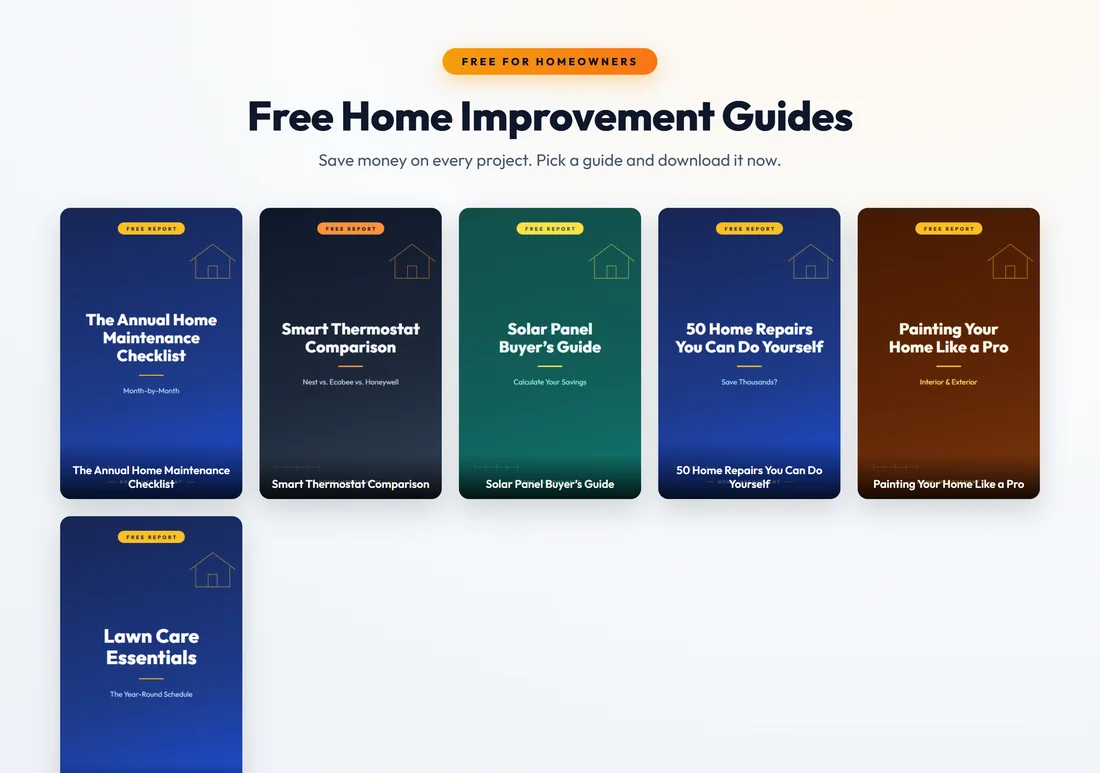
The owner of yoursite.com built two pages. Free Healthy Living Guides lives at yoursite.com/healthy-living/ with the Dark theme and 8 health reports. Free Home Improvement Guides lives at yoursite.com/home-guides/ with the Light theme and 6 home reports.
Over a month, the healthy living page had 940 views and 571 report clicks, 60.7% clicks per visit. Meal Prep Made Easy took 27% of the clicks, so it stays first. Stretching for Strength was last with 6.3%, so the owner swapped it for another report.
Tips:
- Keep each page to one theme. A page of 6 to 12 related covers works better than 50 mixed ones.
- Leave Opt-In On This Page ticked for cold traffic. Visitors who stay on the page often grab a second report.
- Use one page per traffic source, for example one for Pinterest and one for your newsletter, and compare their stats.
- For a page that lists everything, use the Showcase instead. See The Showcase Page.