Every report gets a set of web addresses on your own domain. You do not create pages for them in WordPress. The plugin answers those addresses itself. This article explains the addresses, the URL Prefix setting, and how to keep links working.
The addresses of one report:
For the report Meal Prep Made Easy on yoursite.com, with the standard prefix:
- Squeeze page: yoursite.com/reports/HealthMealPrepMadeEasy/
- Download page: yoursite.com/reports/HealthMealPrepMadeEasy/download.html
- Offer smart link: yoursite.com/reports/HealthMealPrepMadeEasy/go
- Footer pages: privacy.html, terms.html and disclaimer.html in the same place.
The PDF button on the download page links to the plugin's own PDF address, so the PDF opens on any host. Visitors who reach yoursite.com/reports/ with no report name are sent to your Showcase page.
Where to find a report's address:
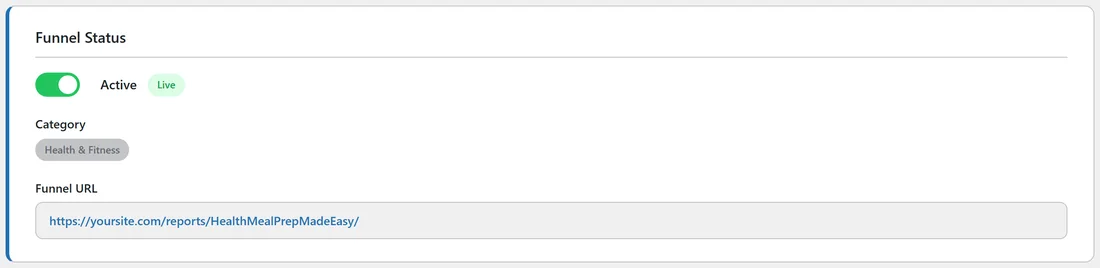
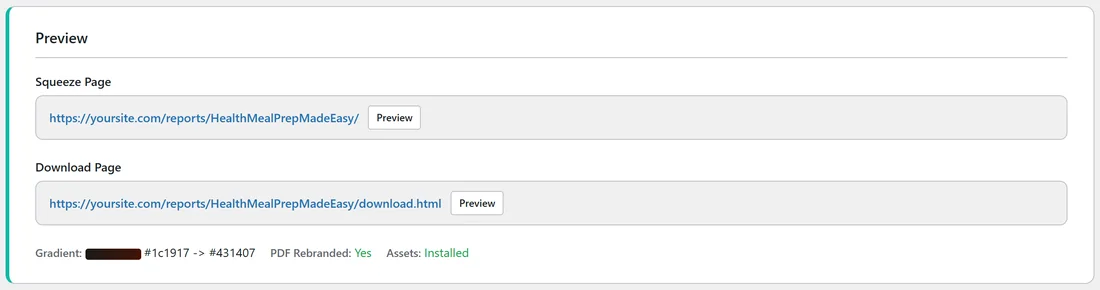
- The report's Edit page, under Funnel Status, shows the Funnel URL.
- The Preview section at the bottom of the Edit page shows both the squeeze page and the download page, each with a Preview button.
- The Traffic Toolkit has a Copy Link button.
- The Lists tab has eye and download icons that open both pages.
Capital letters count:
Report slugs use capital letters, for example HealthMealPrepMadeEasy. Copy the address with Copy Link or from the Edit page rather than typing it, so the capitals are exactly right.
The URL Prefix setting:
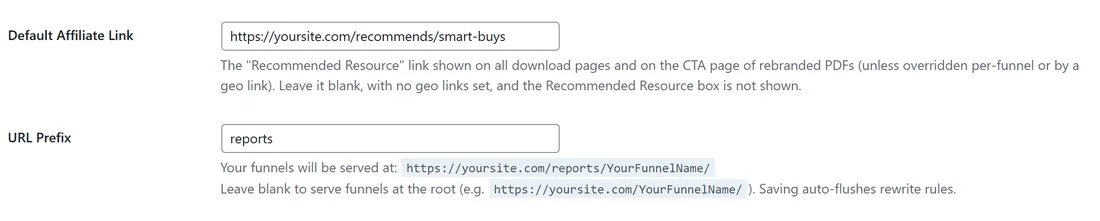
The prefix is the word between your domain and the report name. It is reports unless you change it.
- Go to Settings, then General Settings.
- Find URL Prefix. Under the box you see where your funnels are served, for example https://yoursite.com/reports/YourFunnelName/.
- Type a new prefix, for example free, and click Save Settings.
Saving refreshes WordPress's address rules for you. Every report's address now uses the new prefix.
Choose the prefix before you share links:
Links you have already shared, printed or put in emails use the old prefix. Pick your prefix on day one and keep it. If you do change it later, update your links in emails, posts and ads to the new addresses.
Leaving the prefix blank:
With an empty prefix, reports live at the root of your site, for example yoursite.com/HealthMealPrepMadeEasy/. Settings then shows a note recommending a prefix, because a report name could match a page or post on your site. A blank prefix suits a site used only for these funnels.
Pages of your own under the prefix:
If you already have a real WordPress page at an address under the prefix, for example yoursite.com/reports/annual-review/, WordPress still shows your page. Only report names go to the plugin.
A real example:
The owner of yoursite.com kept the prefix reports. Their Facebook post links to https://yoursite.com/reports/HealthMealPrepMadeEasy/, their Pinterest pins link to the same address, and the offer link in their rebranded PDF is https://yoursite.com/reports/HealthMealPrepMadeEasy/go.
If an address shows a 404 page:
- Check WordPress Settings, then Permalinks. Choose Post name and click Save Changes, even if it is already chosen.
- Check the report is switched on in the Funnels tab.
- Check your licence includes the report's niche.
- Check the report's files are installed on the Assets tab.
- Go to Settings, scroll to Advanced, and click Flush Rewrite Rules.
See Troubleshooting Common Problems for more.
Tips:
- Use the Offer Smart Link (the /go address) anywhere you would paste your raw offer link. You can then change the offer later in one place.
- Short, plain prefixes such as reports, free or guides read well in social posts.