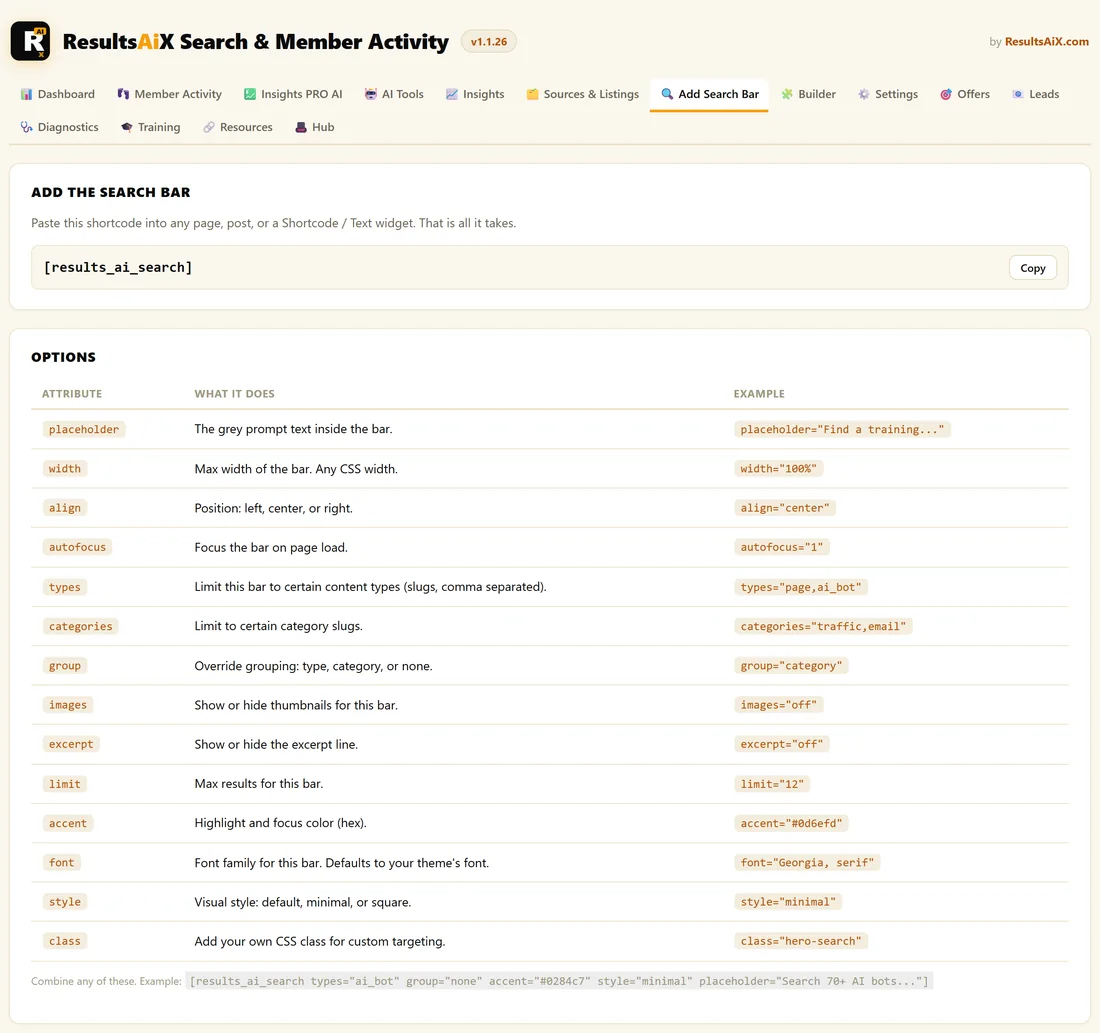
The search bar goes wherever you want it. One shortcode covers pages, posts and widgets, and there is a block for the block editor, a classic widget for sidebars, and one line of PHP for theme templates.
All of them produce the same search bar, using the same index and your Settings.
Where to find it:
Open AiX Search, then Add Search Bar. The tab holds the shortcode with a Copy button, a table of every option, and a Preview of your live search at the bottom.
The shortcode:
- [results_ai_search]
Put it on a page or post:
- Edit the page in WordPress.
- Add a Shortcode block.
- Paste [results_ai_search].
- Click Update or Publish.
The bar is live as soon as the page is saved. Its placeholder, the grey prompt inside it, comes from Placeholder Text in Settings unless you set one on the shortcode.
Put it in a sidebar or footer:
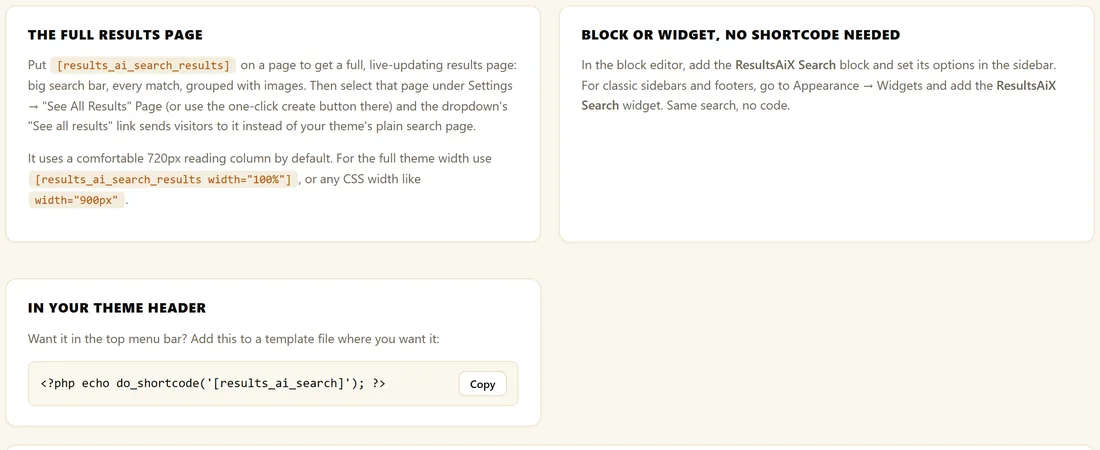
Classic themes: go to Appearance, then Widgets, and add the ResultsAiX Search widget. It has a Title and a Placeholder text box, and it fills the width of your sidebar.
Block themes: open the Site Editor, edit the template part, such as the header or footer, and add the ResultsAiX Search block. See Using The Block And The Widget.
Put it in your theme header:
If you edit theme files, add this line to the template where the bar should appear:
- <?php echo do_shortcode('[results_ai_search]'); ?>
The same line is on the Add Search Bar tab with its own Copy button.
How many bars can I add?
As many as you like. Each bar works on its own and can have its own options, so you can run a wide bar on a search page and a compact one in a sidebar. They all share one index, so extra bars add no extra load.
Search from every page with no bar at all:
Spotlight Search adds an overlay to every page that opens with Ctrl+K or Cmd+K. See Spotlight Search.
A real example:
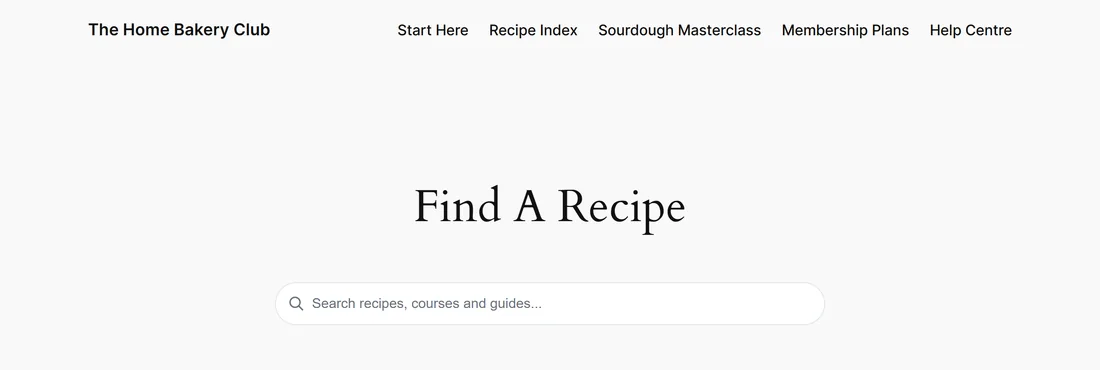
The Home Bakery Club has a page called Find A Recipe with this shortcode:
- [results_ai_search width="640px" placeholder="Search recipes, courses and guides..."]
It also puts the same bar at the top of its Members Home page, above the member's pick up where you left off list.
Tips:
- Pair every bar with a full results page so Enter and See all results lead somewhere good. See The Full Search Results Page.
- See Shortcode Options Explained for widths, styles, colours and limits.
- With PRO, the Shortcode Builder writes any shortcode for you. See The Shortcode Builder.