Every search bar can be tuned on its own with shortcode options. Combine as many as you need in one shortcode, and your site wide Settings stay unchanged.
The same table, with an example for each option, is on the Add Search Bar tab in AiX Search.
Every option at a glance:
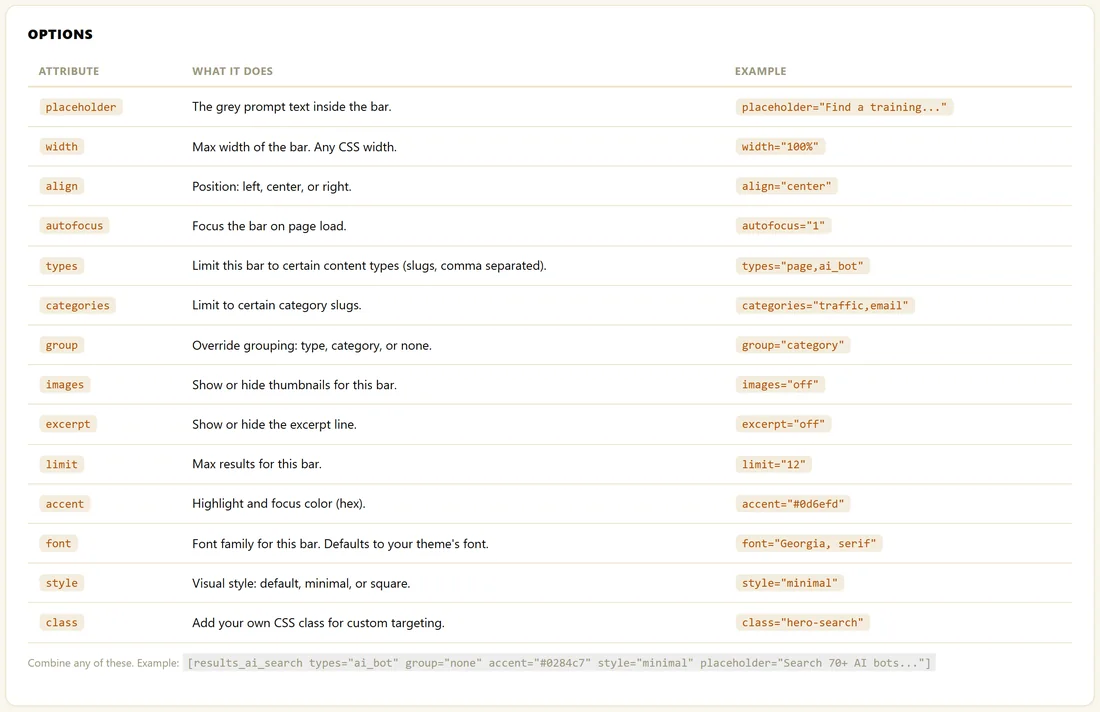
Write each option inside the shortcode as name="value", for example [results_ai_search width="100%" align="center"].
Appearance options:
- placeholder: the grey prompt text inside the bar. Example placeholder="Find a recipe..."
- width: the largest width the bar may take, as any CSS width. Example width="100%" or width="560px"
- align: left, center or right. The default is left. Example align="center"
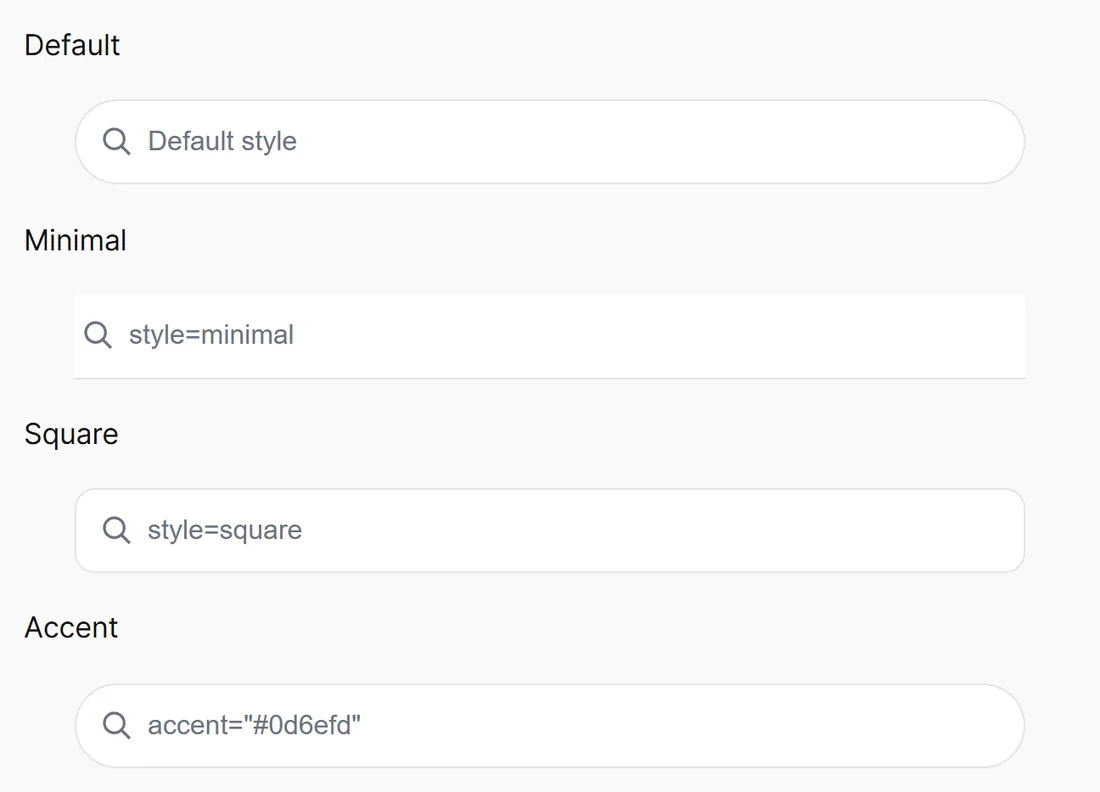
- style: minimal gives a borderless bar with an underline, square gives softer rounded corners instead of the full pill. Leave it out for the default pill. Example style="minimal"
- accent: the highlight and focus colour for this bar, as a hex colour. Example accent="#0d6efd"
- font: a font family for this bar. The bar uses your theme's font if you leave it out. Example font="Georgia, serif"
- class: your own CSS class, for custom styling. Example class="hero-search"
Behaviour options:
- autofocus: set to 1 to put the cursor in the bar when the page loads. Example autofocus="1"
- types: limit this bar to certain content types, by slug, separated by commas. Example types="post"
- categories: limit this bar to certain categories, by slug. Example categories="bread,cakes"
- group: group this bar's results by type, category or none. Example group="category"
- limit: the most results this bar shows. Example limit="12"
- images: on or off, to show or hide the thumbnails. Example images="off"
- excerpt: on or off, to show or hide the description line. Example excerpt="off"
A type in types only counts if it is switched on in Content Sources. A bar limited to a type that is switched off finds nothing, so check your sources first.
Full examples:
- [results_ai_search types="post" group="category" placeholder="Find a recipe..."] gives a recipes-only bar grouped under Bread, Cakes and the other categories
- [results_ai_search width="360px" style="minimal" placeholder="Search the club..."] gives a slim bar for a header
- [results_ai_search width="100%" align="center" autofocus="1"] gives a full width bar ready to type into, for a dedicated search page
Where to find slugs:
Content type slugs show in small grey text under each type's name in Content Sources. Category slugs are in Posts, then Categories in WordPress.
A real example:
The Home Bakery Club uses two bars. Find A Recipe has a 640px bar with its own placeholder. A recipes-only bar grouped by category sits on the Recipe Index page, so visitors see Bread, Cakes and Pastry headings as they type.
Tips:
- The results page has its own shortcode with a width option. See The Full Search Results Page.
- With PRO, the Shortcode Builder writes these for you and saves your favourites. See The Shortcode Builder.
- For changes that should apply to every bar, use Settings instead. See Search Behaviour Settings.