Every result can show a picture and a short description. They are what make people click. Search Listings lets you set both for any item, in bulk, without opening each page.
Where to find it:
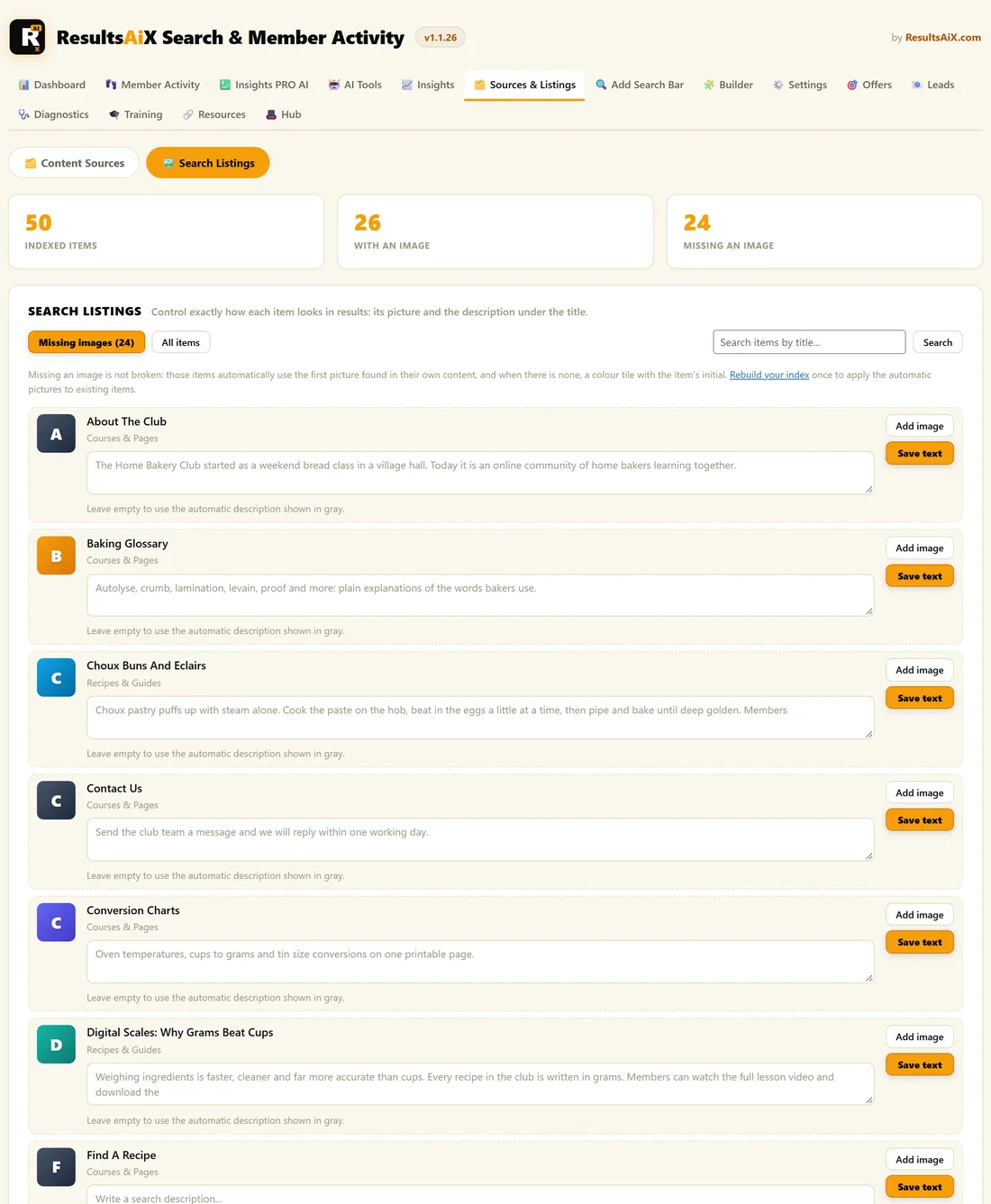
Open AiX Search, then Sources & Listings, and click the Search Listings button at the top.
The three numbers at the top show Indexed Items, With An Image and Missing An Image.
Where the picture comes from:
The plugin uses the first of these it finds:
- A search image you picked for that item
- The item's WordPress featured image
- The first real picture inside the item's own content
- A coloured tile with the first letter of the title
The tiles use eight colours and always give the same title the same colour, so a list of tiles and pictures still looks designed.
Where the description comes from:
- A search description you wrote for that item
- The item's manual WordPress excerpt
- The opening of the page content, tidied up automatically
Editing in bulk:
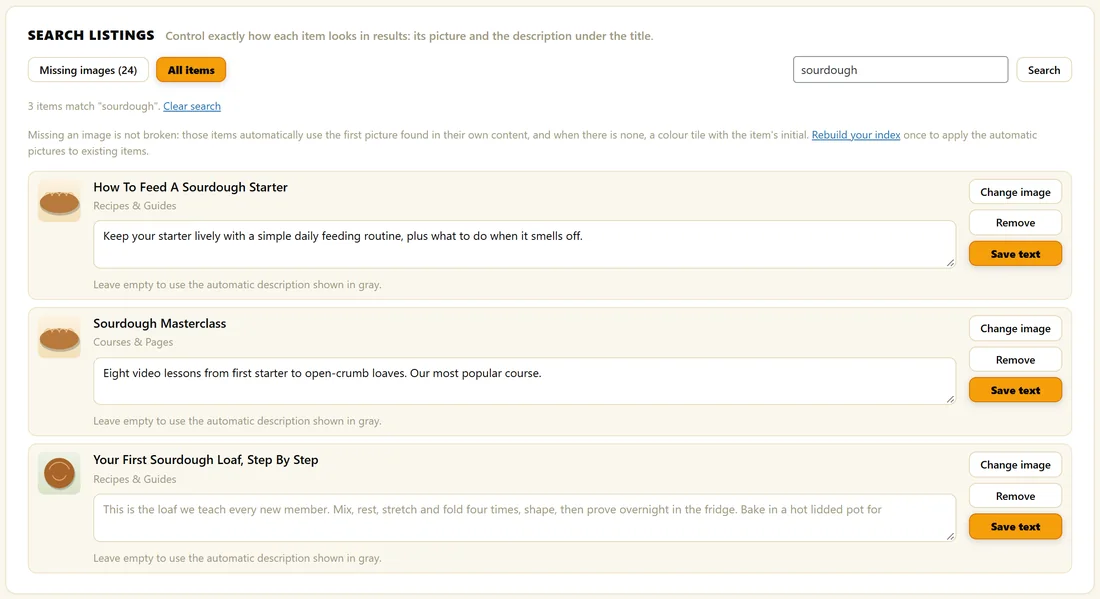
- Click Missing images to see items with no picture, or All items to see everything.
- Or type part of a title into the search box and click Search. A search always looks at all items.
- On a row, click Add image or Change image and pick a picture from your media library. It saves straight away.
- Click Remove to drop a picked picture and fall back to the featured image or the next choice.
- Type a description in the text box and click Save text.
The grey text inside an empty description box is what the item shows right now. Leave the box empty to keep it. The list shows up to 100 items at a time.
Editing one item while you write it:
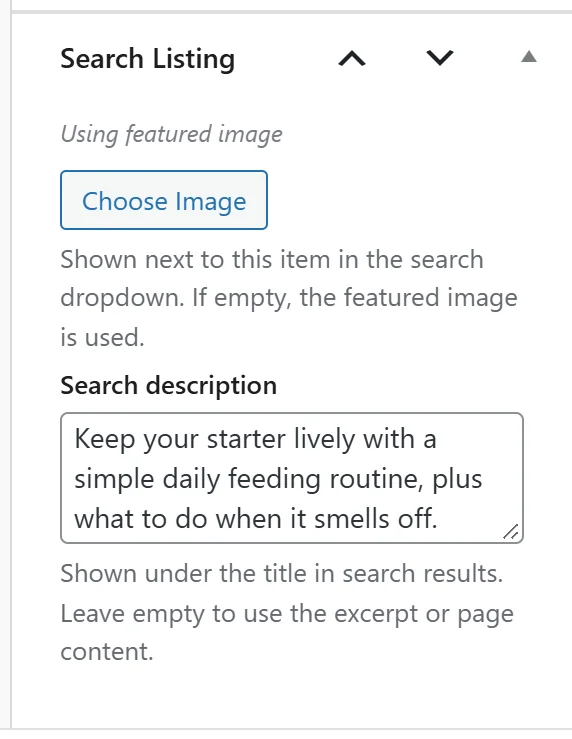
On the edit screen of any searchable item there is a Search Listing box in the sidebar. It has Choose Image and Remove for the search picture, and a Search description box. They save with the item.
A real example:
The Home Bakery Club had 24 items with no picture, mostly short pages like Contact Us. They show colour tiles, which look tidy. For the key recipes, the owner wrote one line descriptions such as Keep your starter lively with a simple daily feeding routine, plus what to do when it smells off.
Tips:
- After updating the plugin, click Rebuild Index on the Dashboard once, so existing items pick up the automatic pictures from their content.
- Page builder pages often start with menus or buttons. A written description fixes the result for good.
- With PRO, the AI Listings Writer writes descriptions for every item in one run. See The AI Listings Writer.