The AI features call the AI provider you choose, using your own key. Your content is sent only to that provider, and only when an AI feature runs. You are never billed through us.
The AI features are the Answer Box, the Listings Writer, Synonym Suggestions, the Analyst Report, Ask AI Anything, the AI read on member reports and the short AI read in the weekly digest.
Where to find it:
Open AiX Search, then Settings, click PRO Settings, and find AI Connection at the top.
Choose a provider:
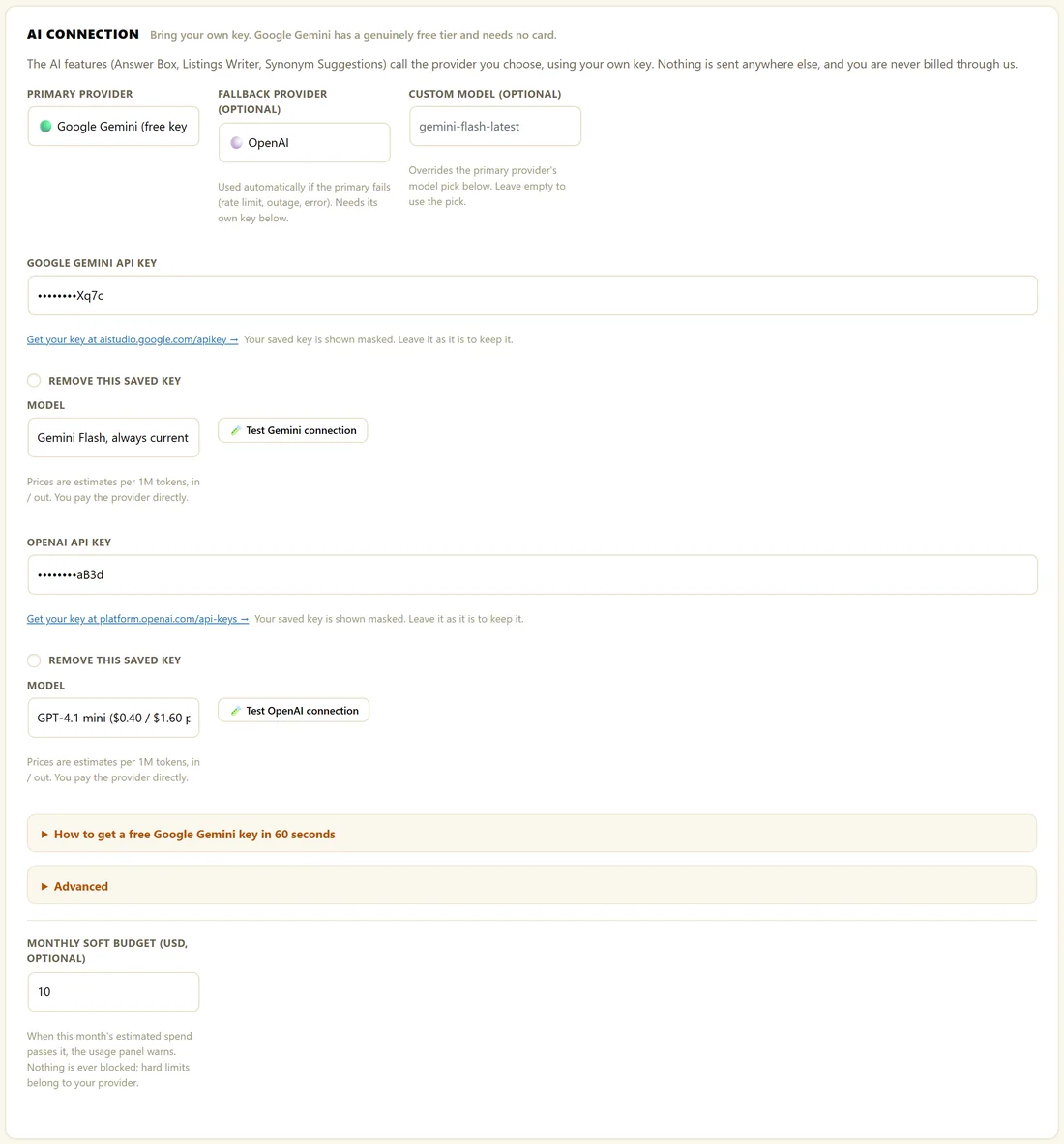
Pick your Primary provider:
- Google Gemini (free key available): has a real free tier that needs no card, which covers normal search traffic
- OpenAI (paid, needs credit)
- Anthropic Claude (paid, needs credit)
A key box appears for the provider you chose, and for your fallback provider if you set one.
Get a free Gemini key in about a minute:
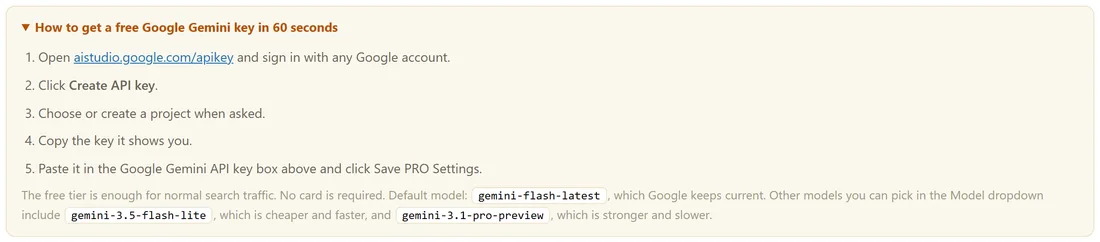
- Open aistudio.google.com/apikey and sign in with any Google account.
- Click Create API key.
- Choose or create a project if you are asked.
- Copy the key.
- Paste it into the Google Gemini API key box and click Save PRO Settings.
These steps are on the screen too, under How to get a free Google Gemini key in 60 seconds.
Where the other keys come from:
- OpenAI: platform.openai.com/api-keys. Add credit under Billing first, then click Create new secret key. The key starts with sk-
- Anthropic Claude: console.anthropic.com/settings/keys. Add credit under Plans and Billing first, then click Create Key. The key starts with sk-ant-
Choosing a model:
Each provider has a Model drop-down. Each choice shows an estimated price per million tokens, in and out, so you can weigh quality against cost. Leave it on the default and the plugin uses a fast, sensible model:
- Google Gemini: gemini-flash-latest, which Google keeps current
- OpenAI: gpt-4.1-mini
- Anthropic Claude: claude-sonnet-5-5
The Custom model box overrides the primary provider's pick, for the rare case where you want a model that is not in the list. Leave it empty to use the drop-down.
If a provider retires a model you picked, the plugin uses its current replacement when it runs, so your AI features keep answering.
Testing your key:
Each provider has a Test connection button. It sends a tiny real request and shows the result beside the button, for example Connected. gemini-flash-latest answered in 850ms. If the provider sends back an error, its own words are shown so you know what to fix.
How your key is stored and shown:
A saved key is shown masked, with only its last few characters visible. Leave the masked value as it is to keep the key. To remove a key, tick Remove this saved key and click Save PRO Settings.
Custom API address:
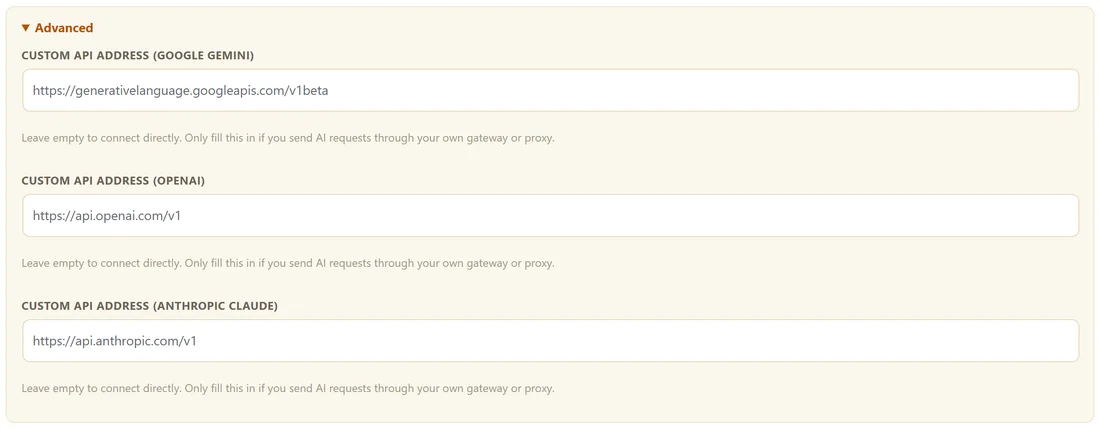
Open Advanced at the bottom of AI Connection to see a Custom API address box for each provider. Leave them empty to connect straight to the provider, which is right for almost every site. Fill one in only if you send AI requests through your own gateway or proxy. The address must start with https:// and contain no ? or # part. If an address is refused, a notice names the provider and the rest of your settings are still saved.
A real example:
The owner of The Home Bakery Club made a free Gemini key, pasted it in and clicked Test Gemini connection, which answered in under a second. They also added an OpenAI key as the Fallback provider, so the Answer Box keeps working if Gemini is busy.
Tips:
- See AI Usage, Fallback Provider And Monthly Budget to track every AI job and add a backup provider.
- Every data feature works with no key at all. A key adds the AI layer on top.