The Diagnostics tab is a one glance health report for the plugin on your site. When you need help, one click copies everything support needs into your clipboard.
Where to find it:
Open AiX Search, then Diagnostics.
What it shows:
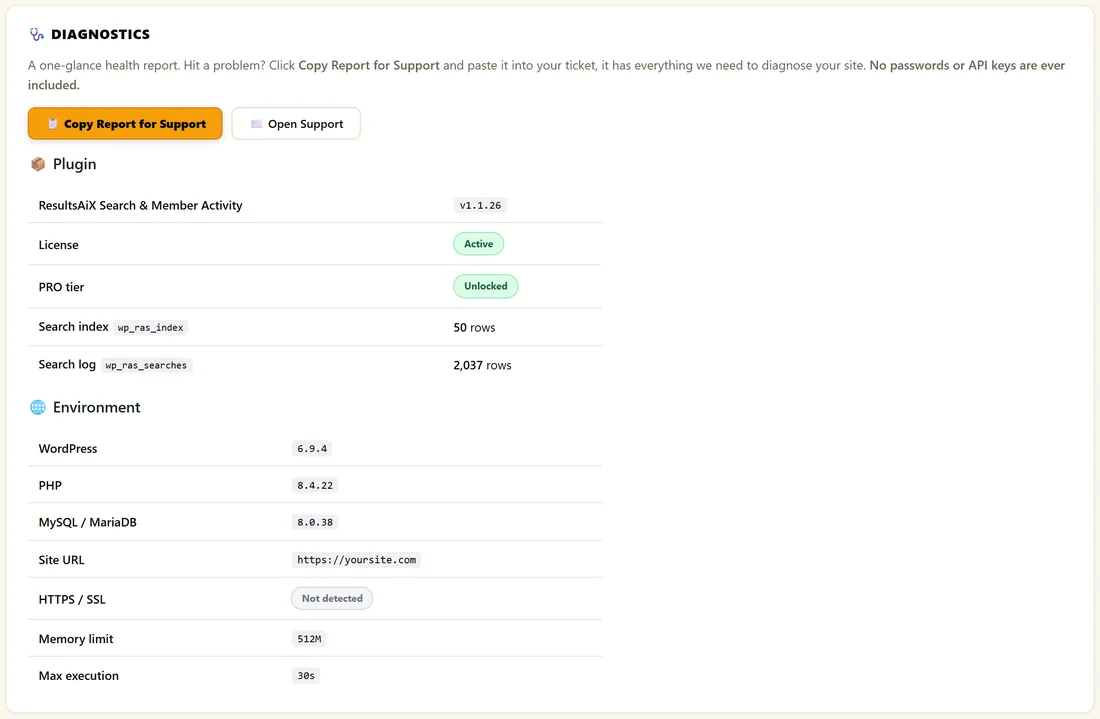
Plugin:
- ResultsAiX Search & Member Activity: the version number
- License: Active or Inactive
- PRO tier: Unlocked on a PRO key, Core licence on a Core key
- Search index and Search log: each table's name and how many rows it holds
Environment:
- WordPress, PHP and MySQL or MariaDB versions
- Site URL
- HTTPS / SSL: Active when your site uses https
- Memory limit and Max execution time
If a table shows Missing, deactivate and reactivate the plugin on the Plugins screen. Reactivating creates the tables again, and your settings are kept.
Reading the report:
The copied report is plain text, one fact per line, starting with RESULTS AI SEARCH - DIAGNOSTIC REPORT and the time it was made. It then lists the plugin version, licence status, PRO tier, WordPress, PHP and MySQL versions, the site address, HTTPS, and each table with its row count. You can read it before you send it, so you know exactly what you are sharing.
Getting help:
- Open AiX Search, then Diagnostics.
- Click Copy Report for Support. The button confirms the report is copied.
- Click Open Support, or open a ticket from the link at the foot of any AiX Search screen.
- Paste the report into your ticket and describe what you see.
The report holds the versions, licence status, PRO tier, site address, HTTPS and the table row counts. It never includes passwords or API keys.
More help inside the plugin:
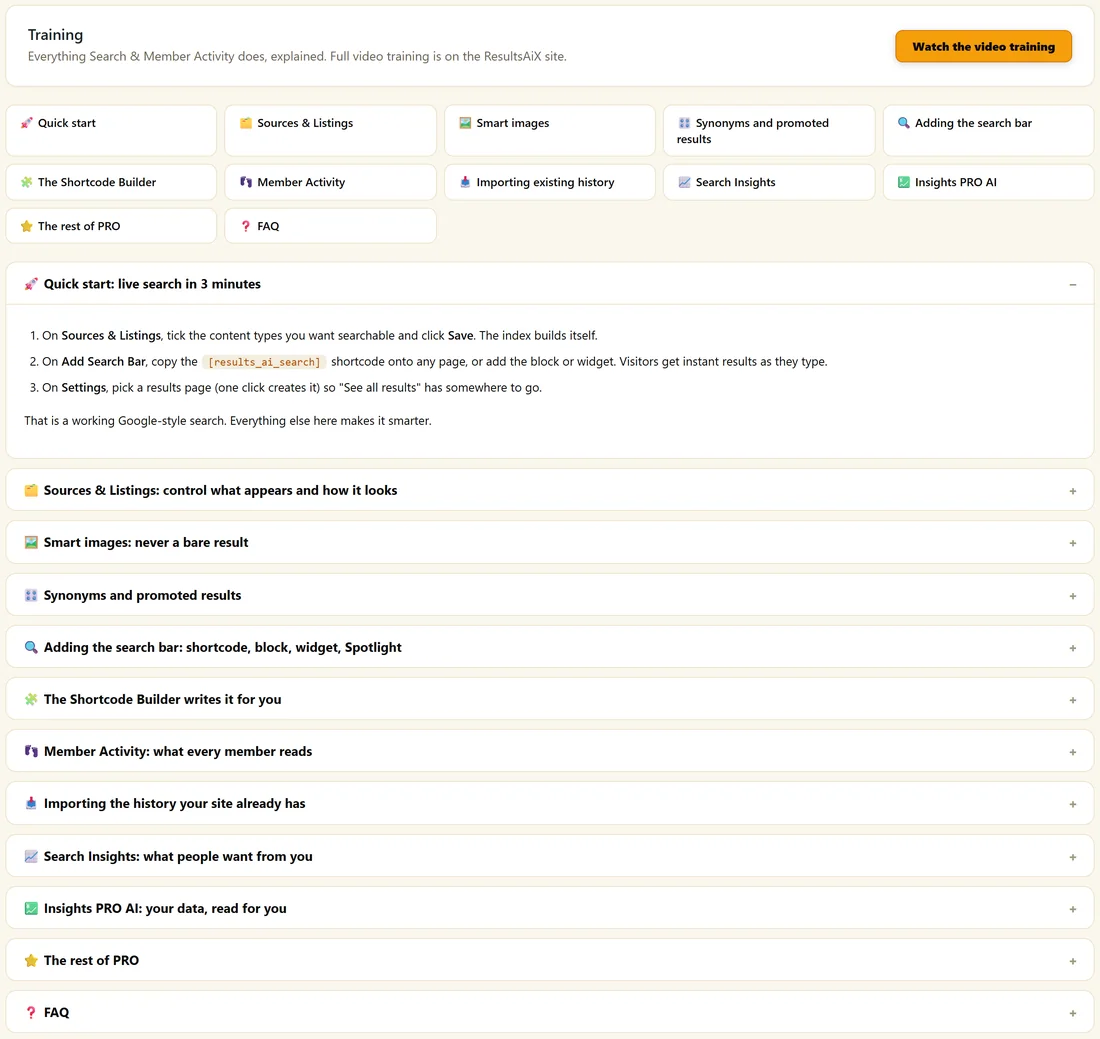
- Training: short guides for every feature, from a three minute quick start to Member Activity and Insights PRO AI, plus a Watch the video training button
- Resources: other tools from the ResultsAiX family that work alongside this one
A real example:
The owner of The Home Bakery Club saw Items Indexed at 0 after moving to a new host. Diagnostics showed the Search index table with 0 rows. One click on Rebuild Index filled it again.
Tips:
- Include the copied report in every ticket. It saves a round of questions.
- See Troubleshooting Common Issues and PRO Troubleshooting for quick fixes.