ResultsAiX Search understands your categories, so you can be precise about what goes into search and how results are organised.
There are three separate tools here: a filter that decides which categories of a type are indexed, a setting that groups results by category, and a shortcode option that scopes one bar to certain categories.
Limit a type to certain categories:
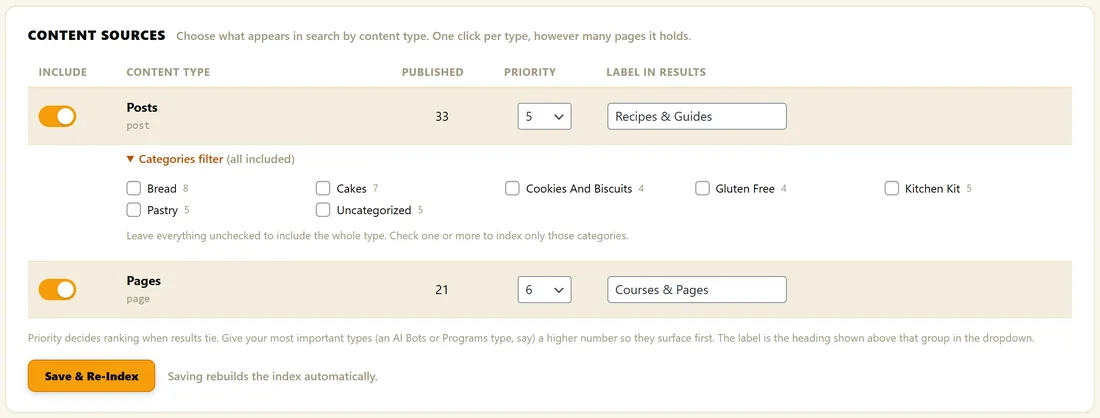
- Open AiX Search, then Sources & Listings.
- Under a type that has categories, click the Categories filter line to open it. It says (all included) when nothing is ticked.
- Tick the categories you want indexed. Each one shows how many items it holds.
- Click Save & Re-Index.
Leave every box unticked to include the whole type, which is the default. Tick one or more to index only items in those categories. Child categories of a ticked category are included too.
The filter uses the type's category-like taxonomy: Categories for posts, or the first public, hierarchical taxonomy a custom type uses, such as product categories.
Group results by category:
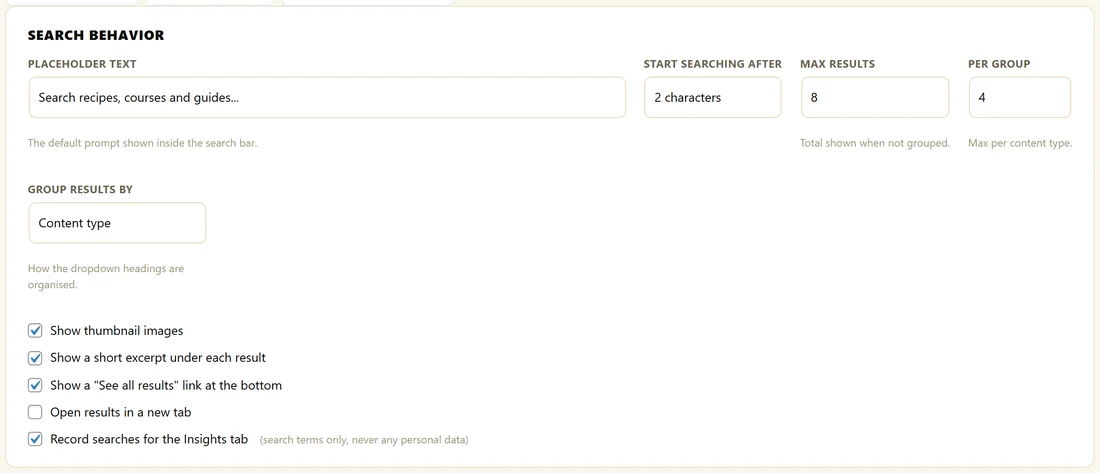
Open Settings and find Group Results By in the Search Behavior box. There are three choices:
- Content type: results sit under headings like Recipes & Guides and Courses & Pages. This is the default
- Category: results sit under their category name, such as Bread or Cakes
- No grouping (flat list): one list, ranked by relevance
When results are grouped, Per Group sets how many show under each heading in the dropdown. With no grouping, Max Results sets the total. Click Save Settings when you are done.
Limit one search bar to certain categories:
Use the categories option with category slugs, separated by commas:
- [results_ai_search categories="bread,gluten-free"]
That bar only ever returns items from those categories, which suits a search box placed inside one section of your site. Your site wide settings stay as they are.
You can also change grouping for one bar only:
- [results_ai_search group="category"]
Where to find category slugs:
Go to Posts, then Categories in WordPress. The Slug column shows each one, for example gluten-free for Gluten Free.
A real example:
The Home Bakery Club puts a bread-only search bar on its Bread Basics For Beginners course page:
- [results_ai_search categories="bread" placeholder="Search bread recipes..."]
Members on that page only see bread recipes, while the main bar on Find A Recipe searches everything.
Tips:
- After changing the category filter, always click Save & Re-Index so the index matches your choice.
- Grouping by category works best when each item has one main category. The first category of an item is the one used for its heading.
- See Shortcode Options Explained for every per bar option.