A promoted result pins one of your pages. An offer goes further: it shows a proper marketing card with an image, a small heading, a headline, a description and a button, at the very top of the results.
Use it to put your course, product or launch in front of the people already searching for that topic.
Where to find it:
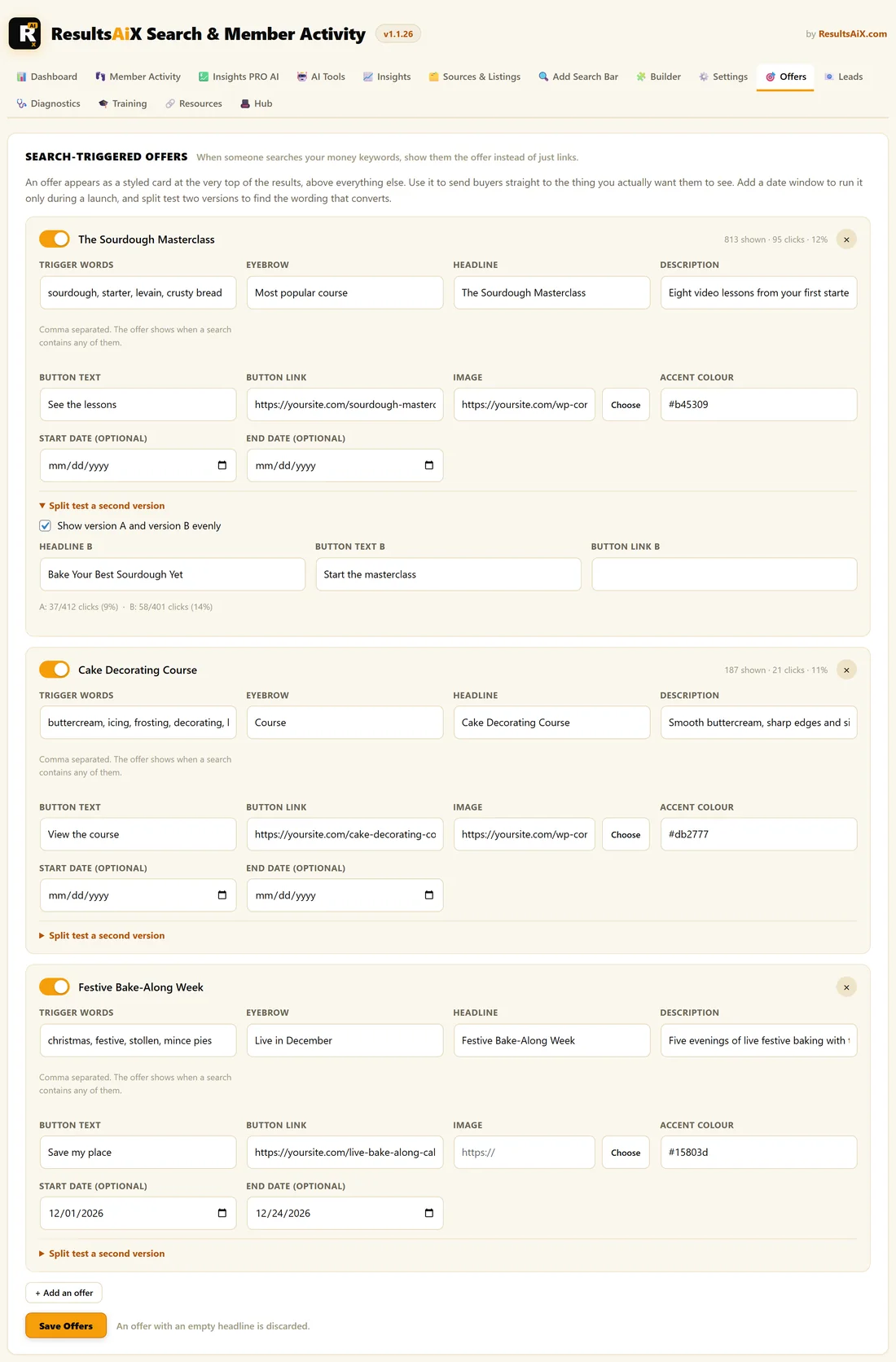
Open AiX Search, then Offers.
Create an offer:
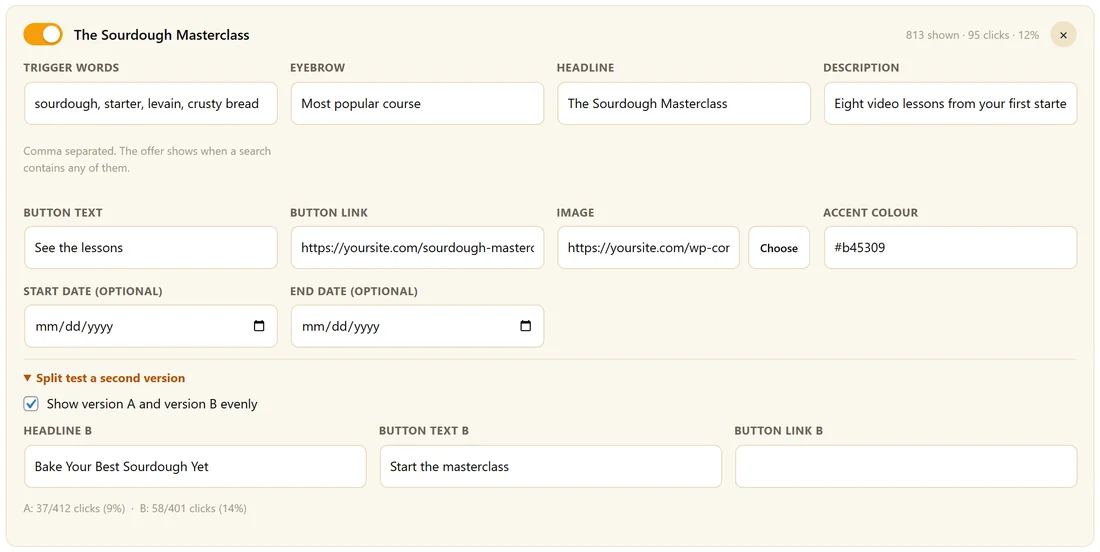
- Click Add an offer.
- Fill in Trigger words, separated by commas. The offer shows when a search contains any of them.
- Fill in Eyebrow, the small label above the headline, such as Most popular course.
- Fill in Headline, Description and Button text.
- Paste the Button link, the page the button opens.
- Paste an Image address or click Choose to pick one from your media library.
- Optionally set an Accent colour, such as #b45309, to match the offer's branding.
- Optionally set a Start date and an End date.
- Click Save Offers.
An offer with an empty headline is discarded when you save. To remove an offer, click the cross at the top right of its card, then Save Offers.
The fields:
- The switch beside the name: shows or hides the offer without deleting it
- Trigger words: matched anywhere in the search, in upper or lower case. starter matches sourdough starter
- Eyebrow, Headline, Description: the text on the card
- Button text: defaults to Learn more
- Button link: required. An offer with no link is not shown
- Image: shown on the left of the card
- Accent colour: the colour of the eyebrow, the card's border and tint, and the button
- Start date and End date: optional, and inclusive. Outside them the offer stays hidden
Which offer shows:
The offer appears in the dropdown, in Spotlight and on the results page. An offer is skipped if it is switched off, has no headline, has no button link, or is outside its dates. When several offers match one search, the first one in your list wins. Offers also need Enable search-triggered offers ticked under Search Power in PRO Settings, which it is by default.
What visitors see:
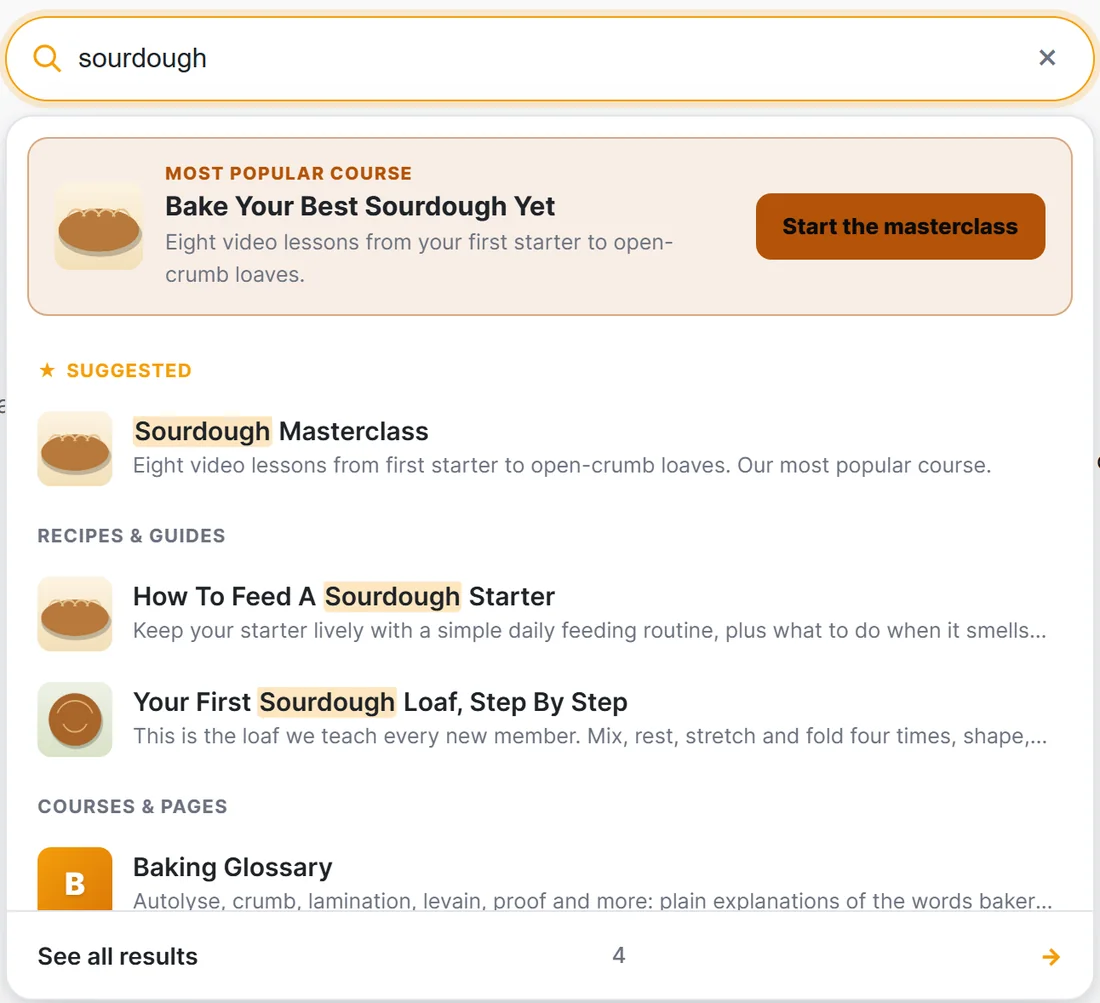
A card at the very top of the results: your image on the left, the eyebrow in small capitals, the headline in bold, the description underneath and your button on the right, all in your accent colour. The whole card is a link to your Button link. It sits above any Suggested promoted result and above the normal results, so it is the first thing people see.
Writing an offer that gets clicked:
- Match the headline to the search. Someone who typed starter wants help with their starter, so lead with that
- Keep the description to one line that says what they get
- Make the button say what happens next, such as See the lessons, rather than Click here
- Use a clear, simple picture. It shows small, so a close-up works best
Measuring it:
The line beside each offer's name shows how many times it was shown, how many clicks it got and the click rate, for example 811 shown, 95 clicks, 12%. A view is counted once per visitor per search phrase within a few minutes, not once per keystroke, so the numbers are honest.
A real example:
The Home Bakery Club runs three offers:
- The Sourdough Masterclass, triggered by sourdough, starter, levain and crusty bread
- Cake Decorating Course, triggered by buttercream, icing, frosting, decorating and layer cake
- Festive Bake-Along Week, triggered by christmas, festive, stollen and mince pies, with dates from 1 to 24 December, set up in November and ready to switch itself on
Anyone who searches sourdough sees the Masterclass card first, with a Start the masterclass button.
Tips:
- Point the button at a page made for that searcher, not your home page.
- Test two headlines against each other. See Split Testing Your Offers.