Content Sources decides what people can find. It works by content type, not page by page, so a site with a thousand pages still takes only a few clicks to set up.
Every public content type on your site is listed, including Posts, Pages and any types your theme or other plugins add, such as products, courses or episodes. Media files are never listed.
Where to find it:
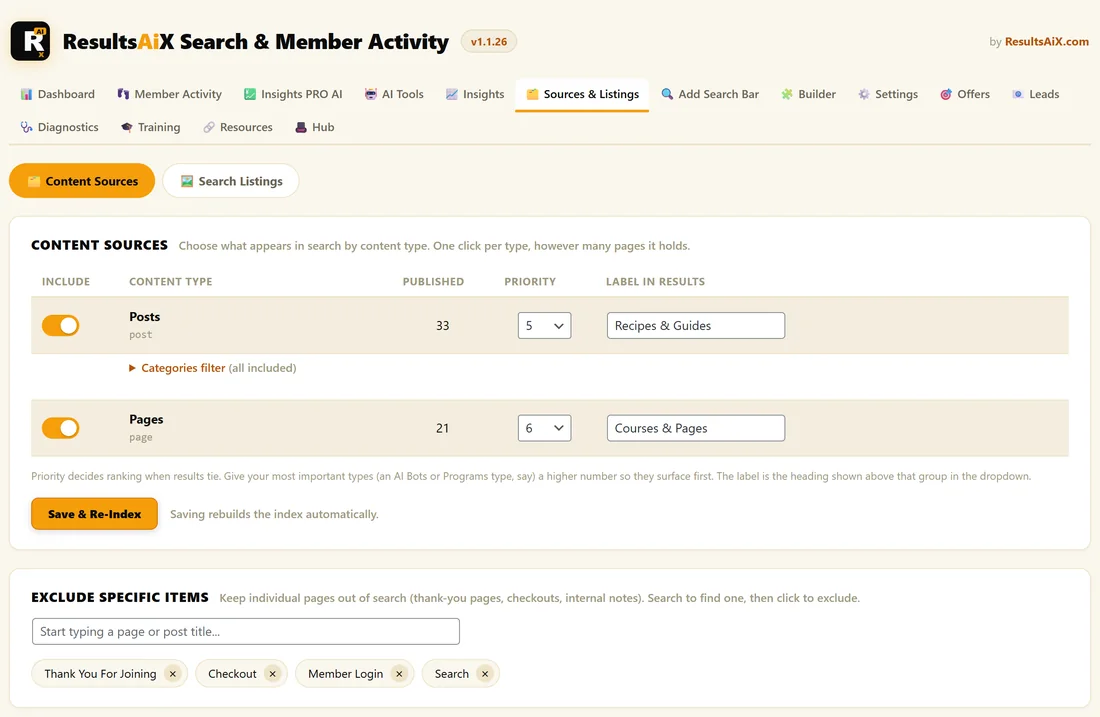
Open AiX Search, then Sources & Listings. The Content Sources section is open by default.
Each row has four controls:
- Include: the switch for the whole type. On means it is searchable
- Published: how many published items that type holds right now. Drafts and private items are never indexed
- Priority: a number from 1 to 10 used in ranking
- Label In Results: the heading shown above that type's results in the dropdown and on the results page
Under the type's name, in small grey text, is its slug, such as post or page. You use slugs when you limit one search bar to certain types.
How Priority works:
Priority is part of each result's score. When two results match a search equally well, the one whose type has the higher priority comes first, and a strong priority can lift a type's results above slightly better matches from a low priority type. A title that contains the search words always gets a big boost on top.
A good starting point is to leave most types at 5 and raise the one type you most want people to land on.
Label In Results:
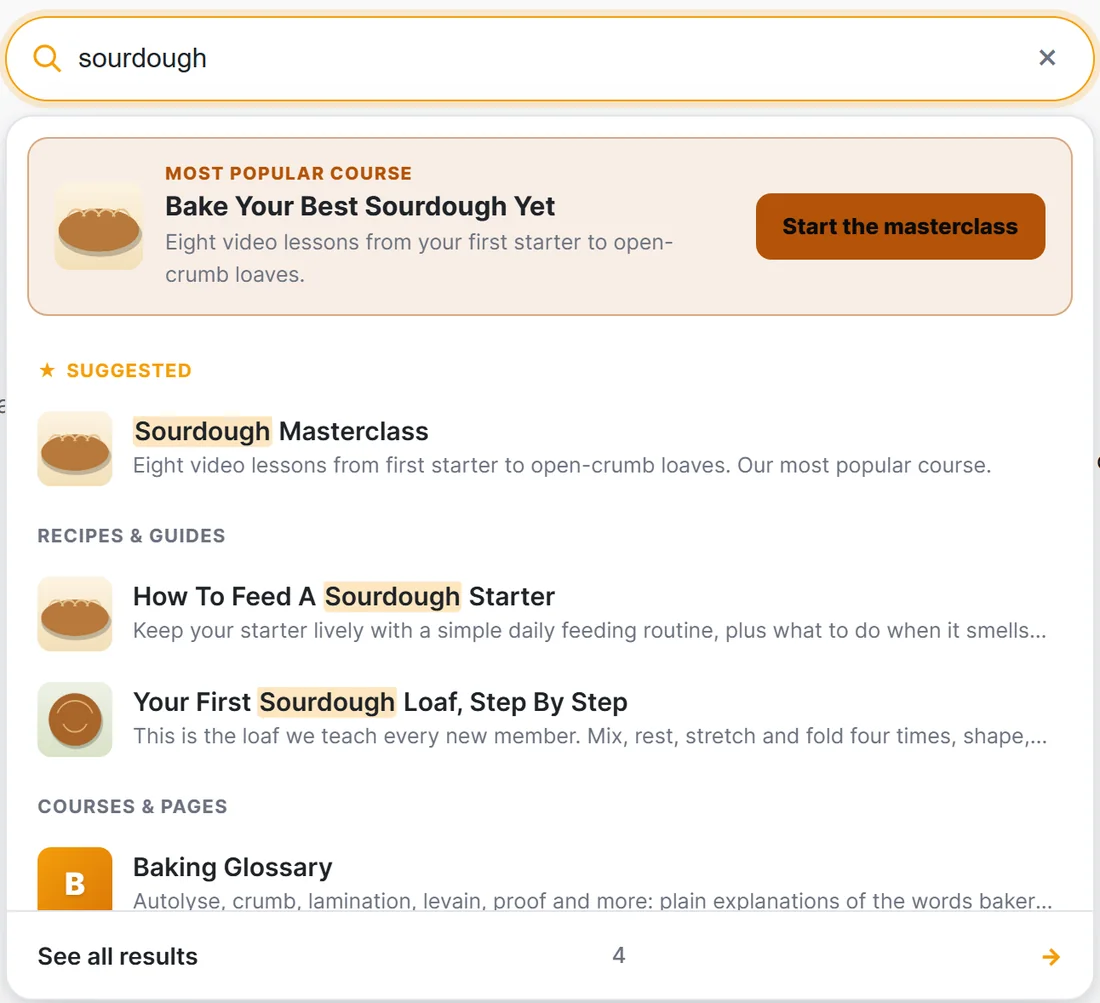
Leave the box empty to use the type's own name, such as Pages. Type your own label to speak your visitors' language, for example Recipes & Guides instead of Posts.
Step by step:
- Switch on every type people should find.
- Set a priority for each one.
- Type a label for any type whose name means nothing to visitors.
- Click Save & Re-Index.
Saving rebuilds the index straight away, and a notice tells you how many items are now searchable. You do not need to rebuild by hand after saving here.
A real example:
The Home Bakery Club uses two types:
- Posts: on, priority 5, label Recipes & Guides
- Pages: on, priority 6, label Courses & Pages
Pages hold the courses, so they get the higher priority. A search for cake shows the Cake Decorating Course among the first results.
Tips:
- Switch off types nobody searches for, such as a type a plugin uses for internal records. Fewer types means sharper results.
- To keep one page out of search, use Exclude Specific Items instead of switching off its whole type. See Excluding Pages From Search.
- To index only some categories of a type, see Filtering And Grouping By Category.