You do not have to type shortcodes. The plugin adds a block for the block editor and a widget for classic sidebars, both called ResultsAiX Search. They show the same search bar as the shortcode.
The block:
- Edit any page or post, or open a template in the Site Editor.
- Click the plus button and search for ResultsAiX Search. Searching for search, find or instant finds it too.
- Click it to insert it.
In the editor the block shows a simple grey bar with your placeholder text. Preview or publish the page to see the real, working bar.
Block settings:
With the block selected, the Search Bar panel in the sidebar has these settings:
- Placeholder text
- Alignment: Left, Center or Right
- Group results by: Default (site setting), Content type, Category or No grouping
- Limit to types (slugs, comma separated)
- Limit to categories (slugs, comma separated)
- Style: Default, Minimal or Square
- Accent color (hex)
The block is drawn by the plugin each time the page loads, so it always follows your current settings and index.
The classic widget:
- Go to Appearance, then Widgets.
- Add the ResultsAiX Search widget to a widget area, such as your sidebar.
- Fill in Title, which shows above the bar, and Placeholder text.
- Click Save.
The widget bar fills the width of the widget area. This screen exists on classic themes. Block themes use the Site Editor, where you add the block to a template part instead.
Which should I use?
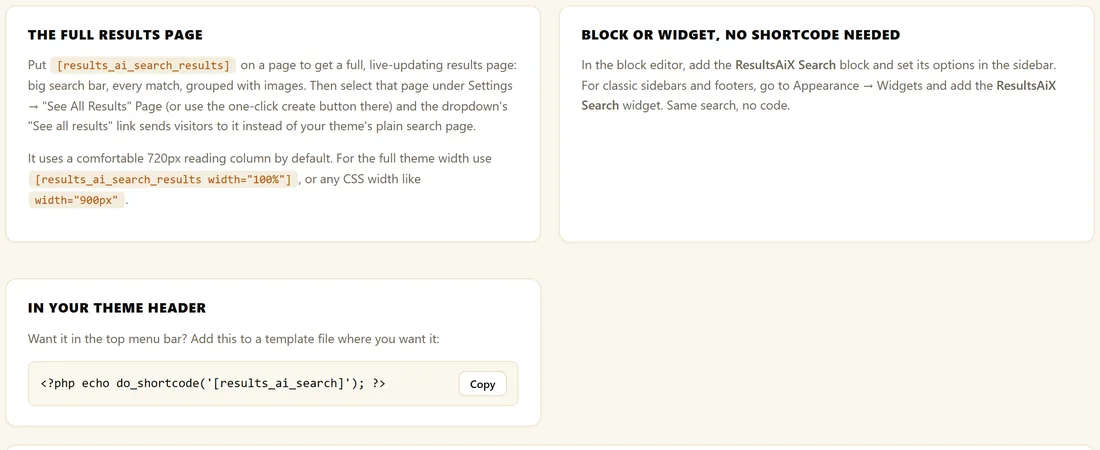
They all give the same search. Use the block in the block editor and Site Editor, the widget in classic sidebars and footers, and the shortcode in page builders or anywhere else that accepts a shortcode.
The shortcode has a few extra options the block does not show, such as width, limit, images and autofocus. When you need those, use a Shortcode block with the shortcode inside it. See Shortcode Options Explained.
A real example:
The Home Bakery Club runs a block theme. The owner added the ResultsAiX Search block to the header template part with Style set to Minimal and Placeholder text set to Search the club, so every page has a slim search bar under the menu.
Tips:
- Member Activity lists can sit above or below every bar automatically, including block and widget bars. See Pick Up Where You Left Off Lists.
- For a bar on every page with no layout work at all, switch on Spotlight Search.