The Build Funnel screen is where funnels are made. The left side holds your brief and the controls. The right side is a live preview with a tab for every page.
You can start here from a blank brief, or arrive here from one of the six ready made funnels on the Dashboard with the questions already answered. Either way the steps below are the same.
Where to find it:
Open AiX Funnels, then the Build Funnel tab. The New Funnel button on the Dashboard and Start From Scratch both open the same screen.
Writing a brief that works:
Your Brief is one sentence about the offer, the audience and the outcome. Specifics beat adjectives every time.
- Weak: a funnel for my cooking business
- Strong: a free 7 day meal prep starter guide for busy parents who are tired of takeaway, then sell Meal Prep Mastery, a six week video course, with a family freezer plan as a one time upgrade
Name the free thing, who it is for, what it helps them do, and what you sell next. The Talk button beside Your Brief lets you say it out loud instead. See Talk Instead Of Type: Voice Dictation.
Every control on the left:
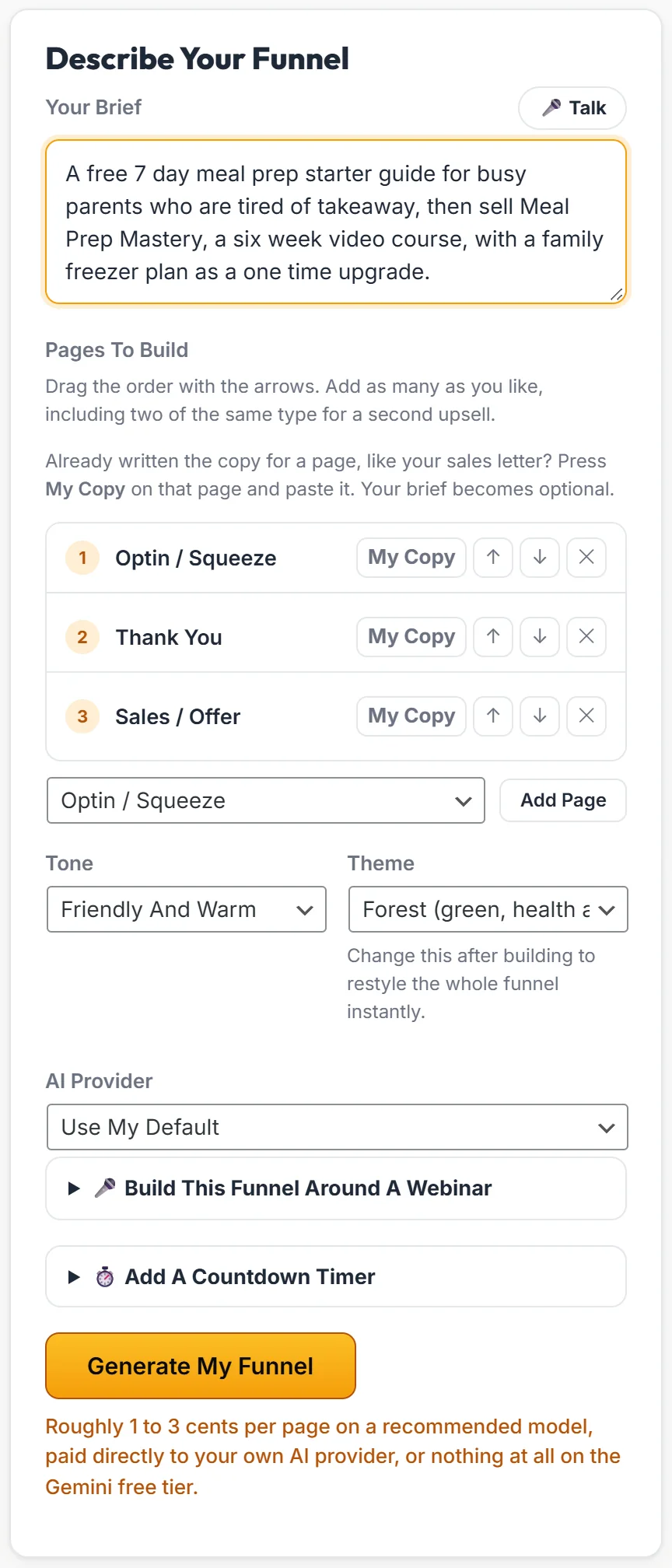
- Pages To Build: the pages in your funnel, in order. Use the arrows to move a page up or down and the cross to remove it. Pick a type in the list underneath and click Add Page to add another. You can add two of the same type, for example a second upsell.
- My Copy: on each page row. Press it to paste copy you already wrote for that page. See Paste Your Own Copy Into The Wizard, And Add A Countdown Timer.
- Tone: Confident And Direct, Friendly And Warm, Bold And Punchy, Expert And Authoritative, or Playful And Casual. This sets the voice of the copy.
- Theme: one of ten looks, or Let The AI Choose. Your choice always wins over the AI's preference.
- AI Provider: Use My Default, or force Gemini, Claude or OpenAI for this one build.
- Build This Funnel Around A Webinar: only shown when ResultsAiX Webinars is on the site with a published webinar.
- Add A Countdown Timer: places a timer above the price on sales, upsell and checkout pages.
Under the button, the screen shows the plugin's own cost estimate: roughly 1 to 3 cents per page on a recommended model, paid to your own AI provider, or nothing at all on the Gemini free tier.
Generating, step by step:
- Write your brief.
- Check Pages To Build is in the order you want.
- Pick a Tone and a Theme.
- Press Generate My Funnel.
- Wait while the AI writes. The line above the button says which step it is on and a timer counts up. A whole funnel usually lands in under a minute.
- The preview fills in and a tab appears for every page.
If your site sits behind Cloudflare or a host that closes long requests, the builder keeps waiting for the finished funnel and says it is still working. You do not need to do anything.
Reading the preview:
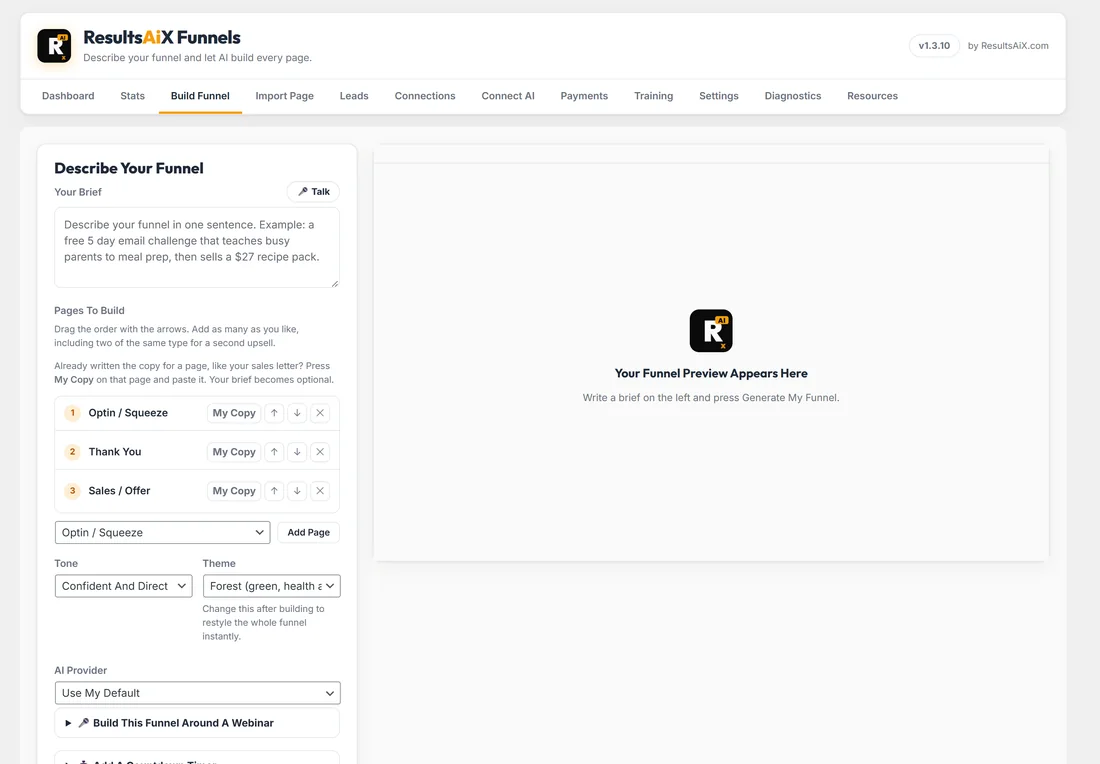
Each tab is one page, drawn exactly as it will publish or export. The bar above it holds Funnel Name and Save Funnel, then the tools: Rewrite Page With AI, Lead Magnet PDF, Tracking, Sell Something (once Stripe is connected), Edit Content, Edit HTML, Regenerate Section, Publish To WordPress and Download Zip.
Click through the tabs in order. The funnel should read as one story from the first page to the last.
Things to check before you publish:
- Does the promise on the optin page match the offer on the sales page?
- Are the numbers and claims right for your business? The AI writes plausible copy, but only you know your real results.
- Does every button say what you want people to do?
- Do your optin forms send leads to the right list? See Where Your Leads Go, And What Happens After The Optin.
Saving and coming back:
Every generated funnel is saved and listed on the Dashboard under Your Funnels. The Funnel Name box at the top of the preview renames it, and Save Funnel saves your changes, with a status line that says when the last save happened. Open a funnel again any time with Edit on its Dashboard row and the builder loads it as you left it.
A real example:
Sarah types the brief above, keeps Optin / Squeeze, Thank You and Sales / Offer, adds Upsell / OTO and Download / Access, picks Friendly And Warm and the Forest theme, and presses Generate My Funnel. Less than a minute later she has five pages: the free guide optin, Your Guide Is On Its Way, Meal Prep Mastery, Add The Family Freezer Plan and Your Meal Prep Downloads.
Tips:
- Generate a small funnel first, then add pages. It is quicker to check three pages than seven.
- Anything you dislike can change without rebuilding: edit a word, rewrite one section, rewrite a page, or restyle the whole funnel. See Editing Copy, Sections And Regenerating With AI.
- Add your own images after the build. See Images On Your Pages.