When a funnel is ready, Publish To WordPress puts it live on your own site. Every page of the funnel becomes a real WordPress page with its own address.
Where to find it:
- Publish To WordPress in the bar above the preview on Build Funnel
- Publish on the funnel's row in Your Funnels on the Dashboard
How to publish, step by step:
- Open the funnel on Build Funnel.
- Press Save Funnel if you have unsaved changes.
- Press Publish To WordPress.
- A Published To WordPress box lists every page with a View link, and says how many pages are live on your site.
- Press View The First Page to open the funnel's first page, or Done to close the box.
After publishing, the funnel shows Published on the Dashboard.
What the result box tells you:
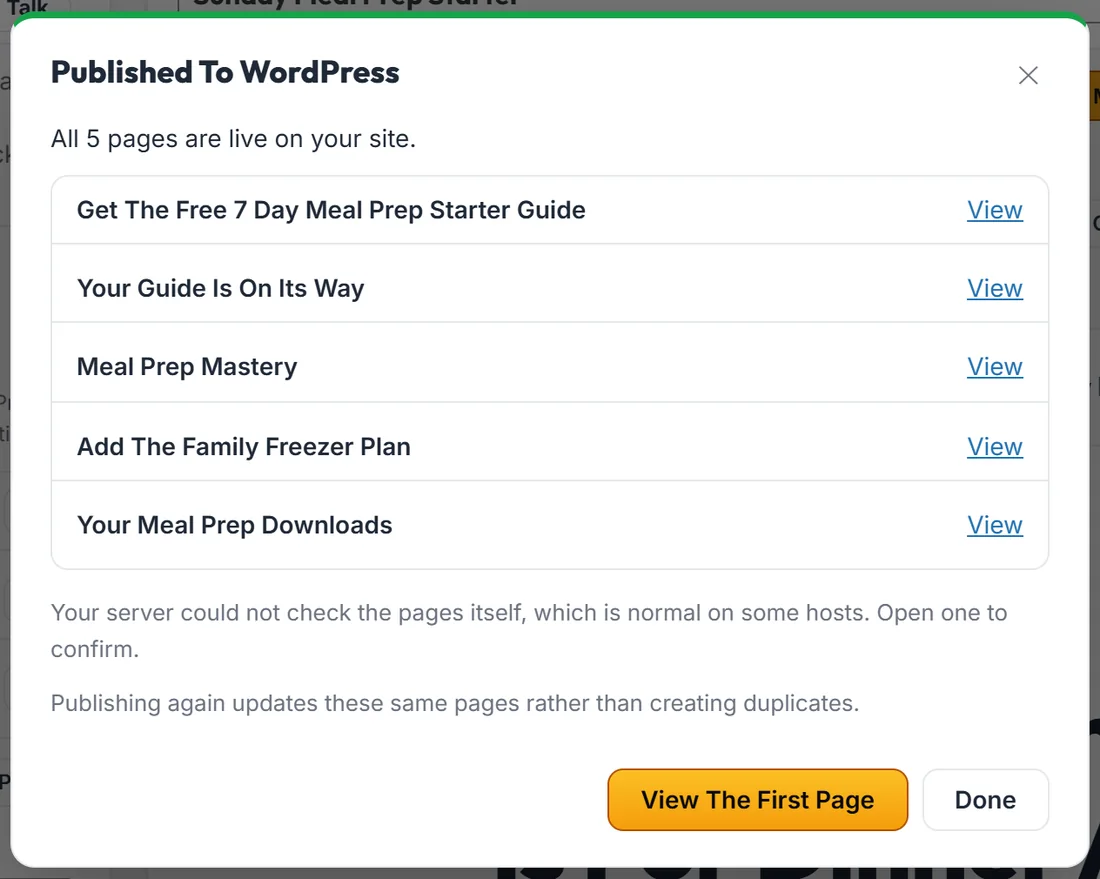
Once the pages are created, the plugin opens the first page from your own server to check it loads. Three things can happen:
- Your page is live on your site, when the check passes.
- Your server could not check the pages itself, which is normal on some hosts. Open one to confirm.
- Published, But The Page Did Not Load, with the reason. Your funnel is safe. This is about how your site serves the address, for example a security or redirect plugin, not about the pages themselves.
What gets created:
Each funnel page becomes a WordPress page. It appears under Pages, has a normal address made from the page's slug, and can be linked and shared like any other page on your site. Its title is the page title from the funnel.
Why the pages look right:
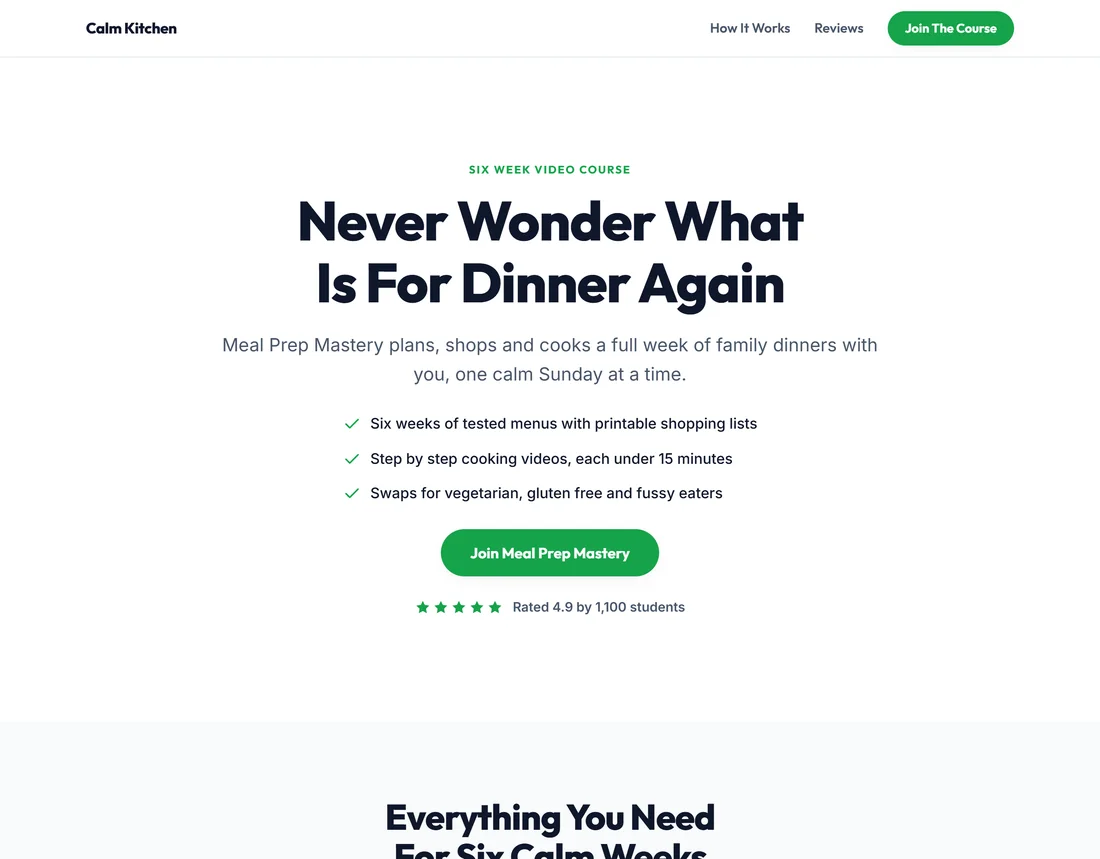
Funnel pages use the plugin's own page template, listed in WordPress as RAFB Canvas (full bleed). Your theme's header, sidebar and content width do not squeeze or restyle the funnel, which is the usual reason a designed page looks wrong in WordPress.
Links between pages:
Because the plugin creates all the pages, it knows each real address and fills in the links between them. The optin page goes to the thank you page, the thank you page goes on to the sales page, and so on, in the order of your funnel.
Updating a published funnel:
Edit the funnel, press Save Funnel, then press Publish To WordPress again. The plugin updates the pages it already created rather than making duplicates, and the box says so: Publishing again updates these same pages rather than creating duplicates.
Opening a published page in the WordPress editor:
The page content holds a short note saying the page is built and published by ResultsAiX Funnels and should be edited from Build Funnel. The live page always comes from the funnel, never from what is typed in the WordPress editor, so make every change in the builder.
Deleting funnels and pages:
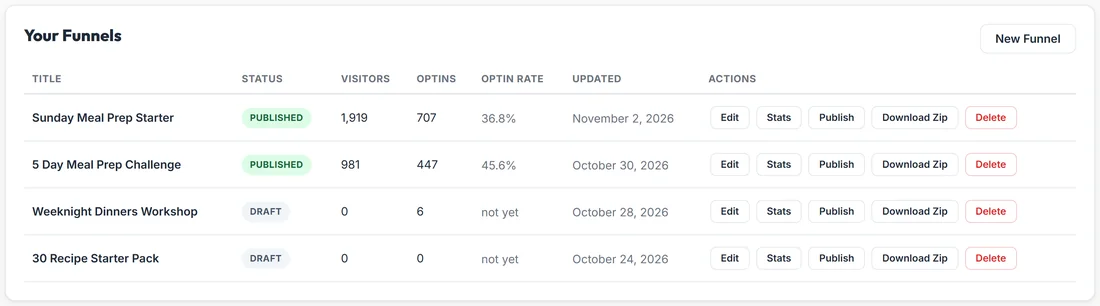
Delete on the Dashboard asks first, because deleting a funnel is permanent. Published WordPress pages stay where they are when you delete a funnel, because they may already have visitors and links pointing at them. Remove those from the WordPress Pages screen if you no longer want them. The Danger Zone card on Settings says the same.
A real example:
Sarah presses Publish To WordPress on Sunday Meal Prep Starter. The box lists five pages: Get The Free 7 Day Meal Prep Starter Guide, Your Guide Is On Its Way, Meal Prep Mastery, Add The Family Freezer Plan and Your Meal Prep Downloads. The free guide now lives at yoursite.com/free-meal-prep-guide/ and she shares that address on Facebook.
Choosing between publish and export:
Publish when you want the funnel on this WordPress site, counted on the Stats tab and edited in place. Download Zip when you want to host it somewhere else, hand it to a client, or keep a backup. See Exporting A Self Contained Zip.
Tips:
- Set where your forms send leads before you publish. See Where Your Leads Go, And What Happens After The Optin.
- Open the published pages in a private browser window to see them exactly as a visitor does.
- Make sure your site uses pretty permalinks. The Diagnostics tab shows it.