Selling from a funnel is two steps: make the product on the Payments tab, then put a Buy Button on a page.
Where to find it:
- Products and Add A Product on the Payments tab
- Sell Something in the bar above the preview on Build Funnel, once you have a product
- Buy Button in the section list in Edit Content
Every field in Add A Product:
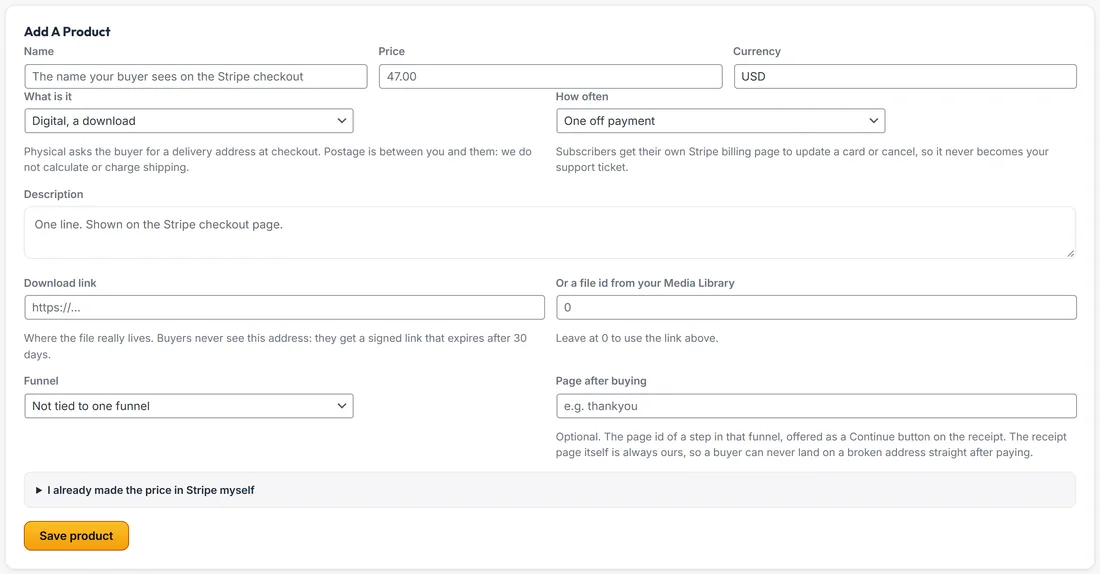
- Name: what the buyer reads on the Stripe checkout page, so write it for the buyer
- Price: what the buyer is charged, for example 47.00. It is read from the product at checkout time, never from the page
- Currency: three letters, starting as your default from the Payments card
- What is it: Digital, a download, or Physical, something you post. Physical asks the buyer for a delivery address at checkout
- How often: One off payment, Every month or Every year. Subscribers get their own Stripe billing page to update a card or manage their plan
- Description: one line, shown on the Stripe checkout page
- Download link: where the file really lives. Buyers never see this address: they get a signed link that expires after 30 days
- Or a file id from your Media Library: an attachment id instead of a link. Leave it at 0 to use the link above
- Funnel: optional. Ties the product to one funnel
- Page after buying: optional. The page id of a step in that funnel, for example thankyou, offered as a Continue button on the receipt
- I already made the price in Stripe myself: open it to paste a Test price id and a Live price id instead
Making a product, step by step:
- Open Payments and scroll to Add A Product.
- Fill in Name, Price and What is it.
- Add a Download link for a digital product.
- Pick the Funnel and Page after buying if the buyer should continue into the funnel.
- Press Save product.
- Product saved and sent to Stripe. confirms it.
The Products table:
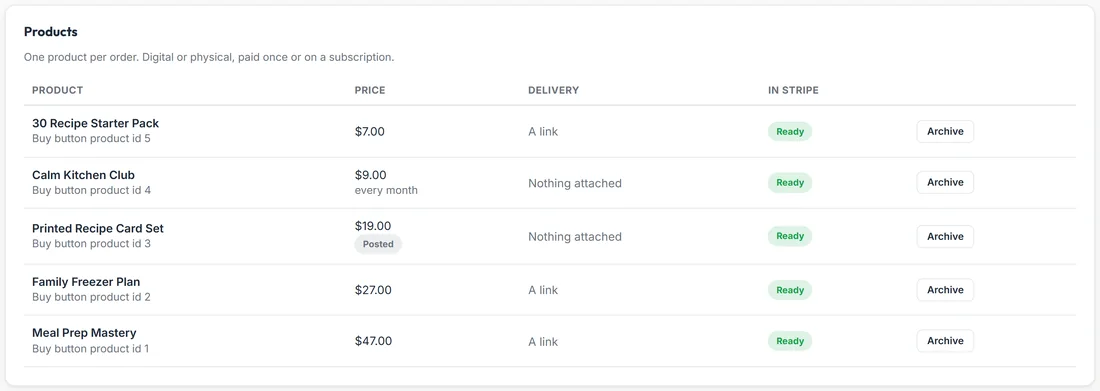
Every product is listed with its Price (and every month or every year for subscriptions, and a Posted tag for physical products), its Delivery (A link, a file name, or Nothing attached), and In Stripe: Ready once Stripe has it. If Stripe could not take it, the row says Not synced and the message at the top gives Stripe's reason. Each row also shows its Buy button product id.
Now put it on a page with Sell Something:
- Open the funnel on Build Funnel.
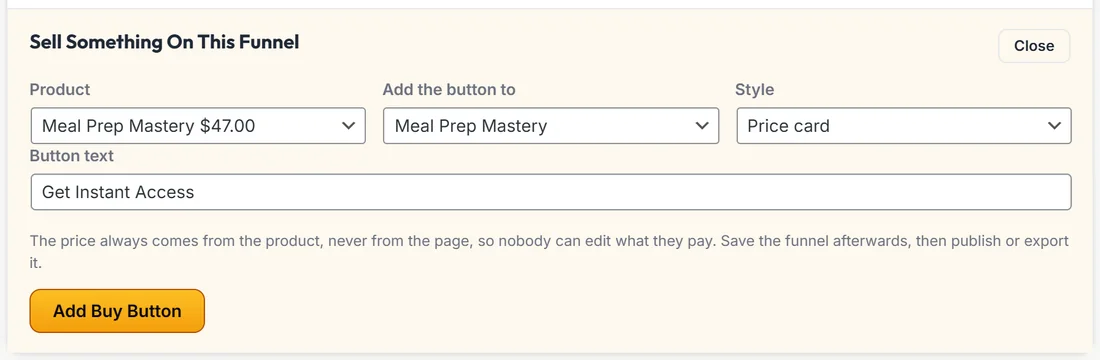
- Press Sell Something. The panel is called Sell Something On This Funnel.
- Choose the Product.
- Choose the page in Add the button to.
- Choose a Style: Price card or Button only.
- Set the Button text. Get Instant Access is the default.
- Press Add Buy Button. A Buy Button section is added to that page.
- Press Save Funnel, then publish or export.
Adding a Buy Button by hand:
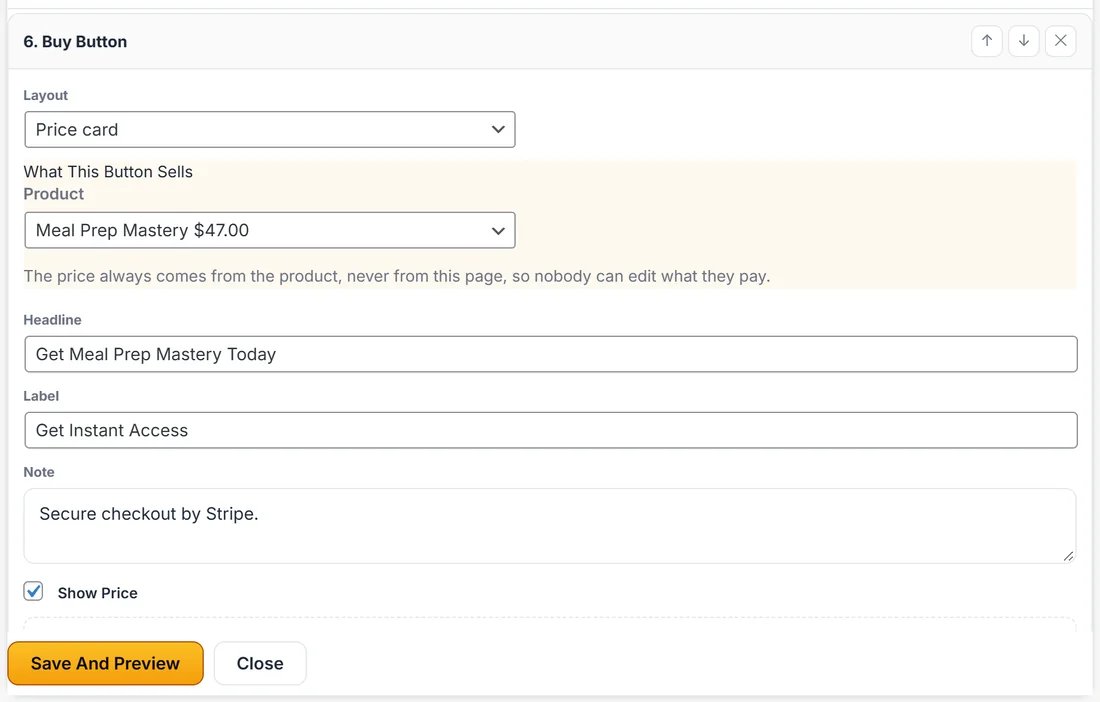
In Edit Content, pick Buy Button in the section list and click Add Section. The card has What This Button Sells with a Product list, then Headline, Label, Note, Show Price and, on the Price card layout, a list of what they get.
The price cannot be tampered with:
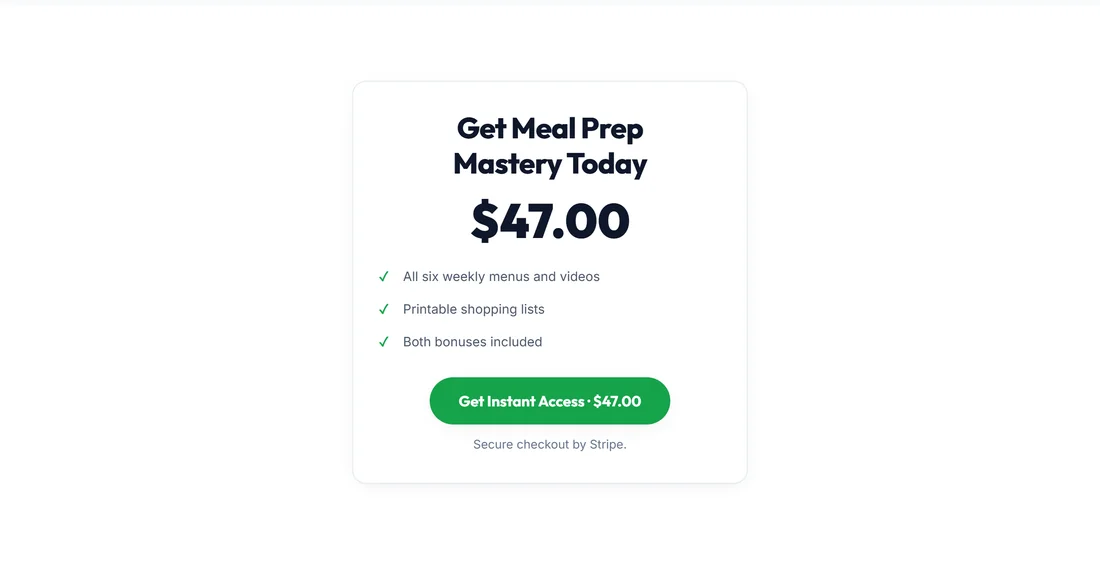
Either way, the price always comes from the product, never from the page. Somebody editing the page source or the exported HTML cannot change what they pay. The AI never adds a Buy Button on its own, and a rewrite can never change which product a button sells.
Archiving a product:
Archive on a product's row stops it being sold without touching a single order. Nothing is deleted, and old receipts and download links keep working. The row stays in the table marked Archived.
A real example:
Sarah creates Meal Prep Mastery as a digital, one off product with its workbook link, tied to Sunday Meal Prep Starter. She presses Sell Something, picks Meal Prep Mastery, picks the Meal Prep Mastery page and the Price card style, and presses Add Buy Button. The sales page now has a price card with Get Instant Access, and the price shown comes straight from the product. She also sells a Printed Recipe Card Set as a physical product and a monthly Calm Kitchen Club.
Tips:
- Put the Price card near the Pricing section and a Button only version at the end of the page.
- Use a Checkout page type for a short page that only takes the payment.
- Test every new product once in test mode before sending traffic.