Ads work better when the ad platform can see results. Tracking puts your pixels on every page of a funnel and tells your ad platforms each time someone opts in.
Tracking is set in two places. Tracking Defaults on the Settings tab is what every funnel starts with. The Tracking button on Build Funnel sets tracking for one funnel. Anything left empty on a funnel falls back to the default, so a pixel is pasted once and used everywhere.
Where to find it:
- Settings, Tracking Defaults
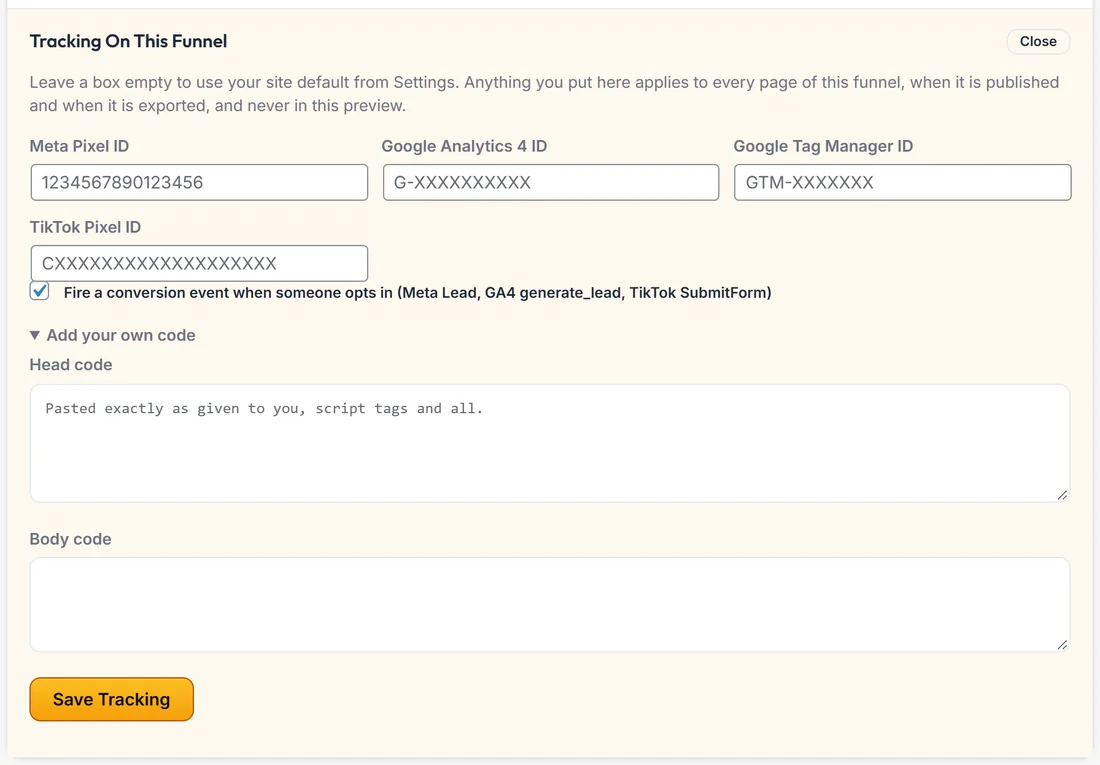
- Build Funnel, the Tracking button above the preview, which opens Tracking On This Funnel
The four built in IDs:
- Meta Pixel ID, which is all digits, like 1234567890123456
- Google Analytics 4 ID, like G-XXXXXXXXXX
- Google Tag Manager ID, like GTM-XXXXXXX
- TikTok Pixel ID, like CXXXXXXXXXXXXXXXXXXX
Each ID is checked when you save, so a pasted ID with a stray character is caught instead of being stored.
Anything else you need:
Open Add your own code, or Add your own code to every funnel on Settings. You get a Head code box and a Body code box. Paste what you were given, exactly as given, script tags and all: another ad platform, a heatmap, a chat widget.
Conversion events:
Leave Fire a conversion event when someone opts in ticked and every optin sends Meta Lead, GA4 generate_lead and TikTok SubmitForm. Without it your ad platforms see clicks but not results, which is the most common reason a campaign never learns.
Setting tracking for one funnel, step by step:
- Open the funnel on Build Funnel.
- Press Tracking.
- Fill only the IDs that differ from your defaults. Leave a box empty to use your site default.
- Press Save Tracking. The line under it summarises what this funnel will use.
- Publish or export again. Tracking saved. It goes live the next time you publish or export.
Defaults or per funnel?
- Use Tracking Defaults for the pixels you use everywhere, usually your Meta Pixel and Google Analytics
- Use the funnel's own Tracking for anything only one funnel needs, such as a TikTok pixel for one campaign, or a different Google Analytics property for a client funnel
- An ID filled on the funnel replaces the default for that funnel only. An empty box keeps the default
Where tracking runs, and where it does not:
Tracking runs on published pages and exported pages, on every page of the funnel. It never runs inside the builder preview, so your own editing does not add to your numbers or send test conversions to your ad account.
A sensible order to set this up:
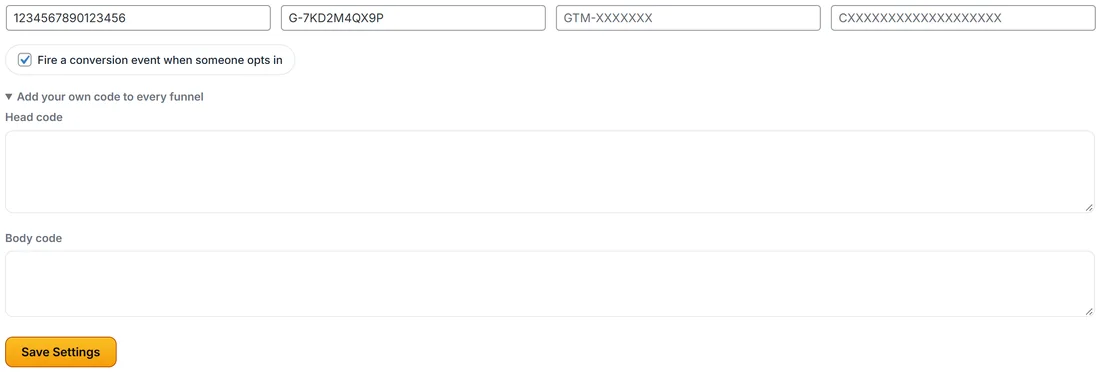
- Put your main pixels into Tracking Defaults on Settings, once, and press Save Settings.
- Leave the funnel boxes empty unless a funnel needs a different pixel.
- Publish the funnel, open a page and check the pixel fires with your platform's own browser helper.
- Opt in once with your own email and confirm the conversion event arrives.
A real example:
Sarah's Meta Pixel ID and Google Analytics 4 ID live in Tracking Defaults, so every Calm Kitchen funnel has them. For the challenge, she runs TikTok ads, so she opens Tracking on that funnel, adds her TikTok Pixel ID only and presses Save Tracking, then publishes again. Every challenge signup now sends SubmitForm to TikTok as well as Lead to Meta.
Tips:
- Use Google Tag Manager if you already manage tags there. Paste only the GTM ID and let it load the rest.
- Keep custom code short and from sources you trust. It runs on every page of the funnel.
- Add utm_source to your ad links too. The Stats tab then shows each ad source in Where They Came From.