Download Zip gives you the entire funnel as one package you can host anywhere. It is plain HTML, one stylesheet and one small script, with nothing to install.
Where to find it:

- Download Zip in the bar above the preview on Build Funnel
- Download Zip on the funnel's row in Your Funnels on the Dashboard
How to export, step by step:
- Open the funnel on Build Funnel, or find it on the Dashboard.
- Press Save Funnel if you have unsaved changes.
- Press Download Zip.
- The plugin builds the package and your browser downloads it, with the message Your download is starting.
What is inside:
- One HTML file per funnel page, named after the page's slug, linked to each other
- An assets folder holding funnel.css and funnel.js, the stylesheet and the small runtime
- index.html, a full copy of your first page, so opening the folder shows the funnel straight away
- README.txt with plain English hosting steps and a list of the pages
Hosting the zip, step by step:
- Unzip the download on your computer.
- Open index.html in your browser to check every page and button.
- Log in to your web host's file manager, or connect with your usual upload tool.
- Make a folder for the funnel, for example challenge.
- Upload everything from the unzipped folder into it: the page files, index.html, README.txt and the assets folder.
- Visit the folder's address, for example yoursite.com/challenge/, and check it again.
- Opt in once with your own email and look for it on your Leads screen.
Where you can host it:
Anywhere that serves files: a static host, a plain web server, a client's site, or a folder on your own domain. There is no database and no WordPress needed. Keep index.html, the page files and the assets folder together in the same folder, because the pages load their styles and script from assets.
You can also open index.html straight from your computer to check the funnel before uploading it.
Your optin forms keep working:
An exported funnel sends its optins back to the site that built it. Leads still appear on your Leads screen and still go to your email tool, even when the pages live on a completely different domain. Webinar registrations still reach ResultsAiX Webinars, and your tracking pixels still fire.
Visitors are counted too:
Exported pages report their visitors to the Stats tab the same way published pages do. A zip downloaded before version 1.3.7 counts visitors once you download it again and upload the new files.
A real example:
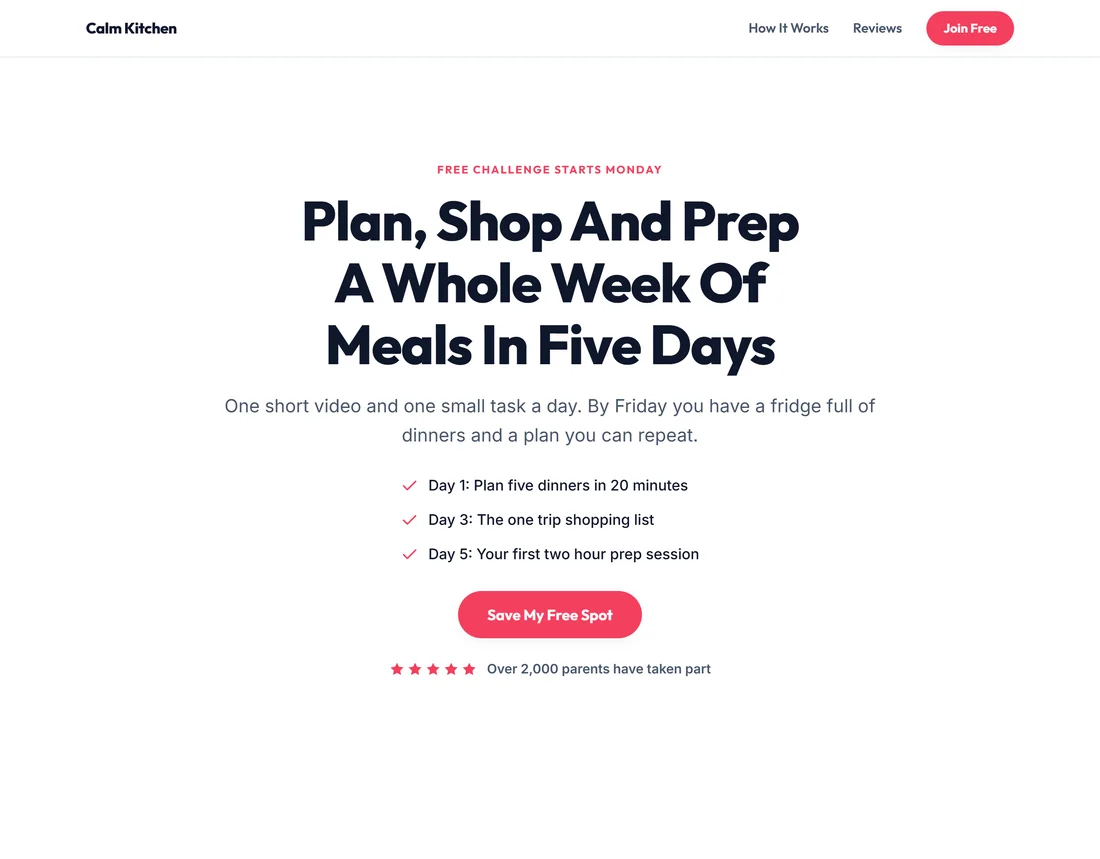
Sarah runs paid ads to a separate landing page domain. She downloads the 5 Day Meal Prep Challenge as a zip and uploads the folder to that host. Signups from the ad still arrive on her Leads screen on yoursite.com and go into Kit, and the Stats tab shows the visitors.
Good reasons to export even if you publish:
- A backup of the funnel exactly as it looked on a given day
- Handing a finished funnel to a client who does not use WordPress
- A landing page on a separate domain for a paid traffic campaign
- A copy of a page before you rewrite it
What export does not include:
The zip holds the pages and their assets. Anything that runs inside your WordPress site, such as delivering leads to your email tool or a WP Sync bridge, keeps running on the site that built the funnel. That is why exported forms post back to it.
The Export Defaults box on Settings:
Settings has Inline assets into each page on zip export. The zip described above, with its shared assets folder, is what Download Zip builds, so keep the folder next to the pages when you upload.
Tips:
- Download again after every change. The zip is a snapshot, not a live copy.
- Rename nothing inside the folder. The pages find each other by their file names.