This guide covers the licence, updates, and what to do when something does not go as expected. Each problem below is written as: if you see this, do that.
Your licence:
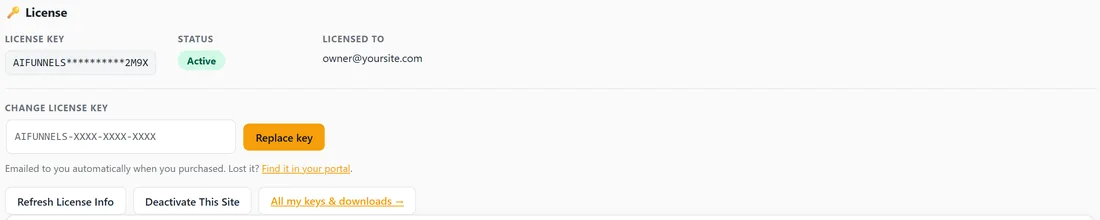
The License card at the top of the Settings tab shows your License Key, its Status and who it is Licensed To. Your key arrives by email from info@resultswithkevin.com when you buy.
- Refresh License Info fetches the latest details for your key.
- Change License Key with Replace key swaps this site to a different key.
- All my keys and downloads opens your account portal, where every key and download lives.
Moving the plugin to another site:
- On the old site, open Settings and press Deactivate This Site. This frees the seat.
- Install the plugin on the new site and activate it with the same key.
Deactivating only releases the seat. Your funnels, leads and settings stay in the old site's database.
How updates arrive:
The plugin checks for new versions on its own, and updates appear on the WordPress Plugins and Updates screens like any other plugin. Update in one click, with nothing to download by hand. Updating never changes your saved AI model, your funnels or your leads.
If the licence key is not accepted:
- Check for a space copied at the start or end of the key.
- Make sure it is the key for ResultsAiX Funnels. It begins with AIFUNNELS.
- If every site on the key is in use, press Deactivate This Site on a site you no longer need, then try again.
If Generate My Funnel is greyed out:
No AI key is saved yet. Open Connect AI and save a Gemini, Claude or OpenAI key. A Gemini key is free to get.
If your AI provider rejects the key:
The key was refused by the provider, not by the plugin. Copy it again from your provider's dashboard, check it is on the matching card, and press Test Connection.
If your provider says the account is out of credit:
Add credit at your provider, or switch to Gemini, which has a free tier. Nothing on your site needs changing.
If your provider says it is rate limiting:
Your provider is slowing requests, usually on a new or free account. Wait a minute and try again, or set a Fallback Provider on the Routing card so builds carry on with the other provider.
If you want to know exactly what went wrong:
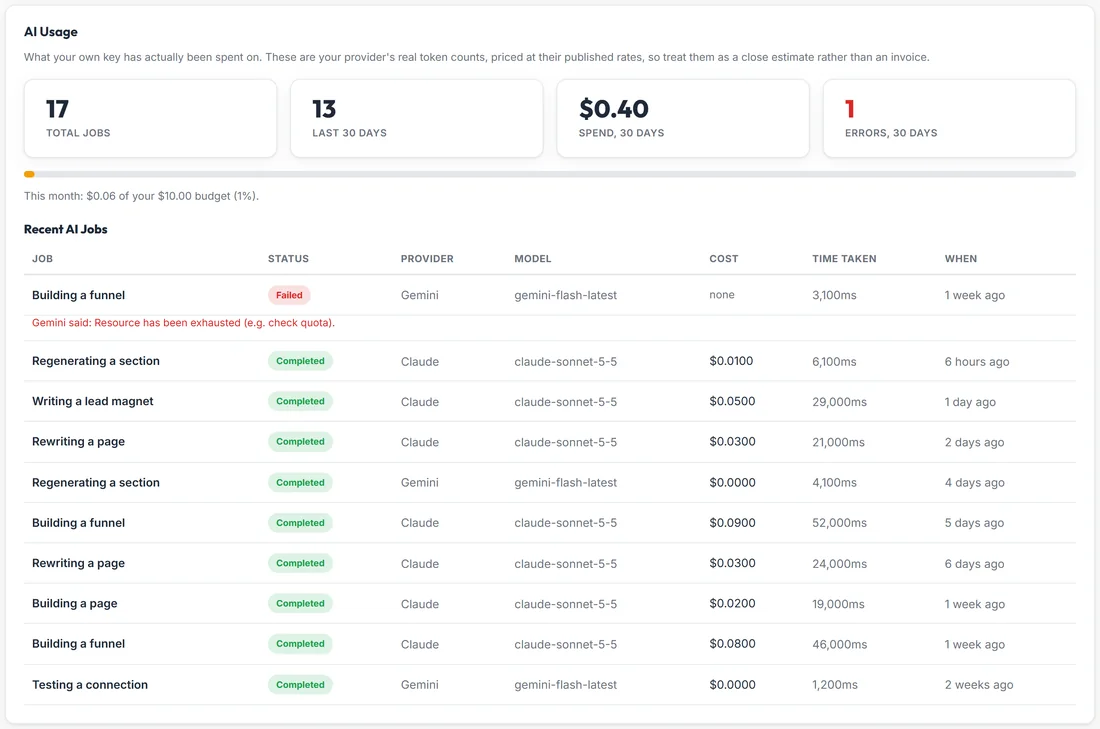
Open Connect AI. The Last AI Error card and the Recent AI Jobs table show your provider's own words. See AI Usage And Your Monthly Budget.
If an import says almost no readable content was found:
The page is drawn by JavaScript, so a plain fetch sees very little. Open the page in your browser, view the page source, and use Paste The HTML instead.
If an import says the page could not be reached:
Check the address in a private browser window. For a page behind a login, use Paste The HTML.
If an import comes back with too little:
Try again, or import a shorter page first. Very long or unusual pages work best pasted as HTML.
If a published page looks squeezed by your theme:
Open the page in the WordPress editor and check its template is RAFB Canvas (full bleed). Then publish the funnel again from the builder.
If a published page shows a not found page:
Check Permalinks on the Diagnostics tab. Switch WordPress to pretty permalinks under Settings, Permalinks, then publish again.
If your site is behind Cloudflare, or a host with a time limit:
Nothing to set up. A large funnel can take a couple of minutes to write, so the builder never relies on one long connection. If the connection is closed early, the AI keeps working on your server, the builder says it is still working, then picks up the finished funnel and carries on.
If a big picture you did not choose is at the top of an older funnel:
Funnels built before version 1.3.7 could get an image the AI picked. Open Edit Content, find the hero, clear Image and set Layout to Centered.
If Stats shows no visitors:
Visitors are counted on published and exported pages only, never in the preview and never while you are logged in. Open your published page in a private window and it appears within a moment. A zip downloaded before 1.3.7 needs downloading and uploading again.
If you rewrote a page and the preview did not change:
That page uses your own HTML, and the note above the preview says so. Rewrites change the builder version. Press Edit HTML, then Back To The Builder Version, to use it.
If leads are not arriving in your email tool:
Open Leads and filter by Failed. Read the provider's message in Where It Went, fix it on Connections, then export those leads as CSV and import them. See The Leads Screen: Every Optin, And What Happened To It.
Still stuck?
Open Diagnostics, press Copy Report for Support, then Open Support. Include these and the team can usually answer in one reply:
- The screen you were on, for example Build Funnel or Import Page
- The exact message you saw, copied word for word
- The Diagnostics report
- Which AI provider you use, and whether Test Connection passes