An optin page promises something: a checklist, a report, a guide. Most tools stop there and leave you to write it somewhere else. Lead Magnet PDF writes it here, from the funnel's own brief and the promise already on your optin page, then builds the PDF and links it for you.
Where to find it:
Open the funnel on Build Funnel and press Lead Magnet PDF in the bar above the preview. The panel opens under the preview.
How it works, step by step:
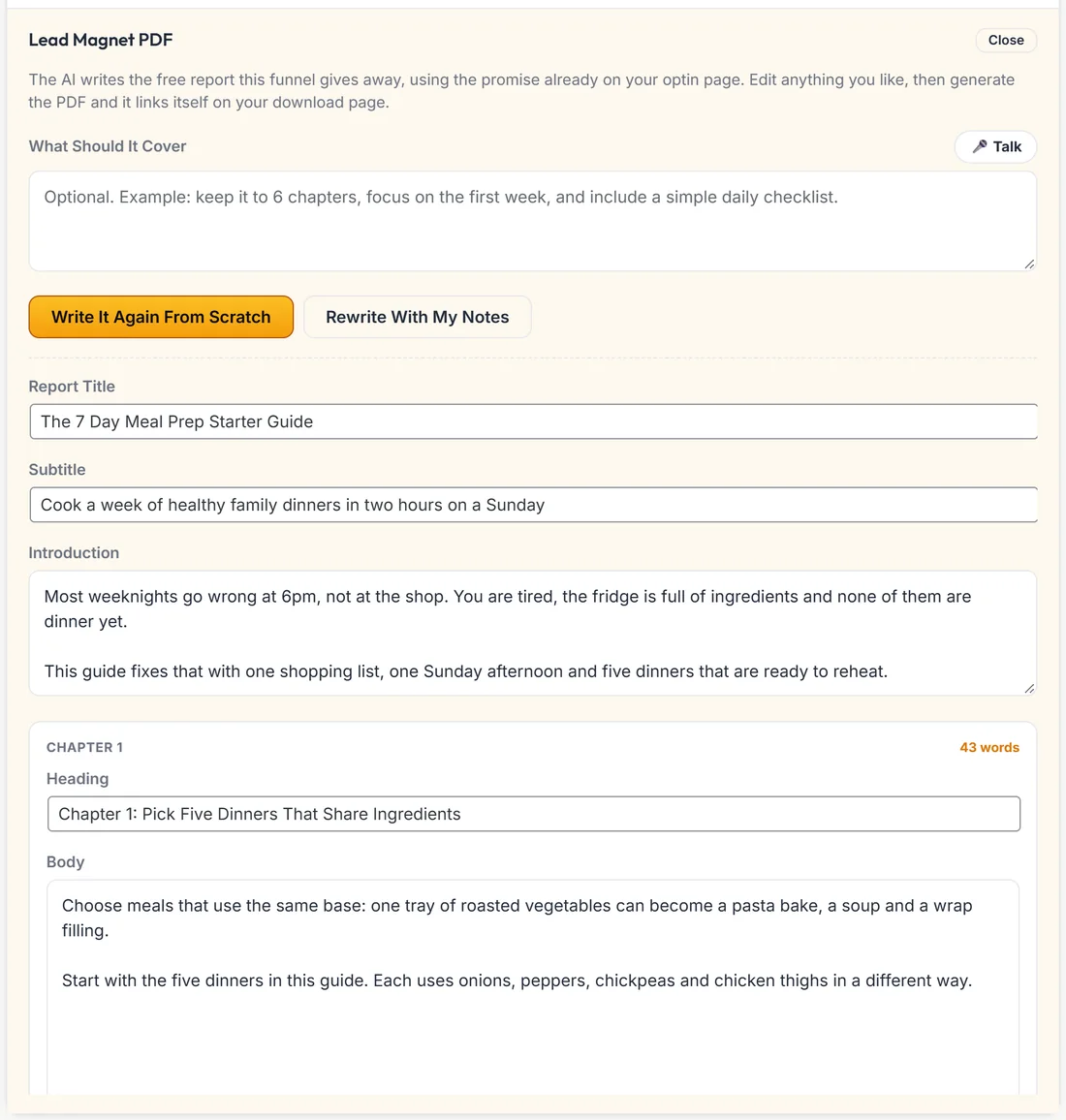
- Press Lead Magnet PDF.
- Fill in What Should It Cover, or leave it empty. Empty is fine: the AI works from the funnel's brief and your optin page's promise. The Talk button lets you say it.
- Press Write It With AI. It takes a little longer than a page, usually under a minute.
- The report appears: Report Title, Subtitle, Introduction, chapters and Closing Section.
- Edit anything. Every part is a normal text box. Each chapter has a Heading, a Body and a word count.
- Set the button. See The clickable button in the PDF below.
- Press Generate The PDF. It saves your text, builds the PDF and links it.
Once a report exists, the first button changes to Write It Again From Scratch, and Rewrite With My Notes appears beside it for a fresh pass that follows the notes in What Should It Cover.
The clickable button in the PDF:
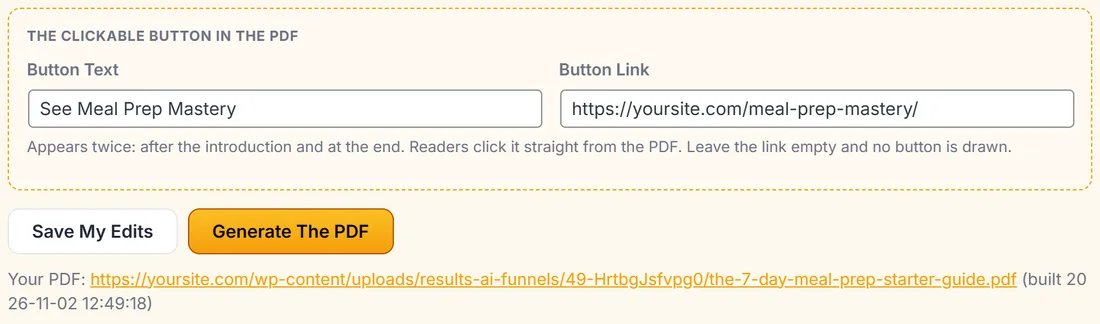
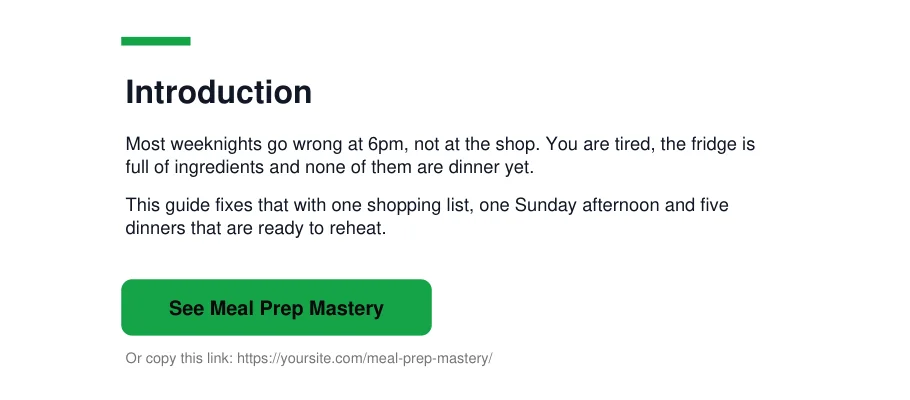
Set Button Text and Button Link under The Clickable Button In The PDF. The finished PDF carries a real button twice: once after the introduction and once at the end, with the address printed under it as Or copy this link, for readers who print it. Leave the link empty and no button is drawn.
This is the whole point of a lead magnet, so point it at your offer, your calendar or the next step of the funnel.
What the PDF looks like:
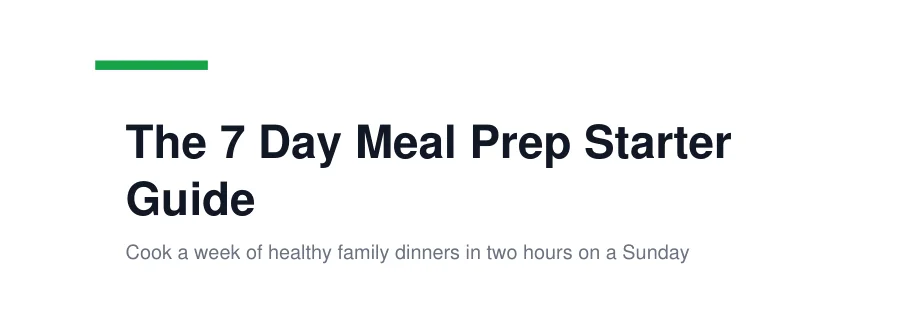
- A cover page with the title and subtitle, in your funnel's theme colour
- A contents page listing every chapter
- The introduction, with your button
- One section per chapter
- The closing section, with your button again
- The report title and page number at the foot of every page
Where the PDF ends up:
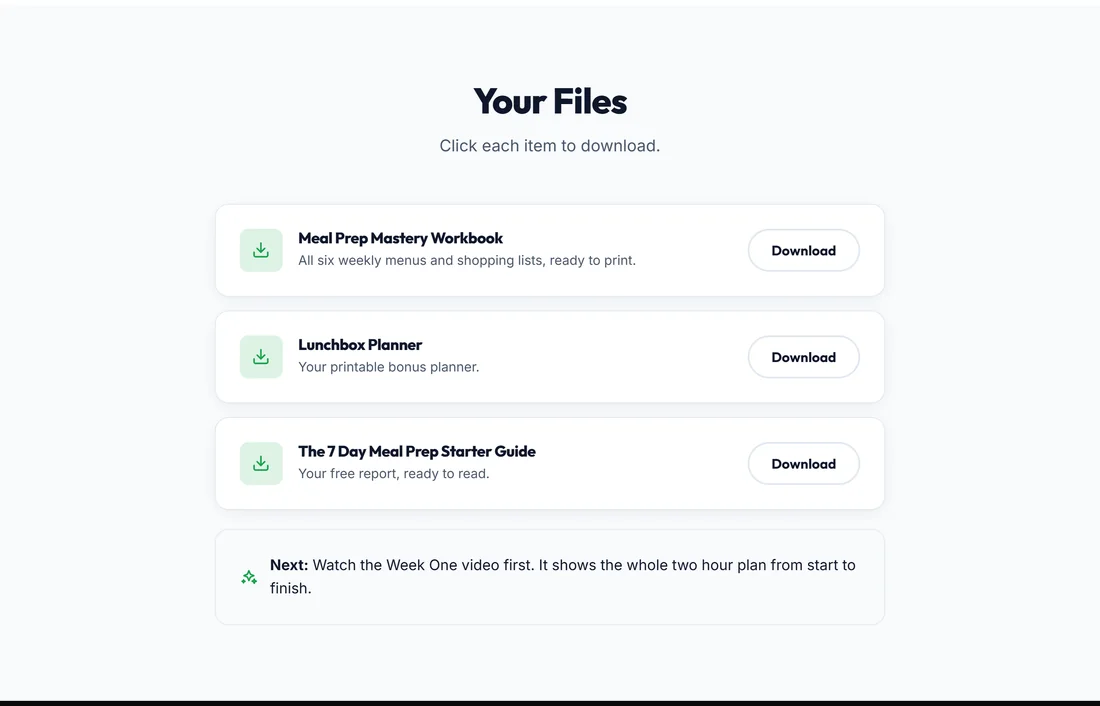
- It links itself on your download page, so somebody who just opted in has it straight away. The message says which page it was linked on. It takes the first download item with no address, or an item that already links to a PDF, and otherwise adds a new item called after the report
- It is a file on your own site, in your uploads folder, so you can also email it, put it in a members area or link it anywhere
- Under the buttons, Your PDF shows the file's address and when it was built
- If the funnel has no download page, the message says so. Add a Download / Access page, or paste the link into any button
Save My Edits keeps your text without building the PDF. Generate The PDF does both.
A real example:
Sarah's optin page promises The 7 Day Meal Prep Starter Guide. She presses Lead Magnet PDF, leaves What Should It Cover empty and presses Write It With AI. She trims chapter one, sets Button Text to See Meal Prep Mastery and Button Link to yoursite.com/meal-prep-mastery/, then presses Generate The PDF. The guide is linked on Your Meal Prep Downloads, and anyone who opts in can download it.
What it costs:
Writing the report is one AI call, billed by your own provider. It shows on the AI Usage card on Connect AI as Writing a lead magnet, with what it cost. Building the PDF itself happens on your server and costs nothing.
Tips:
- Keep chapters short and practical. A lead magnet people finish is worth more than a long one they skim.
- Press Generate The PDF again after any edit, so the file matches your text.
- Mention the PDF in your welcome email as well as on the download page.