ResultsAiX Funnels can take payments through your own Stripe account. Every payment goes straight into your Stripe account. The plugin never holds it and never touches it.
Payments are optional. Until you connect Stripe there is no Payments tab, no Sell Something button and no payment field anywhere in the plugin. If you only collect leads, nothing changes for you.
Where to find it:
- Before you connect: the Settings tab, in the Selling Something? card
- After you connect: a Payments tab appears on the tab bar, and the same settings live at the top of it
The Payments card at a glance:
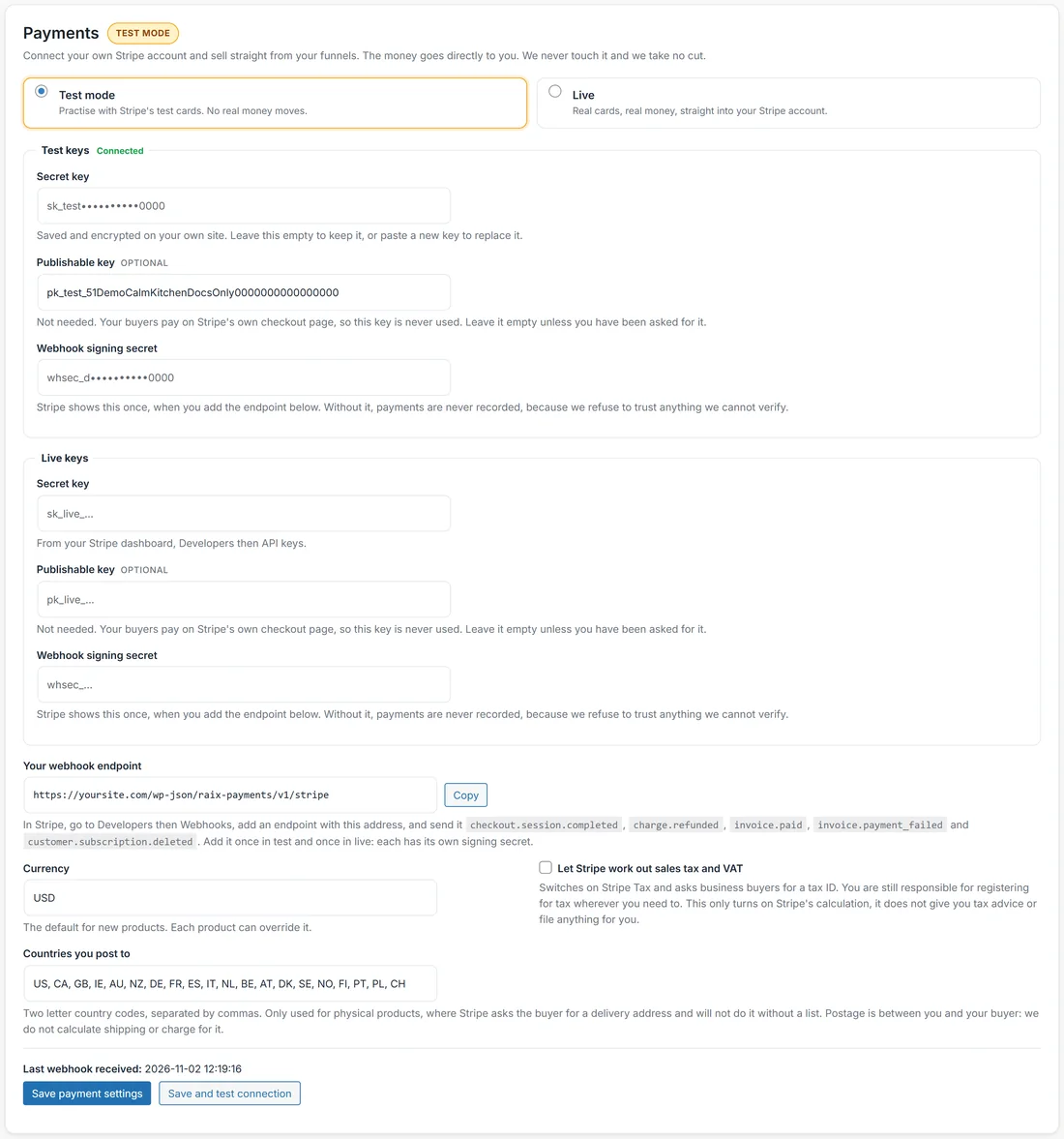
- The mode badge beside Payments: Test mode or Live
- Test mode (practise with Stripe's test cards, no real money moves) and Live (real cards, real money, straight into your Stripe account)
- Test keys and Live keys, each with Secret key, Publishable key (optional) and Webhook signing secret, and a Connected badge once saved
- Your webhook endpoint, with a Copy button and the five events to send
- Currency
- Let Stripe work out sales tax and VAT
- Countries you post to
- Last webhook received
- Save payment settings and Save and test connection
Connecting Stripe, step by step:
- Open Settings, find Selling Something? and its payment settings. Once Stripe is connected, use the Payments tab instead.
- Leave the mode on Test mode to begin with.
- In Stripe go to Developers, then API keys, and copy your test secret key. Paste it into Secret key under Test keys. The Publishable key is optional, because buyers pay on Stripe's own checkout page.
- Press Copy beside Your webhook endpoint.
- In Stripe go to Developers, then Webhooks, and add an endpoint with that address.
- Send it these events: checkout.session.completed, charge.refunded, invoice.paid, invoice.payment_failed and customer.subscription.deleted.
- Stripe shows you a signing secret. Paste it into Webhook signing secret.
- Press Save and test connection. Saved, and Stripe answered. Your key works. means you are connected.
Test and live are separate all the way through: two secret keys, two webhook endpoints in Stripe and two signing secrets. Add the endpoint once in test and once in live.
Your keys are encrypted on your own site. Leave a key box empty to keep the saved key, or paste a new key to replace it.
Going live:
Choosing Live is deliberate. You tick I understand that Live charges real cards and the money goes to my Stripe account before saving, and if the box is not ticked, Live is not switched on and nothing else changes. A mis-click can never quietly start charging people.
Test orders stay listed after you go live, marked Test, and they are never counted as money: not in the figures on the Payments tab, not on the Stats tab, and not by any other ResultsAiX plugin.
Why card details never touch your website:
Buyers pay on Stripe's own checkout page. No card number is typed on your site, handled by this plugin or stored in your database. That keeps you out of card handling rules, and strong customer authentication is handled by Stripe.
One connection for the whole family:
If you also run ResultsAiX Membership on this site, both plugins share the same Stripe connection and the same webhook endpoint. Connect once in either plugin and the other one is connected too. Each plugin keeps its own products and orders.
Currency, tax and postage:
- Currency is the default for new products. Each product can use its own.
- Let Stripe work out sales tax and VAT switches on Stripe Tax and asks business buyers for a tax ID. You are still the one who registers for tax wherever you owe it. This turns on Stripe's calculation, it does not file anything for you.
- Countries you post to is a list of two letter country codes, separated by commas, for example GB, IE, US. It is only used for physical products, where Stripe asks the buyer for a delivery address. Postage is between you and the buyer: nothing here calculates or charges shipping.
Is the money actually landing?
Last webhook received shows when Stripe last called your site. If something needs your attention, a card appears at the top of the Payments tab and says exactly what, for example Stripe has never contacted this site, or that people reached your Stripe checkout and none were recorded. Both point to the webhook: check the endpoint address in Stripe, and that the signing secret belongs to that endpoint and that mode.
A real example:
Sarah pastes her Stripe test key, adds the endpoint in Stripe with the five events, pastes the signing secret and presses Save and test connection. The Payments tab appears. She buys Meal Prep Mastery herself with Stripe's test card 4242 4242 4242 4242 and sees the order arrive marked Test.
Tips:
- Run a test purchase in test mode before going live. The Orders card even suggests the 4242 test card while you have no orders.
- Add the live endpoint in Stripe before you switch to Live.
- Next, create your first product. See Products And Buy Buttons: Selling From Any Funnel Page.