ResultsAiX Funnels does not resell AI. You connect your own key, you pay your provider at their own rates, and nothing is marked up. Everything the AI does in this plugin, from building a funnel to writing a lead magnet, runs on that key.
You can connect one provider or all three. The Routing card then decides which one does the work and which one steps in if the first is busy.
Where to find it:
Open AiX Funnels, then the Connect AI tab. The screen has a Connect Your AI card at the top, one card per provider, the Routing card, an Advanced card and the AI Usage card at the bottom.
The three providers:
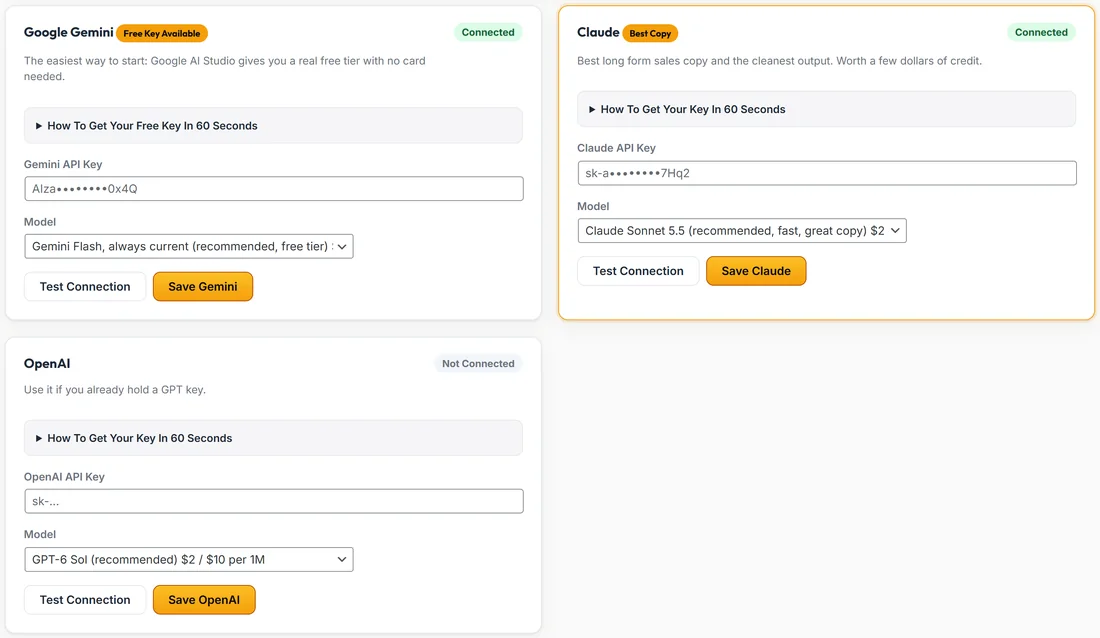
- Google Gemini, marked Free Key Available. Google AI Studio keys have a real free tier with no card needed. This is the easiest way to start.
- Claude, marked Best Copy. The cleanest long form sales copy. Worth a few dollars of credit if you write long pages.
- OpenAI. Use it if you already hold a GPT key.
Each card shows Connected or Not Connected in the top corner, so you can see at a glance which keys are saved.
Getting a free Gemini key:
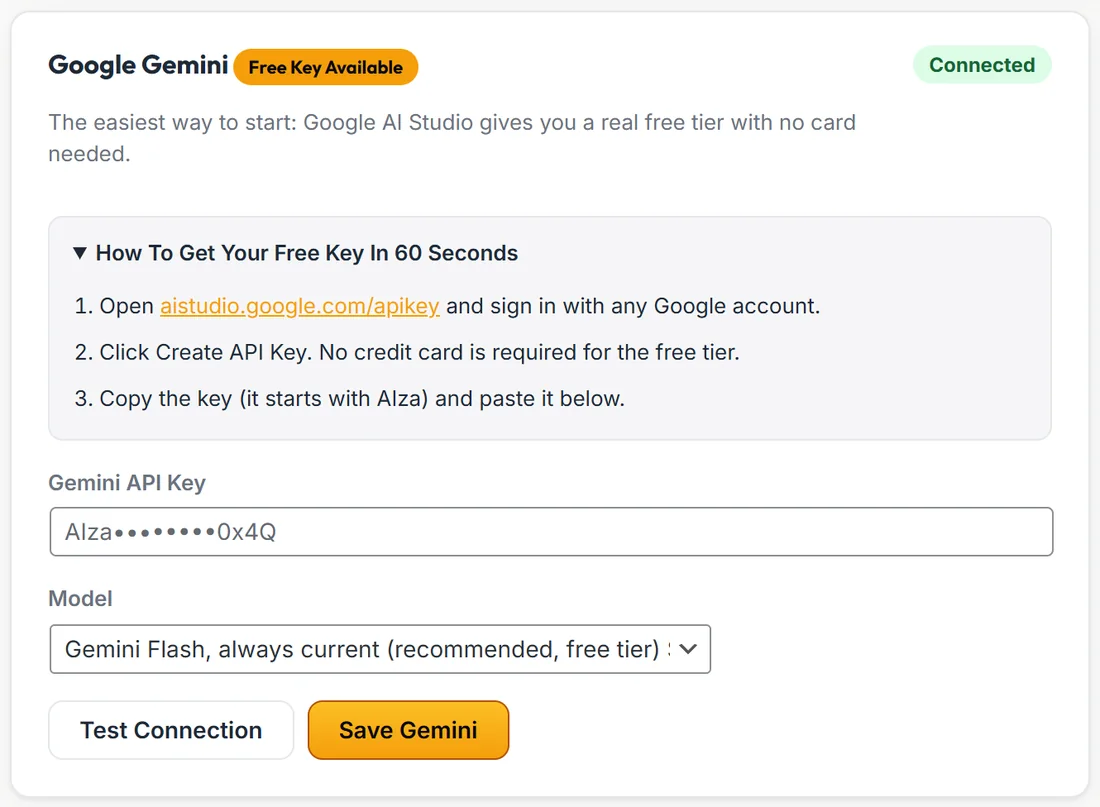
- On the Google Gemini card, open How To Get Your Free Key In 60 Seconds.
- Click the aistudio.google.com/apikey link and sign in with any Google account.
- Click Create API Key. No credit card is needed for the free tier.
- Copy the key. It starts with AIza.
- Paste it into Gemini API Key.
- Pick a model, click Test Connection, then click Save Gemini.
Getting a Claude or OpenAI key:
- For Claude, open console.anthropic.com, add a little credit under Billing, go to API Keys and click Create Key. The key starts with sk-ant.
- For OpenAI, open platform.openai.com/api-keys, add a little credit under Billing if needed and click Create New Secret Key. The key starts with sk-.
- Paste it into Claude API Key or OpenAI API Key.
- Click Test Connection, then Save Claude or Save OpenAI.
Each card has its own How To Get Your Key In 60 Seconds steps, so you never need to leave the screen to look them up.
Every setting on a provider card:
- API Key: a password box. Once saved, the box shows a masked version of your key and the real one is never sent back to your browser.
- Model: the model this provider uses. Each entry shows the provider's own price per million tokens beside the name, so you see what you are choosing.
- Test Connection: makes one small call with the model picked in the list right now, before you save it, and reports back in plain words.
- Save: stores the key and the model.
Choosing a model:
- The list puts the recommended model first. On Gemini that is Gemini Flash, always current, which follows Google's newest Flash model by itself.
- Updating the plugin never switches the model you are on. Older models stay in the list, marked older.
- A model you saved that is no longer offered shows at the top as your current model, so saving the card keeps it.
- If a provider retires a model you use and names its replacement, the plugin moves to that replacement on its own and remembers it, so your builds keep working.
The Routing card:
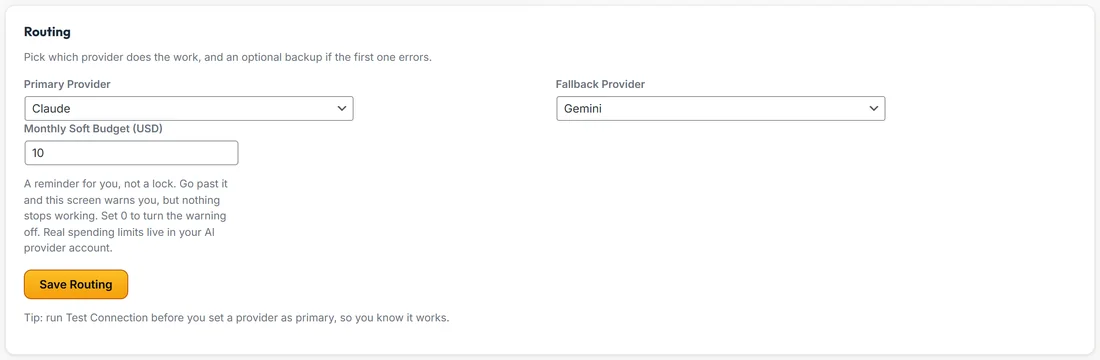
- Primary Provider: which provider does the work by default.
- Fallback Provider: a backup. If the primary returns an error, the same request is tried once with the fallback, so a busy moment at one company does not stop your build. Set it to None to turn this off.
- Monthly Soft Budget (USD): a reminder for you, not a lock. See AI Usage And Your Monthly Budget.
- Save Routing stores all three.
The tip under the card says it well: run Test Connection before you set a provider as primary, so you know it works.
When something goes wrong:
If an AI request fails, a Last AI Error card appears near the top of Connect AI. It shows your provider's own words, which task it was running, which provider and model, and how long it waited. It clears itself as soon as the next AI request succeeds. The same failure is listed in Recent AI Jobs with its message.
A real example:
Sarah saves a free Gemini key first and tests it. Later she adds a Claude key because she likes Claude's long sales letters. On the Routing card she sets Primary Provider to Claude and Fallback Provider to Gemini. When Gemini once ran out of quota during a test, the failed job showed Gemini's own message on the AI Usage card, and she knew exactly why.
Is my key safe?
Your key is encrypted before it is stored in your own WordPress database. It is never returned to your browser, only a masked version is shown, and nothing is sent to us.
Tips:
- Connect two providers and set a fallback. It costs nothing until it is needed.
- Pick a model once and leave it. The plugin keeps you on it until you choose otherwise.
- The cost line at the top of the screen is the plugin's own estimate: roughly 1 to 3 cents per page on a recommended model, paid to your provider, or nothing on the Gemini free tier.
- Sending AI through your own gateway? See Sending AI Requests Through Your Own Gateway.