This is the design choice that makes ResultsAiX Funnels dependable, and it is worth understanding before you edit anything.
How most AI page tools work:
They ask a language model to write HTML and CSS. That works until a stray tag or a broken grid sneaks in, and the page falls apart on a phone.
How ResultsAiX Funnels works:
The AI is never allowed to write markup. It can only choose from a fixed library of 20 hand built sections and fill in their text. A renderer inside the plugin then turns those choices into HTML. The AI controls the words, never the structure.
Where to find it:
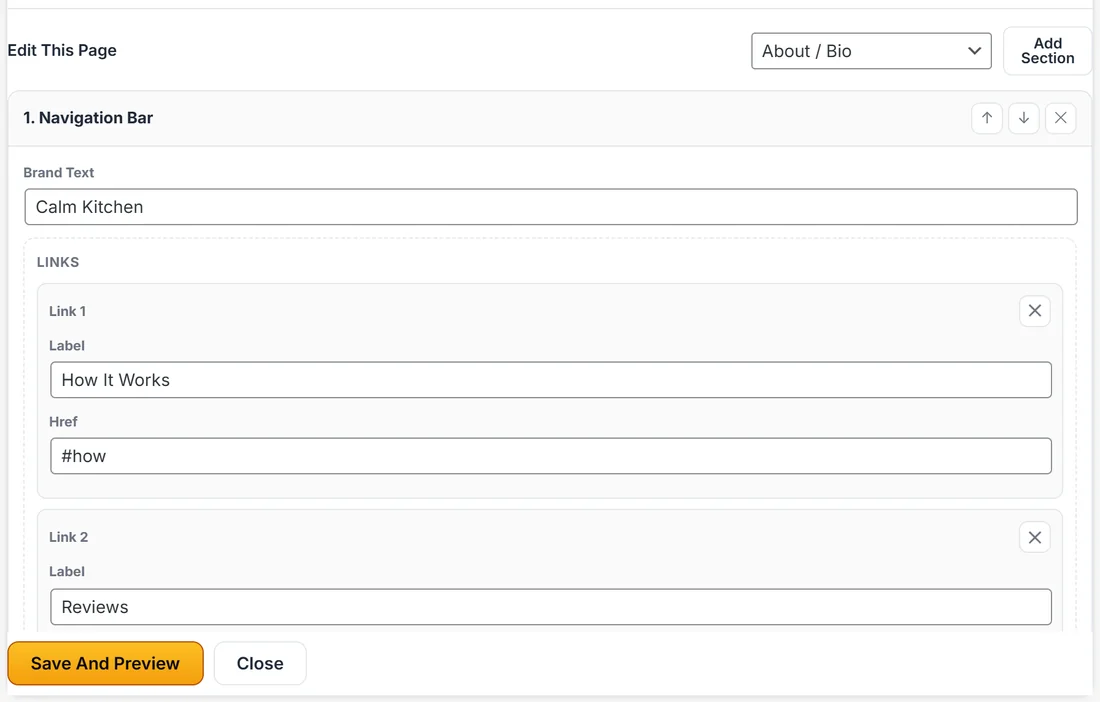
- On Build Funnel, open a funnel and press Edit Content. Every card in the editor is one section, numbered in page order.
- The list beside Add Section at the top of Edit This Page holds the whole library.
- The Layout list on each card switches between that section's designs.
The 20 sections:
- Navigation Bar: your brand name, a few links and a button. Can stick to the top as people scroll.
- Hero: the headline, sub headline, bullets, main button and star rating. Layouts: Centered, Split (image right), Split (image left) and Minimal.
- Optin Form: captures name, email and phone. Layouts: Inline, Card and Split.
- Webinar Register: books a seat for a webinar, with a date line, host and bullets.
- Video: an embedded YouTube, Vimeo or mp4 video, or a placeholder.
- Proof / Testimonials: quotes with names, roles and stars. Layouts: Wall, Slider, Single and Quotes.
- Logo Bar: as seen in style names or logos.
- Features: benefit blocks with icons. Layouts: Grid, List and Alternating.
- Steps / How It Works: numbered steps.
- Pricing: plans with features and a button. Layouts: Single, Three Tier and Comparison.
- Bonus Stack: stacked bonuses with an optional total value.
- Guarantee: your promise with a badge.
- Countdown Timer: evergreen per visitor, or a fixed deadline.
- FAQ: questions that open on tap.
- Call To Action: the closing ask. Layouts: Band, Boxed and Split.
- About / Bio: your story, your name, an image and credentials.
- Download / Delivery: download buttons and a next steps note.
- Buy Button: takes payment through your own Stripe account. Layouts: Price card and Button only.
- Rich Text: plain paragraphs, for legal pages and anything mostly words.
- Footer: your brand, links, a disclaimer and your copyright line.
What the sections look like:
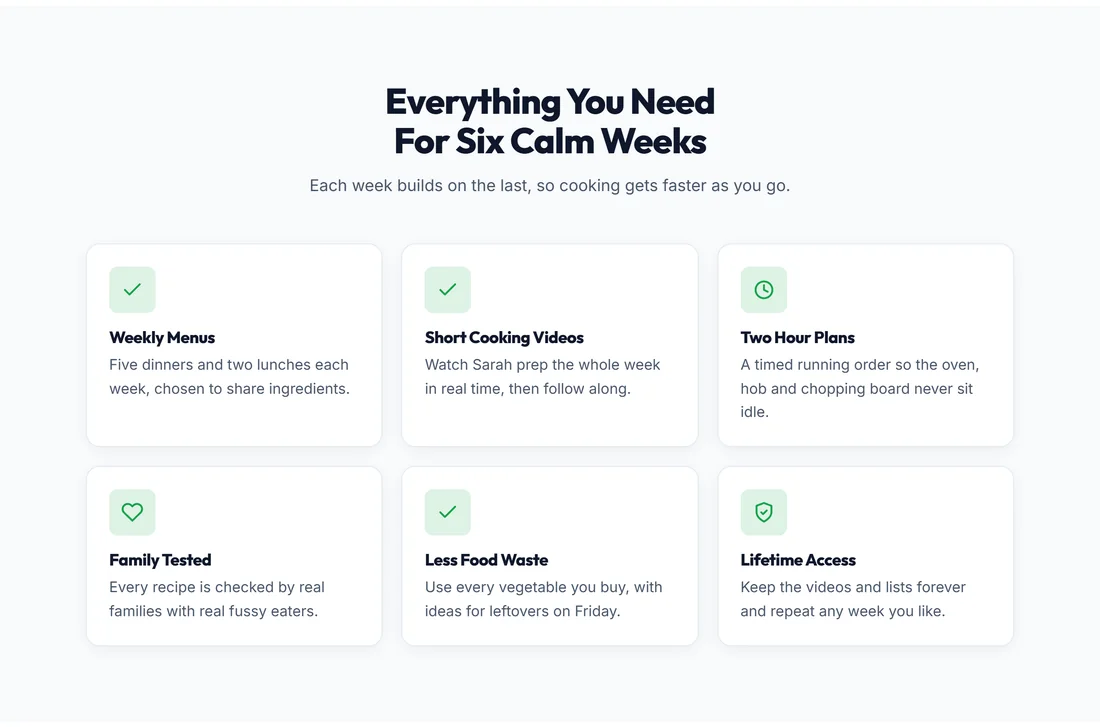
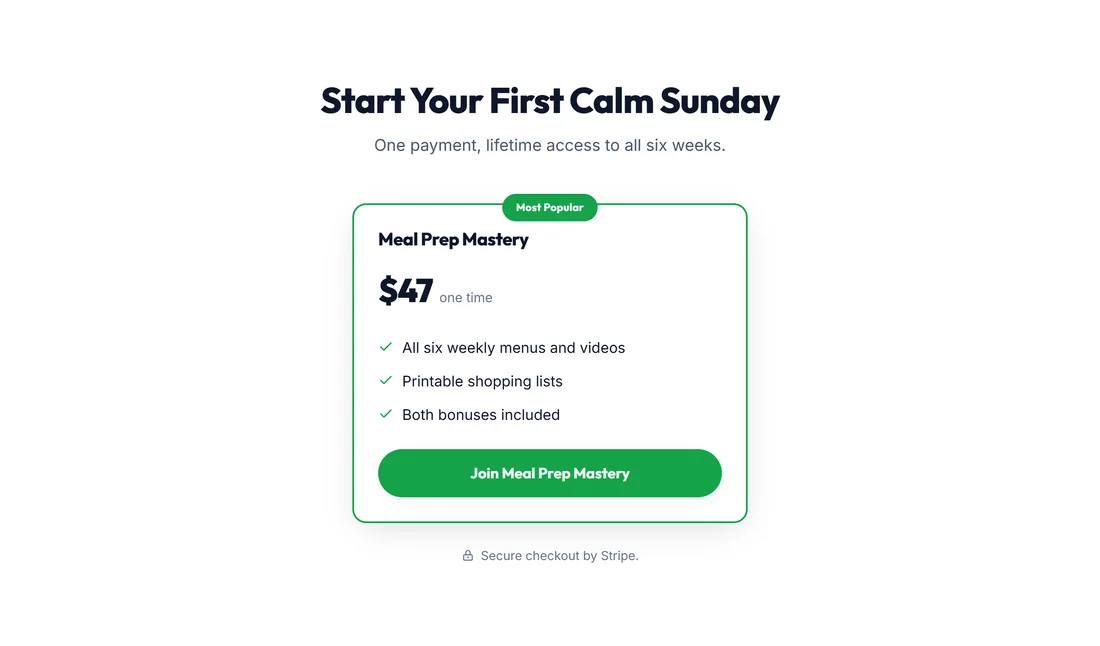
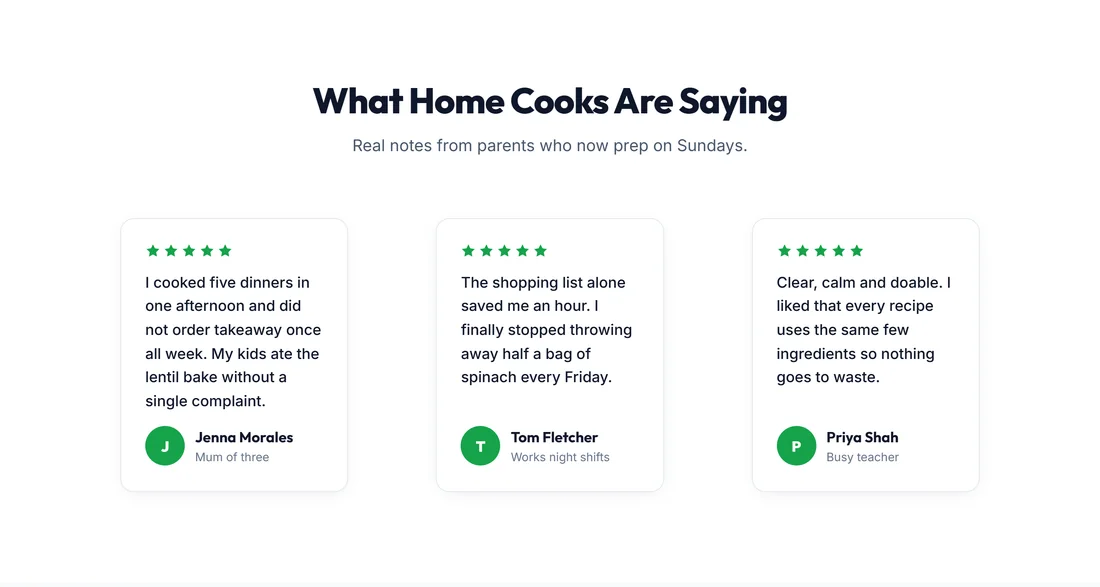
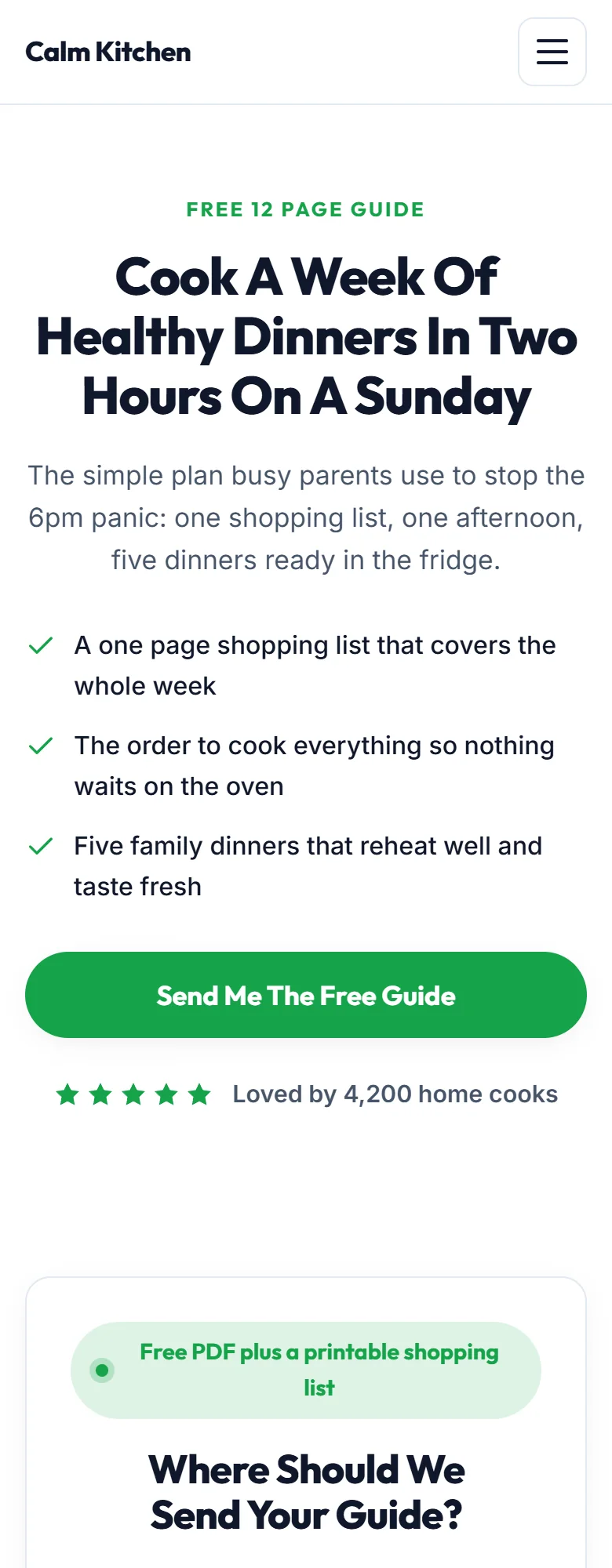
Every page you build is made of these blocks. The screenshots here are from Calm Kitchen's Meal Prep Mastery sales page: a Features grid, a Pricing card, a Guarantee and a Proof wall.
Every section is built mobile first. The same page reflows into one tidy column on a phone, the navigation folds into a menu button, and buttons grow to a comfortable size for a thumb.
What this means for you:
- Your pages look finished on every screen without touching CSS
- The AI can be creative with words while the layout stays safe
- You can add, reorder, delete or switch the layout of any section without breaking the page
- Nothing you export can quietly fall apart, because there is no improvised markup in it
Choosing a layout:
- Hero: Centered for a short, bold promise. Split (image right) or Split (image left) when you have a strong photo. Minimal for thank you and download pages
- Optin Form: Card stands out on a busy page. Inline sits quietly inside the flow. Split puts the words on one side and the form on the other
- Proof / Testimonials: Wall for three or more quotes, Slider when you have many, Single for one standout quote, Quotes for a lighter look
- Features: Grid for six short benefits, List for longer ones, Alternating for a story told point by point
- Pricing: Single for one product, Three Tier for good, better and best, Comparison when buyers weigh options side by side
- Call To Action: Band across the full width, Boxed for a framed closing ask, Split for words beside the button
- Buy Button: Price card near your pricing, Button only at the end of the page
Changing Layout never changes the words in the section, so try each one and keep the best.
When you want something the library does not have:
Use a Rich Text section for long text, or open Edit HTML and add your own blocks around the live parts of the page. See Edit HTML: Change The Code Of Any Page.
The one section the AI never adds by itself:
The Buy Button. The AI has no way of knowing what you sell or what it costs, so you add it yourself with Sell Something, or by hand in Edit Content. It needs Stripe connected and at least one product. See Products And Buy Buttons: Selling From Any Funnel Page.
Tips:
- Try a different Layout before rewriting a section. A Proof wall reads very differently as a Slider.
- Keep one main button per section. The library is designed for one clear action at a time.