Every optin your funnels collect is written to your own site first, before a single call is made to your email tool. That order matters. A wrong key, an expired token or a provider having a bad day then costs you a delivery, never the lead.
Where to find it:
Open AiX Funnels, then Leads. The Stats screen and the Dashboard both have links here too.
The four numbers at the top:

- Total Leads: every lead ever stored
- Delivered: leads your email tool accepted
- Stored Here Only: leads from forms with no destination set
- Need Attention: leads that failed, plus leads that were only partly delivered
The table:
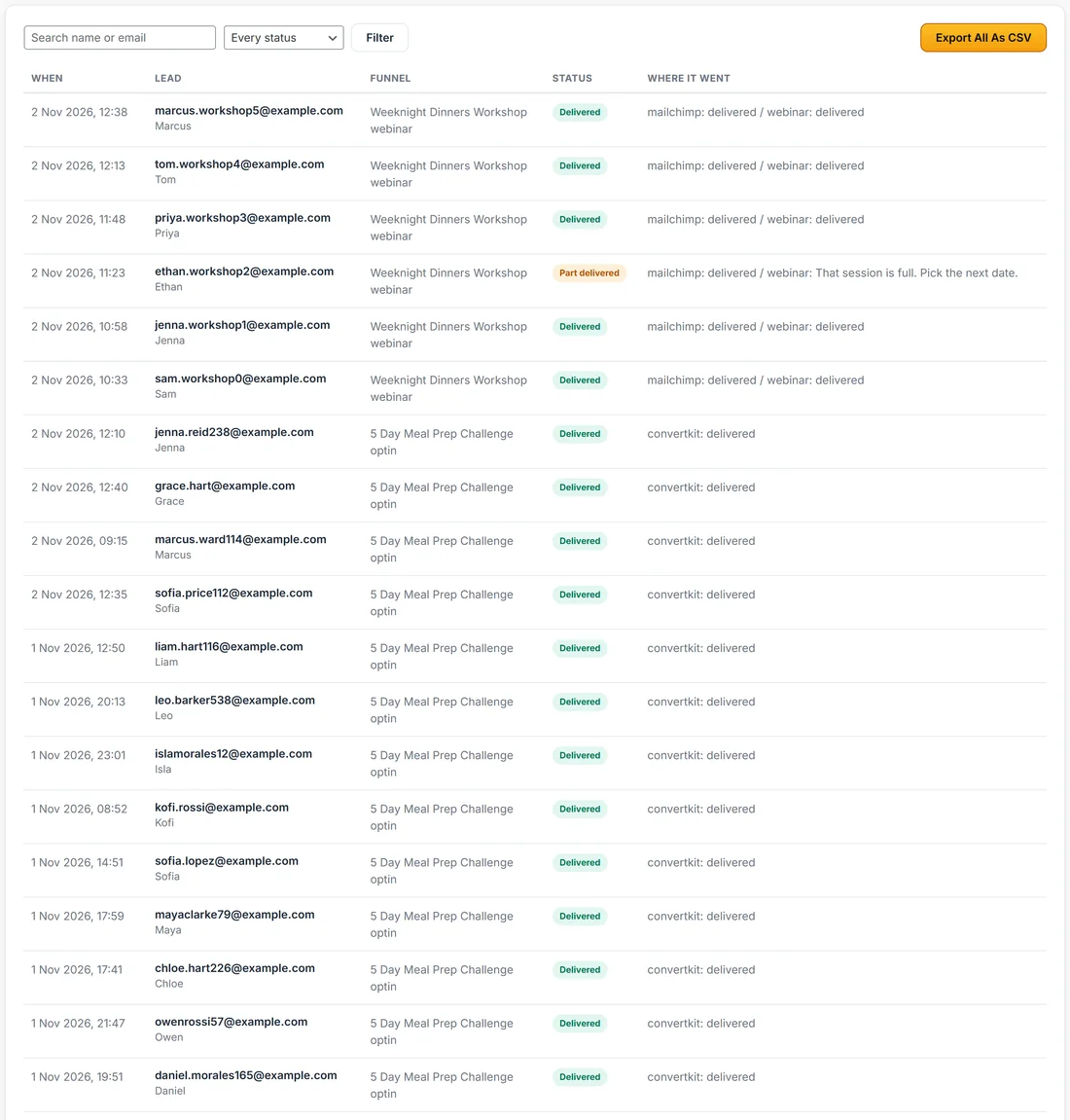
Each row shows When, Lead (the email and name), Funnel (the funnel and the page id that captured it), Status, and Where It Went. The newest leads are at the top, 50 to a page, with Previous and Next buttons below.
What each status means:
- Delivered: your email tool accepted the lead
- Stored here: saved on this site. No destination was set on that form
- Part delivered: one destination accepted it and another did not. Where It Went names which
- Failed: nothing accepted it. Where It Went shows the provider's own message
Reading Where It Went:
The column shows each destination and what happened there, in the order they were tried:
- mailchimp: delivered means Mailchimp accepted the lead
- convertkit: followed by a message means Kit did not accept it, and the message is Kit's reason
- mailchimp: delivered / webinar: delivered means both destinations took a webinar registration
- webhook: delivered means your webhook address answered
- This site only means the form had no destination set
Finding leads:
- Type a name or email into Search name or email.
- Pick a status in the list: Every status, Delivered, Stored here only, Partly delivered or Failed.
- Press Filter.
What is recorded with each lead:
- Email, first name, last name and phone, where the form asked for them
- Which funnel and which page captured it
- The page address and the referring address
- The utm_source, utm_medium and utm_campaign on the link
- The date and time
Exporting:
Export All As CSV downloads every lead with these columns: Date, Email, First Name, Last Name, Phone, Funnel, Page, Status, Delivered To, Page URL, Referrer, Source, Medium and Campaign. Use it to import into a tool with no direct connection, to keep a backup of your list, or to bring in leads that were captured while a key was wrong.
If leads did not reach your email tool:

A card called Some Leads Did Not Reach Your Email Tool appears above the table. Your leads are all stored, so nothing is lost. Then:
- Filter by Failed and read the message in Where It Went. It is the provider speaking.
- Fix the cause on the Connections tab, usually a key that was replaced or a list that was renamed.
- Export the affected leads as CSV and import them into your email tool.
- New leads then deliver normally.
A real example:
Calm Kitchen has 2,244 leads. One failed on 21 October while Sarah was swapping her Kit key, and the row says Your credentials were rejected. Check the key was copied in full, with no spaces. She saved the new key, exported that one lead and imported it into Kit. A workshop registration reads Part delivered: Mailchimp took it, and the webinar said the session was full.
Your leads stay yours:
Leads live in your own WordPress database. Uninstalling the plugin never deletes them.
Tips:
- Check Need Attention once a week. A zero there means every lead arrived.
- Use the CSV as a monthly backup of your list.
- To see which funnels bring the most leads, use the Stats tab. See Dashboard And Stats: Visitors, Optins And Sales For Every Funnel.