The AI never adds images. It has no way of knowing your logo, your face or your product, so anything it named would be a made up picture. Images are yours to add, and adding them takes a minute.
Where to find it:
Open a funnel on Build Funnel, press Edit Content, and find the section. Image fields take the address of an image. The easiest place to get one is your WordPress Media Library: upload the image, open it, and copy its File URL.
Where to add images:
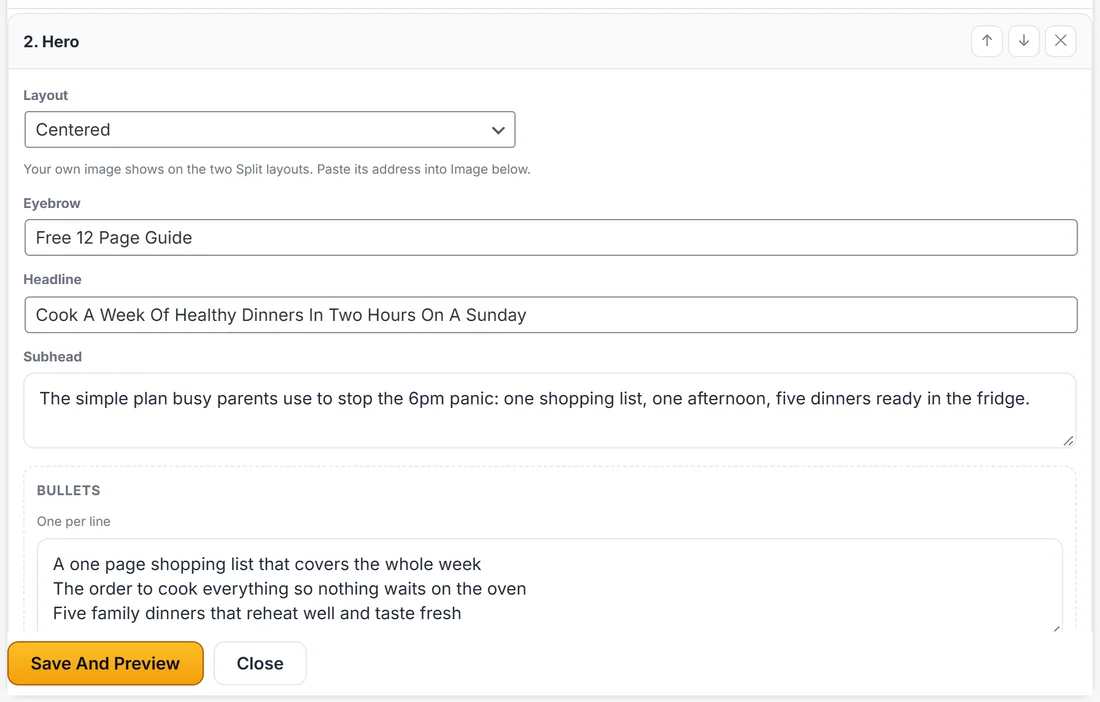
- A hero image: set Layout to Split (image right) or Split (image left), then paste your image address into Image. The note under Layout says the same: your own image shows on the two Split layouts.
- Your headshot: the About / Bio section's Image field.
- Your logo: the Navigation Bar and Footer have a logo field. Leave it empty to show your brand name as text, which is what the Calm Kitchen pages do.
- Logos in a Logo Bar: each logo has an image address and a name. A logo with no image shows its name as a clean wordmark.
- A video poster: the Video section's Poster field, shown before the video plays.
- Testimonial photos: each testimonial can carry an avatar image.
- Anywhere at all: Edit HTML, then add your own img tag.
Adding a hero image, step by step:
- In WordPress go to Media, Add Media File, and upload your image.
- Open it and copy the File URL.
- Back on Build Funnel, open the page and press Edit Content.
- On the Hero card set Layout to Split (image right).
- Paste the address into Image.
- Press Save And Preview, then Save Funnel.
A hero with no image uses the Centered layout, so a page never shows an empty picture box.
Images survive rewrites:
Rewrite Page With AI and Regenerate Section always keep the images you added. The AI can change the words around a picture, never the picture.
A real example:
Sarah uploads a photo of five filled food boxes, switches the free guide hero to Split (image right) and pastes the address into Image. The headline now sits beside the photo, and on a phone the photo stacks neatly under the text.
Image sizes that work well:
- Split hero image: a wide photo, around 1200 pixels across, with the subject in the middle so it still looks right when the layout narrows
- Headshot: a square photo, around 600 by 600 pixels
- Logo: a wide, short image with a transparent background, around 400 pixels across
- Video poster: the same shape as the video, usually 1280 by 720 pixels
On a phone, split layouts stack the image under the text, so the whole picture stays visible.
Adding an image anywhere with Edit HTML:
- Open the page and press Edit HTML.
- Find the spot, for example just above a [[rafb-live:...]] line for a form.
- Add an img tag with your image address and a short alt description.
- Press Save HTML And Preview.
The image then appears in the preview, on the published page and in the zip.
A funnel built before version 1.3.7 with a large picture you did not choose:
Open Edit Content, find the hero, clear its Image field and set Layout to Centered. Funnels built since then never get one.
Tips:
- Use wide images for a split hero and square images for headshots.
- Compress large photos before uploading. Funnel pages load fast, and big images are the usual thing that slows them down.
- Write a short description in the image name. It helps search engines and screen readers.