Your confirmations, reminders and follow ups leave your site through one send method. Set it up before your first webinar, because the join link only reaches people by email.
Where to find it:
Open AiX Webinars, then Email. The Email Sending card is at the top.
The send methods:
- ResultsAiX Mailer (this site). When ResultsAiX Mailer is on the same site, webinar emails go out through the senders you set up there.
- WordPress default / your SMTP plugin. Whatever WordPress already uses.
- Your own SMTP server. Host, port, username, password and encryption.
- SendGrid, Mailgun, Amazon SES, Postmark, Resend, SparkPost, Mailjet, Brevo (Sendinblue), Elastic Email and SMTP2GO. Each with the key or token that provider gives you.
Setting it up:
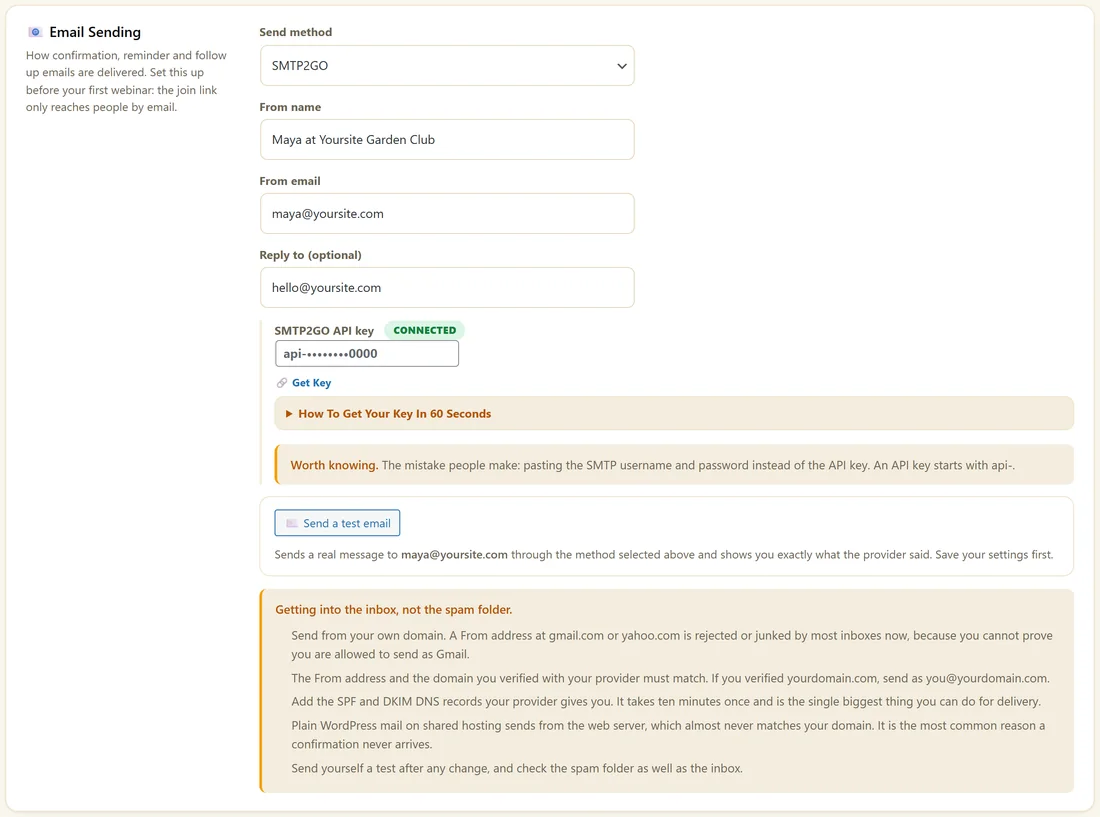
- Pick the Send method.
- Fill in From name, From email and Reply to (optional).
- Paste the key or details the method needs. Each one has a Get Key link and How To Get Your Key In 60 Seconds with the exact steps.
- Click Save Email Settings.
- Click Send a test email. It sends a real message to the address shown and tells you what the provider said.
Keys are stored encrypted and shown masked. Leave a masked field as it is to keep the saved key. A key that is saved and working shows Connected.
Getting into the inbox:
The card's own checklist, in short:
- Send from an address at your own domain, not gmail.com or yahoo.com.
- Send from the same domain you verified with your provider.
- Add the SPF and DKIM records your provider gives you.
- Send yourself a test after any change, and check the spam folder too.
A real example:
Maya picks SMTP2GO, sets From name to "Maya at Yoursite Garden Club", From email to maya@yoursite.com and Reply to hello@yoursite.com, pastes her SMTP2GO API key and clicks Save Email Settings. The key shows Connected, and her test email arrives in seconds.
Checking delivery later:
Diagnostics shows the send method, the From address, the last test email, the email queue and any send that went through WordPress mail instead of your chosen method. See Diagnostics: What Each Check Means.
Next step:
Connect your list in Connecting Your Autoresponder.
Which method to choose:
- ResultsAiX Mailer is on this site: choose it, and webinar emails use the senders you already set up there.
- You use a transactional email service: choose it by name and paste its key.
- Your host or email provider gave you SMTP details: choose Your own SMTP server.
- An SMTP plugin already handles your site's mail: choose WordPress default / your SMTP plugin.
Setting up your own SMTP server:
- Choose Your own SMTP server.
- Enter the host, the port, the username and the password.
- Choose the encryption: TLS on port 587, or SSL on port 465.
- Click Save Email Settings, then Send a test email.
Mail services such as Gmail and Microsoft 365 need an app password from your account security settings rather than your normal password.
Reading the test result:
The card shows exactly what the provider answered. A success message means the provider accepted the email. Check your inbox and spam folder, then add the SPF and DKIM records if it landed in spam.
The Reply to address:
Replies to your confirmation and reminders go to Reply to when you set it. Use an inbox you read, because attendees often reply with questions.
What the emails look like:
Your emails are plain and personal, carry your From name and address, and no plugin branding. A one-click unsubscribe line is added to the footer of every email.
What to do next:
- Confirmation And Reminder Emails
- Connecting Your Autoresponder
- Diagnostics: What Each Check Means
Common questions:
Can I change the method later?
Yes. Pick a new method, save and send a test. Emails still waiting in the queue go out through the new method.
Do my emails show plugin branding?
No. They carry your From name and address.