Settings are spread over three screens, each holding one group, and each screen saves on its own.
The Email screen:
- Email Sending. Send method, From name, From email, Reply to, the key or details for your method, and Send a test email. Saved with Save Email Settings. See Choosing How Your Emails Are Sent.
- Connect Your Autoresponder. A card per tool with its fields, Tag by behaviour and Test connection. See Connecting Your Autoresponder.
- Send It Even More Places (WP Sync). Webhook URL and Signing secret. See Sending Webinar Events To Other Tools.
The AI screen:
- Connect Your AI. Google Gemini, Anthropic Claude and OpenAI, each with a key, a model and Test connection, plus Routing for primary and backup.
- AI Images. The Image engine and its key. See Generating Slide Images.
The Settings screen:

- Looking For Something That Used To Be Here? A signpost to the Email and AI screens.
- Live Streaming. The Live provider for new webinars: This site (broadcast from your browser, no account needed), Embed an external stream, or Cloudflare Stream (broadcast from your browser). Cloudflare shows the Account ID and API token fields and Test connection.
- "Powered by" Credit. Show "Powered by ResultsAiX Webinars" at the bottom of your webinar pages, ticked by default. Your affiliate link (optional) makes the credit link to your own ResultsAiX affiliate link. Untick to hide the credit on the registration, thank-you, room and replay pages.
- License. Your key, status, licensed to, Replace key, Refresh License Info, Deactivate This Site and All my keys & downloads.
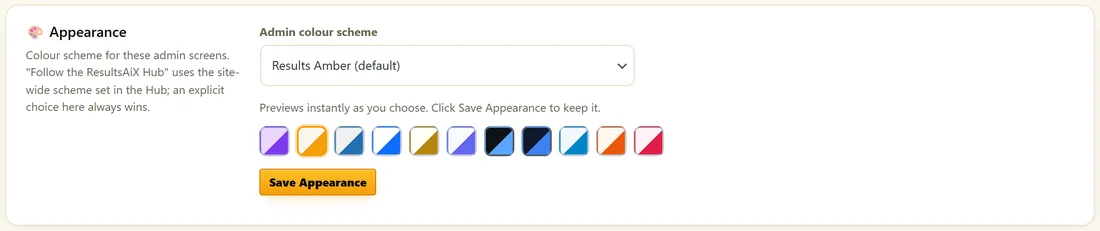
- Appearance. The Admin colour scheme: Follow the ResultsAiX Hub, Results Amber (default), WordPress Native, Clean White, Ivory Cream, Snow Light, Developer Dark, Midnight Blue, Ocean Blue, Sunset Warm or Rose Pink. It previews as you choose. Click Save Appearance. The Host Chat Console pop outs use the same scheme.
- Help & your account. Links to your account portal, support, Diagnostics and the training.
How keys are kept:
Every API key, token and secret is encrypted in your database, with AES-256-GCM where your server supports it. Fields show a masked value. Leaving a masked field as it is keeps the saved key.
A real example:
Maya sets Live Streaming to This site, ticks the Powered by credit with her affiliate link, and picks Results Amber.
Tip:
Save before you press any Test connection button. Tests read what is saved.
Which screen saves what:
- Save Email Settings saves the Email Sending card.
- Save Integrations saves autoresponders and the webhook.
- Save AI Settings saves the AI providers and routing.
- Save Settings saves Live Streaming and the Powered by credit. Replace key changes the license key.
- Save Appearance saves the colour scheme.
Settings that live inside each webinar:
Most choices belong to one webinar and are on its own tabs: content and console, registration page, schedule, emails, offer, AI assistant, chat, engage, replay and analytics. The screens here hold the site-wide setup.
The Powered by credit:
The credit line sits at the foot of the registration, thank-you, room and replay pages. With your affiliate link pasted in, anyone who clicks it and buys earns you a commission.
Live Streaming defaults:
The Live provider here is the starting choice for new Live webinars. Each Live webinar can change it on its own Content tab.
What to do next:
- Diagnostics: What Each Check Means
- Choosing How Your Emails Are Sent
Common questions:
Where did the email settings go?
They are on the Email screen. The signpost card at the top of Settings links there.
Can I hide the Powered by line?
Yes. Untick the box on the Powered by Credit card and save.