The Host Chat Console is your control desk while a webinar runs. It works in every mode, because an AI Deck or Recorded webinar has a live audience too.
Where to find it:
At the end of the Content tab. From any tab, click Host Console at the top of the editor, or Go Live on a live webinar.
Choosing the session:
The console opens on the session that is live, or the nearest one. The menu lists recent and upcoming sessions with who is there and how many messages. The green count shows how many are watching.
What you can do with a message:
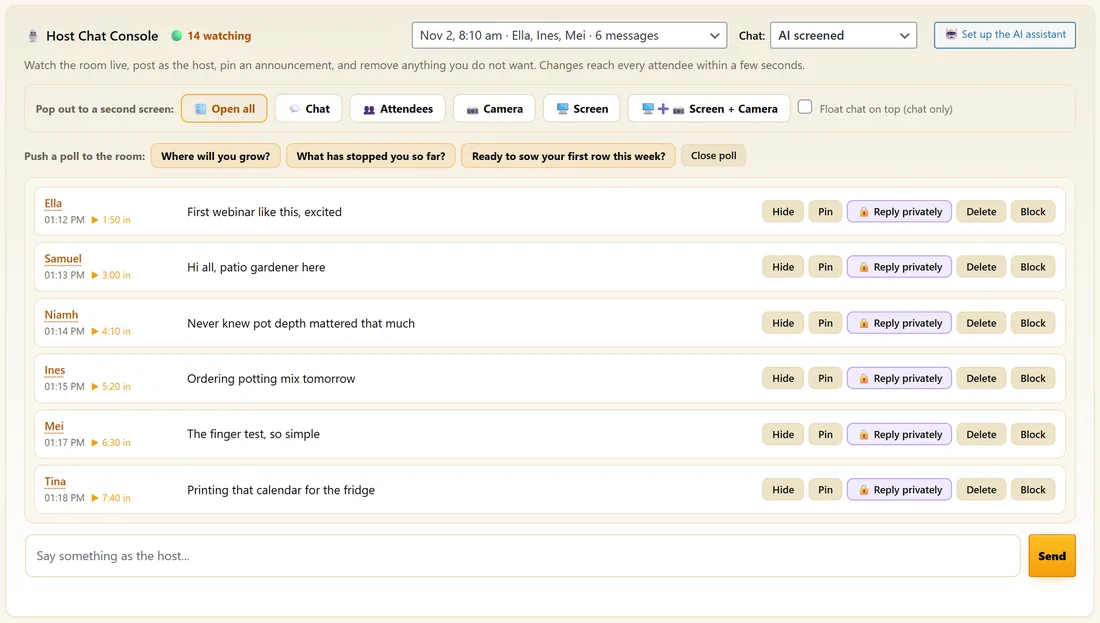
- Hide. Takes it out of the room.
- Pin. Pins it to the top of everyone's chat. Unpin removes it.
- Reply privately. A private message only that person sees.
- Delete. Removes it.
- Block. Removes everything they said in that session and stops their messages reaching the room. Their own screen looks normal. The blocked count has a button to clear all blocks.
Type in Say something as the host and click Send to post. Host messages are highlighted for everyone. Changes reach every attendee within a few seconds.
Chat moderation:
The Chat menu sets how attendee messages appear:
- Open (instant). Everything appears at once. You can still hide, delete and block.
- AI screened. AI checks each message. Clean ones appear at once. Promotion of another product, affiliate links, crypto promotion, adult content, insults and spam are held for you to Approve. With no AI key, or no clear answer, the message is held.
- Hold all for approval. Every attendee message waits for you to Approve it.
Questions and raised hands:
Questions and raised hands never appear in the room by themselves. They wait in your queue at the top of the console. For a question, Read out posts it to the room as that person's message so everyone sees what you are answering. Pin and Dismiss are there too. With an AI key, Draft answer writes a short reply from your slides and offer into your message box for you to edit and send. It never posts by itself.
Polls from the console:
Push a poll to the room shows any poll now. Close poll closes the one showing.
The AI assistant:
Set up the AI assistant opens the AI Assistant tab. When the assistant is on, the console shows its replies, and you can pause it. When you type, it waits and lets you lead. See The AI Assistant In Your Webinar Chat.
Pop out to a second screen:
- Chat. The chat with the pinned message and a reply box.
- Attendees. Who is here, minutes watched, still watching or left, and who clicked your offer.
- Camera, Screen and Screen + Camera. A preview of what you share, with a microphone level on the camera.
- Open all. Opens chat, attendees and screen with camera together.
Float chat on top keeps the chat window above other windows. Browsers may close a floating window when another opens, so it is best when chat is your only pop out.
A real example:
During Tuesday's Kitchen Garden Plan, Maya watches 14 people in the console on AI screened. A "cheap seeds" message is held, so she leaves it. Priya asks about lettuce bolting, Maya clicks Draft answer, edits the reply and sends it.
Setting up before a show:
- Open the webinar's Content tab and scroll to the console.
- Pick the session from the menu.
- Choose the Chat moderation mode.
- Click Open all to put chat, attendees and your screen on a second monitor.
- Have your first host message ready, for example a welcome and the first question.
Choosing a moderation mode:
- A friendly list audience: Open (instant)
- Paid traffic or a big public promotion: AI screened
- A small, high value room where every word matters: Hold all for approval
The Attendees pop out:
It lists who is in the room, how many minutes each person has watched, whether they are still watching or have left, and who clicked the offer. It refreshes every few seconds, so you can welcome people by name and thank clickers.
Working the question queue:
- Read the question.
- Click Read out to post it to the room, then answer as the host.
- Or click Draft answer, edit the reply and send.
- Click Dismiss once it is handled.
Questions left in the queue also appear in Chat History under Questions For You, so you can answer by email later.
Pinning:
Pin one message at a time, for example the link to your handout or a reminder of when the offer closes. Pin a new message to replace it, or Unpin to clear it.
What to do next:
- The AI Assistant In Your Webinar Chat
- Chat History And The Questions Inbox
- Going Live From Your Browser
Common questions:
Can I use the console on an automated webinar?
Yes. It works in every mode, so you can drop into an evergreen session and chat as the host.
Do attendees see that I hid a message?
No. The message simply leaves the room.