An automated webinar plays like a live show: everyone is on the same moment and nobody can skip ahead. These settings let you give viewers some control and turn on subtitles.
Where to find it:
Engage tab, the Viewer Controls and Subtitles panel.
The controls:
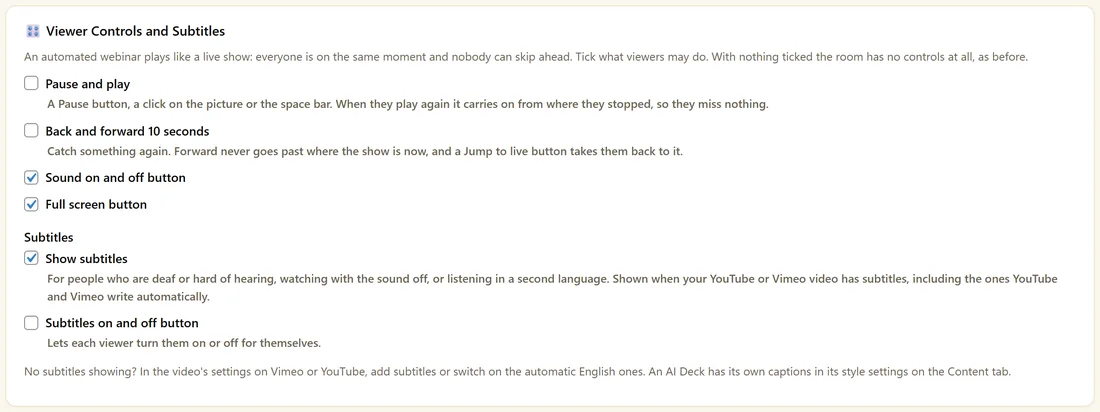
- Pause and play. A Pause button, a click on the picture or the space bar. When they play again it carries on where they stopped, so they miss nothing.
- Back and forward 10 seconds. Forward never goes past where the show is now, and Jump to live takes them back to it.
- Sound on and off button.
- Full screen button.
With nothing ticked the room has no controls. The controls appear on AI Deck and Recorded webinars. A live broadcast always plays live.
Subtitles:
- Show subtitles. On by default. Shown when your YouTube or Vimeo video has subtitles, including the automatic ones.
- Subtitles on and off button. Lets each viewer turn them on or off.
An AI Deck has its own captions. Turn them on with Captions in Look and Feel on the Content tab.
Setting it up:
- Tick the controls you want.
- Tick the subtitle options.
- Click Save.
A real example:
Maya ticks Sound on and off button and Full screen button on her Kitchen Garden Plan, and leaves pause off so the offer lands for everyone at the same moment. On her on-demand class she also ticks Pause and play, because people watch it in their own time.
Tips:
- For subtitles on Vimeo or YouTube, add them in the video's settings there, or switch on the automatic English ones.
- Captions help people who are deaf or hard of hearing, people watching with the sound off and people listening in a second language.
How pause works with the clock:
When a viewer pauses, their own copy stops. When they play again, it carries on from where they stopped, so they are now a little behind the live moment. Polls, handouts, scripted lines and the offer follow their own position, so they still see each one at the right point.
Skipping back and Jump to live:
Back 10 seconds lets someone catch a line again. Forward never passes the live moment. Jump to live returns them to where the show is now.
Which controls to allow:
- An evergreen sales webinar with a busy shared moment: sound and full screen only
- An on-demand class people watch at their own pace: pause, skip, sound and full screen
- A teaching session with lots of detail: pause and back 10 seconds
Subtitles for recorded videos:
- Open the video on YouTube or Vimeo.
- Add subtitles, or switch on the automatic ones.
- Leave Show subtitles ticked on the Engage tab.
- Tick Subtitles on and off button if viewers should choose.
Captions for AI Deck webinars:
Set Captions to On in Look and Feel on the Content tab. Each slide's line shows as a caption block.
What to do next:
- The Webinar Room And Live Chat
- Recorded Mode And The Browser Recorder
Common questions:
Do controls change the offer timing?
The offer follows each viewer's own position, so a viewer who paused sees it a little later.
Do controls work on live broadcasts?
No. A live broadcast always plays live.