Recorded mode plays your video on a schedule, following the session clock so it behaves like a live airing. Everybody sees the same moment and latecomers join where the show is.
Where to find it:
Open the webinar, then the Content tab with Delivery set to Recorded. The Recorded Video panel asks where your video is.
Where your video can live:
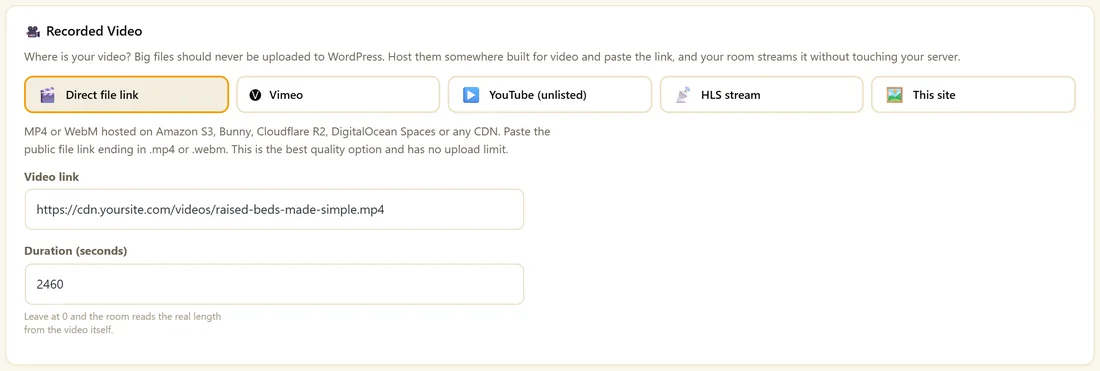
Big files are best on a host built for video. You paste the link and the room streams it without touching your server.
- Direct file link. An MP4 or WebM on Amazon S3, Bunny, Cloudflare R2, DigitalOcean Spaces or any CDN. Paste the public link ending in .mp4 or .webm. The best quality, with no upload limit.
- Vimeo. Paste any Vimeo link. Set the video to unlisted or hidden on Vimeo so only your attendees can watch.
- YouTube (unlisted). Paste an unlisted YouTube link.
- HLS stream. A .m3u8 link from Cloudflare Stream, Bunny Stream, Mux or a saved live broadcast. Adapts to each viewer's connection, which suits long videos.
- This site. Record in your browser, or click Choose from Media Library.
Adding a video link:
- Click the card for where your video lives.
- Paste the link into Video link.
- Set Duration (seconds). Leave it at 0 and the room reads the real length from the video itself. For YouTube and Vimeo, type the length.
- Click Save Webinar.
If the link you paste looks like a different source, the editor switches the card for you when it can tell.
Recording in your browser:
- Choose This site, then click Record in browser.
- Choose camera, screen, or screen with your camera in a corner.
- Use Pause, Resume and Stop. A timer shows the length.
- When you stop, click Use as this webinar recording, or Download the file.
- Click Save Webinar.
Where the browser allows it, the recorder asks where to save the file and writes it to disk as you go, which suits long recordings. The upload goes to your site in two megabyte pieces, which works on hosts with small upload limits, and the finished file is added to your Media Library.
Why the length matters:
The duration decides when the session ends, when everyone is sorted into attended, saw the offer and no show, and when the follow up emails go out. Make sure it matches the real video.
A real example:
Maya's Raised Beds Made Simple video lives on her CDN at cdn.yoursite.com. She picks Direct file link, pastes the .mp4 link, sets 2460 seconds, and sets the Schedule tab to On demand. Every visitor starts watching a few seconds after signing up.
Tips:
- On shared hosting, record in the browser, download the file, upload it to a video host and paste that link.
- Offer viewers a pause button or subtitles on the Engage tab. See Viewer Controls And Subtitles.
- Next: Scheduling Your Sessions.
Choosing a video host:
- Direct file link on a CDN gives the cleanest player with no outside branding.
- Vimeo with the video unlisted keeps it private and plays smoothly.
- YouTube unlisted is free and works everywhere.
- HLS suits videos over an hour, because quality adapts to each viewer.
- This site suits short clips and recordings made in the browser.
How playback follows the clock:
The room works out where the session is from the server clock and plays from there. If a viewer's player drifts, it is brought back in line. Unless you allow pause or skip on the Engage tab, everyone sees the same moment.
Recording a good session in the browser:
- Close other apps that use the camera.
- Choose screen with your camera in a corner for a teaching session.
- Share a single window rather than the whole screen to keep notifications out.
- Do a 30 second test, stop and play it back.
- Record the real session, then click Use as this webinar recording.
Using an existing workshop recording:
- Upload the recording to your video host.
- Copy the public link.
- Paste it as the Video link and set the Duration.
- Set the offer to appear at the minute you pitched in the recording.
What to do next:
- Scheduling Your Sessions, to pick On demand or Just in time
- Timed Offers And Click Tracking
- Viewer Controls And Subtitles
Common questions:
Can I replace the video later?
Yes. Paste a new link or pick a new file and click Save Webinar. Make sure the duration matches the new video.
Does the recorder work on a phone?
Record on a desktop browser such as Chrome, Edge or Brave. Attendees can watch on any device.