Every webinar comes with its own pages on your domain. They are drawn by the plugin, not your theme, so they look the same on any theme and the room can use the whole screen.
The four pages:
- /webinar/your-webinar/ is the registration page
- /webinar/your-webinar/thanks/ confirms the seat
- /webinar/your-webinar/room/ is the room, opened with each person's private link
- /webinar/your-webinar/replay/ is the replay
If your site uses plain permalinks, the plugin hands out a query string version of the same links, so they always work. If you publish the page as a WordPress page, that address becomes your registration link. See Publishing Your Registration Page As A WordPress Page.
Where to find it:
Open the webinar, then the Registration tab. The form is on the left and the Live preview on the right.
Writing the page:
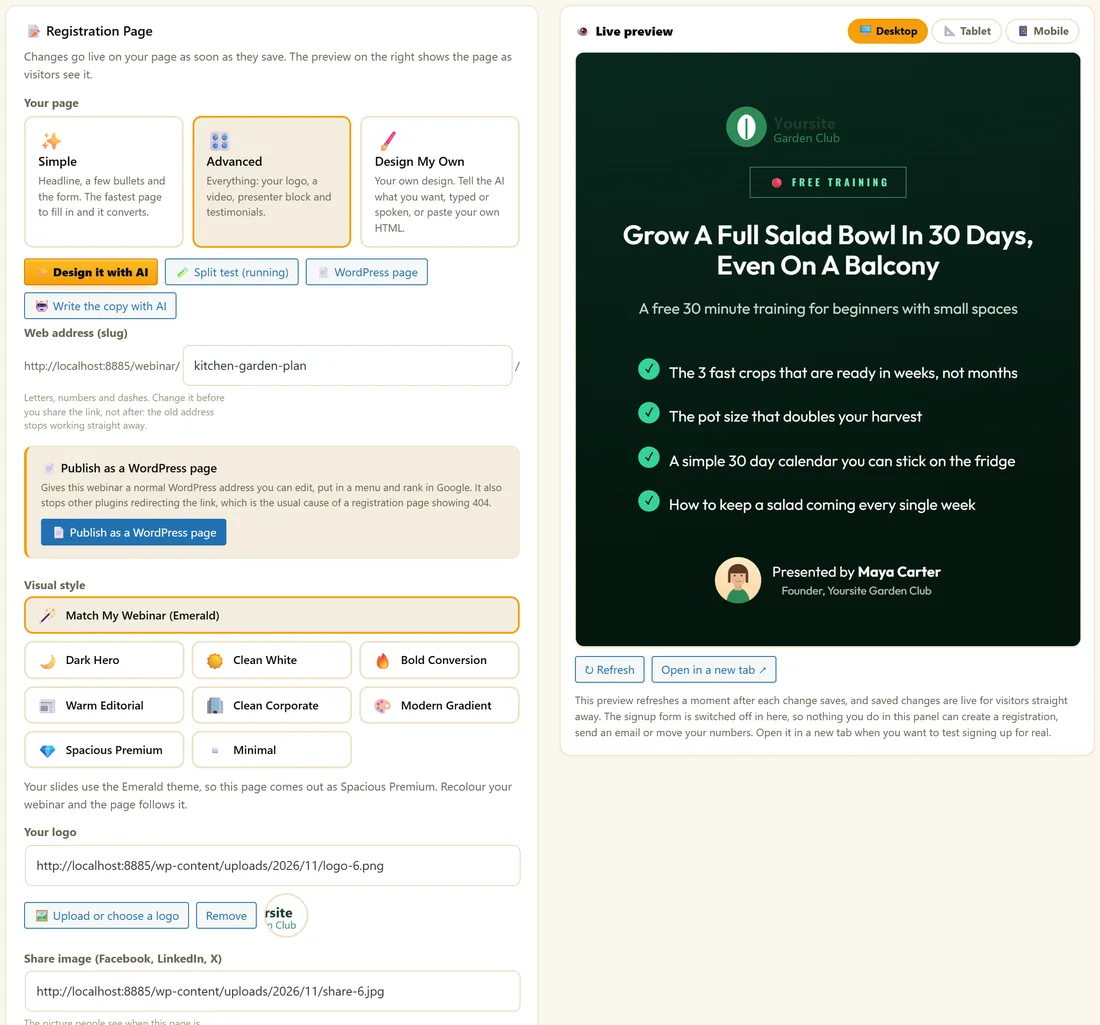
- Under Your page, choose Simple, Advanced or Design My Own.
- Fill in Headline, Subheadline and What they will learn, one bullet per line.
- Add a Presenter name, and on Advanced a Presenter title. Add a Presenter photo with Upload or choose a photo.
- Tick Ask for first name if you want to greet people by name in emails. Email only is the shortest form.
- Click Save.
Changes go live on your page as soon as they save.
Every field on the tab:
- Web address (slug). The last part of the address. Renaming the webinar does not change it. Change it before you share the link, because the old address stops working straight away.
- Share image (Facebook, LinkedIn, X) and Share description. What people see when the page is shared. 1200 by 630 pixels looks right everywhere.
- Customer-facing title (optional). The name registrants see on page titles, the calendar invite, {webinar_title} in emails and the field sent to your autoresponder. Empty uses the webinar's own name.
- Your logo, Video on the page and Testimonials. On the Advanced page.
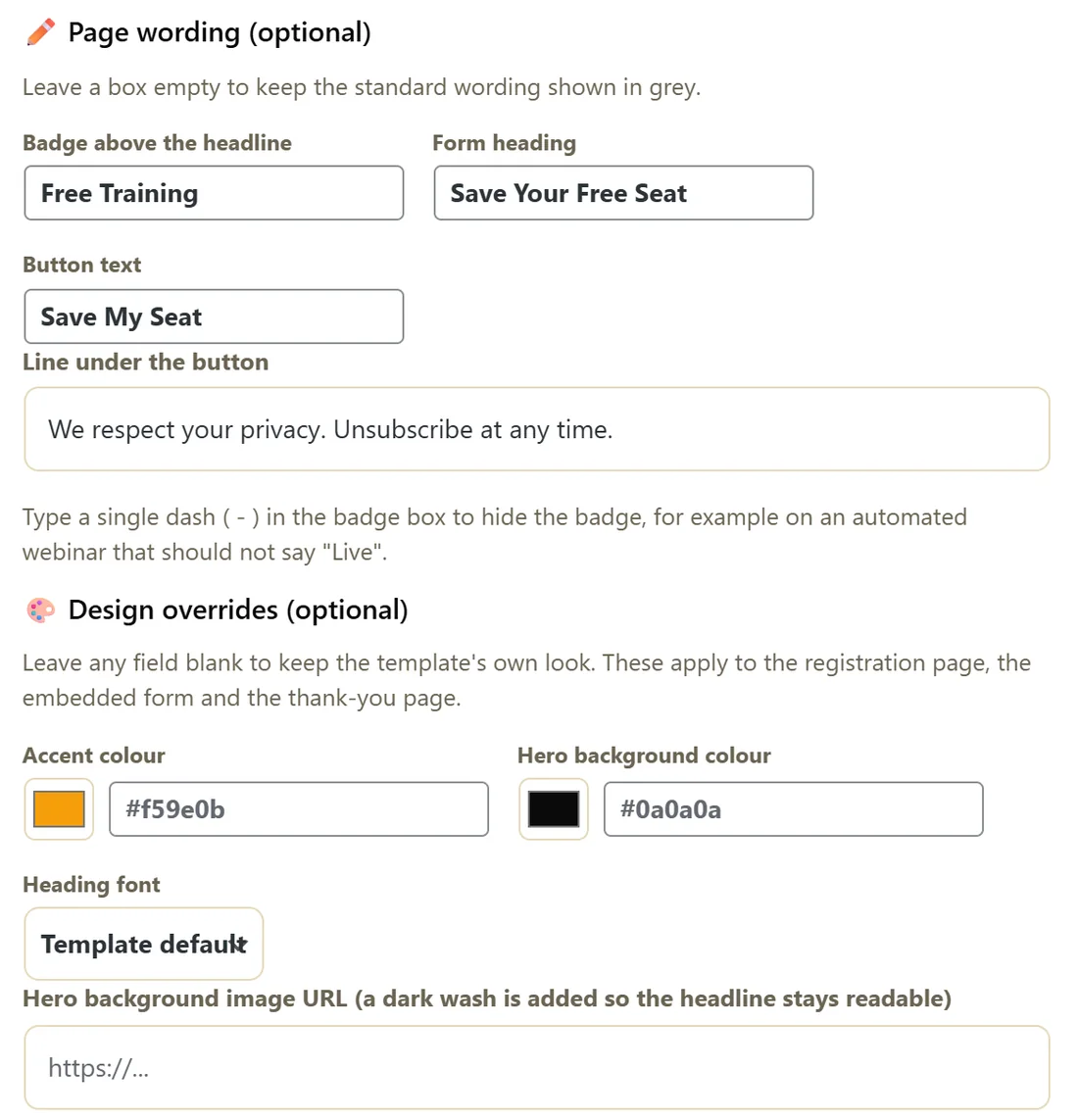
- Page wording (optional): Badge above the headline, Form heading, Button text and Line under the button. Type a single dash in the badge box to hide the badge.
- Design overrides and Footer links. See Registration Page Styles And Design Controls.
Letting AI write the copy:
Click Write the copy with AI. It drafts a headline, a subheadline and bullets into the fields. This needs an AI key.
The live preview:
The Live preview shows the real page at Desktop, Tablet or Mobile width. It refreshes a moment after each save, with Refresh and Open in a new tab buttons. The form is switched off inside the preview, so nothing you do there creates a registration or sends an email. Open it in a new tab to test signing up for real.
What visitors see:
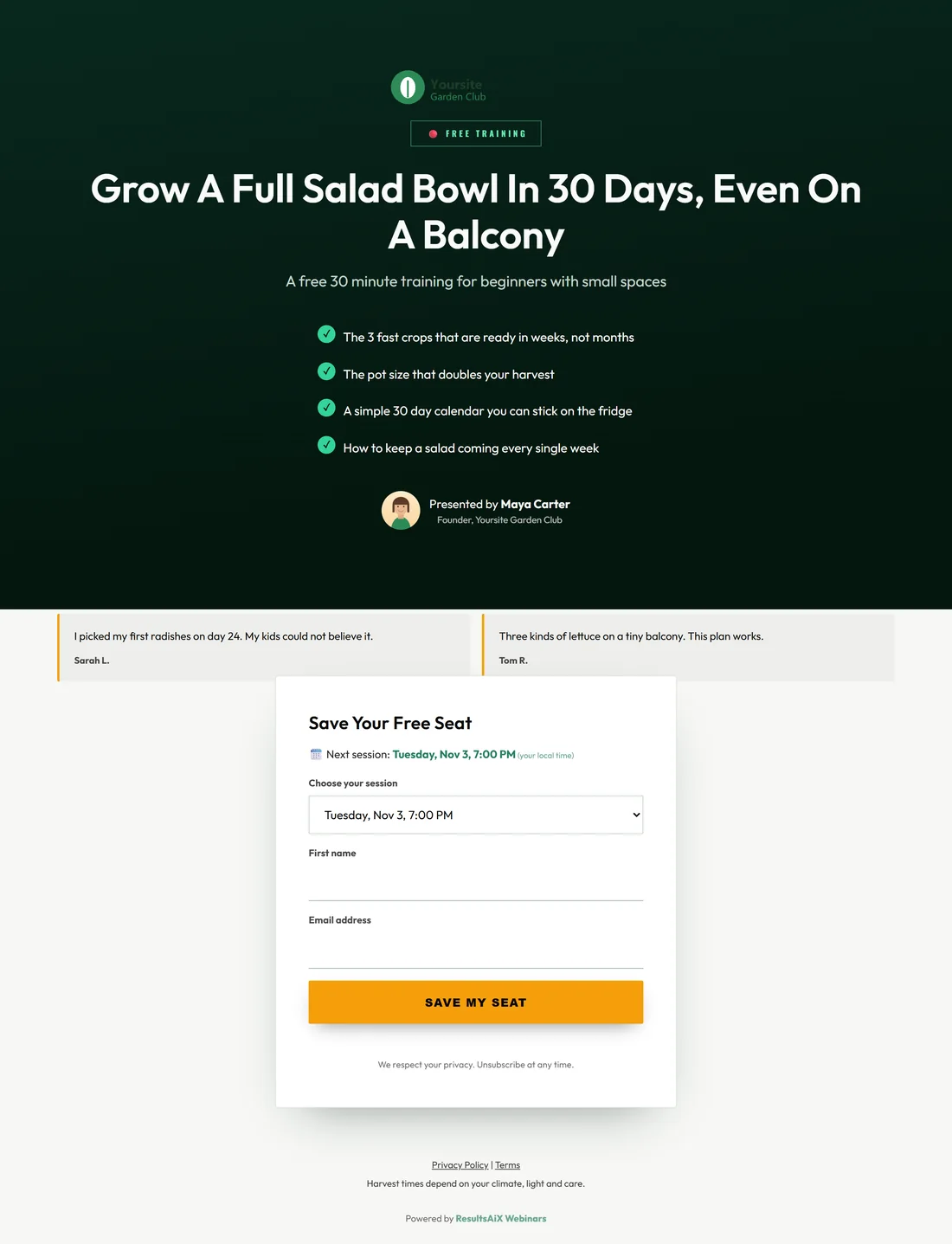
The next session time in their own time zone, the session picker when there is a choice, and the form. A hidden field stops bots. The visitor's time zone and any tracking tags on the link are saved with the sign-up.
After they register:
They land on the thank-you page with their session time, calendar buttons and a button into the room, and the confirmation email brings the same private link. See The Thank You Page And Waiting Room.
One seat per email per session:
Signing up twice with the same email for the same session returns the same seat, and sends the confirmation again at most once every ten minutes.
A real example:
Maya's page uses Advanced with her logo, "Grow A Full Salad Bowl In 30 Days, Even On A Balcony", four bullets, her photo, two testimonials, and the button text Save My Seat.
Search engines:
The thanks, room and replay pages ask search engines not to list them, because they are personal links.
Writing copy that gets sign-ups:
- Headline: the result in plain words, with a number if you have one.
- Subheadline: who it is for and how long it takes.
- Bullets: three or four things they will learn, each a benefit.
- Button text: what they get, for example Save My Seat or Watch Now.
- Line under the button: a short promise about their privacy.
Using the badge:
The badge above the headline shows Free Live Webinar unless you change it. On an automated webinar, use words like Free Training or Watch Instantly, or type a single dash to hide it.
Previewing on every screen:
Click Desktop, Tablet and Mobile in the Live preview. Most visitors from social media arrive on a phone, so check Mobile first.
Testing a real sign-up:
- Click Open in a new tab.
- Sign up with your own email.
- Check the thank-you page and the confirmation email.
- Open the join link.
The share image:
When someone shares your page on Facebook, LinkedIn or X, the share image and share description are what people see. Without a share image, the link shows no picture. Make one at 1200 by 630 pixels with your title on it.
Changing the address safely:
Change the Web address (slug) before you send any traffic. If you need a new address later, publish the page as a WordPress page, which keeps the old /webinar/ address working.
What to do next:
- Registration Page Styles And Design Controls
- Split Testing Your Registration Page
- The Thank You Page And Waiting Room
Common questions:
Can I use the page in my theme's menu?
Yes. Publish it as a WordPress page and add that page to your menu.
Can I hide the first name field?
Yes. Untick Ask for first name. Emails then greet people without a name.