Pictures make an AI Deck feel produced. You can upload your own, or generate them slide by slide or for the whole deck in one go.
Where to find it:
- The Images panel on the Content tab sets the direction and the background.
- Each slide card has AI image and Upload buttons.
- The AI screen, AI Images card, picks the engine.
Direct The AI Images:
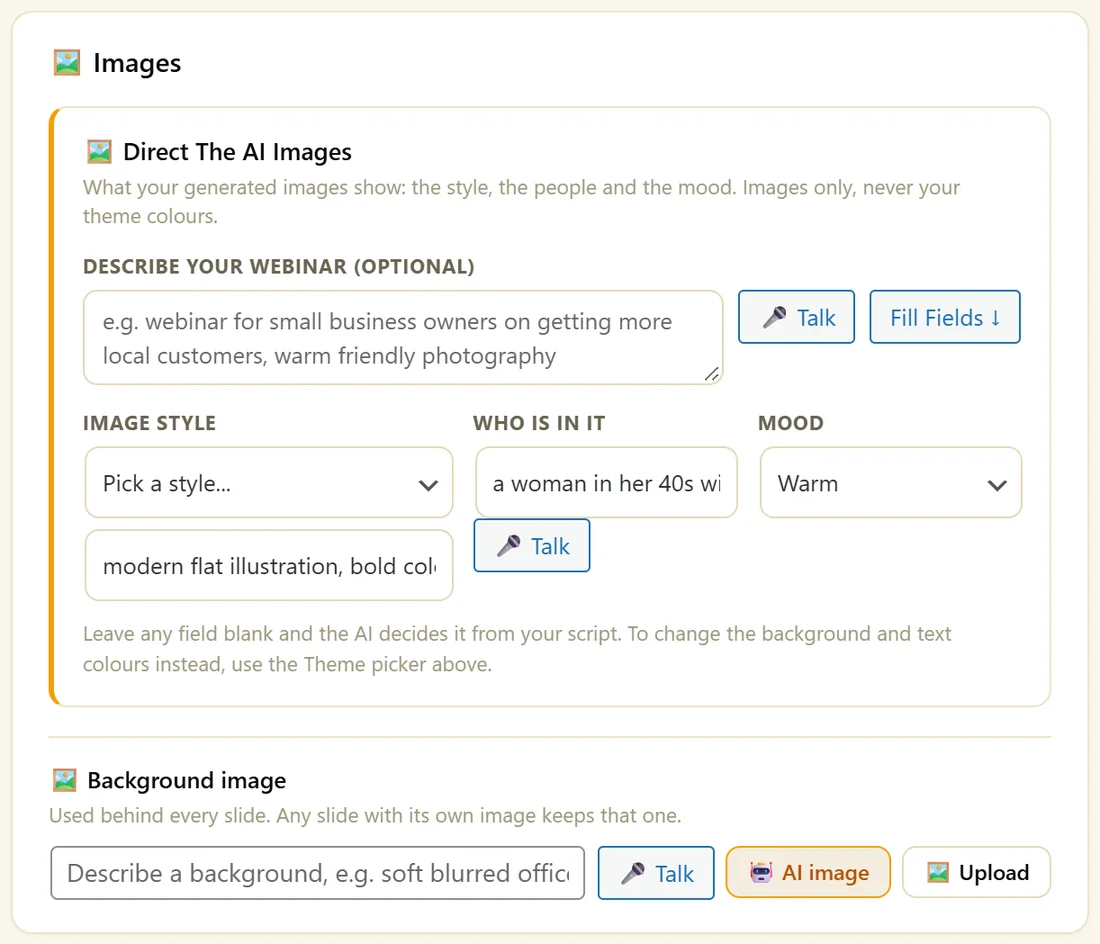
Set these once and every image follows them, so the deck looks like one production.
- Describe your webinar (optional). One sentence, then click Fill Fields to have the AI fill the three fields below.
- Image Style: Bright Photo, Warm Lifestyle, Corporate Photo, Dark Cinematic, Flat Illustration, Cartoon or 3D Render, or type your own look.
- Who Is In It: for example "a woman in her 40s with a sun hat". Naming the people keeps them the same from slide to slide.
- Mood: Auto (from script), Funny, Exciting, Serious, Warm, Corporate, Dramatic or Inspirational.
Leave any field blank and the AI decides from your script. These shape the pictures only. Colours come from the Theme.
One image at a time:
- In a slide card, describe the picture you want.
- Click AI image. The image is made, saved to your Media Library and placed behind the slide.
- Click Redo for a different take, or the cross to remove it.
The whole deck at once:
- In the Slides panel, click Generate all images.
- Every slide without an image gets one. Where you wrote no idea, the slide text is used.
- If it stops part way, click it again and it fills in only what is missing.
- Tick Redo every image, including slides that already have one, to redo the full deck.
Choosing an image engine:
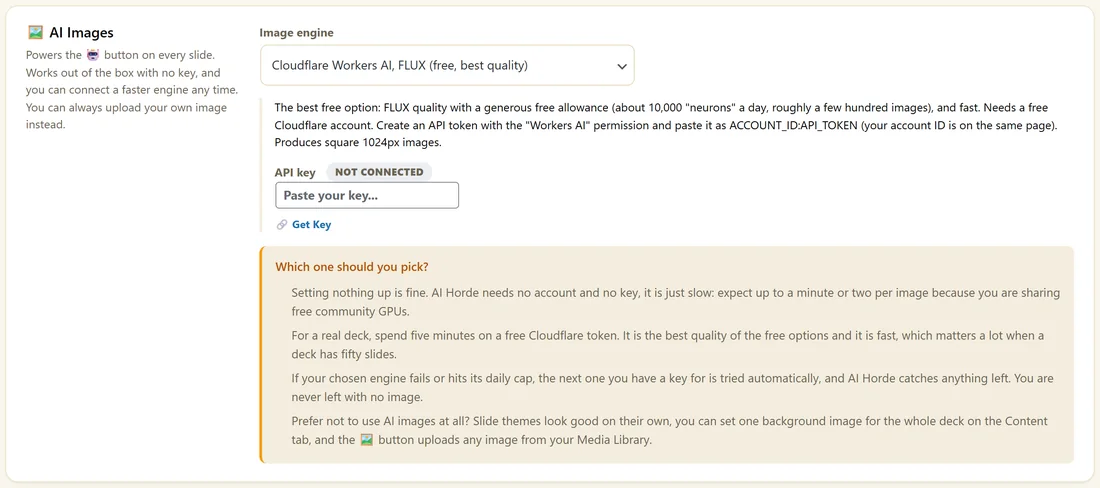
Open AI, then the AI Images card, and pick the Image engine. Paste the key the engine needs and click Save.
- AI Horde: free with no key. It shares community graphics cards, so expect up to a minute or two per image.
- Cloudflare Workers AI, FLUX: a free Cloudflare account and an API token with the Workers AI permission. The best free choice.
- Nebius AI Studio, Together AI, Hugging Face and fal.ai: FLUX models with that provider's key.
- Pollinations: a free token with a small daily allowance.
- Google Gemini image and OpenAI image: use the key you saved for that provider on the AI screen. Billed by that provider.
If your chosen engine reaches its daily limit, the next engine you have a key for is tried, and AI Horde catches anything left.
A real example:
Maya sets Flat Illustration, "a woman in her 40s with a sun hat" and Warm. She writes "flat illustration, seed tray on a windowsill" on slide 17 and clicks AI image, then clicks Generate all images for the rest.
Tips:
- Prefer no pictures? The themes look good on their own.
- A single background image is the quickest way to give a deck a look. See Slide Design, Themes And Images.
Writing a good image idea:
- Say what is in the picture, not what the slide says: "seed tray on a sunny windowsill" rather than "start your seeds".
- Add the setting: indoors, a balcony, a garden, an office.
- Name the people once in Who Is In It, not on every slide.
Picking an engine:
- Starting out with no keys: AI Horde works straight away.
- Want speed for free: Cloudflare Workers AI with FLUX.
- Already have a Gemini or OpenAI key with billing on: use that engine.
Getting a Cloudflare token:
- Sign in to your Cloudflare account.
- Create an API token with the Workers AI permission.
- Paste it into the AI Images card in the form ACCOUNT_ID:API_TOKEN, as the card describes, and click Save.
The card's own steps under Which one should you pick? walk through it with the exact menu names.
Where images are saved:
Every generated picture is saved to your WordPress Media Library, so you can reuse it on other slides, your registration page or your share image.
Redoing a deck:
Changed your mind about the style? Change the Image Style, tick Redo every image, including slides that already have one, and click Generate all images. Each slide is redone in the new look.
What to do next:
- Slide Design, Themes And Images, for tint and the background image
- Writing Your Script And Building Slides
Common questions:
Can I use my own photos?
Yes. Click Upload under a slide and choose any image from your Media Library.
Why is AI Horde slow?
It shares community graphics cards. Connect Cloudflare Workers AI for faster free images.