Polls and handouts turn watchers into participants. Both work in every mode, live or automated.
Where to find it:
Open the webinar, then the Engage tab.
Adding a poll:
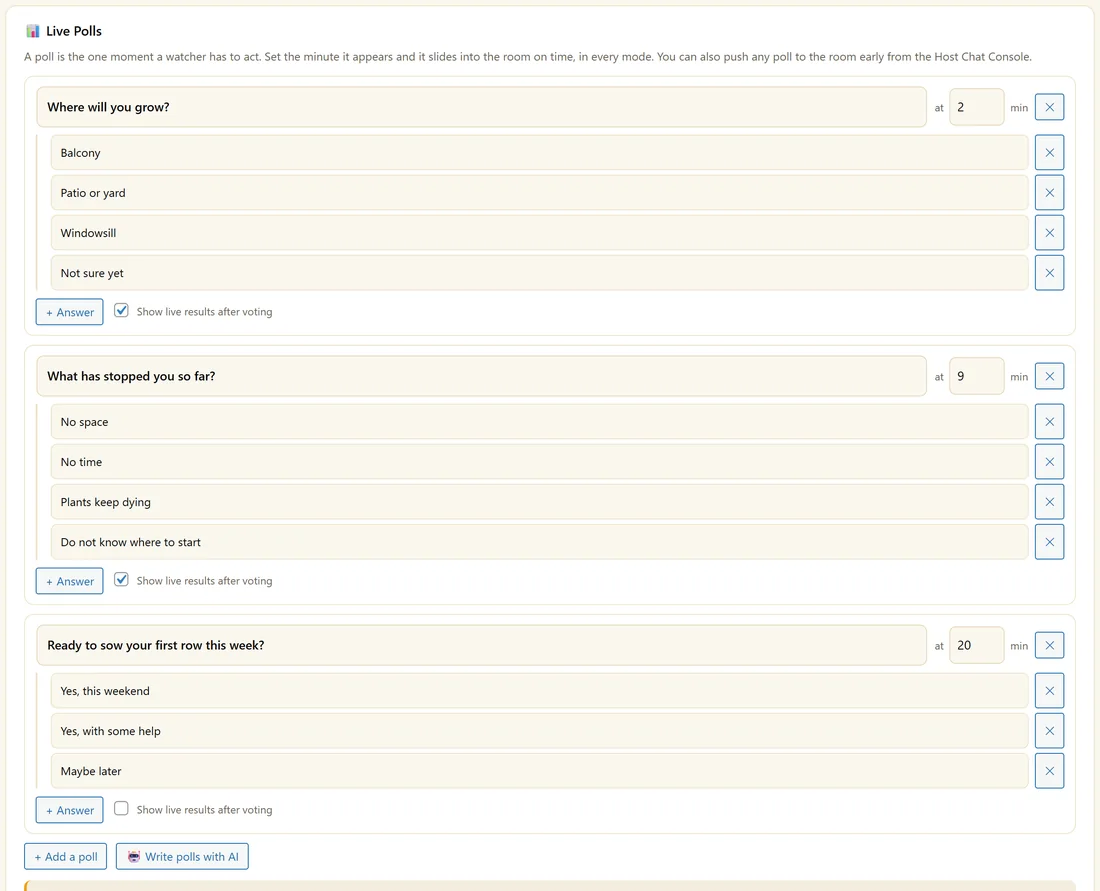
- Click + Add a poll.
- Type the question.
- Add answers with + Answer, from two to six. The cross removes one.
- Set at min, the minute it appears.
- Tick Show live results after voting to let people see totals once they vote.
- Click Save.
Each person can vote once in each poll. Results are kept per session for your Analytics.
Writing polls with AI:
Click Write polls with AI. With an AI key connected, it writes three polls from your script: an easy warm up early on, a question about the biggest obstacle in the middle, and one a couple of minutes before your offer that asks about readiness without mentioning price. Edit them like any poll.
Where to put one:
Two or three minutes before your offer. Someone who has just clicked an answer is more likely to click the next button.
Pushing and closing a poll live:
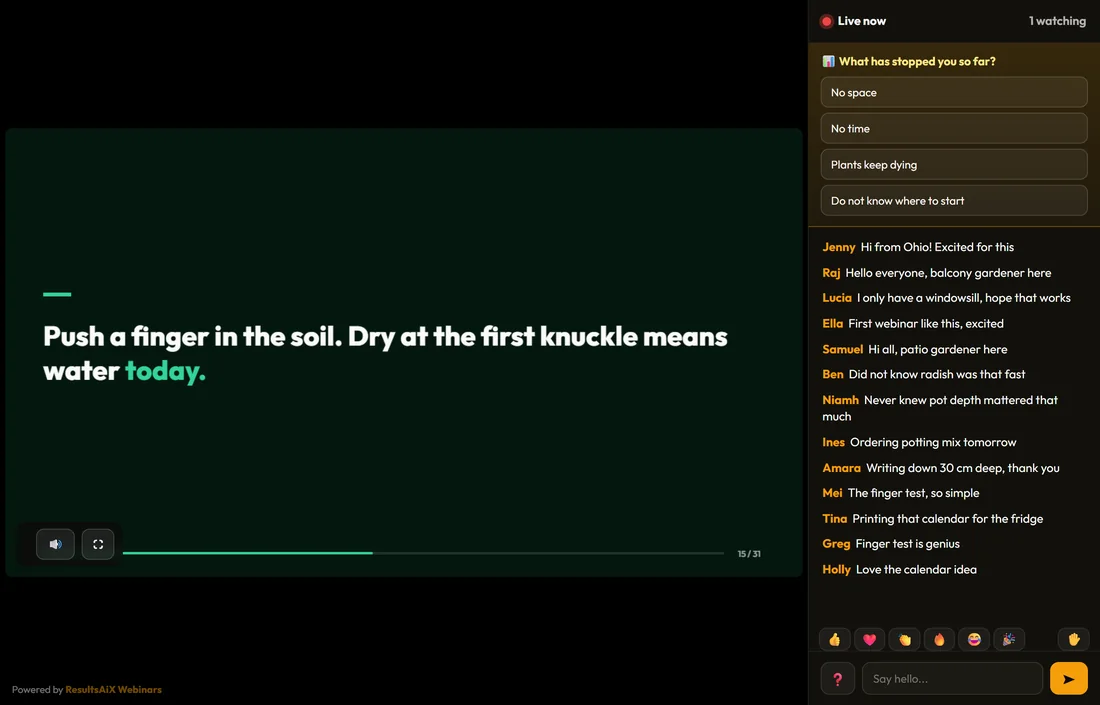
In the Host Chat Console, Push a poll to the room shows any poll straight away, whatever minute you set. Close poll closes it for that session only.
Adding a handout:
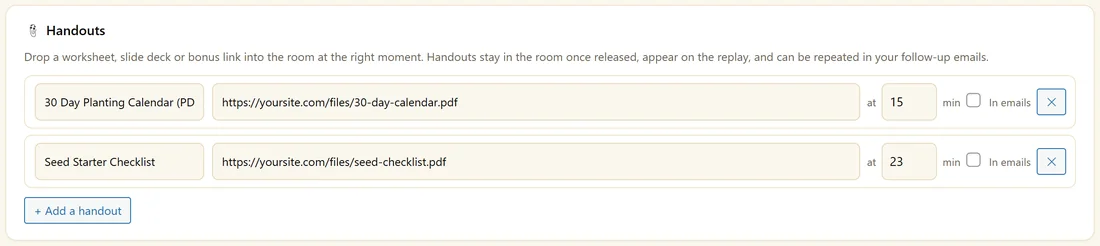
- Click + Add a handout.
- Type a label, for example 30 Day Planting Calendar (PDF).
- Paste the link.
- Set at min, the minute it is released.
- Tick In emails to include it in the {handouts} merge tag.
- Click Save.
Once released, a handout stays in the room under Your handouts and appears on the replay.
A real example:
Maya's Kitchen Garden Plan asks "Where will you grow?" at minute 2, "What has stopped you so far?" at minute 9, and "Ready to sow your first row this week?" at minute 20, just before her offer at 23:20. Her planting calendar is released at minute 15, and the Seed Starter Checklist at minute 23 with the offer. Both are in her follow up emails through {handouts}.
Good poll questions:
- Warm up: "Where will you grow?" Easy, and it tells you about your audience.
- Problem: "What has stopped you so far?" It names the pain your offer solves.
- Ready: "Ready to sow your first row this week?" Just before the offer, it gets people saying yes.
Reading poll results:
Poll results are kept for each session. Show live results after voting lets people see the totals after they vote, which works well for warm up questions. Leave it off for the question before the offer, so each person answers for themselves.
Handouts that help:
- A worksheet for the teaching part
- A checklist or calendar people can print
- A bonus that goes with your offer, released at the same minute
Using handouts in emails:
Tick In emails on a handout, then add {handouts} to a follow up. The email lists those handouts by name with their links, which gives people one more reason to open it.
Handouts on the replay:
Replay viewers see every released handout listed in the rail.
What to do next:
- The Host Chat Console, to push a poll early
- Timed Offers And Click Tracking
Common questions:
Can a poll appear twice?
Each poll appears once per session at its minute. You can push it again from the Host Chat Console.
Can a handout be a file?
Yes. Upload the file to your Media Library and paste its link.