Everything in ResultsAiX Webinars works without AI. You can write your script, record your video, write your page, polls, chat lines and emails, and run every webinar and replay the same way. A key adds shortcuts.
What a key switches on:
- Write with AI and Build my whole webinar on the Content tab
- Fill Fields for image direction, and AI images through Gemini or OpenAI
- Write the copy with AI, Design it with AI and Build for me with AI on the Registration tab
- Write all these emails with AI, Improve with AI, Rewrite this email and Subject ideas on the Emails tab
- The AI Assistant tab, which answers in your chat
- Generate with AI for simulated chat and Write polls with AI
- Draft answer and AI screened moderation in the Host Chat Console
Slide images have their own engines, including AI Horde with no key. See Generating Slide Images.
Where to find it:
AiX Webinars, then AI. The Connect Your AI card has a card for each provider.
Connecting a provider:
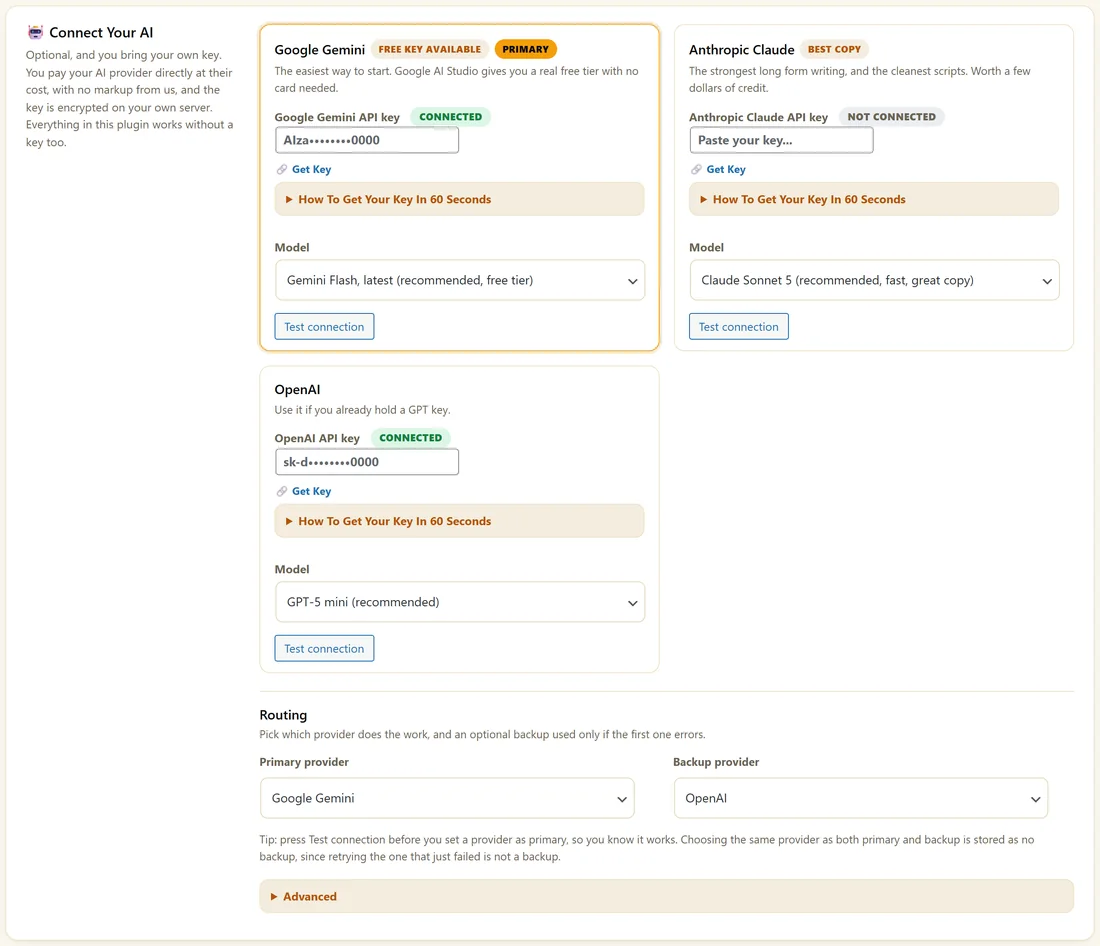
- On Google Gemini, Anthropic Claude or OpenAI, click How To Get Your Key In 60 Seconds for the steps, or Get Key.
- Paste the key.
- Pick the Model. The recommended one is marked.
- Click Save AI Settings.
- Click Test connection. It makes a real request and shows the answer.
Gemini is first because it has a free key with no card needed. Keys are stored encrypted and shown masked.
Routing:
- Primary provider. Does the work.
- Backup provider. Used only if the primary errors. The same as the primary means no backup.
Any saved, working key is used, whichever is set as primary. Advanced holds extra options.
Whose account pays:
Your key, your account. Your provider bills you directly, at their own rates.
When a provider retires a model:
The plugin answers with the current replacement, so your writing keeps working, and the model list says which one is answering.
House style:
Every request asks for no em dashes, and any that slip through are taken out before the text reaches your editor.
If a request does not come back:
The editor shows the provider's reason in plain words: a key to check on the AI screen, a short wait for a rate limit, or a retry when the provider is busy. A full script can take a minute.
A real example:
Maya connects a free Gemini key as primary with Gemini Flash, and her OpenAI key as backup. Both show Connected. She builds her Seed Starting Workshop with Build my whole webinar, and her raised bed assistant answers on the same key.
What AI never does here:
It does not set your schedule, your offer or run the webinar. It never posts in the chat as you, and it never switches an email on or off.
Which provider to pick:
- Google Gemini: a free key to start, good all round
- Anthropic Claude: strong long form writing and clean scripts
- OpenAI: use it if you already have a GPT key
Getting a free Gemini key:
- Click Get Key on the Google Gemini card.
- Sign in with a Google account and create an API key.
- Copy it and paste it into the Google Gemini API key box.
- Click Save AI Settings, then Test connection.
Picking a model:
Each card lists its models with the recommended one marked. Faster models suit chat replies and quick drafts. Stronger models suit full scripts.
Using a backup:
Set a Backup provider with a second key, so writing carries on if the primary is busy.
Keeping costs steady:
- Set Most replies per day on the AI Assistant tab.
- Use AI screened moderation only on webinars that need it.
- Generate images with a free engine.
What to do next:
- Building A Whole Webinar With AI
- The AI Assistant In Your Webinar Chat
- Generating Slide Images
Common questions:
Is my key shared with anyone?
No. It is stored encrypted in your own database and used only for your requests.
Can I use more than one provider?
Yes. Save keys for two or three providers and set the primary and backup under Routing.